
howtosimply.com/guides/how-to-turn-5g-on-or-off-on-a-samsung-galaxy-network-mode/ · Checked October 2026 · Samsung Galaxy A57 5G (SM-A576B), One UI 8.5, Android 16
In this guide
Open Settings, Connections, Mobile networks, Network mode. Choose 5G preferred to use 5G where available, or 4G preferred to turn 5G off.
3 of 3 steps with real screenshots · 2 official sources below
- Device
- Android
- Shown on
- Samsung Galaxy A57 5G (SM-A576B), One UI 8.5, Android 16
- App
- Settings
- Path
- Settings › Connections › Mobile networks
- Real screenshots
- 3 of 3 steps
- What we did
- Observed: looked at each screen, changed nothing
- Checked
- October 2026
- Sources
- 2 official, linked below
Step by step
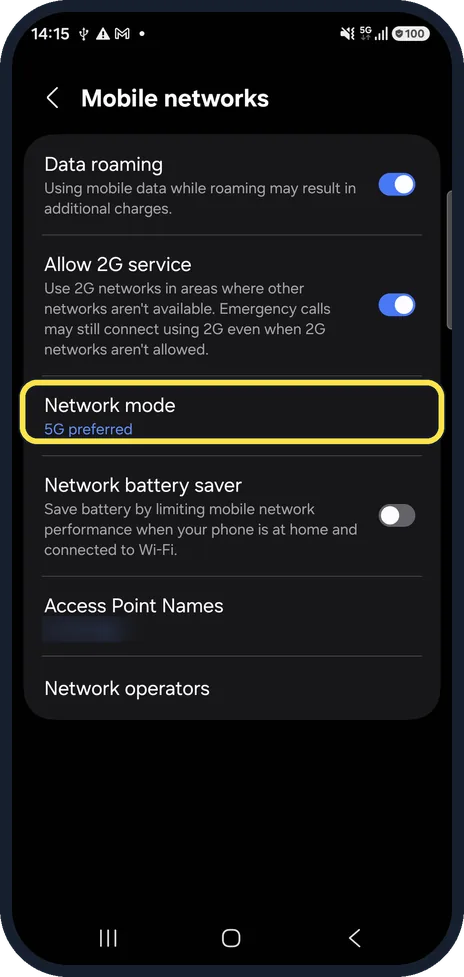
Open Mobile networks
Open Settings, Connections and tap Mobile networks. On our phone, Network mode sits below Allow 2G service and shows 5G preferred.
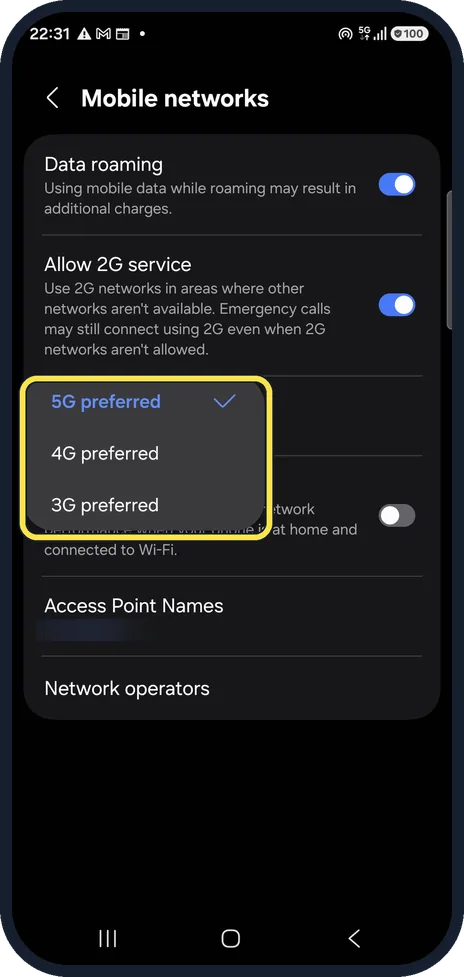
Tap Network mode
Network mode opens a list. Ours offers 5G preferred, 4G preferred and 3G preferred, with 5G preferred ticked.
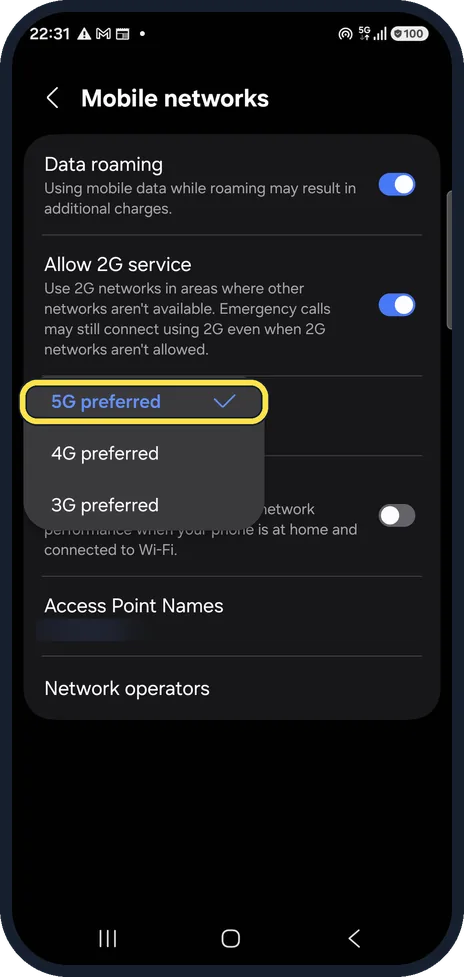
Choose the mode
5G preferred uses 5G when it can. 4G preferred turns 5G off. On our phone, 5G preferred is ticked.
If you do not see this option
- Network mode has no 5G option Samsung says you need the SIM that came with a 5G phone, or a new one from your carrier, because some older SIM cards don't work with 5G. Source: How to use 5G on a Samsung Galaxy phone or tablet
- Your list shows GLOBAL On some carrier phones, Samsung says to pick an option that includes 5G, or GLOBAL. If you cannot find the row, search Settings for Network mode. Source: How to use 5G on a Samsung Galaxy phone or tablet
If this does not work
- 5G preferred is ticked but there is no 5G icon Samsung says the phone falls back to 4G or 3G wherever 5G coverage is not available, and the 5G icon looks different on different carriers. Source: How to use 5G on a Samsung Galaxy phone or tablet
- Still no 5G after changing the mode Samsung says to restart the phone. If that does not help, contact your carrier. Source: How to use 5G on a Samsung Galaxy phone or tablet
About this guide
You need a 5G phone, a plan that includes 5G and 5G coverage.
On other Galaxy phones and One UI versions, some names and positions may differ.
Good to know
A 5G icon in the status bar shows you are on 5G. If you never see it, check that your plan includes 5G.
Allow 2G service, on the same page, lets the phone use 2G networks where other networks aren't available. On our phone it was on. Emergency calls may still connect using 2G even when 2G isn't allowed.
In short: Settings, Connections, Mobile networks, Network mode: 5G preferred or 4G preferred.
- Samsung Latin: How to use 5G on your Galaxy phone
- Samsung US: How to use 5G on a Samsung Galaxy phone or tablet
Links checked in October 2026. Menus and features can change after software updates. These steps match the version named at the top.
📷 See real photos from the Galaxy A57 in our Camera Lab, next to 10 other phones.
Did this guide work for you?
Sorry about that. What happened?