
howtosimply.com/guides/how-to-customise-the-always-on-display-on-a-samsung-galaxy/ · Checked October 2026 · Samsung Galaxy A57 5G (SM-A576B), One UI 8.5, Android 16
In this guide
Open Settings, Lock screen and AOD and tap Always On Display. Choose When to show (for example Tap to show or Always) and switch Show Now bar on or off. Samsung says the Always On Display uses the lock screen clock, so change the clock in the lock screen editor.
6 of 6 steps with real screenshots · 2 official sources below
- Device
- Android
- Shown on
- Samsung Galaxy A57 5G (SM-A576B), One UI 8.5, Android 16
- App
- Settings
- Path
- Settings › Lock screen and AOD
- Real screenshots
- 6 of 6 steps
- What we did
- Observed: looked at each screen, changed nothing
- Checked
- October 2026
- Sources
- 2 official, linked below
Step by step
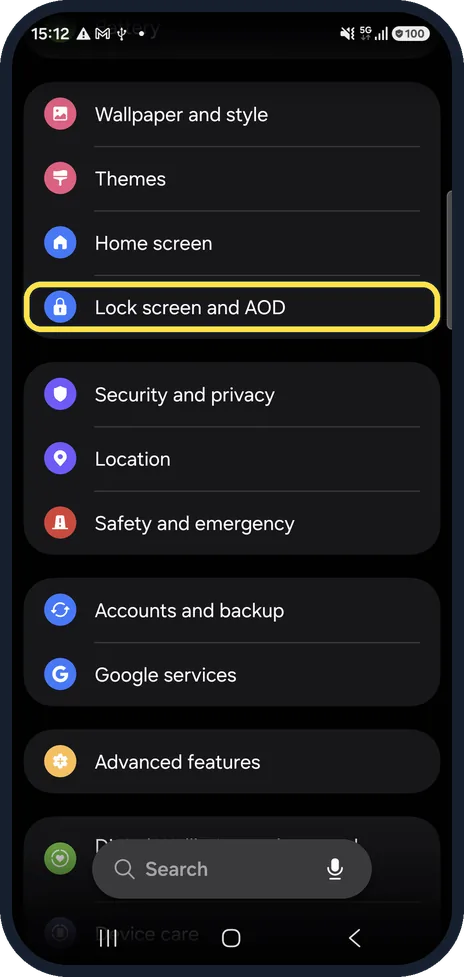
Open Lock screen and AOD
Open Settings and tap Lock screen and AOD.
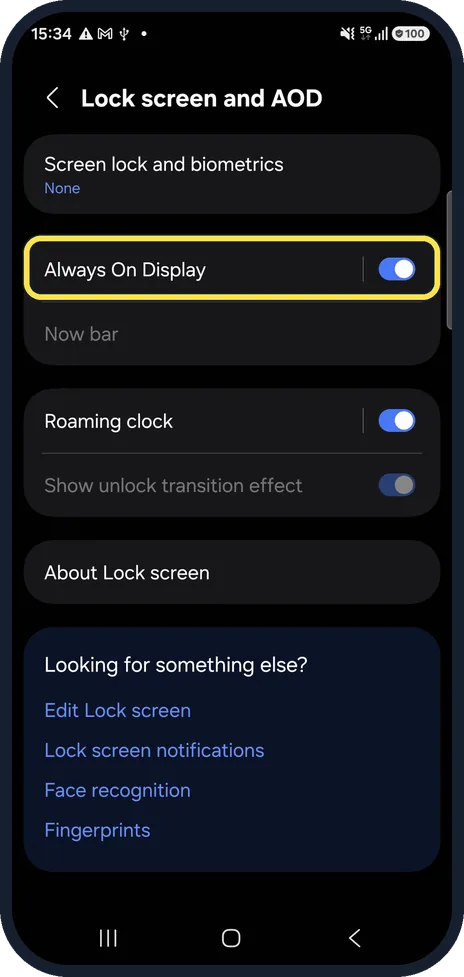
Open the Always On Display settings
Tap Always On Display, as Samsung says. Samsung also gives a second way: search Settings for Always On Display. If the tap switches it off instead, switch it back on and use the search.
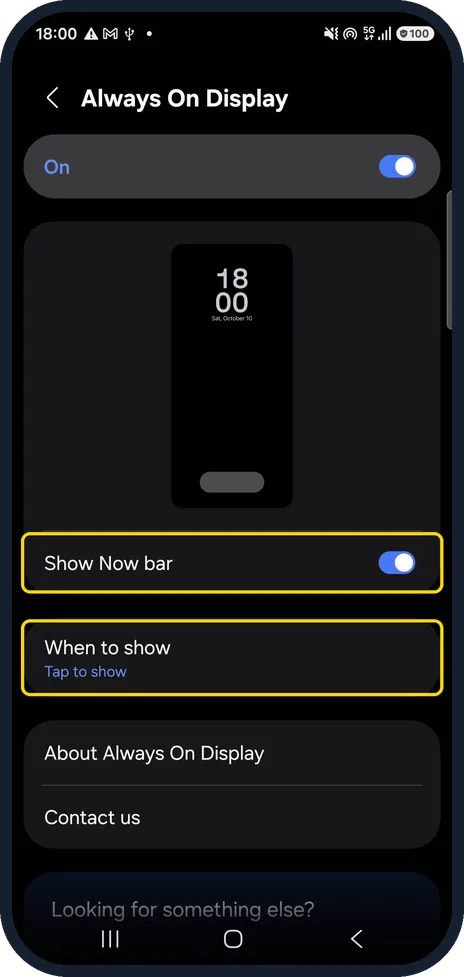
Find When to show and Show Now bar
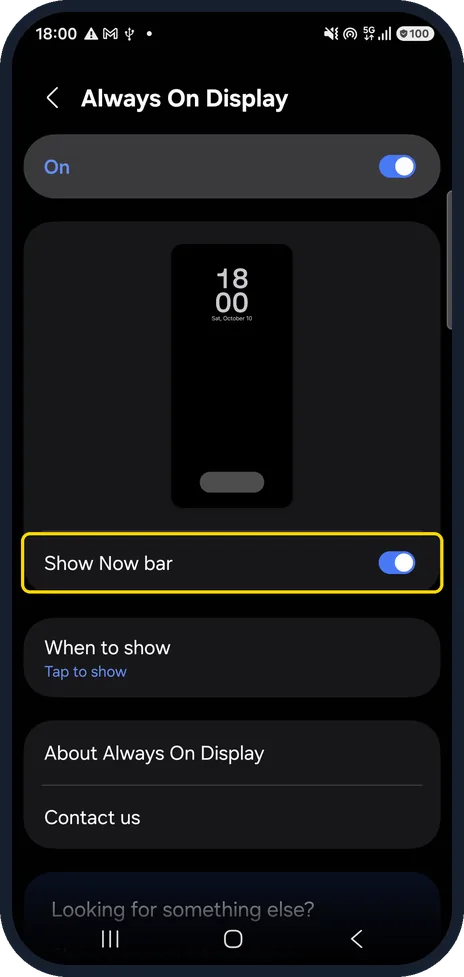
The Always On Display page opens. Below the On switch and a preview, it lists Show Now bar, then When to show. On our Galaxy A57 When to show read Tap to show, and the preview showed the clock with the hours above the minutes.
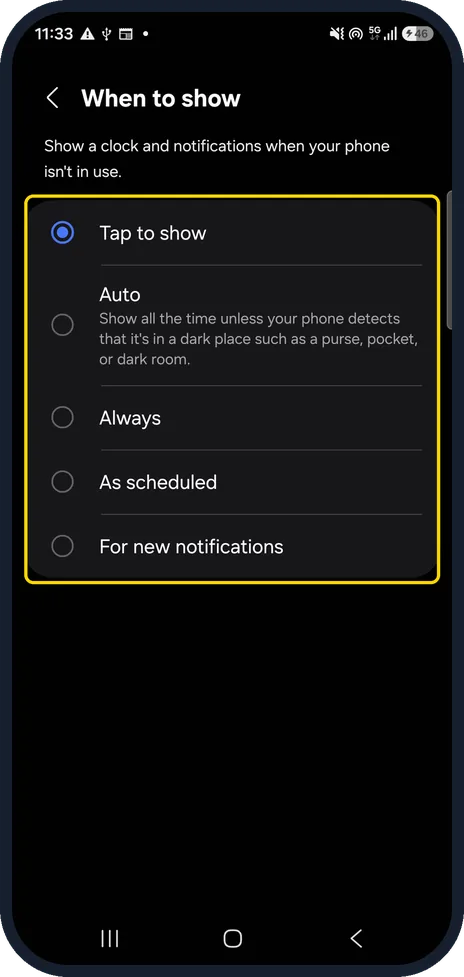
Choose when to show it
Tap When to show. The When to show page opens. On our Galaxy A57 it was set to Tap to show. The other choices are Auto, Always, As scheduled and For new notifications. Under Auto, the phone says it shows all the time unless it detects a dark place such as a purse, pocket or dark room.
Switch the Now bar on or off
Samsung says One UI 7.0 added Show Now bar to these settings. Tap the Show Now bar switch on the Always On Display page. On our Galaxy A57 it was on, while the Now bar row on the Lock screen and AOD page was greyed out.
Change the clock in the lock screen editor
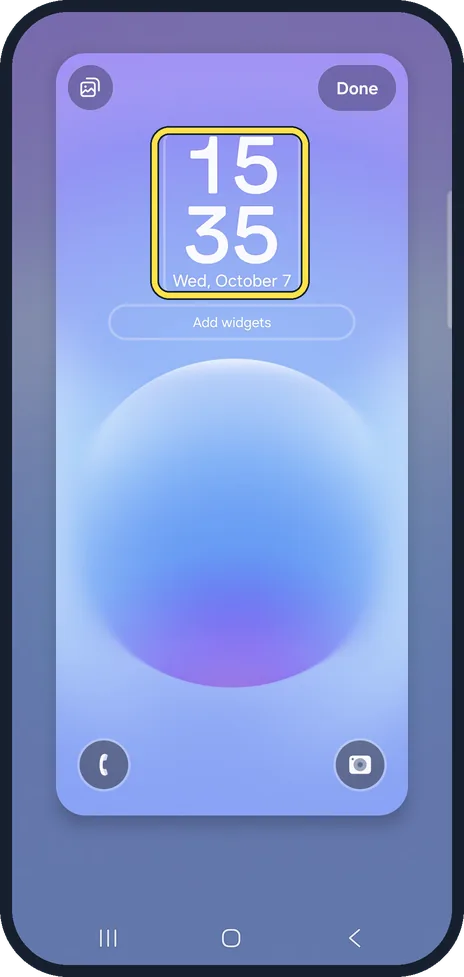
Samsung says that from One UI 6.1 the Always On Display uses the lock screen clock, and on our Galaxy A57 the Always On Display preview showed the same clock as the lock screen, hours above minutes. Go back, tap Edit Lock screen, then select the clock and change its style, and tap Done.
If you do not see this option
- No When to show row Samsung lists When to show from One UI 6.1. On our Galaxy A57 with One UI 8.5 it is below Show Now bar. Source: Always On Display on your Galaxy phone or tablet
- No clock style on the Always On Display page Samsung says the Always On Display uses the lock screen clock from One UI 6.1, so the style is chosen in the lock screen editor. On our Galaxy A57 the Always On Display page lists only Show Now bar and When to show below the preview, with no clock row. Source: Always On Display on your Galaxy phone or tablet
If this does not work
- The settings page does not open Samsung says that if the Always On Display has been switched off, you must turn it back on to reach its settings. It also suggests searching Settings for Always On Display. Source: Always On Display on your Galaxy phone or tablet
- Nothing shows on the dark screen Samsung says the Always On Display is not available while a Power saving mode is on. Turn Power saving off under Settings, Battery. Source: Always On Display on your Galaxy phone or tablet
About this guide
The Always On Display shows the time and notifications on a dark screen while the phone is locked. One UI 8 keeps only a few options on its own page; the clock comes from the lock screen.
Good to know
To switch the Always On Display off completely: how to turn Always On Display on or off on a Samsung Galaxy phone.
In short: Settings, Lock screen and AOD, tap Always On Display: When to show, Show Now bar. Clock: Edit Lock screen.
- Samsung US: Always On Display on your Galaxy phone or tablet
- Samsung US: Discover new lock screen features on your Samsung Galaxy device
Links checked in October 2026. Menus and features can change after software updates. These steps match the version named at the top.
📷 See real photos from the Galaxy A57 in our Camera Lab, next to 10 other phones.
Did this guide work for you?
Sorry about that. What happened?