
howtosimply.com/guides/how-to-turn-always-on-display-on-or-off-on-a-samsung-galaxy-phone/ · Checked October 2026 · Samsung Galaxy A57 5G (SM-A576B), One UI 8.5, Android 16
In this guide
Open Settings, Lock screen and AOD, Always On Display and tap the switch. When to show sets whether it appears always, only when you tap the screen, on a schedule, or for new notifications. Samsung says it is not available while a Power saving mode is on.
5 of 5 steps with real screenshots · 1 official source below
- Device
- Android
- Shown on
- Samsung Galaxy A57 5G (SM-A576B), One UI 8.5, Android 16
- App
- Settings
- Path
- Settings › Lock screen and AOD
- Real screenshots
- 5 of 5 steps
- Our phone
- Shown on Galaxy A57, One UI 8.5
- Checked
- October 2026
- Sources
- 1 official, linked below
Step by step
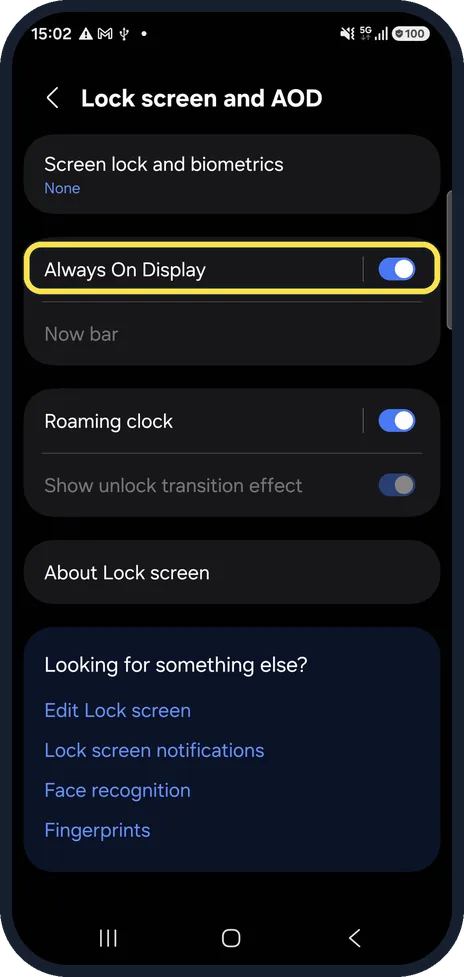
Open Always On Display
Open Settings, tap Lock screen and AOD, then Always On Display. Samsung also gives a second way: search Settings for Always On Display.
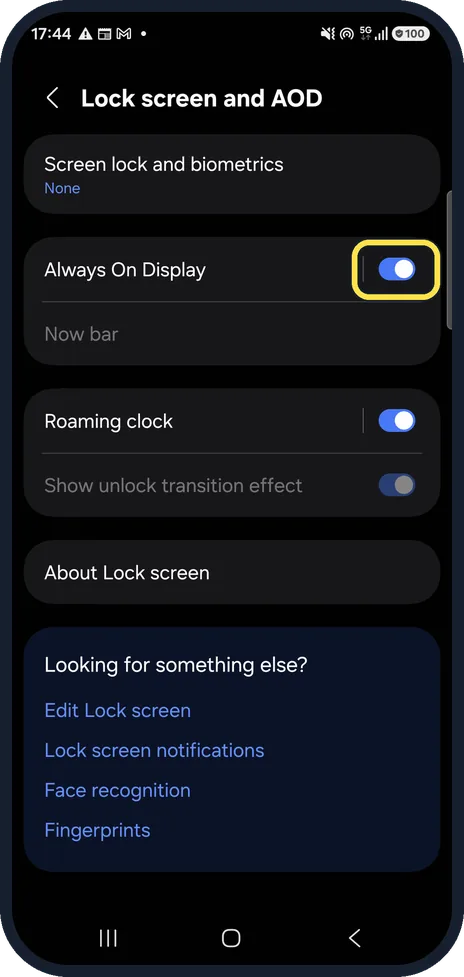
Switch it on or off
Tap the switch next to Always On Display. On means the clock shows on the dark screen. On our Galaxy A57 it was on.
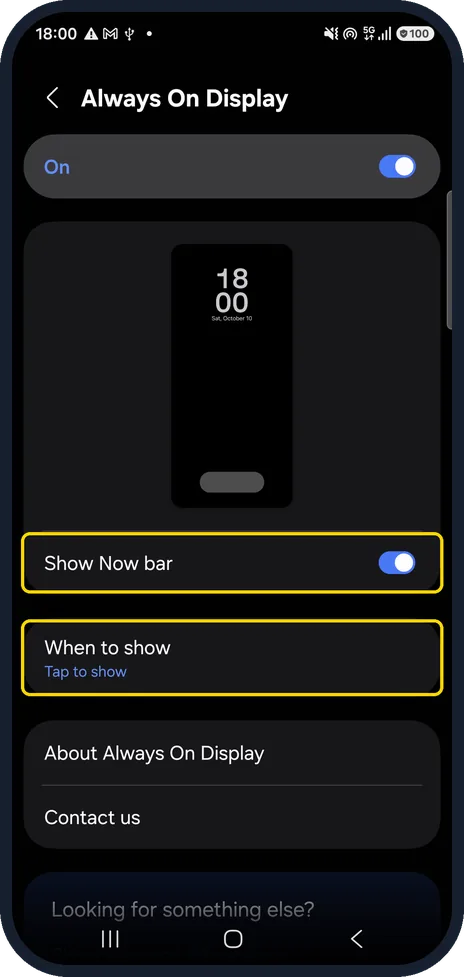
Open When to show
Open the Always On Display settings page: Samsung says to tap Always On Display on the Lock screen and AOD page, or search Settings for it. On our Galaxy A57 the page lists Show Now bar, then When to show, which read Tap to show. Tap When to show.
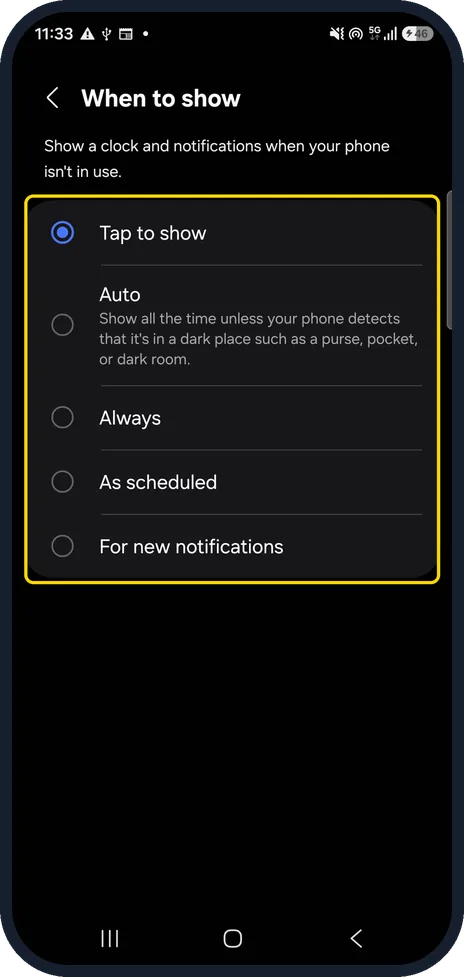
Choose when to show it
The When to show page opens. On our Galaxy A57 it was set to Tap to show. The other choices are Auto, Always, As scheduled and For new notifications. Under Auto, the phone says it shows all the time unless it detects a dark place such as a purse, pocket or dark room.
Check Power saving
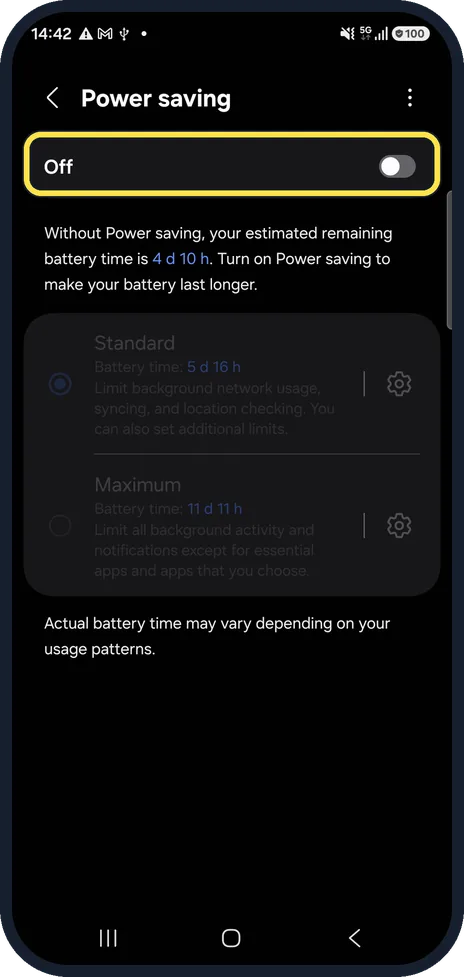
Samsung says the Always On Display is not available when a Power saving mode is on. Check Settings, Battery, Power saving. On our Galaxy A57 it was Off, and the Power saving page itself does not mention the Always On Display.
If you do not see this option
- No When to show row Samsung lists When to show from One UI 6.1. On our Galaxy A57 with One UI 8.5 it is on the Always On Display settings page, below Show Now bar. Source: Always On Display on your Galaxy phone or tablet
- The settings page does not open Samsung says that if the Always On Display has been switched off, you must turn it back on to reach its settings. Source: Always On Display on your Galaxy phone or tablet
If this does not work
- Not on the Cover screen of a Z Flip Samsung says the Always On Display is not available on the Cover screen of the Galaxy Z Flip series. Source: Always On Display on your Galaxy phone or tablet
- The switch has no effect Turn off Power saving first. Samsung says the Always On Display is not available in a Power saving mode. Source: Always On Display on your Galaxy phone or tablet
About this guide
Always On Display shows the time, date and notifications on the dark screen while the phone is locked.
Good to know
To stretch the battery further: how to turn on Power saving on a Samsung Galaxy phone.
In short: Settings, Lock screen and AOD, Always On Display: switch, When to show.
Links checked in October 2026. Menus and features can change after software updates. These steps match the version named at the top.
📷 See real photos from the Galaxy A57 in our Camera Lab, next to 10 other phones.
Did this guide work for you?
Sorry about that. What happened?