
howtosimply.com/guides/how-to-zip-and-unzip-files-on-a-samsung-galaxy/ · Checked October 2026 · SM-A576B), One UI 9.0, Android 17 (build CP2A.260605.016.A576BXXU6BZIE · Samsung Galaxy A57
In this guide
In My Files, long-press a folder or file, tap More, then Compress. Name it, keep Zip and tap Compress. To open a ZIP, tap it, tick what you want, tap Extract, then Extract again. The files land in a new folder next to the ZIP.
10 of 10 steps with real screenshots · 1 official source below
- Device
- Android
- Shown on
- Samsung Galaxy A57 (SM-A576B), One UI 9.0, Android 17 (build CP2A.260605.016.A576BXXU6BZIE)
- Real screenshots
- 10 of 10 steps
- Checked
- October 2026
- Sources
- 1 official, linked below
Step by step
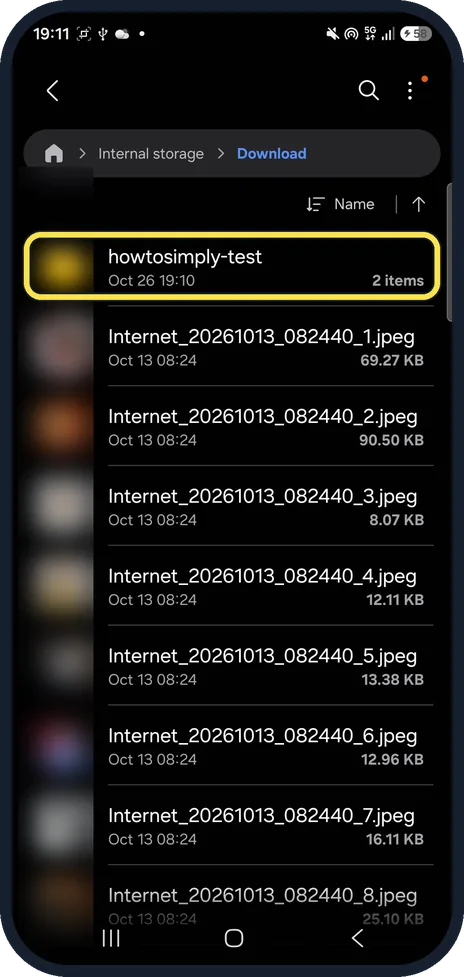
Long-press the folder in My Files
Open My Files, Internal storage and the folder that holds your files; ours was Download. Long-press the folder or file to select it.
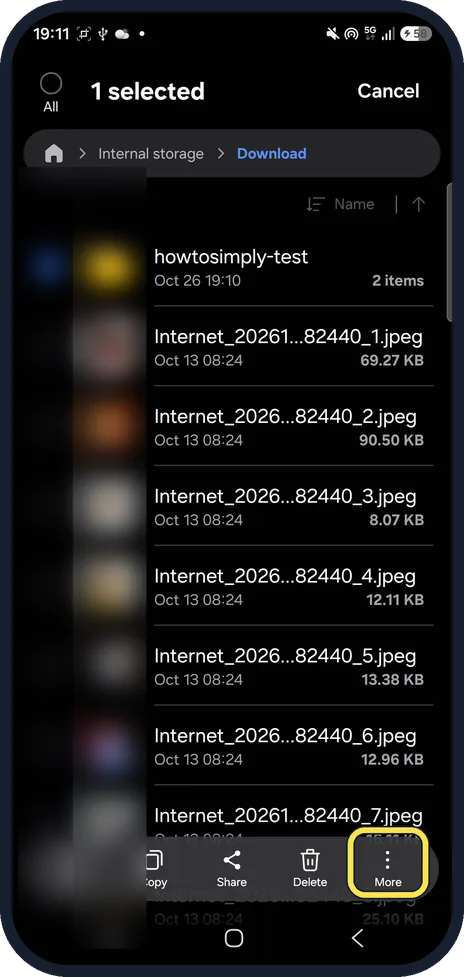
Tap More
The bar at the bottom shows Copy, Share, Delete and More.
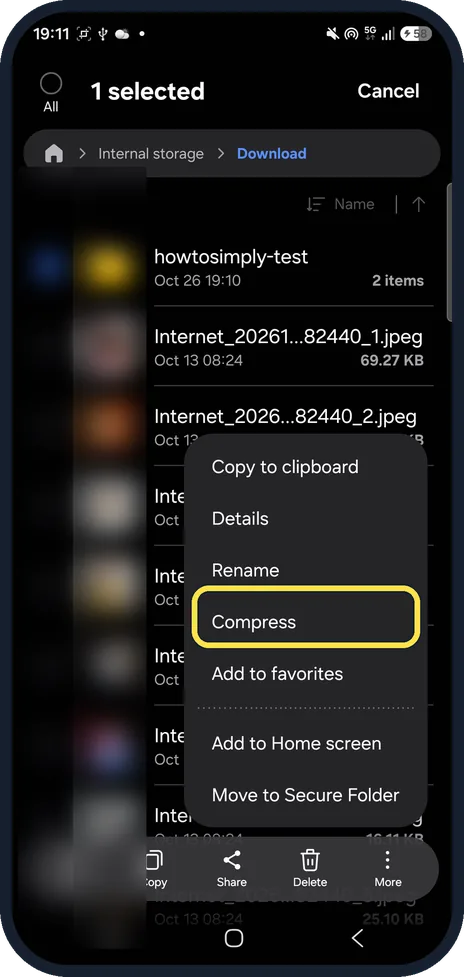
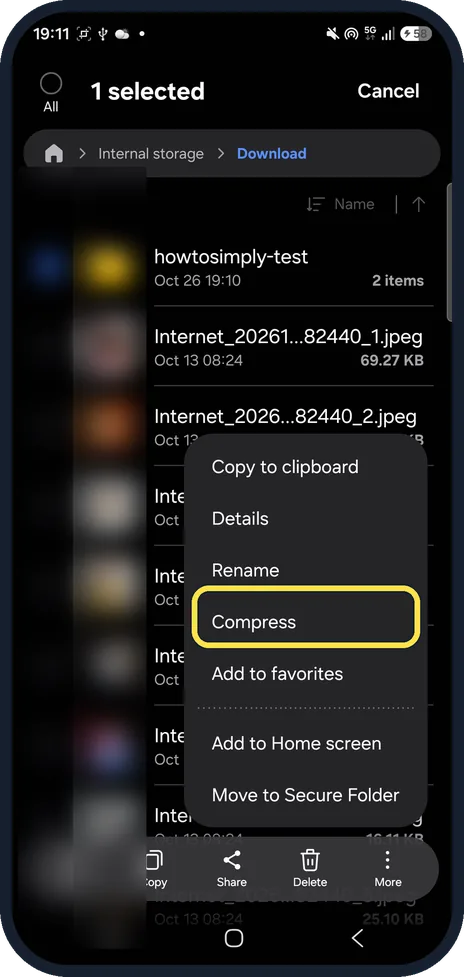
Tap Compress
The More menu lists Copy to clipboard, Details, Rename, Compress and more.
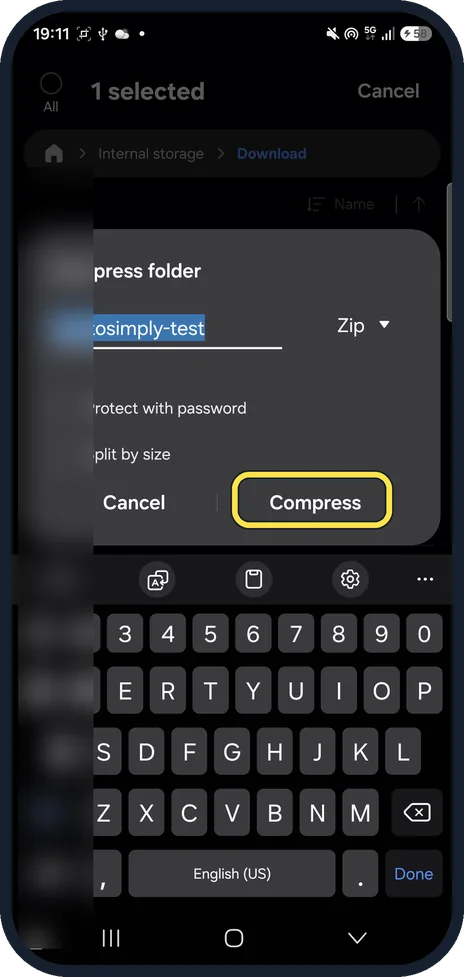
Name it and tap Compress
Type a name. Zip is the format; Protect with password and Split by size are below the name.
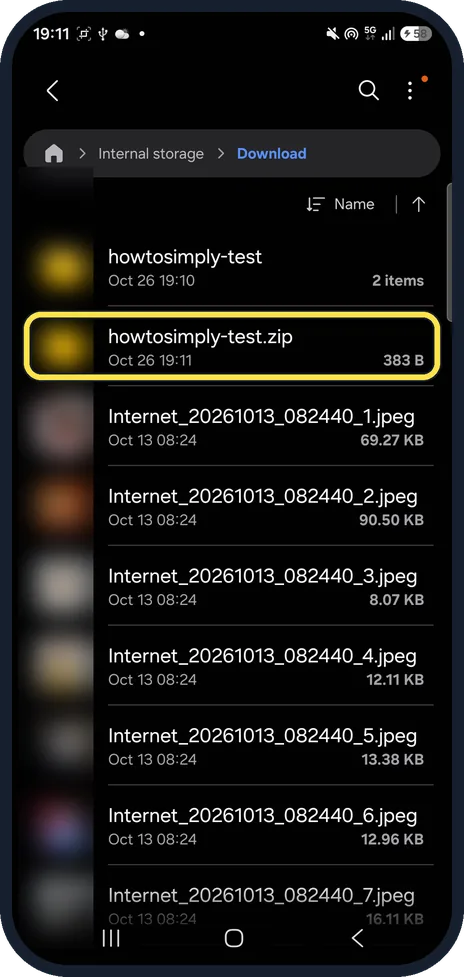
Find the ZIP next to the folder
The new file appears in the same folder. Ours was howtosimply-test.zip, 383 B.
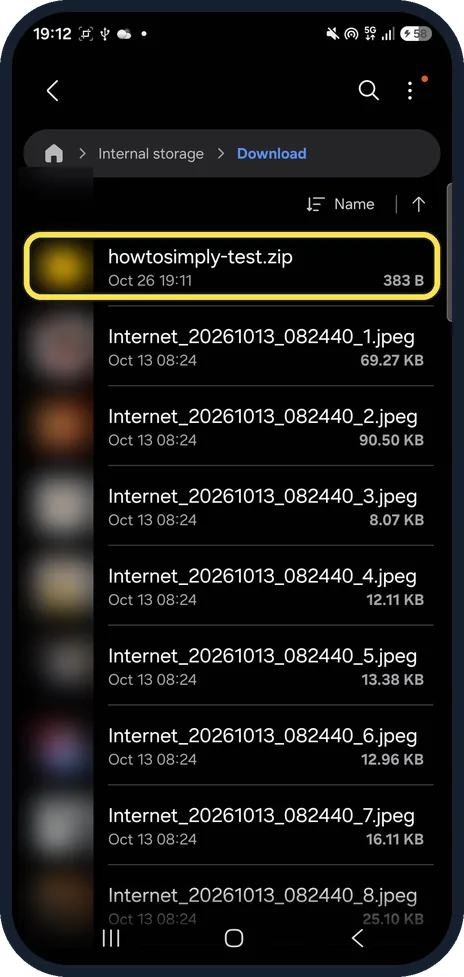
Tap a ZIP to open it
Tapping the ZIP opens a preview of what is inside; nothing is unpacked yet.
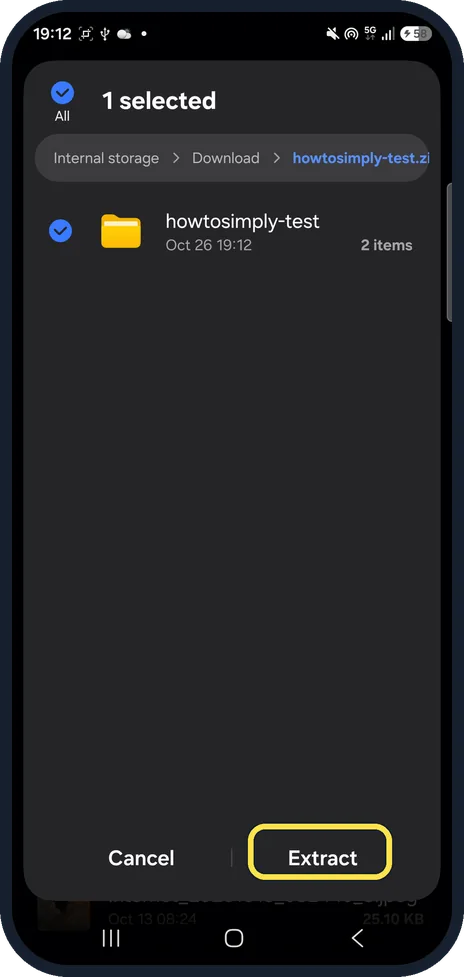
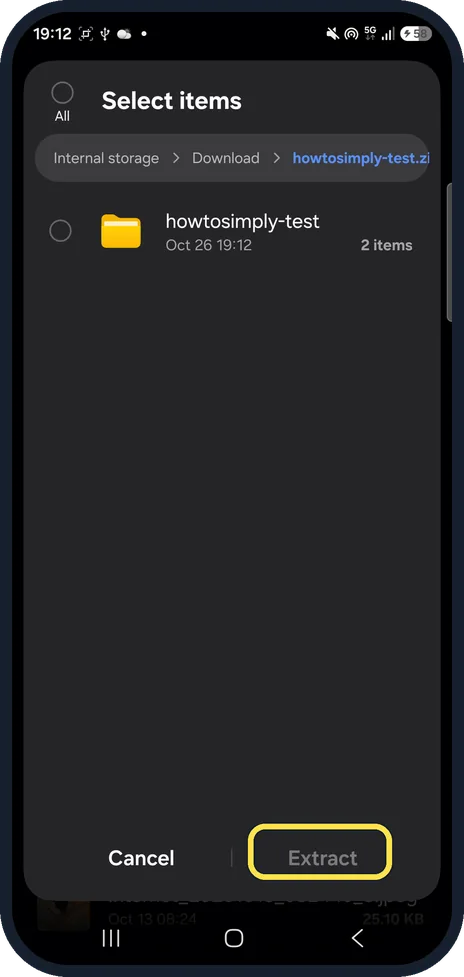
Tick the items and tap Extract
The preview lists the contents with tick boxes. All ticks everything; then tap Extract at the bottom.
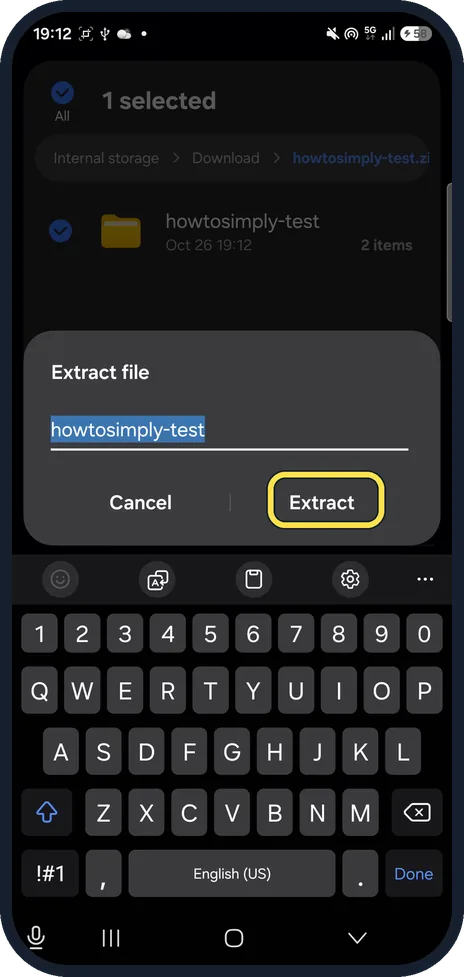
Check the name and tap Extract
Extract file suggests the ZIP's name for the new folder. Change it if you like.
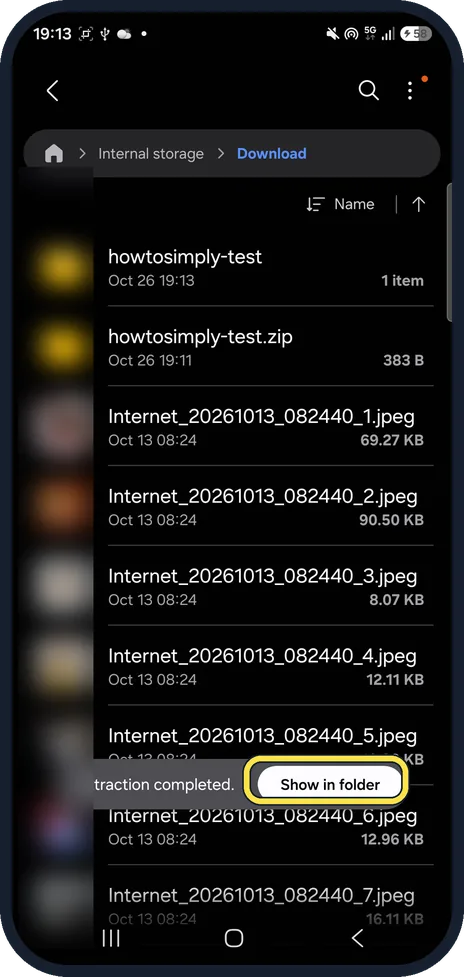
Tap Show in folder
A message says Extraction completed. The new folder is in the same place as the ZIP.
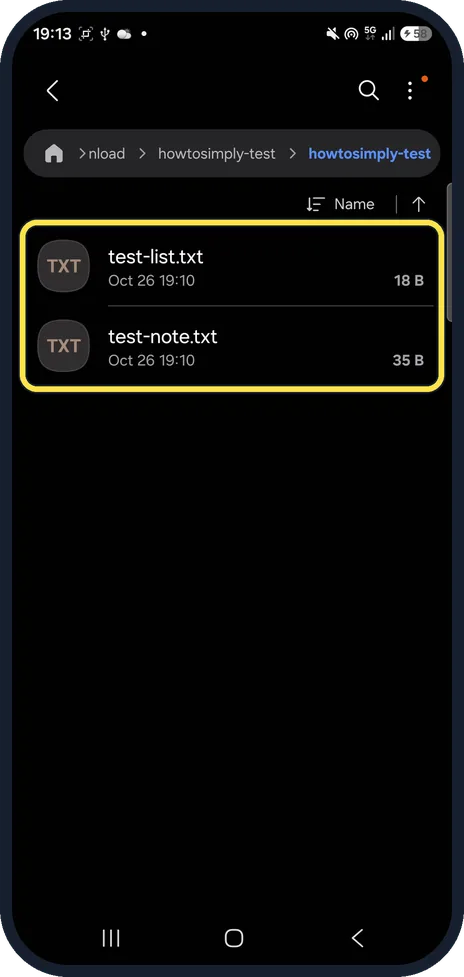
Open the files
Ours were in Download, howtosimply-test, howtosimply-test: test-list.txt and test-note.txt.
If you do not see this option
- No Compress in the More menu? Select the files or folder first: Samsung's steps select the files, tap More, then Compress. Source: How to compress files in 'My Files' app on Galaxy devices?
- Can't find the ZIP? Samsung says you can view the .zip file within the folder you compressed in. Sort by Name and look for the .zip ending. Source: How to compress files in 'My Files' app on Galaxy devices?
- Several files in one ZIP? Long-press one, tick the others, then More and Compress. Samsung's example selects all the files in a folder. Source: How to compress files in 'My Files' app on Galaxy devices?
If this does not work
- Extract is grey? Nothing is ticked. Tapping the folder inside the ZIP ticks or unticks it; it does not open it. Tick it or tap All.
- Want to lock the ZIP? Switch on Protect with password in the Compress box before you tap Compress. We did not set a password. Source: How to compress files in 'My Files' app on Galaxy devices?
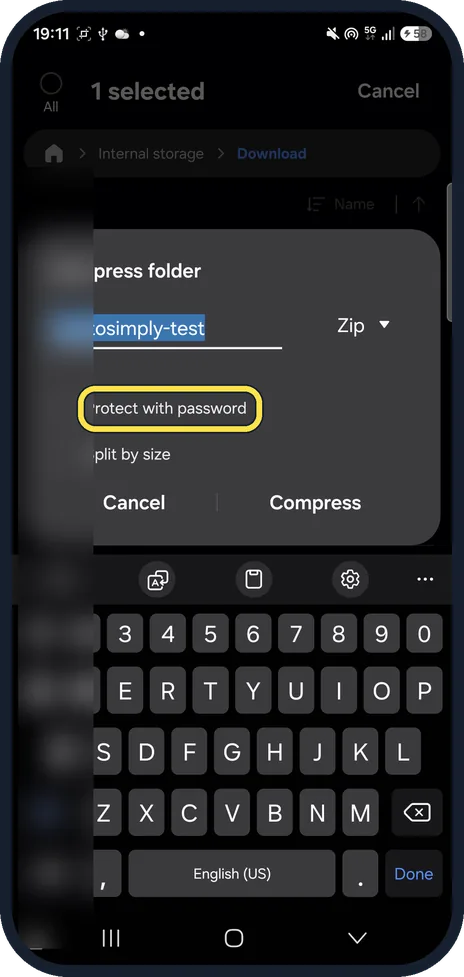
- ZIP is too big to send? Split by size, in the same box, is for cutting the archive into parts; we did not try it. Source: How to compress files in 'My Files' app on Galaxy devices?
About this guide
Samsung's My Files app makes and opens ZIP files without another app. We zipped a test folder with two text files in Download, then extracted it again.
The screenshots are from our Samsung Galaxy A57, model SM-A576B, with One UI 9.0 and Android 17 (build CP2A.260605.016.A576BXXU6BZIE), in Dark mode, taken on 26 October 2026. The test files and the ZIP were deleted afterwards.
Good to know
To see what fills the phone, see check and free up storage on a Galaxy.
In short: My Files, long-press, More, Compress, name, Compress. Tap the ZIP, tick, Extract, Extract.
Links checked in October 2026. Menus and features can change after software updates. These steps match the version named at the top.
📷 See real photos from the Galaxy A57 in our Camera Lab, next to 10 other phones.
Did this guide work for you?
Sorry about that. What happened?