
howtosimply.com/guides/how-to-factory-reset-a-mac/ · Checked October 2026 · MacBook Pro · macOS Tahoe 26
In this guide
Back up the Mac, then open System Settings, click General, then Transfer or Reset, and click Erase All Content and Settings. Enter your Mac password and your Apple Account password, and click Erase All Content & Settings. This deletes everything on the Mac.
4 of 7 steps with real screenshots · 1 official source below
- Device
- Mac
- Shown on
- macOS Tahoe 26 (MacBook Pro)
- App
- System Settings
- Real screenshots
- 4 of 7 steps
- Checked
- October 2026
- Sources
- 1 official, linked below
Step by step
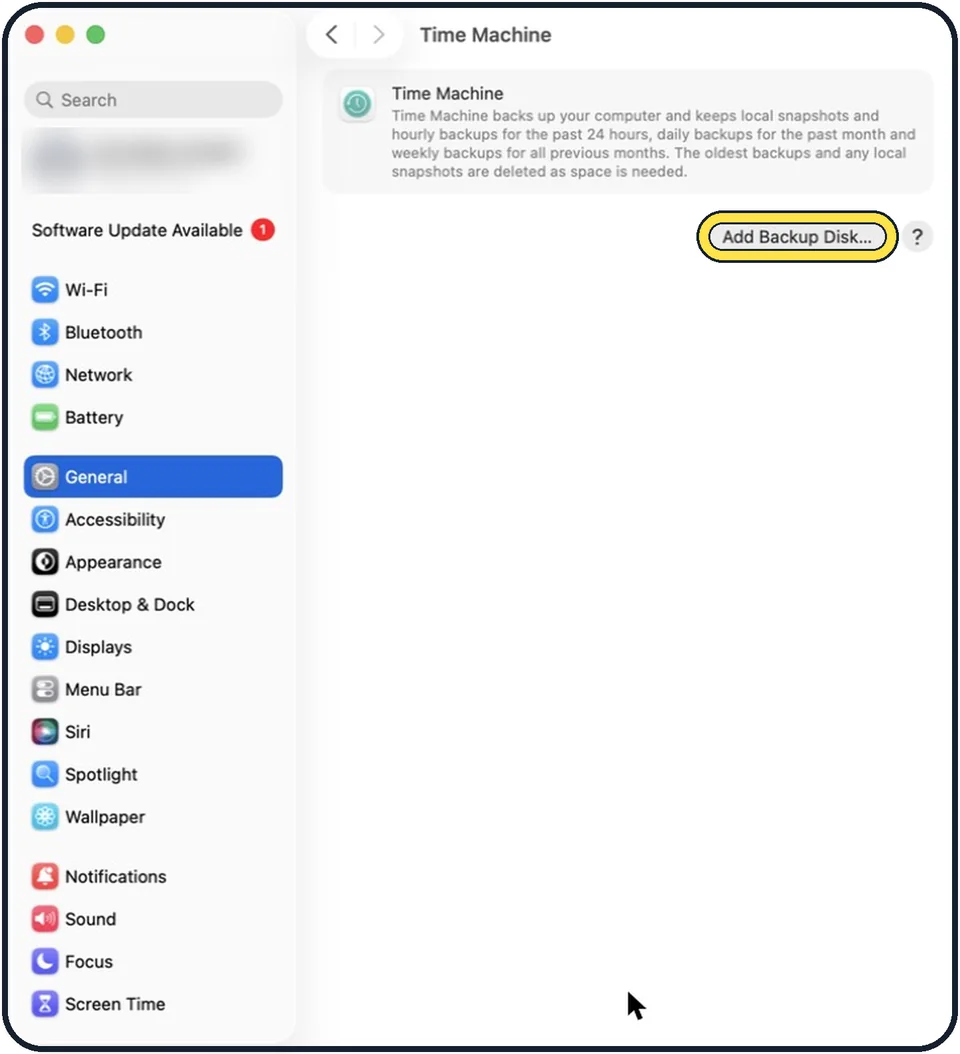
Zoomed in on the setting. Tap to see the whole screenTap the picture to see it full size Back up the Mac
Make a Time Machine backup, or copy your files to another drive or Mac. See how to back up a Mac with Time Machine.
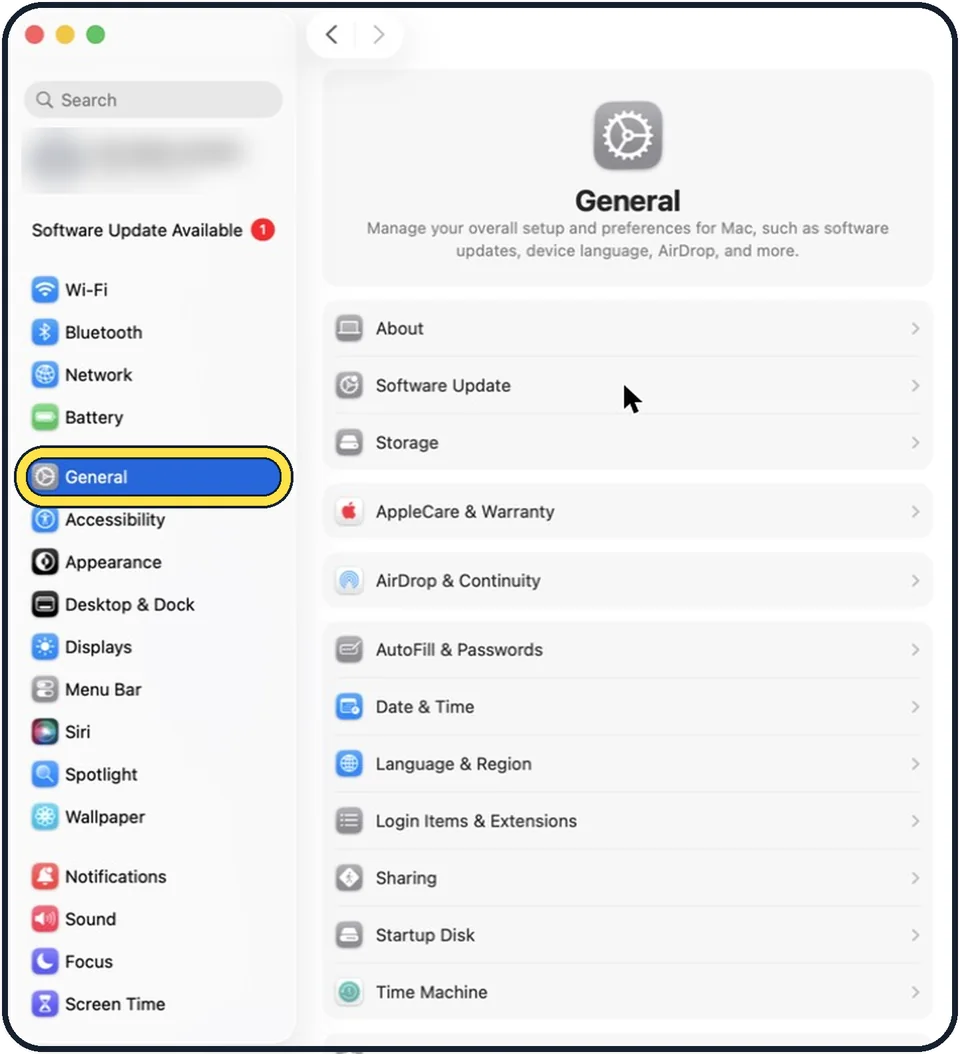
Zoomed in on the setting. Tap to see the whole screenTap the picture to see it full size Open System Settings and click General
Click the Apple menu in the top left corner and choose System Settings.
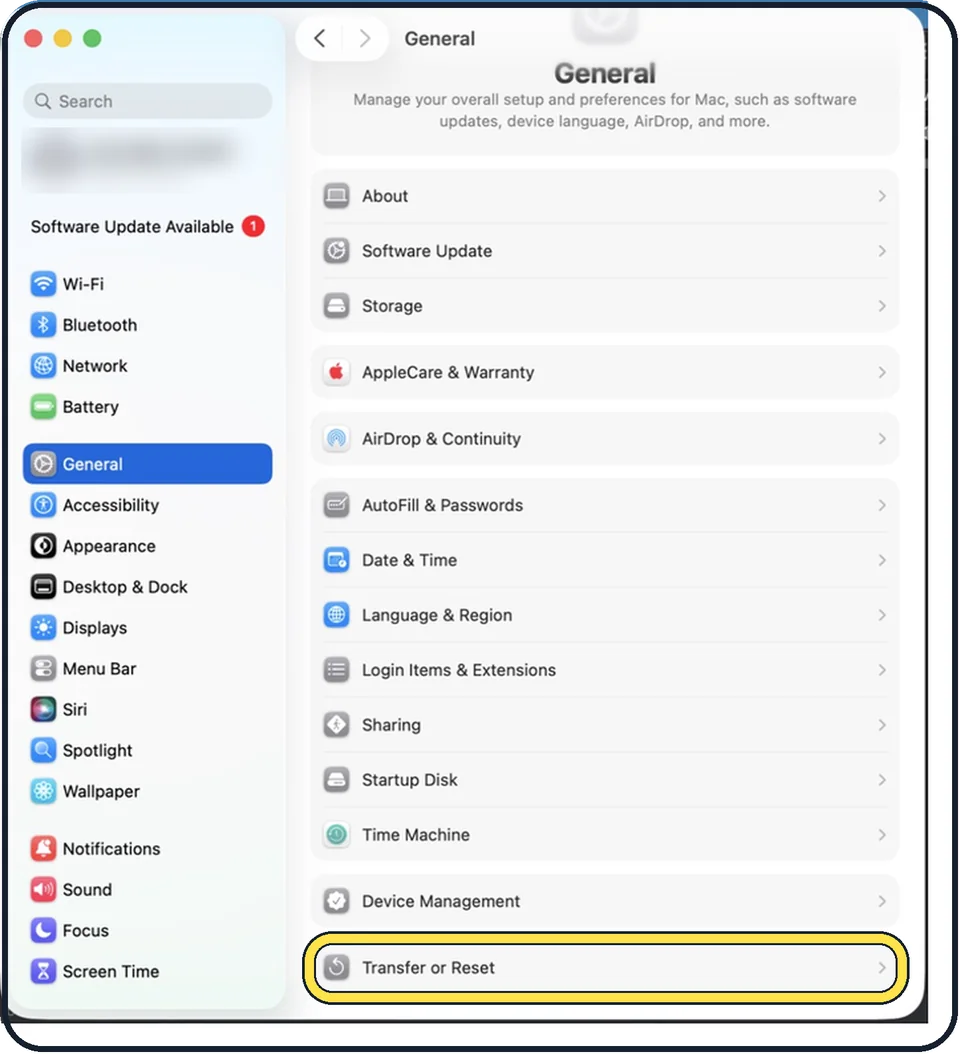
Tap the picture to see it full size Click Transfer or Reset
It is at the bottom of the General page. You may need to scroll down.
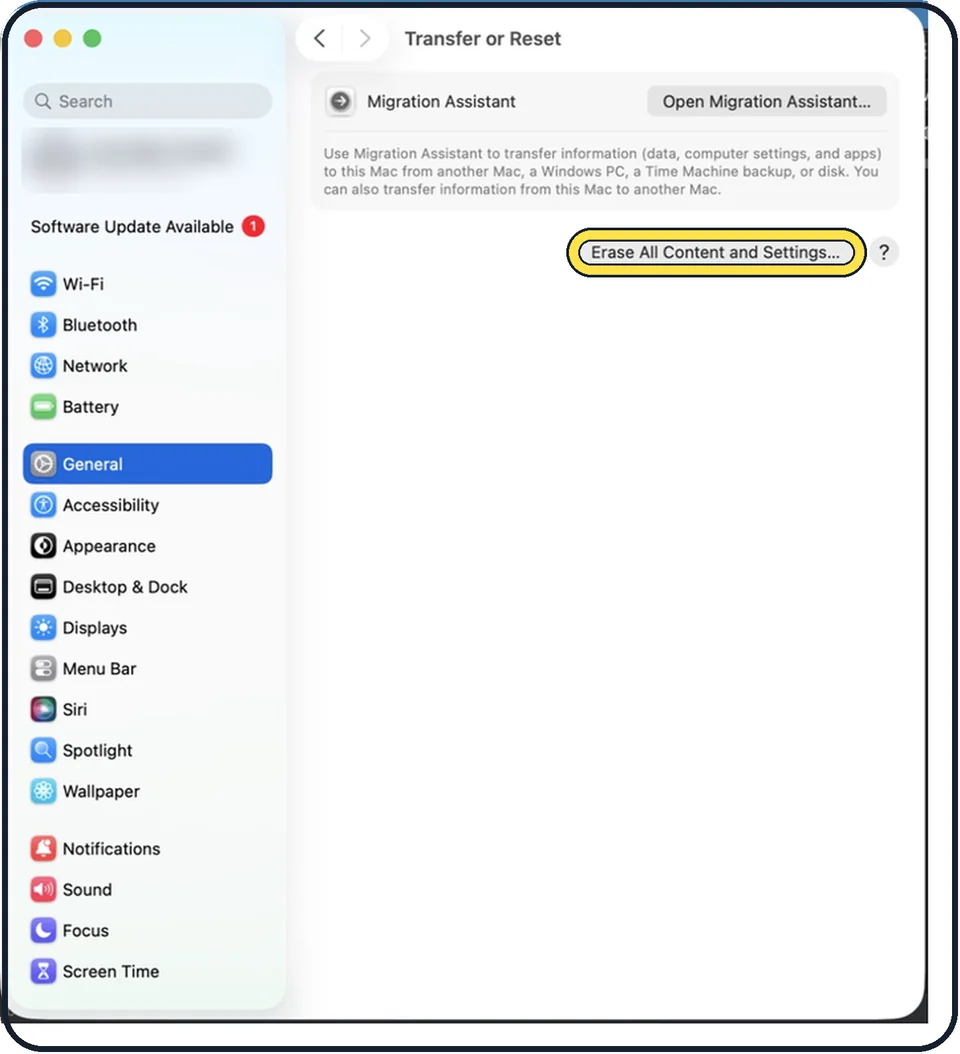
Zoomed in on the setting. Tap to see the whole screenTap the picture to see it full size Click Erase All Content and Settings
An assistant opens. Enter the password you use to log in to the Mac.
Check what will be removed
The assistant lists what happens: you are signed out of your Apple Account, Find My and Activation Lock are switched off, Touch ID fingerprints are removed and Bluetooth accessories are unpaired. Enter your Apple Account password when asked.
Click Erase All Content & Settings
The Mac restarts and shows a progress bar. Keep a MacBook plugged in.
Finish
The Mac ends on the set-up screen. If you are keeping it, set it up again. If you are selling it, hold the power button to switch it off and leave the set-up to the new owner.
About this guide
Erase All Content and Settings wipes your data, settings and apps and leaves a clean macOS, ready for a new owner or a fresh start. It works on Macs with Apple silicon and on Intel Macs with the T2 security chip, with macOS Monterey or later.
Everything on the Mac is deleted and cannot be brought back without a backup.
These steps are for recent versions of macOS, where the settings app is called System Settings. The pictures are our own screenshots from macOS Tahoe 26 on a MacBook Pro.
Good to know
On macOS Monterey, open System Preferences and choose Erase All Content and Settings from the System Preferences menu in the menu bar.
Older Intel Macs without the T2 chip do not have this option. For those, Apple describes a longer way: sign out of iCloud, erase the disk with Disk Utility in macOS Recovery and reinstall macOS.
On a Mac with Apple silicon and macOS 26 or later, Apple advises checking Repair Assistant first, so that no repair is left unfinished.
For the same job on a phone: how to factory reset an iPhone.
In short: Back up, System Settings, General, Transfer or Reset, Erase All Content and Settings, both passwords, confirm.
Links checked in October 2026. Back up anything you want to keep before you reset or delete. Menus can change after software updates.
Did this guide work for you?
Sorry about that. What happened?