
You are viewing the macOS 26 version of this guide, recorded on macOS Tahoe 26 (MacBook Pro) on 4 October 2026. It is kept as it was and not updated. See the macOS 27 version.
howtosimply.com/guides/macbook-battery-draining-fast-8-ways-to-make-it-last/ · Checked 4 October 2026 · MacBook Pro · macOS Tahoe 26
In this guide
Click the battery icon in the menu bar to see which apps are using significant energy and quit them. Lower the screen brightness, turn on Low Power Mode under System Settings, Battery, and check battery health on the same page.
1 of 8 steps with real screenshots · 2 official sources below
- Device
- Mac
- Shown on
- macOS Tahoe 26 (MacBook Pro)
- App
- System Settings
- Real screenshots
- 1 of 8 steps
- Checked
- 4 October 2026
- Sources
- 2 official, linked below
Step by step
Find the app using the most energy
Click the battery icon in the menu bar. Apps listed under Using Significant Energy are the cause. Quit the ones you do not need.
Tap the picture to see it full size Check Activity Monitor
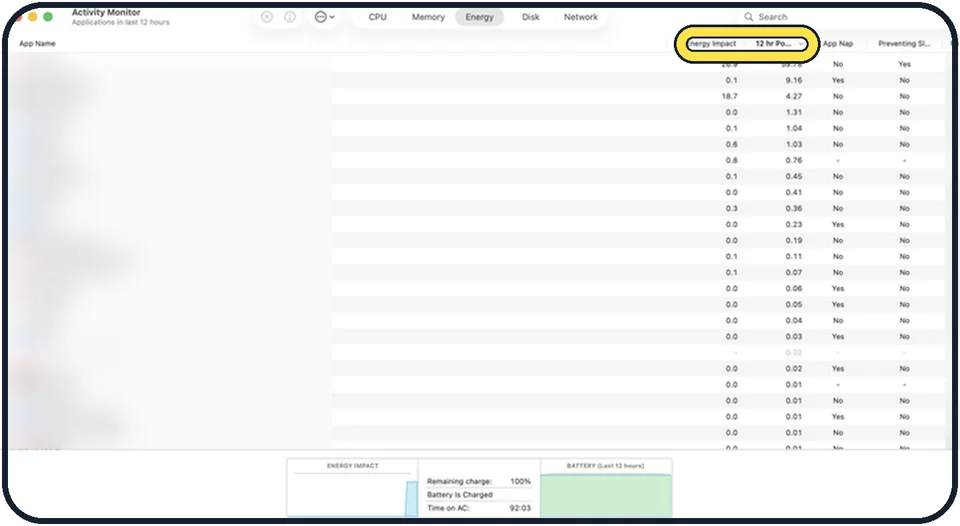
Open Activity Monitor from Applications, Utilities, and click the Energy tab. Sort by Energy Impact. Browsers with many tabs and video-call apps are often at the top.
Lower the brightness
The display is the largest single consumer. Dim it with the brightness keys.
Turn on Low Power Mode
Open System Settings, Battery, and set Low Power Mode to Only on Battery. It reduces energy use with a small cost in speed.
Close browser tabs and extensions
Each tab keeps running scripts. Close what you are not using, and remove extensions you do not need.
Check battery health
In System Settings, Battery, click the i next to Battery Health. Service Recommended means the battery holds much less charge than when new: how to check battery health on a MacBook.
Disconnect accessories
External drives, hubs and phones charging from the Mac all draw power from its battery.
Update macOS and restart
Updates fix runaway background processes. A restart clears ones that are stuck.
What we saw on our device
- Check Activity Monitor: On our MacBook Neo the tab lists Energy Impact, 12 hr Power and App Nap for each app.
- Lower the brightness: On our MacBook Neo, Automatically adjust brightness is on, and the page has no True Tone row.
- Turn on Low Power Mode: On our MacBook Neo it was set to Never.
About this guide
When a MacBook that used to last all day is empty by lunch, one app is usually working hard in the background, or the battery itself has aged.
Good to know
After a macOS update or a large file copy, Spotlight and Photos re-index for a few hours, which uses more power. It settles by itself.
Bluetooth and Wi-Fi use little power. Turning them off rarely helps much.
A battery at or beyond 1,000 charge cycles is at the end of its designed life.
In short: Battery icon for hungry apps, dim the screen, Low Power Mode, check battery health.
- Apple Support: Mac User Guide, battery status menu and Battery settings
Menus and features can change after software updates. These steps match the version named at the top.
Did this guide work for you?
Sorry about that. What happened?