
macOS 27 compared with macOS 26: We rewrote steps 2 and 3 to match the macOS 27 screens. The macOS 26 page keeps the steps and screenshots as they were.
howtosimply.com/guides/how-to-remove-recent-apps-from-the-dock-on-a-mac/ · Checked October 2026 · MacBook Neo · macOS 27.0.1
In this guide
Open System Settings, click Desktop & Dock and switch off Show suggested and recent apps in Dock, the last switch in the Dock group. Apple says apps you put in the Dock yourself stay.
3 of 3 steps with real screenshots · 1 official source below
- Device
- Mac
- Shown on
- macOS 27.0.1 (MacBook Neo)
- App
- System Settings
- Real screenshots
- 3 of 3 steps
- Checked
- October 2026
- Sources
- 1 official, linked below
Step by step
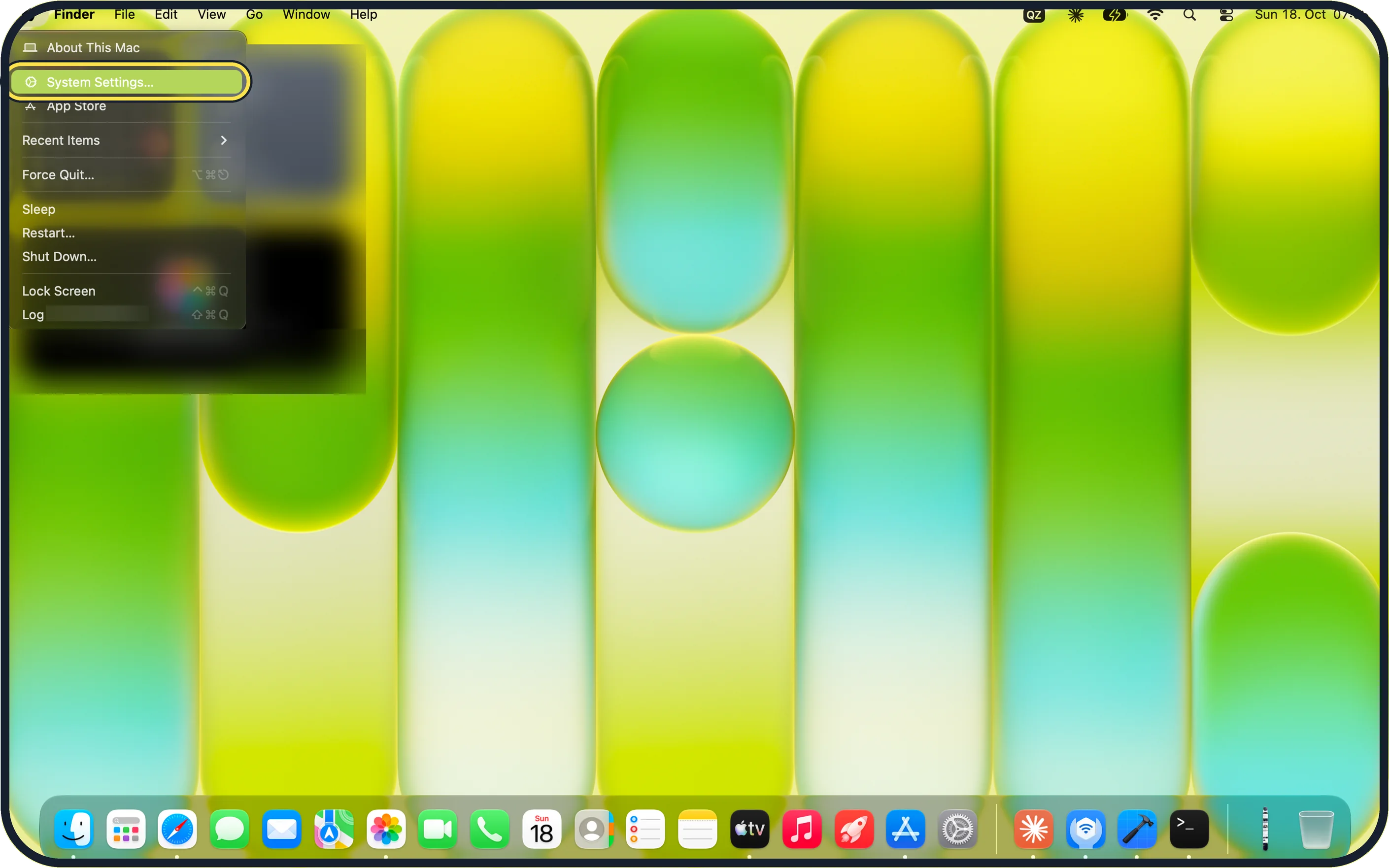
Zoomed in on the setting. Tap to see the whole screenTap the picture to see it full size Open System Settings
Click the Apple menu in the top left corner of the screen and choose System Settings.
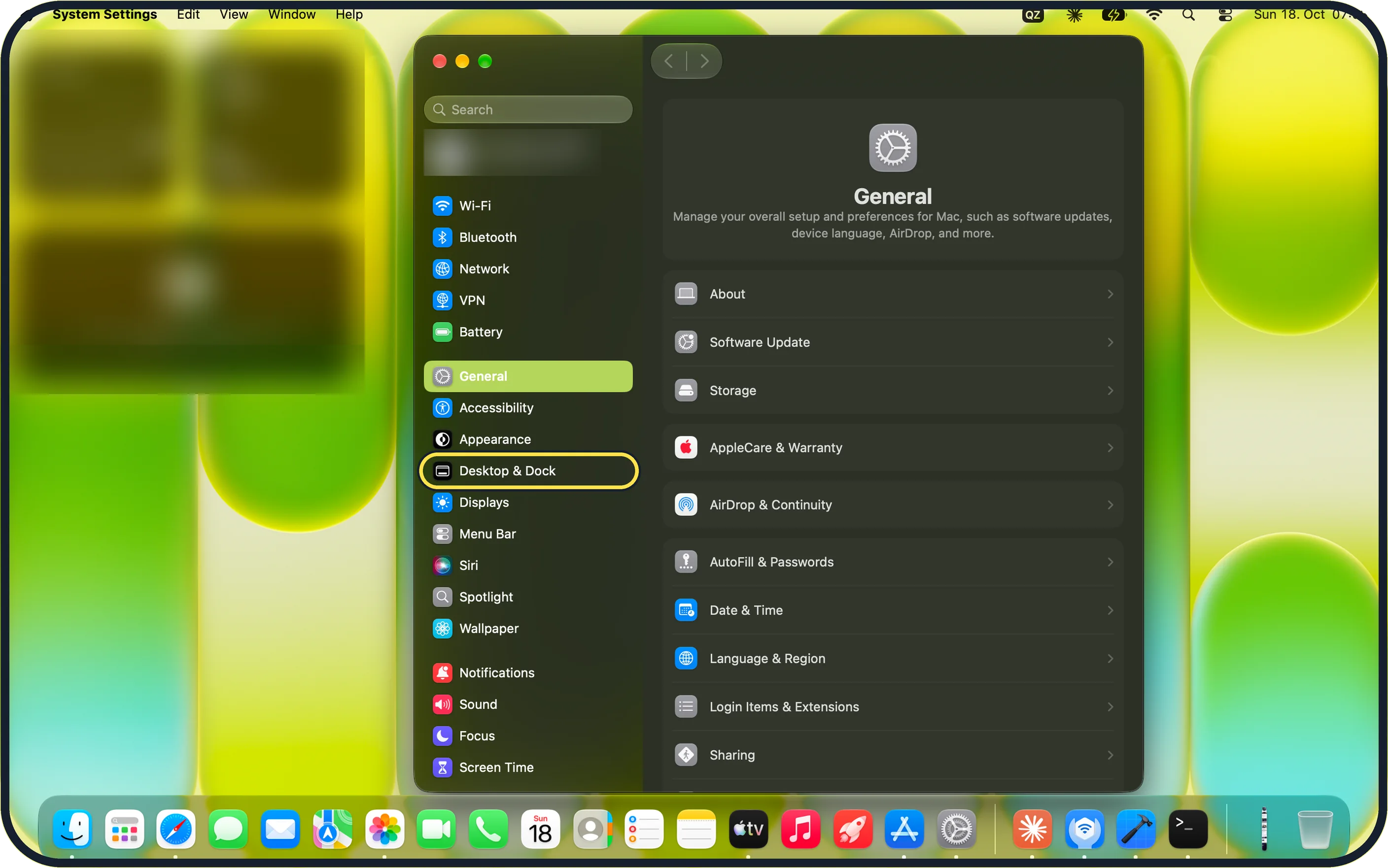
Zoomed in on the setting. Tap to see the whole screenTap the picture to see it full size Click Desktop & Dock in the sidebar
In the sidebar, click Desktop & Dock. On our MacBook Neo it sits between Appearance and Displays.
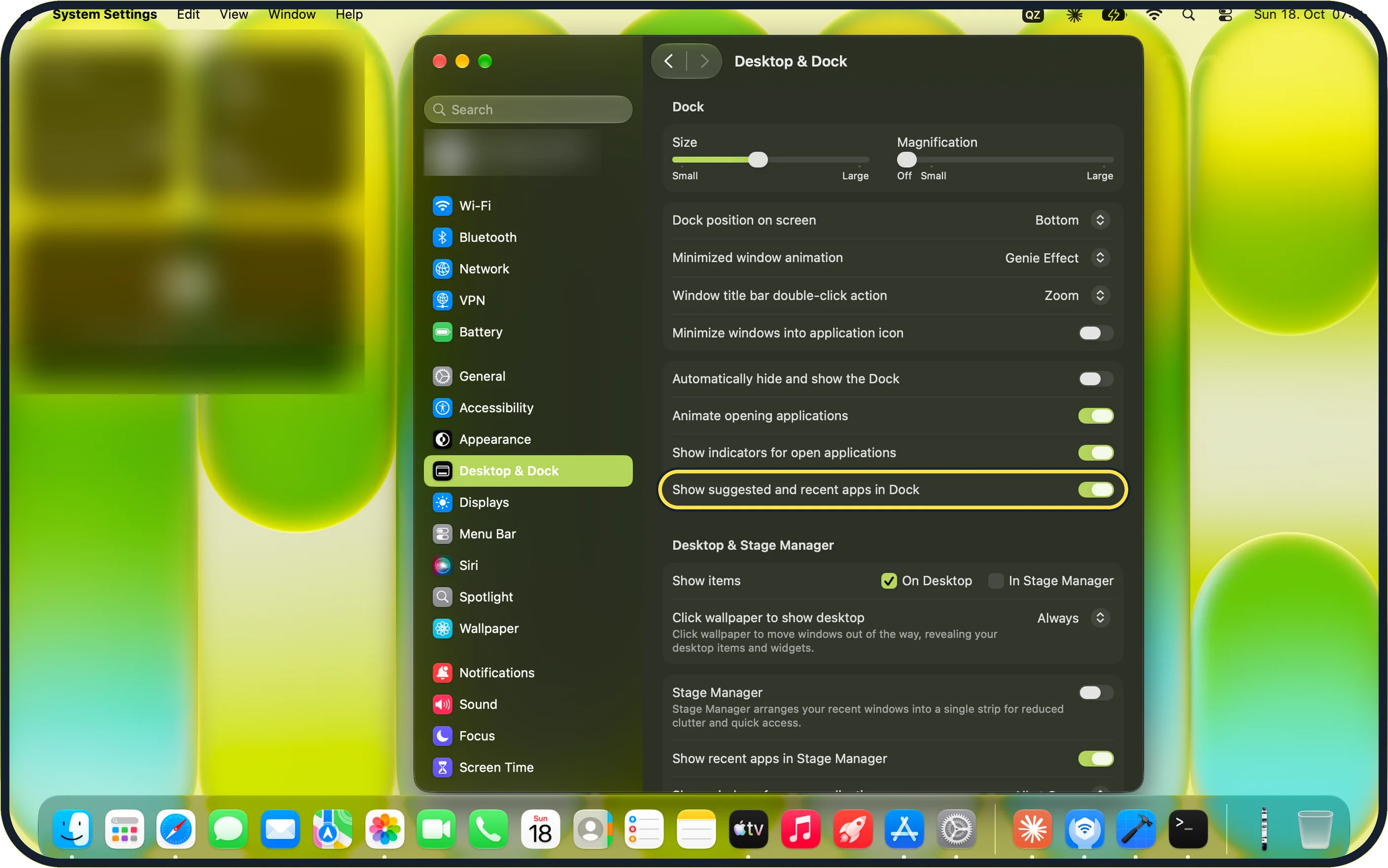
Zoomed in on the setting. Tap to see the whole screenTap the picture to see it full size Switch off Show suggested and recent apps in Dock
It is the last switch in the Dock group, just below Show indicators for open applications. On our MacBook Neo it was on.
Click it so it turns grey. The suggested and recent apps then leave the Dock.
If you do not see this option
- Desktop & Dock is not in the sidebar Scroll the sidebar, or type Dock in the Search field at the top of it. On our MacBook Neo the row is below Appearance.
- You only find Show recent apps in Stage Manager That switch is further down, in the Desktop & Stage Manager group, and controls Stage Manager, not the Dock. Scroll up to the Dock group.
If this does not work
- Some apps are still in the Dock Apple says apps you put in the Dock yourself stay. The switch only removes the suggested and recent section. Source: Change Desktop & Dock settings on Mac
- The dots under apps disappeared instead You switched off Show indicators for open applications, the switch just above. Turn it back on and switch off Show suggested and recent apps in Dock.
About this guide
The Dock keeps a section for suggested and recently opened apps that are not already in it, which changes by itself and makes the Dock longer. One switch in System Settings removes it.
Screenshots: MacBook Neo, macOS 27.0.1, dark mode.
Good to know
On our MacBook Neo the Dock group also holds Dock position on screen (Bottom), Minimized window animation (Genie Effect) and Automatically hide and show the Dock (off).
To make the Dock itself vanish when not needed: how to hide the Dock automatically on a Mac.
In short: Apple menu > System Settings > Desktop & Dock > Show suggested and recent apps in Dock off.
Links checked in October 2026. Menus and features can change after software updates. These steps match the version named at the top.
📷 Camera Lab: the same 6 scenes photographed with 11 phones, side by side.
Did this guide work for you?
Sorry about that. What happened?