
howtosimply.com/guides/how-to-rename-several-files-at-once-on-a-mac/ · Checked October 2026 · MacBook Pro · macOS Tahoe 26
In this guide
Select the files in Finder, right-click and choose Rename. Pick Replace Text, Add Text or Format, fill in the fields and click Rename. Command + Z undoes it.
4 of 5 steps with real screenshots · 1 official source below
- Device
- Mac
- Shown on
- macOS Tahoe 26 (MacBook Pro)
- App
- Finder
- Real screenshots
- 4 of 5 steps
- Checked
- October 2026
- Sources
- 1 official, linked below
Step by step
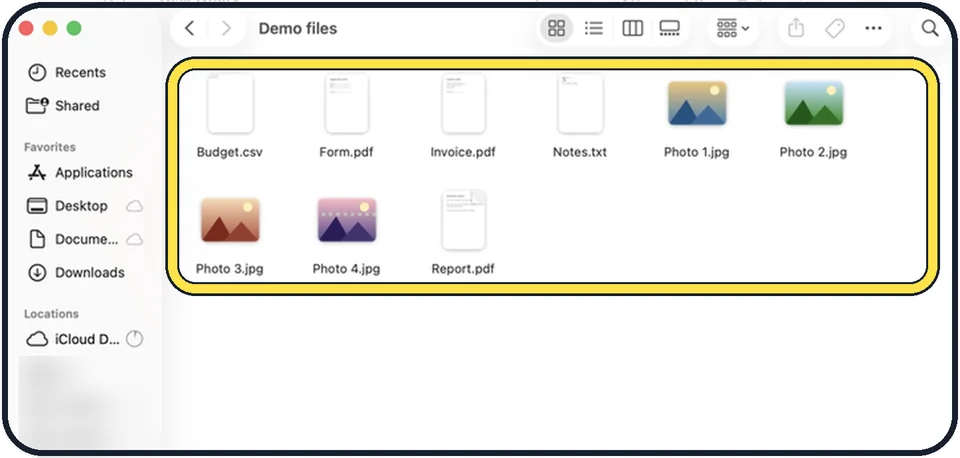
Tap the picture to see it full size Select the files
Click the first, hold Shift and click the last, or hold Command and click each one. Sort the folder first if the numbering order matters.
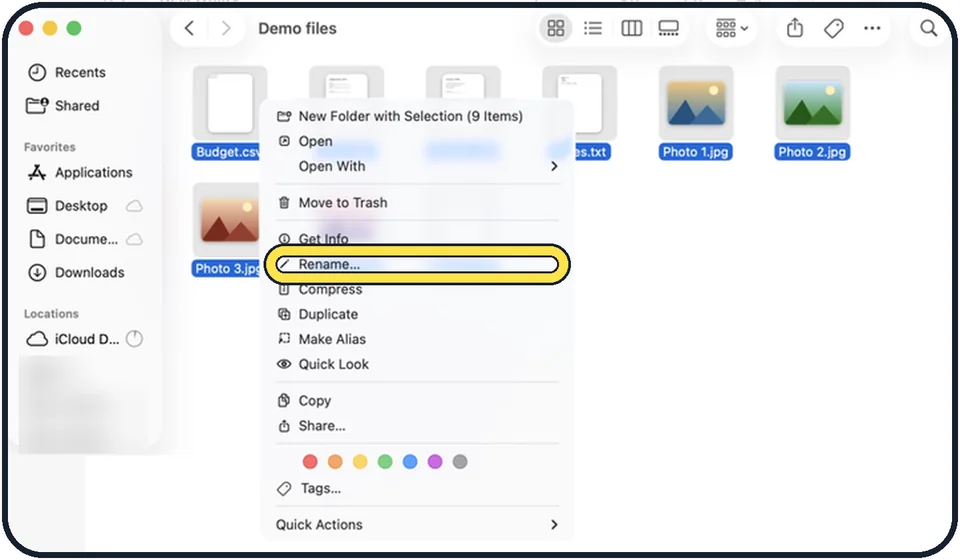
Zoomed in on the setting. Tap to see the whole screenTap the picture to see it full size Right-click and choose Rename
The Rename Finder Items window opens.
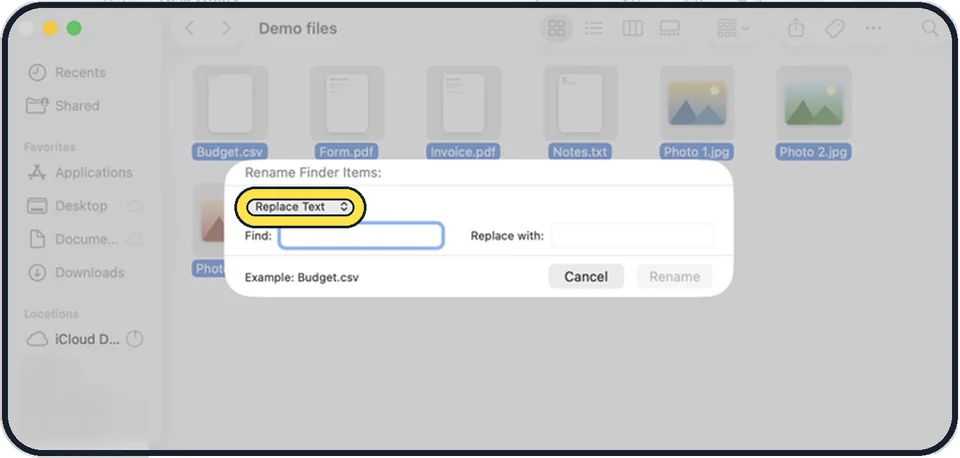
Zoomed in on the setting. Tap to see the whole screenTap the picture to see it full size Choose a method
Replace Text swaps part of each name. Add Text puts words before or after each name. Format gives every file a new name with a number, counter or date.
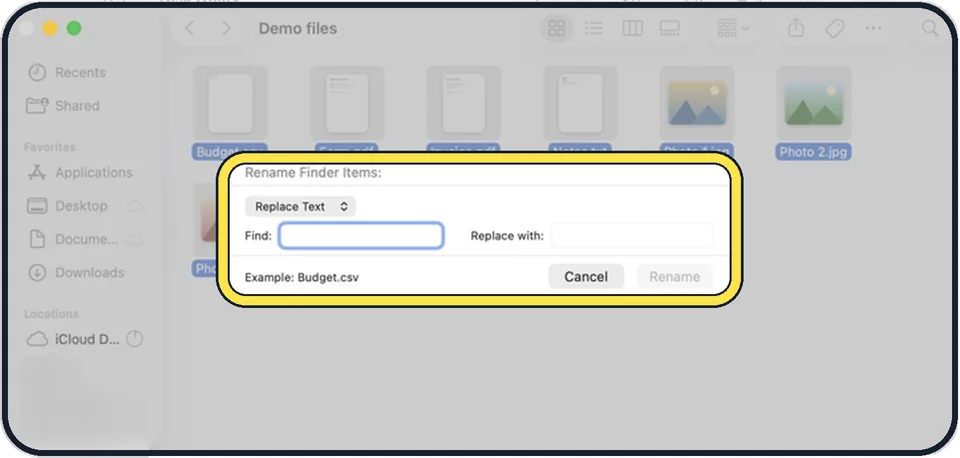
Zoomed in on the setting. Tap to see the whole screenTap the picture to see it full size Fill in the fields
For Replace Text, type the part of the name to change in Find and the new text in Replace with. The example line at the bottom, which starts as Example: Budget.csv, shows the result.
Click Rename
All the selected files change at once.
About this guide
Finder can rename a whole set of files in one step, for example turning IMG_4821, IMG_4822 into Holiday 1, Holiday 2. No extra app is needed.
Good to know
Press Command + Z straight away if the result is not what you wanted.
File extensions such as .jpg are kept.
To rename one file, click it once and press Return.
In short: Select files, right-click, Rename, choose a method, Rename.
Links checked in October 2026. Menus and features can change after software updates. These steps match the version named at the top.
Did this guide work for you?
Sorry about that. What happened?