
macOS 27 compared with macOS 26: We rewrote this guide on macOS 27.0.1 (MacBook Neo): it now has 5 steps instead of 8. The macOS 26 page keeps the steps and screenshots as they were.
howtosimply.com/guides/mac-app-keeps-crashing-or-freezing-8-fixes-to-try/ · Checked October 2026 · MacBook Neo · macOS 27.0.1
In this guide
Choose Apple menu, Force Quit…, select the app and click Force Quit, then open the app again. If it keeps happening, restart the Mac, update the app and macOS, and check whether it is an Intel-based app. Then try another file and unplug new devices.
5 of 5 steps with real screenshots · 3 official sources below
- Device
- Mac
- Shown on
- macOS 27.0.1 (MacBook Neo)
- App
- System Settings
- Real screenshots
- 5 of 5 steps
- Checked
- October 2026
- Sources
- 3 official, linked below
Step by step
Zoomed in on the setting. Tap to see the whole screenTap the picture to see it full size Force the app to quit
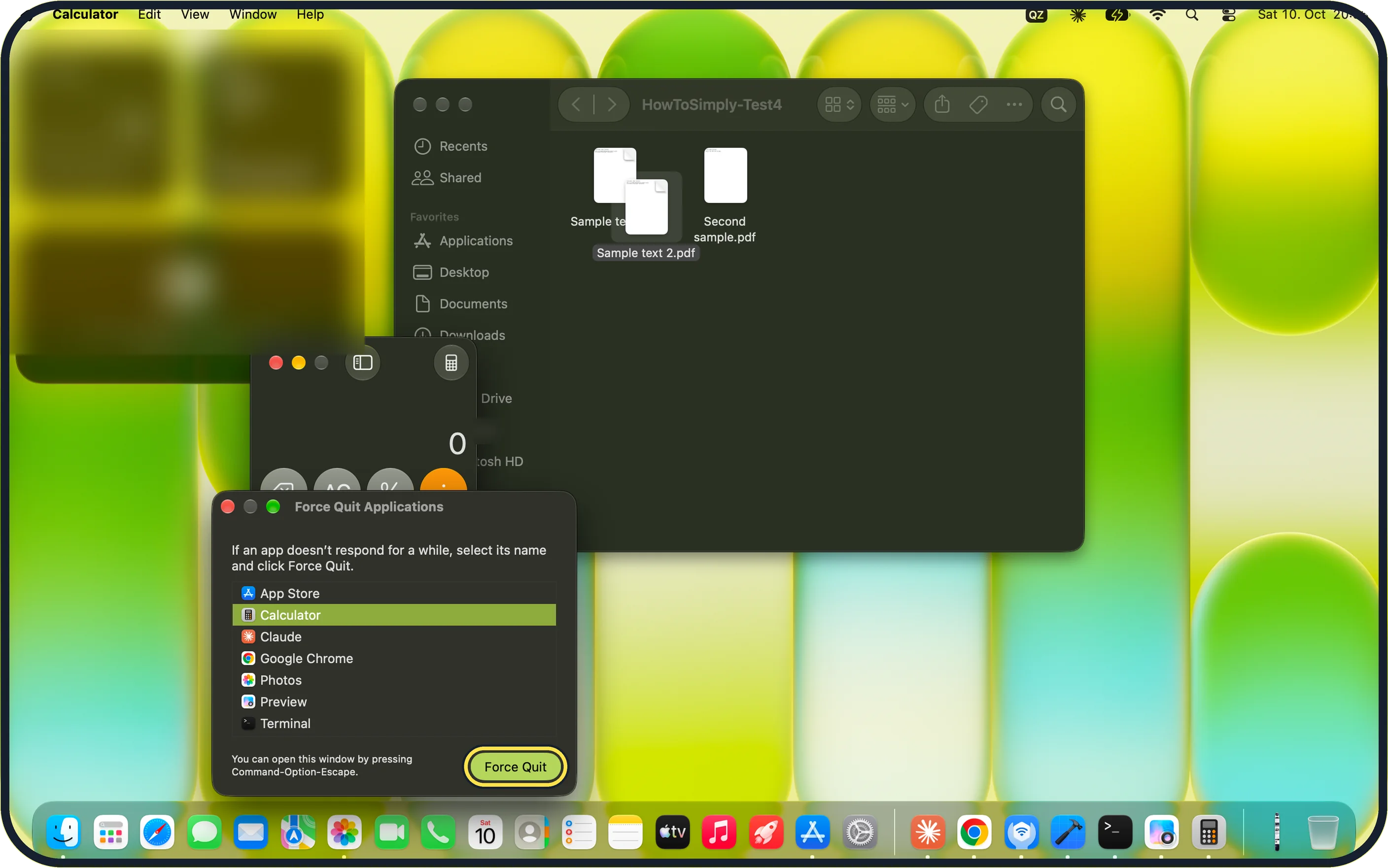
Choose Apple menu, Force Quit… or press Option-Command-Esc. Select the app and click Force Quit, then open it again from the Dock or the Applications folder. Changes you had not saved may be lost. On our MacBook Neo, with Calculator selected in the list of open apps, the button read Force Quit. We did not click it.
Zoomed in on the setting. Tap to see the whole screenTap the picture to see it full size Restart the Mac
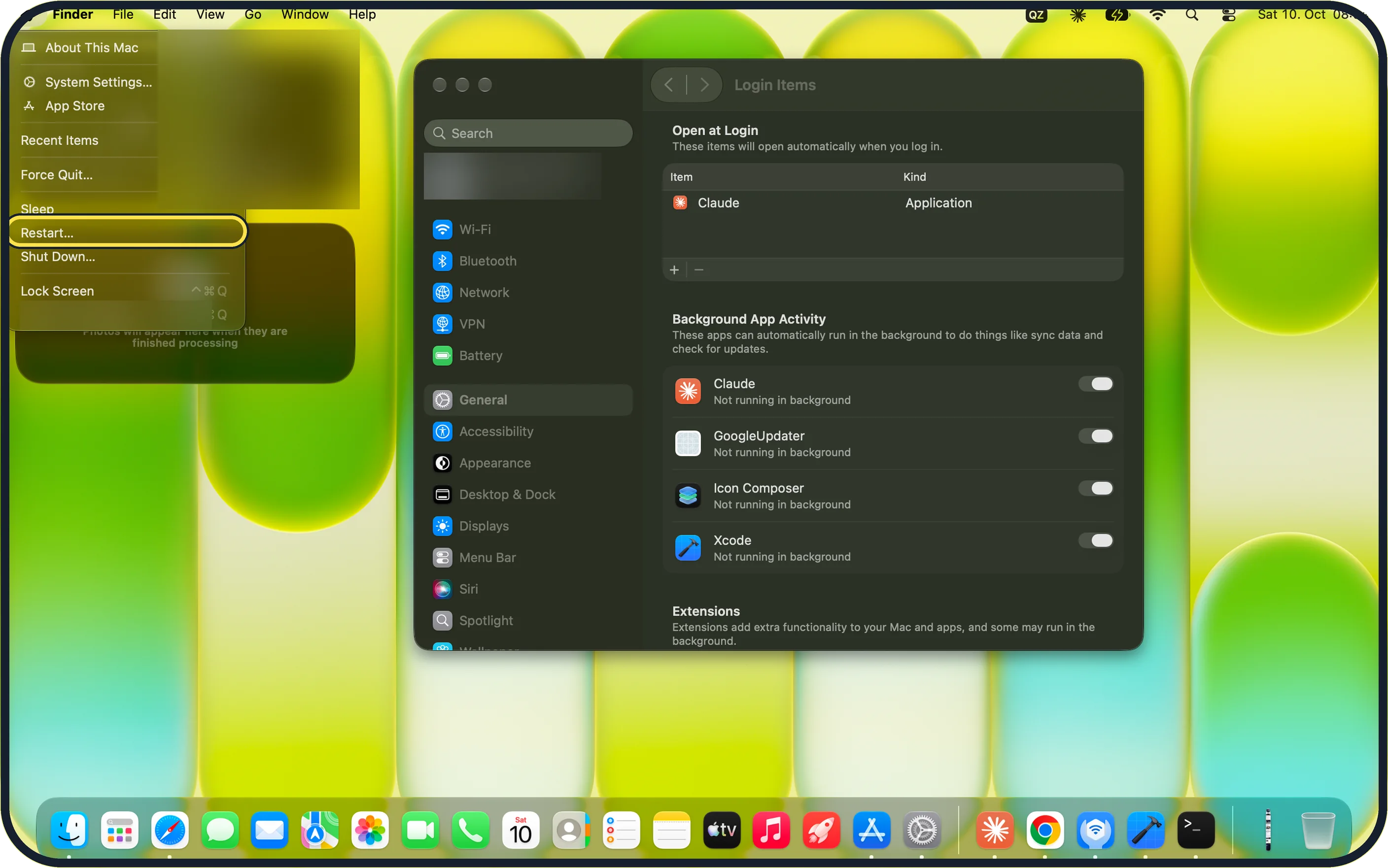
Choose Apple menu, Restart…. On our MacBook Neo, Restart… sits between Sleep and Shut Down….
Zoomed in on the setting. Tap to see the whole screenTap the picture to see it full size Update the app and macOS
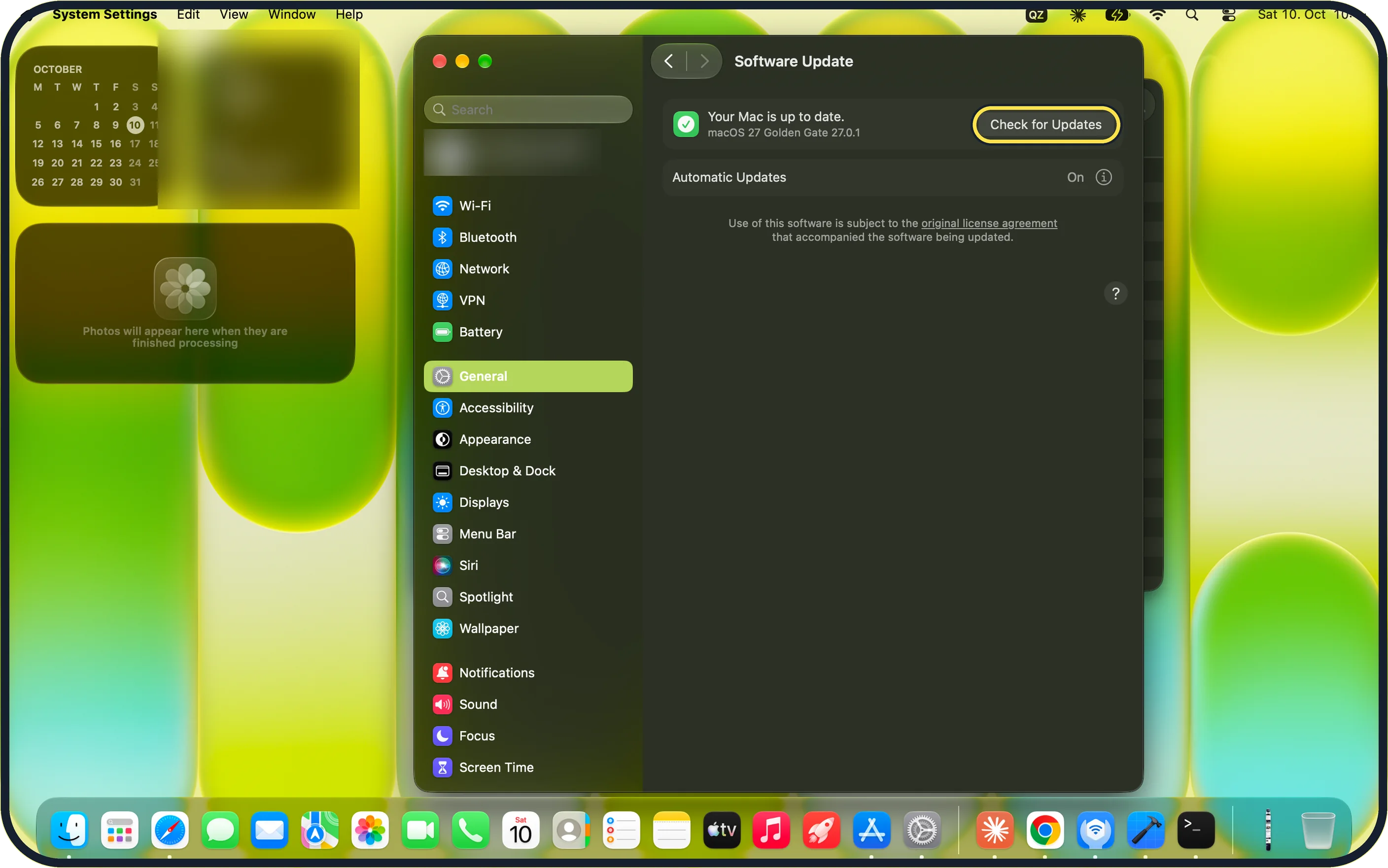
Install updates for the app from the App Store or from its maker, and for macOS under System Settings, General, Software Update. Apple's macOS 27 guide says the Apple menu shows the number of App Store updates next to App Store. Our MacBook Neo shows Your Mac is up to date (macOS 27 Golden Gate 27.0.1).
Zoomed in on the setting. Tap to see the whole screenTap the picture to see it full size Check for Intel-based apps
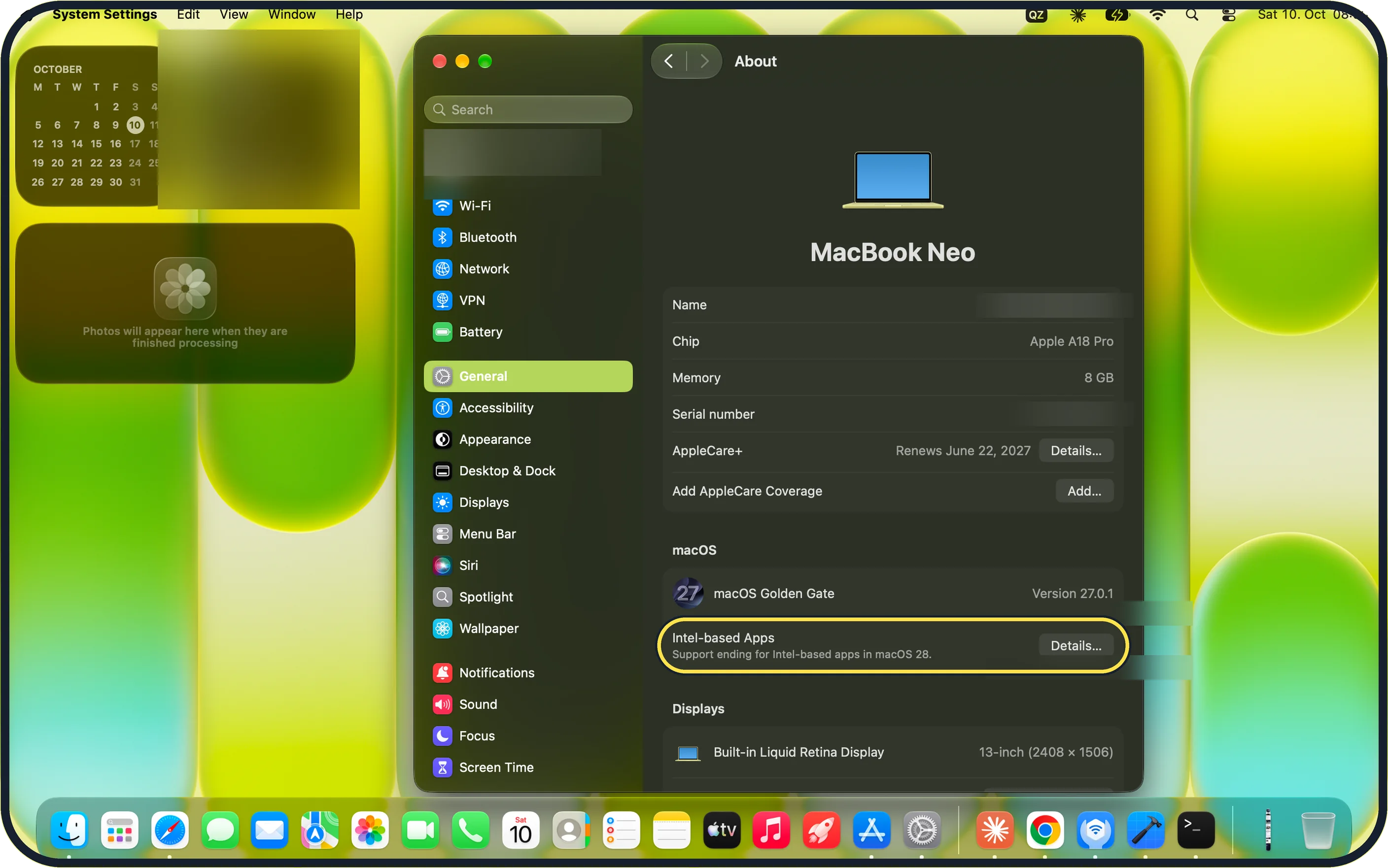
Open System Settings, General, About. Our MacBook Neo lists Intel-based Apps with the note Support ending for Intel-based apps in macOS 28, and a Details… button. Ask the maker of such an app for an Apple silicon version.
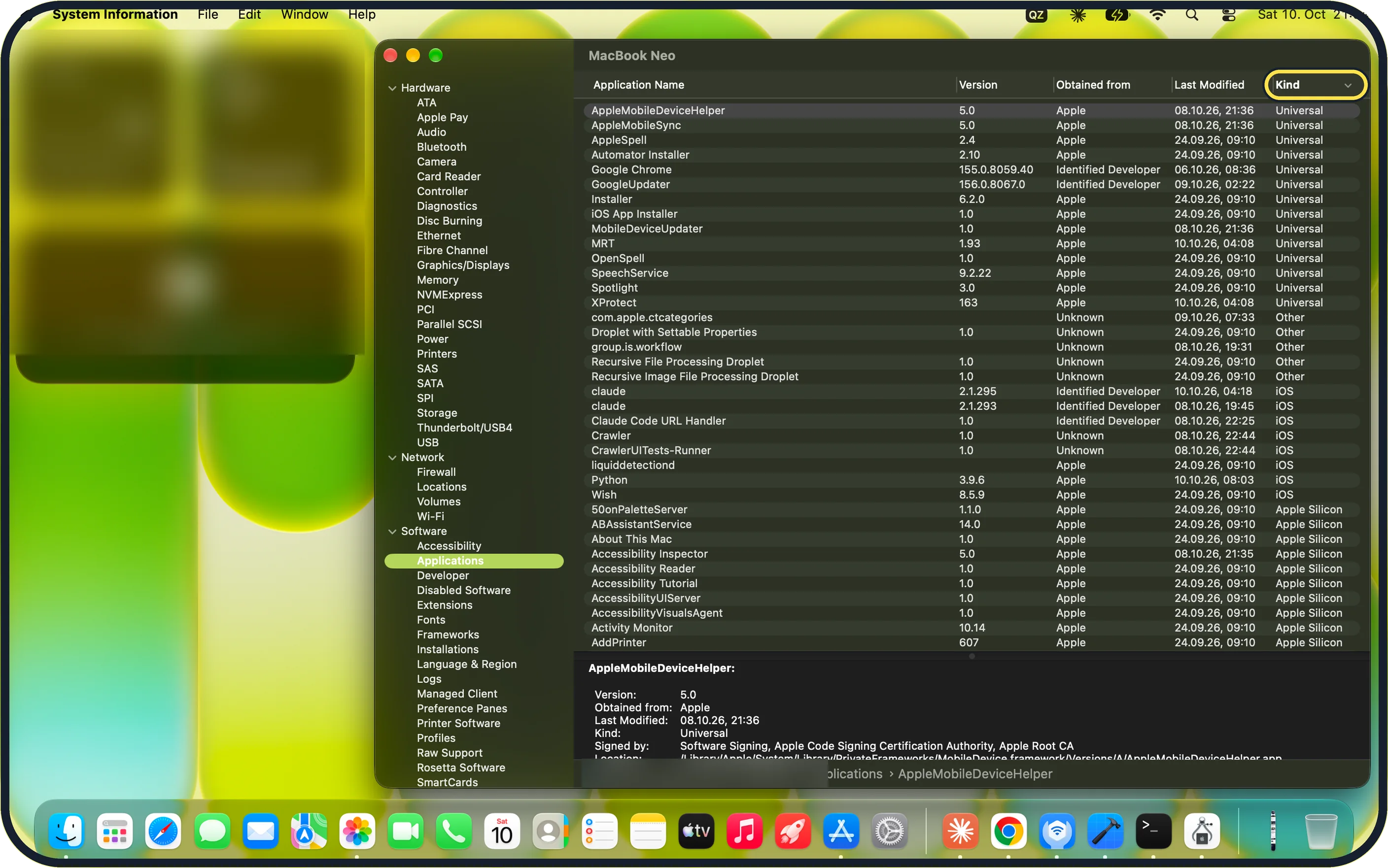
Zoomed in on the setting. Tap to see the whole screenTap the picture to see it full size See if any app is Intel-based
Open System Information in Applications, Utilities. Under Software, click Applications and sort by the Kind column. Rosetta Software is further down. On our MacBook Neo no app was of the kind Intel: 304 Apple Silicon, 14 Universal, 8 iOS and 5 Other. Rosetta Software read No information found.
If you do not see this option
- No Force Quit button With Finder selected, our MacBook Neo's window shows Relaunch instead of Force Quit. Select the frozen app in the list instead.
- App not in the Force Quit list The list shows open apps only. On our MacBook Neo it listed App Store, Calculator, Google Chrome, Photos, Preview and Terminal among others (step 1). If the app has already closed, open it again.
If this does not work
- It crashes with one file only Open another document in the app. If only one file fails, that file is damaged. If every file fails, reinstall the app: Apple's uninstall article says an uninstaller is the best way; without one, drag the app to the Trash. Source: Uninstall apps on your Mac
- It crashes after an update Apple's Mac guide says to uninstall app plug-ins or enhancements from other manufacturers: one you installed may no longer be compatible after an update to the app or macOS. Source: If an app freezes or quits unexpectedly on Mac
- It still crashes Unplug devices you connected recently, then start in safe mode to see whether software that loads at startup is involved. On a Mac with Apple silicon, Apple's safe mode page says: shut down, hold the power button until Loading startup options appears, select a volume, then hold Shift and click Continue in Safe Mode. Source: Start up your Mac in safe mode
About this guide
An app that shows the spinning wheel for minutes, or closes without warning, can be brought back with a few steps. If only one app is affected, look at that app and its files first.
Screenshots: MacBook Neo, macOS 27.0.1, dark mode.
Good to know
If several apps crash, test the hardware, including the memory: how to run Apple Diagnostics on a Mac.
Safe mode shows whether software that starts with the Mac is causing the crashes: how to start a Mac in safe mode.
More detail on the first step: how to force quit a frozen app on a Mac. If the whole Mac hangs: Mac keeps freezing or showing the spinning wheel.
In short: Force Quit, reopen, restart, update, other file, unplug devices, remove plug-ins, reinstall.
- Apple Support: If an app freezes or quits unexpectedly on Mac
- Apple Support: Uninstall apps on your Mac
- Apple Support: Start up your Mac in safe mode
Links checked in October 2026. Menus and features can change after software updates. These steps match the version named at the top.
Did this guide work for you?
Sorry about that. What happened?