
howtosimply.com/guides/how-to-make-sidebar-icons-and-text-bigger-on-a-mac/ · Checked October 2026 · MacBook Pro · macOS Tahoe 26
In this guide
Open System Settings, click Appearance, and set Sidebar icon size to Large. The icons in the Finder sidebar, and in the sidebar of apps such as Mail, News and Photos, get larger. The size of the text in the sidebar changes with them.
3 of 3 steps with real screenshots · 5 official sources below
- Device
- Mac
- Shown on
- macOS Tahoe 26 (MacBook Pro)
- App
- System Settings
- Path
- System Settings › Appearance › Sidebar icon size: Large
- Real screenshots
- 3 of 3 steps
- Checked
- October 2026
- Sources
- 5 official, linked below
Step by step
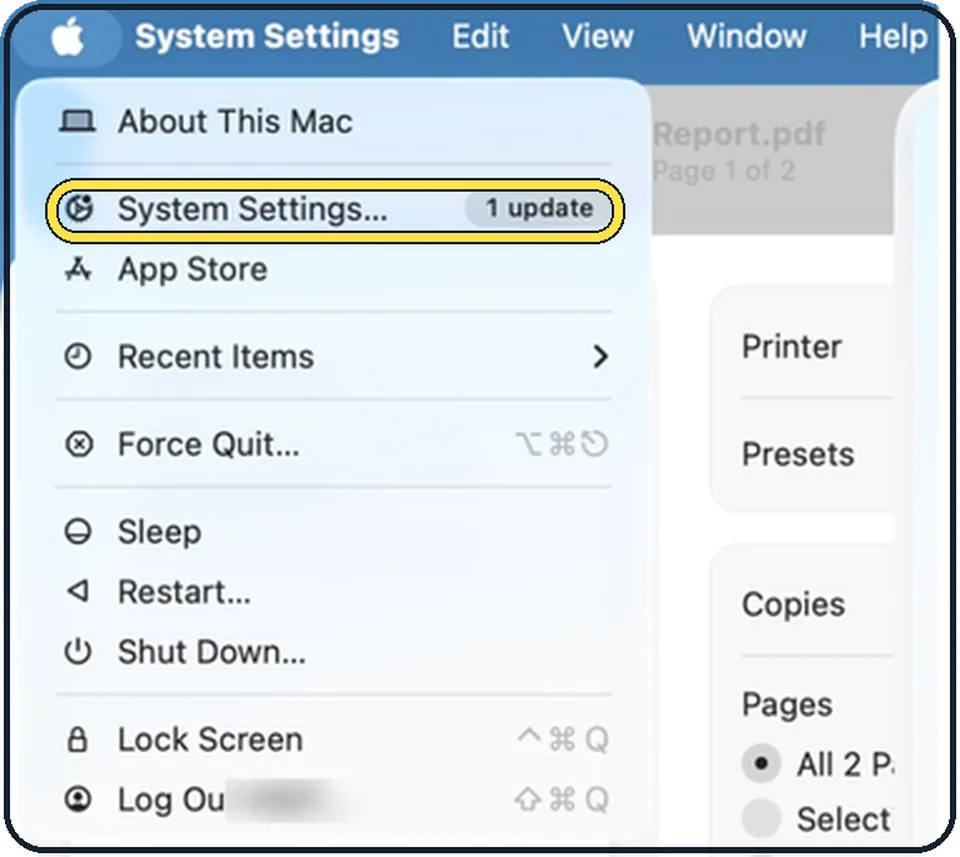
Tap the picture to see it full size Open System Settings
Click the Apple menu in the top left corner of the screen and choose System Settings.
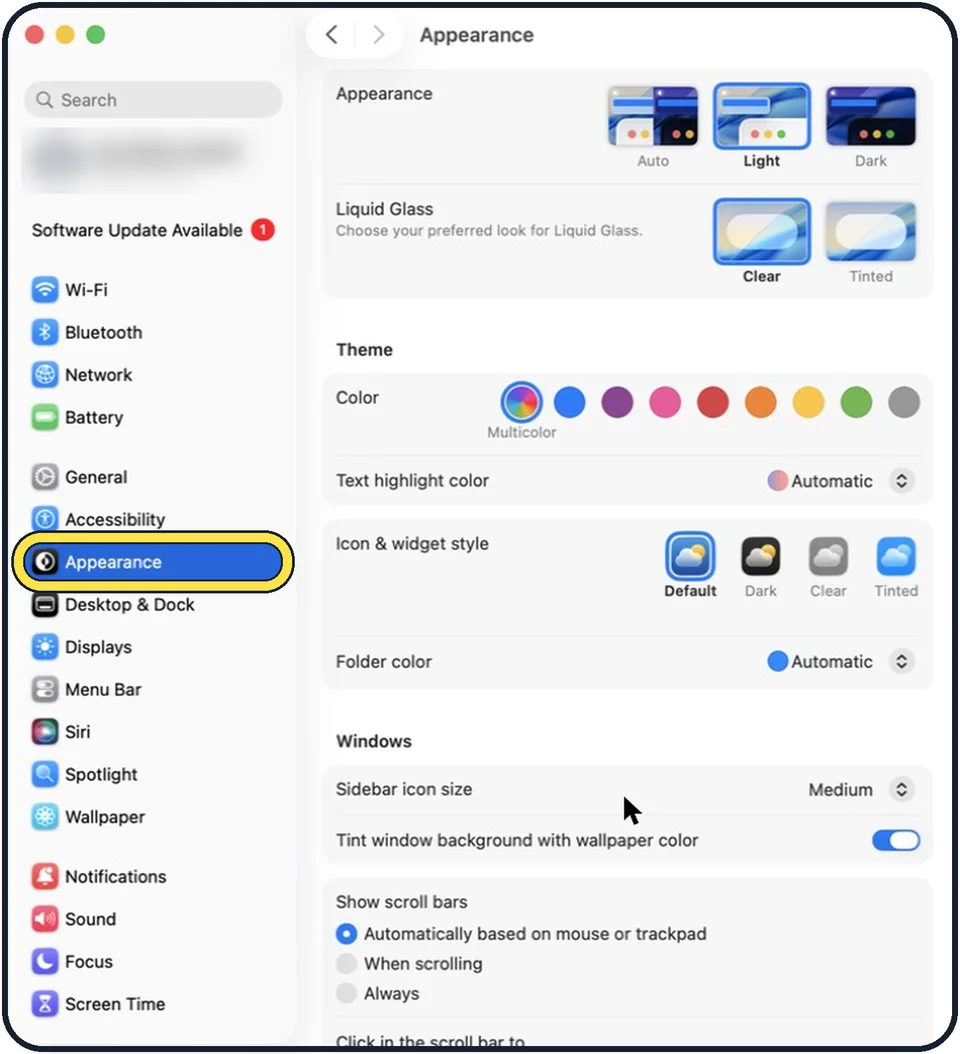
Zoomed in on the setting. Tap to see the whole screenTap the picture to see it full size Click Appearance in the sidebar
Appearance is below Accessibility.
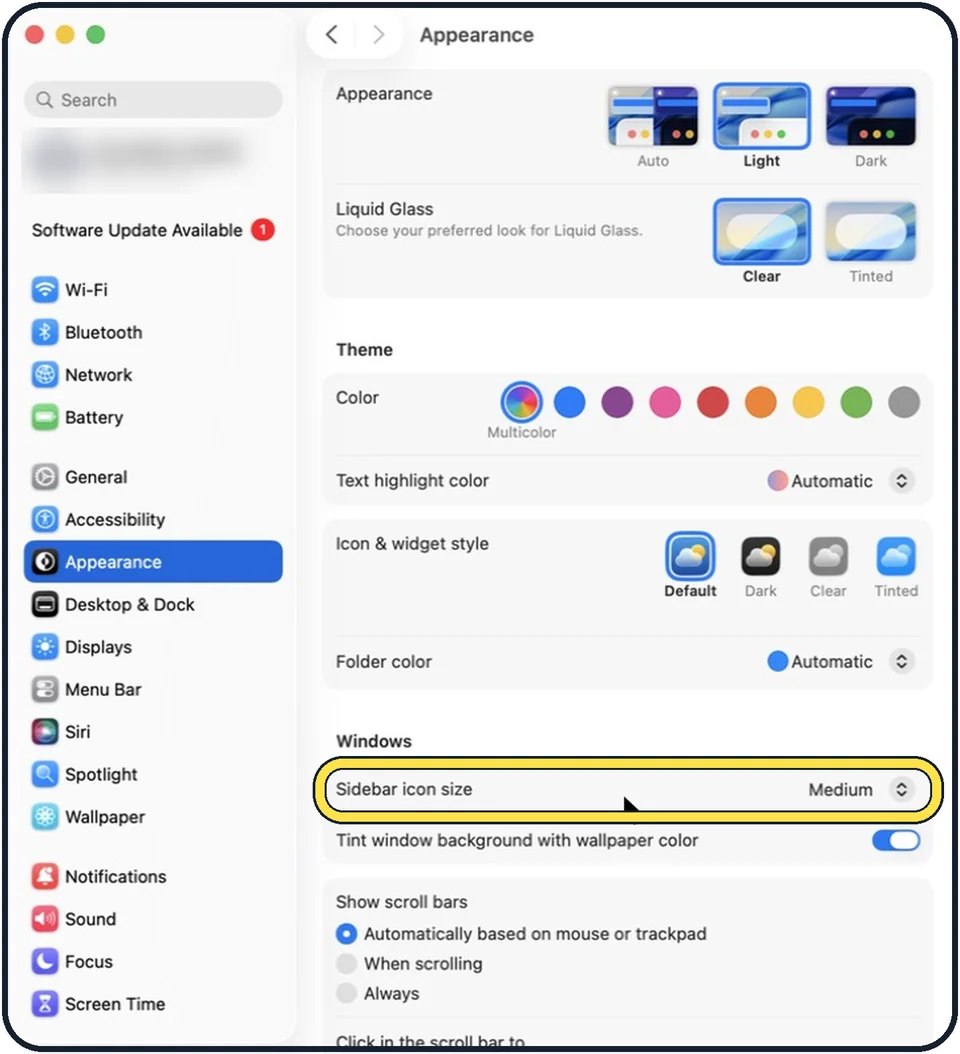
Tap the picture to see it full size Set Sidebar icon size
It is under the heading Windows. Choose Small, Medium or Large. In the picture it is Medium.
If you do not see this option
- Your Mac has System Preferences, not System Settings. Apple says that on macOS Monterey Sidebar icon size is in System Preferences, General. Source: Change General preferences on Mac
- You cannot find Appearance in the sidebar. Apple says you can type a word, such as sidebar, in the search field at the top of System Settings and click the matching option. Source: Find options in System Settings on Mac
If this does not work
- Large is still too small. Apple says the Text size setting in Accessibility, Display also makes text bigger in app sidebars, on the desktop and in apps that use your preferred reading size. Source: Increase font size and icons on Mac
- You want everything on the screen bigger. Apple says you can lower the resolution: in System Settings click Displays, then Larger Text. Everything on the screen then appears larger. Source: Increase the size of what's on the Mac screen
- The files in a Finder window are still small. Sidebar icon size only changes the sidebar. Apple says that in a Finder window you choose View, Show View Options and pick a text size and an icon size there. Source: Increase font size and icons on Mac
About this guide
The sidebar of Finder and Mail uses small icons and small text. One menu makes both larger, without changing the resolution of the screen.
The screenshots show System Settings on macOS Tahoe 26.
Good to know
The menu bar has its own text size: how to make the menu bar text bigger on a Mac.
In short: System Settings, Appearance, Sidebar icon size: Large.
- Mac User Guide: Change Appearance settings on Mac
- Apple Support: Change General preferences on Mac
- Apple Support: Find options in System Settings on Mac
- Apple Support: Increase font size and icons on Mac
- Apple Support: Increase the size of what's on the Mac screen
Links checked in October 2026. Menus and features can change after software updates. These steps match the version named at the top.
📷 Camera Lab: the same 6 scenes photographed with 11 phones, side by side.
Did this guide work for you?
Sorry about that. What happened?