
howtosimply.com/guides/how-to-update-macos-on-your-mac/ · Checked October 2026 · MacBook Pro · macOS Tahoe 26
In this guide
Open System Settings, click General, then Software Update. If an update is shown, click Update Now or Upgrade Now and leave the Mac plugged in until it restarts.
3 of 5 steps with real screenshots · 1 official source below
- Device
- Mac
- Shown on
- macOS Tahoe 26 (MacBook Pro)
- App
- System Settings
- Path
- System Settings › General › Software Update › Update Now
- Real screenshots
- 3 of 5 steps
- Checked
- October 2026
- Sources
- 1 official, linked below
Step by step
Back up first
Before a large upgrade, make a Time Machine backup or check that your important files are in iCloud. Updates rarely go wrong, but a backup costs little.
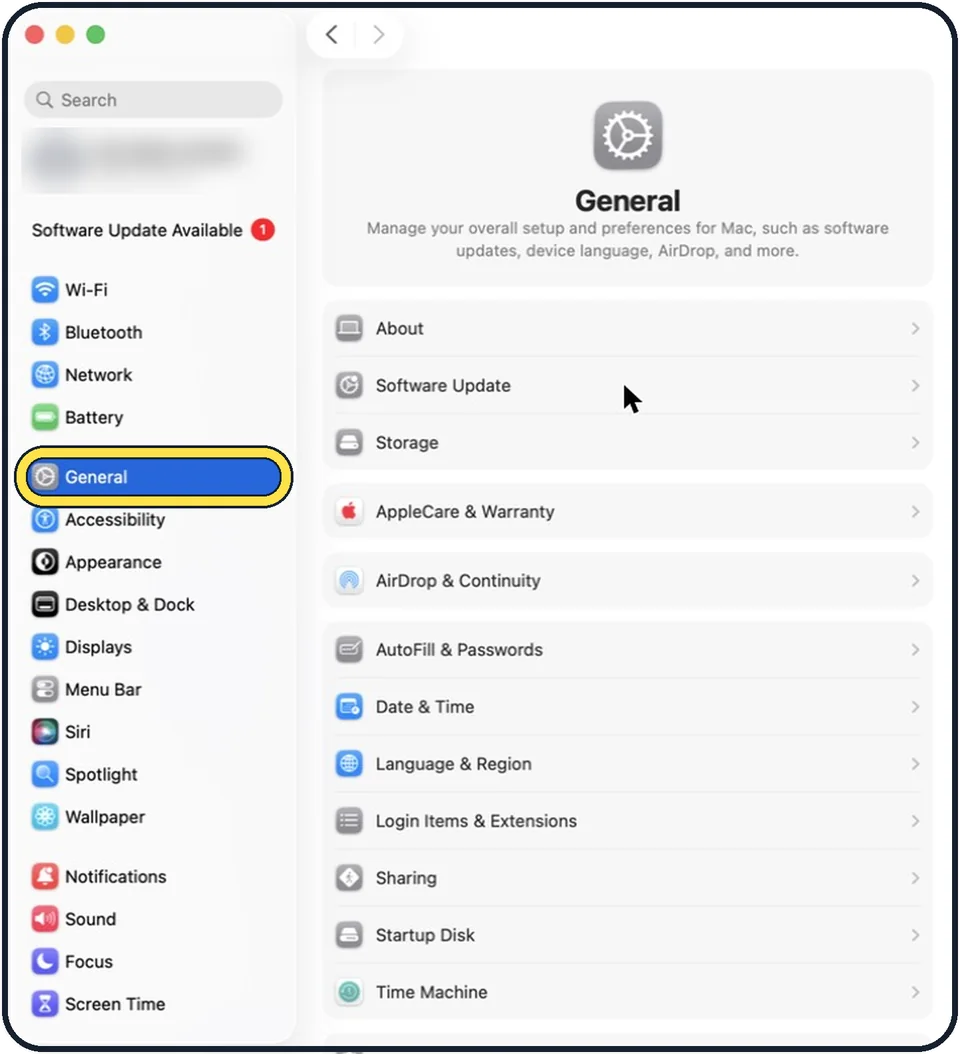
Zoomed in on the setting. Tap to see the whole screenTap the picture to see it full size Open System Settings and click General
Click the Apple menu in the top left corner and choose System Settings.
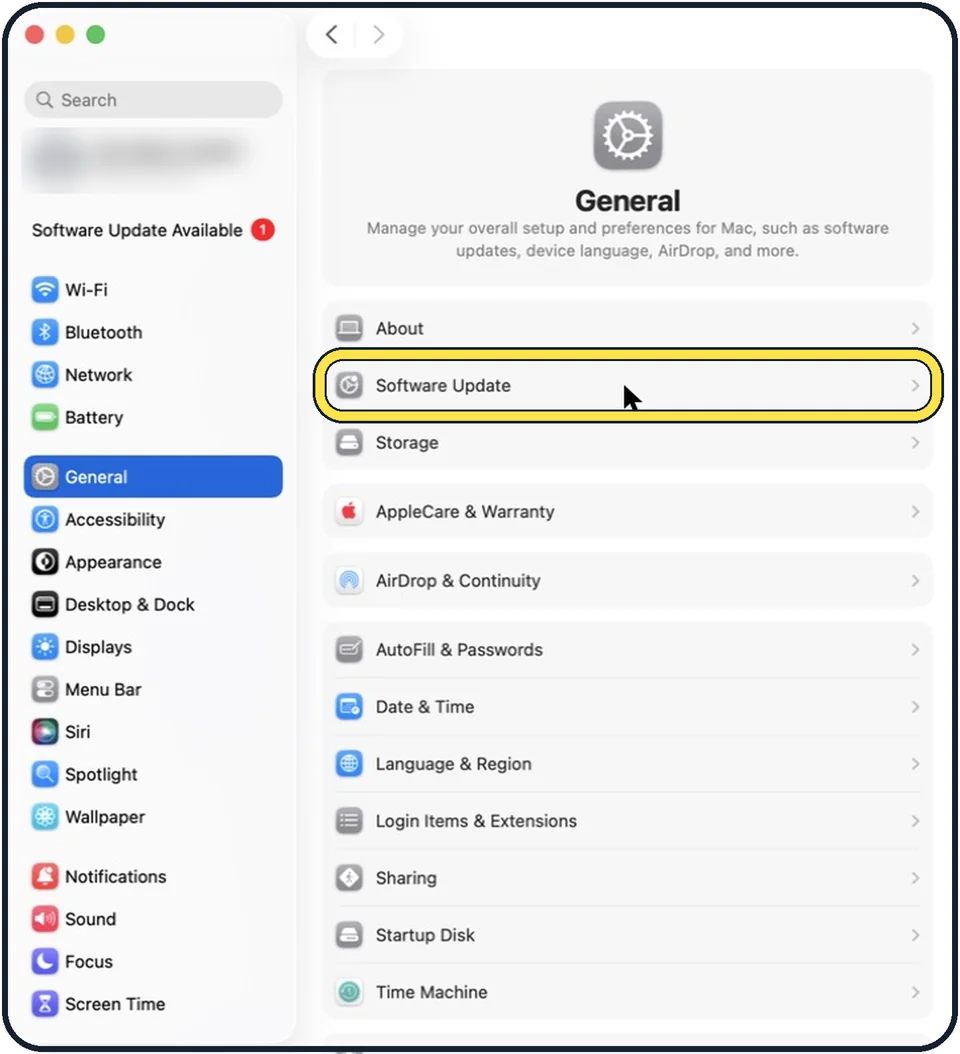
Tap the picture to see it full size Click Software Update
The Mac checks for updates. This needs an internet connection.
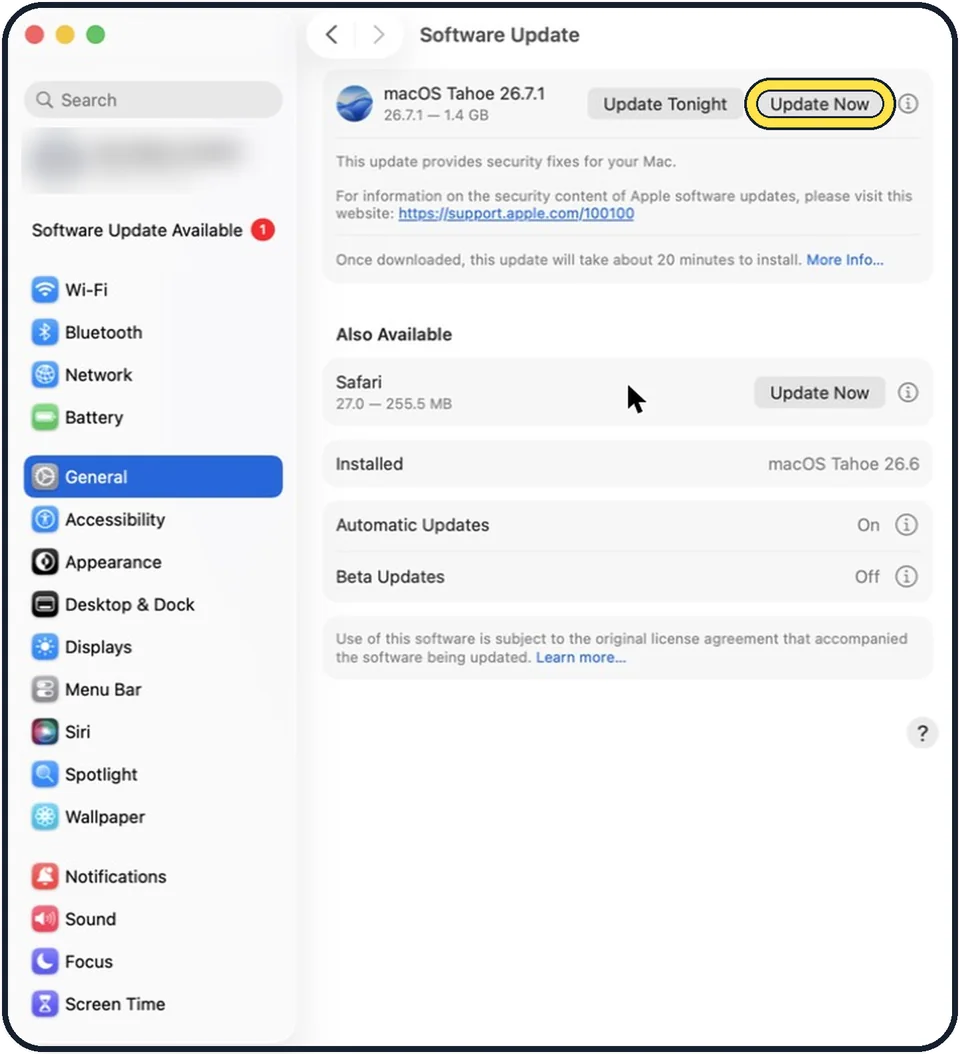
Zoomed in on the setting. Tap to see the whole screenTap the picture to see it full size Click Update Now or Upgrade Now
Update Now installs fixes for the version you already have. Upgrade Now moves to a new major version. Enter your Mac password when asked.
Leave the Mac to finish
Keep a laptop plugged in and do not close the lid. The Mac restarts, sometimes more than once, and shows a progress bar.
About this guide
Updates bring security fixes and new features. A small update takes a few minutes. A new macOS version can take an hour, so start it when you do not need the Mac.
Good to know
Click the i button next to Automatic Updates to choose what installs by itself. Keeping "Install Security Responses and system files" on is a good idea.
If the update will not download, free some storage first: how to check and free up storage on a Mac.
Very old Macs cannot install the newest macOS. Software Update only offers versions your Mac supports.
In short: System Settings, General, Software Update, Update Now. Stay plugged in until it restarts.
Links checked in October 2026. Menus and features can change after software updates. These steps match the version named at the top.
Did this guide work for you?
Sorry about that. What happened?