
macOS 27 compared with macOS 26: We rewrote this guide on macOS 27.0.1 (MacBook Neo): it now has 7 steps instead of 8. The macOS 26 page keeps the steps and screenshots as they were.
howtosimply.com/guides/mac-keeps-freezing-or-showing-the-spinning-wheel-8-fixes/ · Checked October 2026 · MacBook Neo · macOS 27.0.1
In this guide
Force quit the frozen app with Option + Command + Esc, then restart the Mac. If it keeps happening, free up storage, check Activity Monitor for an app using too much memory, and install macOS updates.
7 of 7 steps with real screenshots · 1 official source below
- Device
- Mac
- Shown on
- macOS 27.0.1 (MacBook Neo)
- App
- System Settings
- Real screenshots
- 7 of 7 steps
- Checked
- October 2026
- Sources
- 1 official, linked below
Step by step
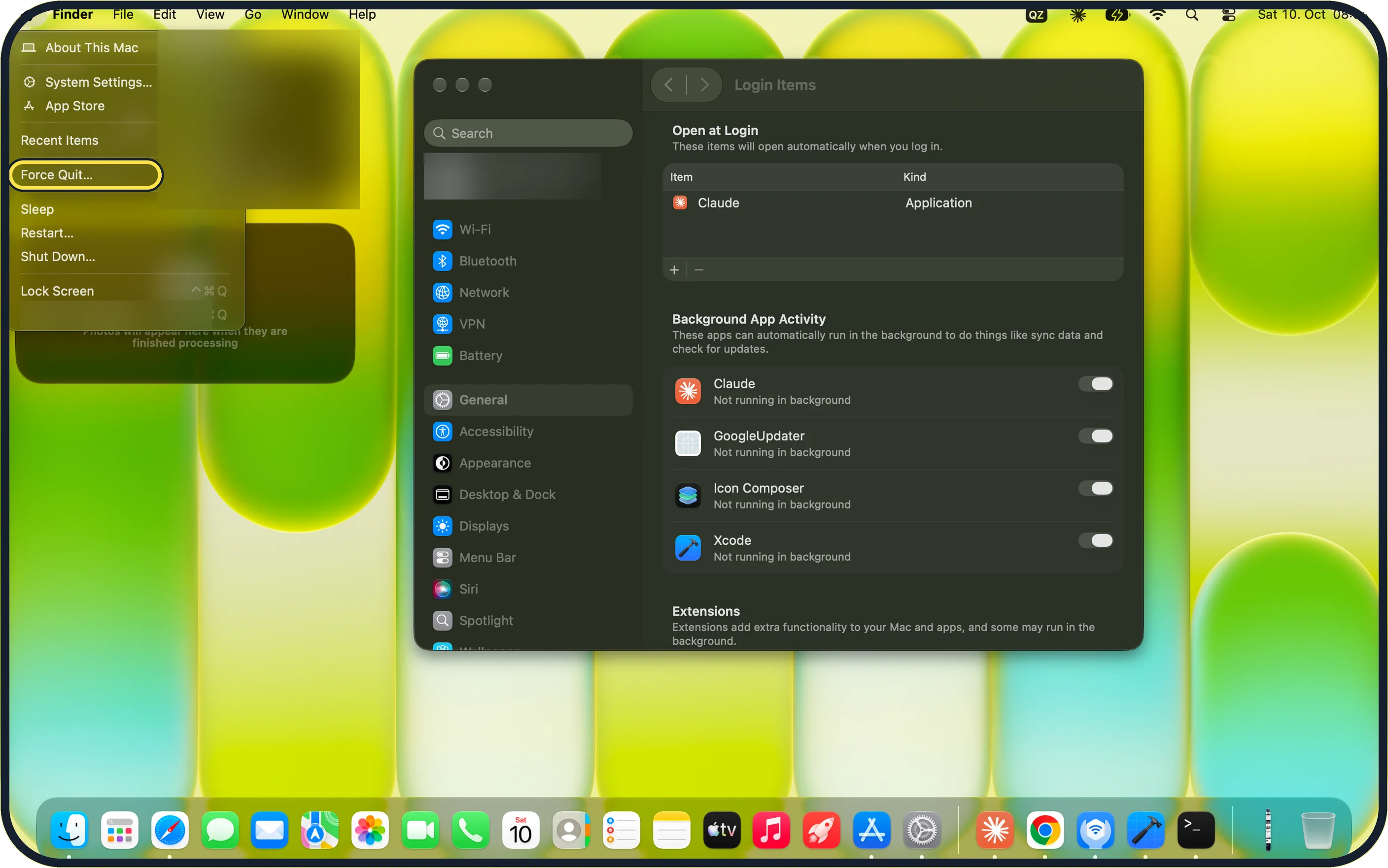
Zoomed in on the setting. Tap to see the whole screenTap the picture to see it full size Wait a moment, then open Force Quit
Give the app up to a minute. It may be finishing a large task. Then click the Apple menu and choose Force Quit…, below Recent Items on our MacBook Neo.
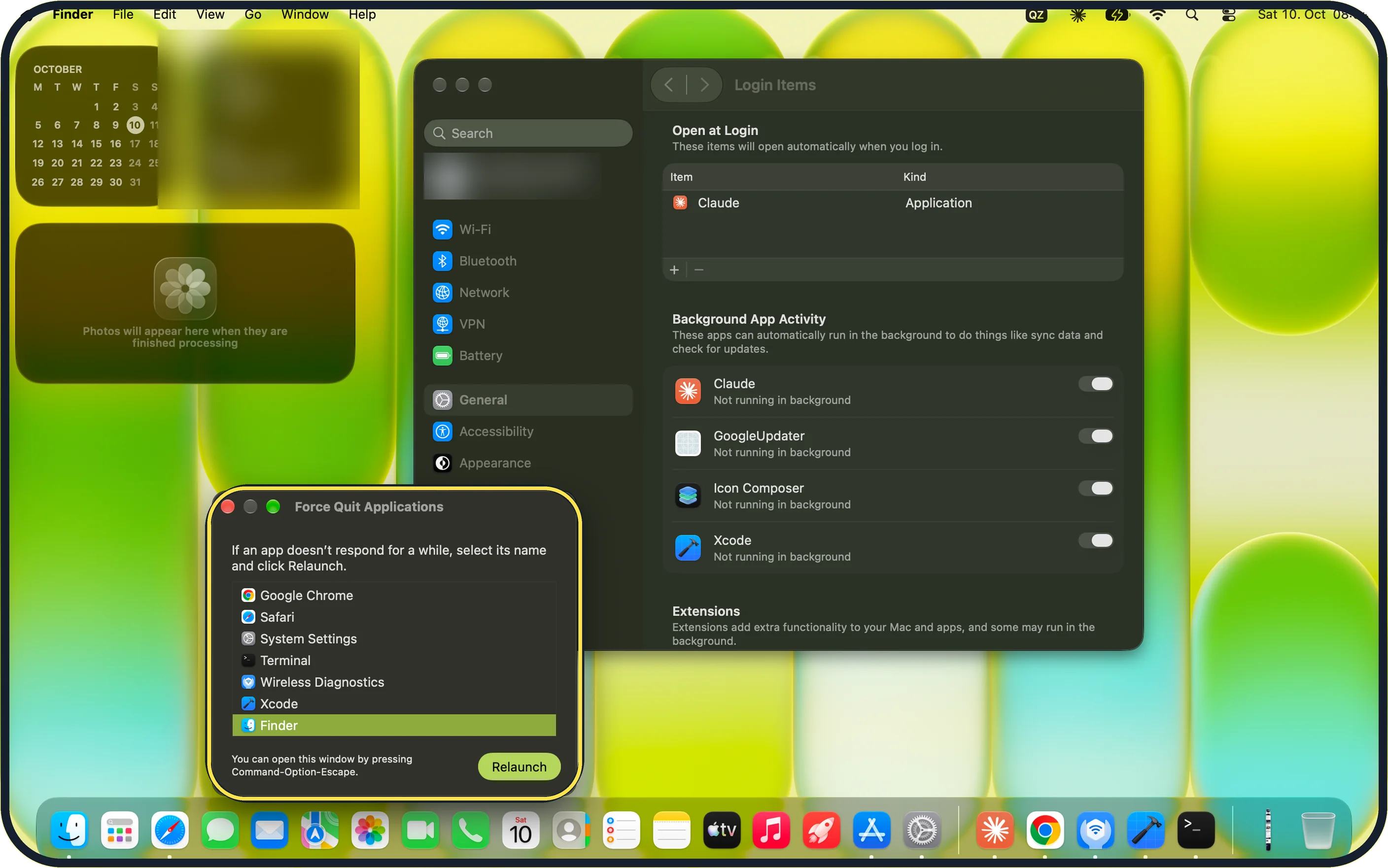
Zoomed in on the setting. Tap to see the whole screenTap the picture to see it full size Force quit the app
Or press Option + Command + Esc. Select the frozen app and click Force Quit. On our MacBook Neo the window says: If an app doesn't respond for a while, select its name and click Relaunch. With Finder selected, the button reads Relaunch.
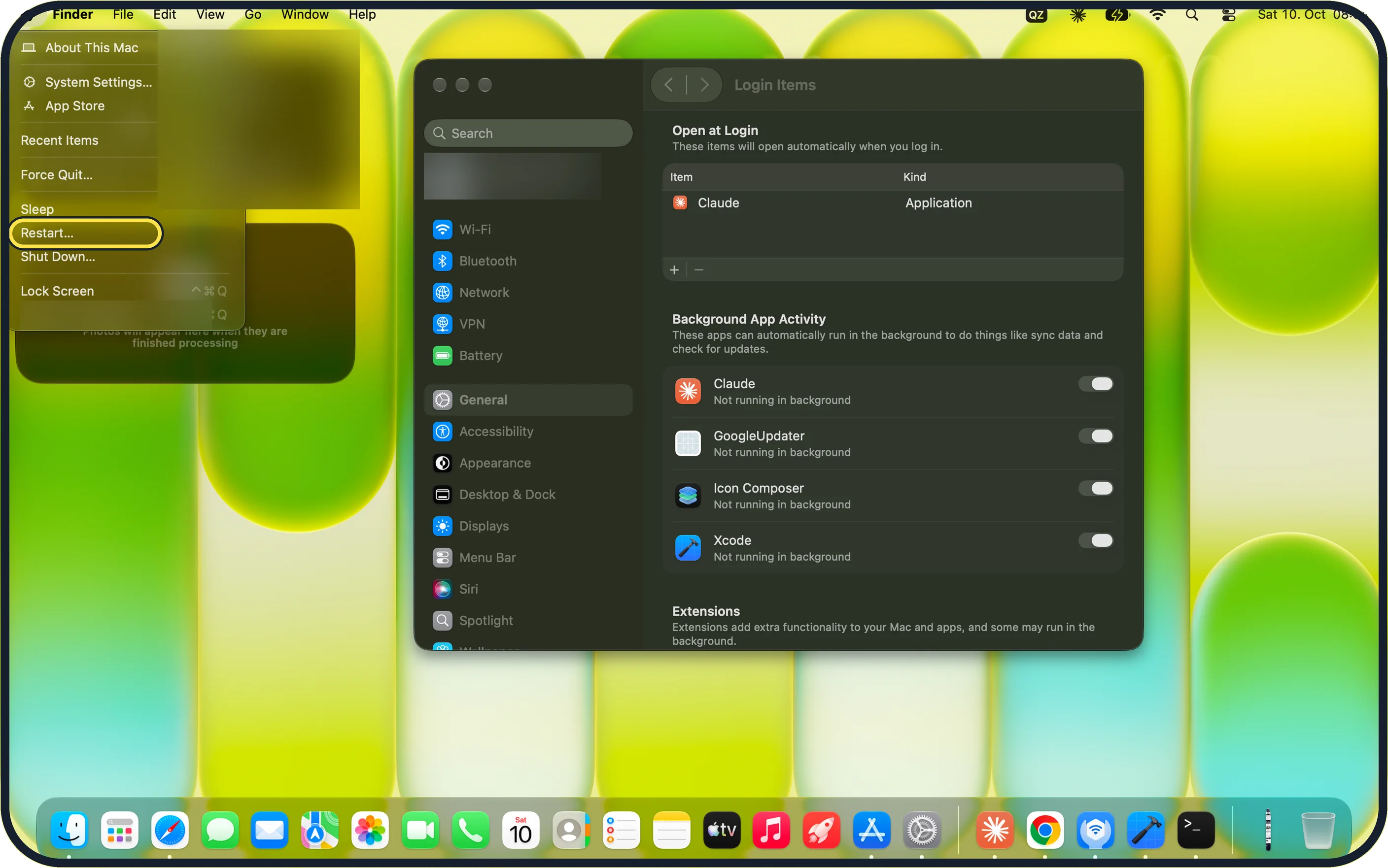
Zoomed in on the setting. Tap to see the whole screenTap the picture to see it full size Restart the Mac
Click the Apple menu and choose Restart…. If nothing responds, press and hold the power button until the Mac shuts down; Apple's Mac guide warns that unsaved changes may be lost.
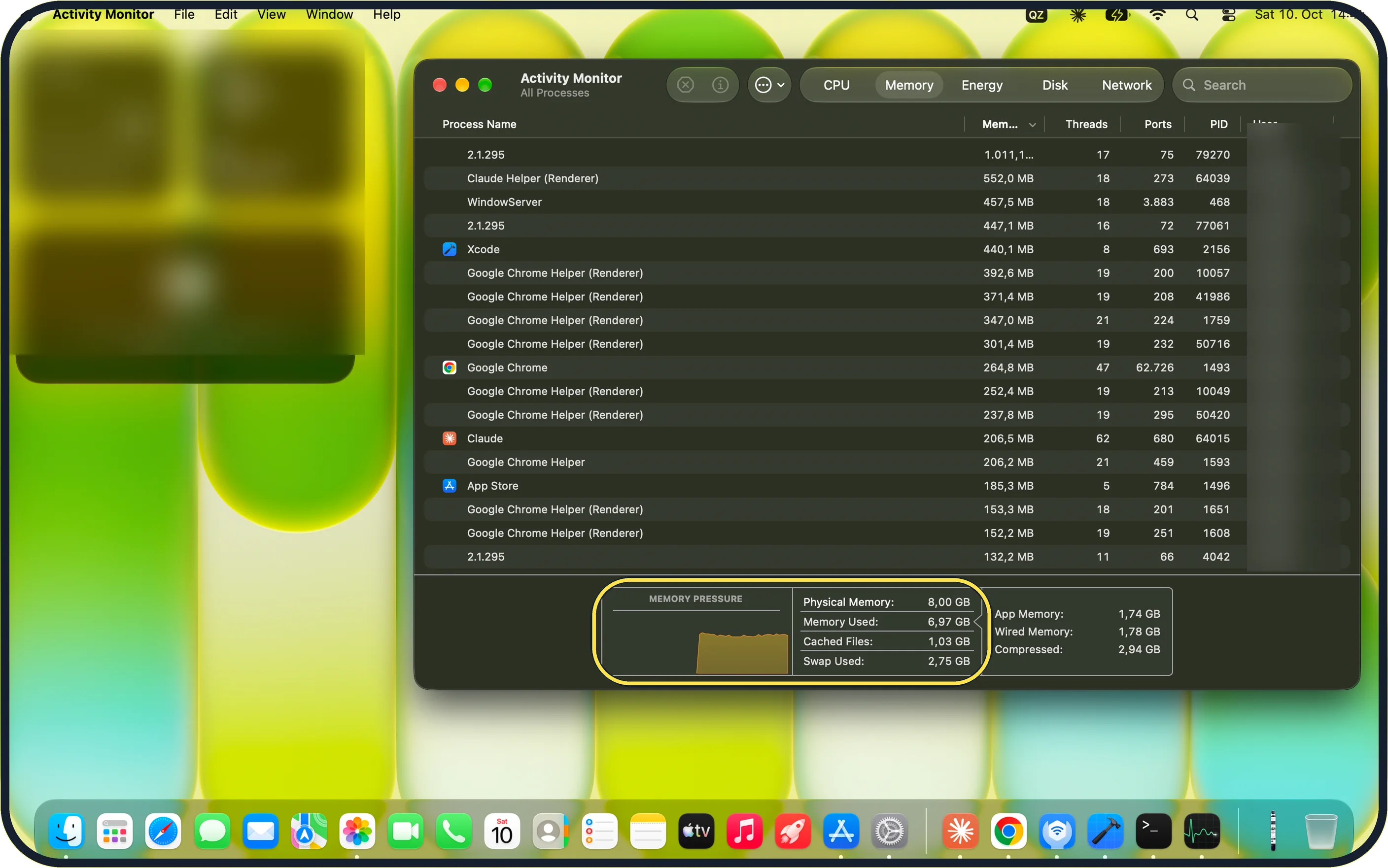
Zoomed in on the setting. Tap to see the whole screenTap the picture to see it full size Check memory
Open Activity Monitor and click Memory. A yellow or red Memory Pressure graph means too much is open. Close apps and browser tabs. On our MacBook Neo, with 8 GB and Chrome, Xcode and Claude open, the graph was yellow, Memory Used showed 6,97 GB and Swap Used 2,75 GB.
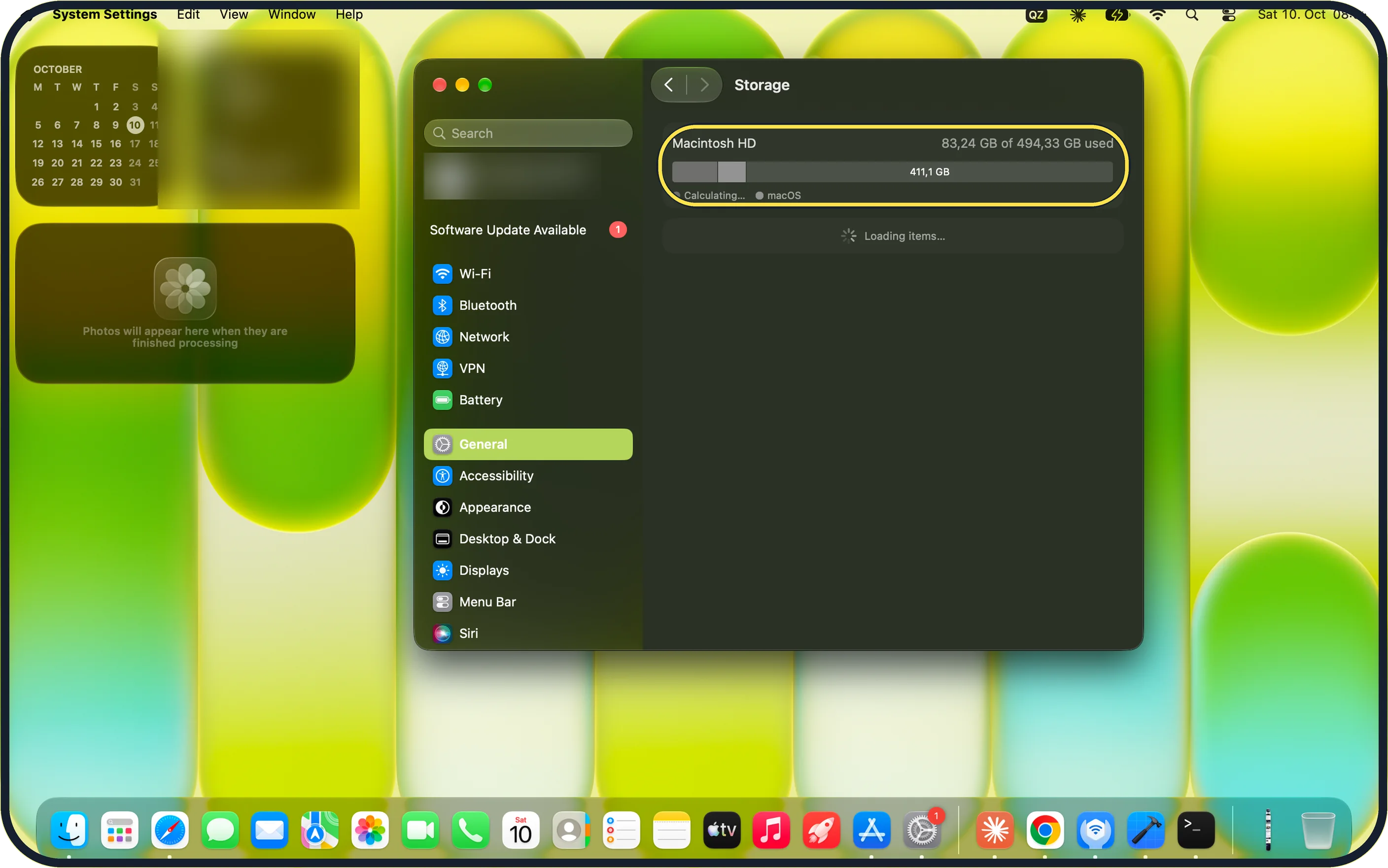
Zoomed in on the setting. Tap to see the whole screenTap the picture to see it full size Free up storage
macOS needs free disk space to work. Open System Settings, General, Storage: our MacBook Neo showed 83,24 GB of 494,33 GB used. More: how to check and free up storage on a Mac.
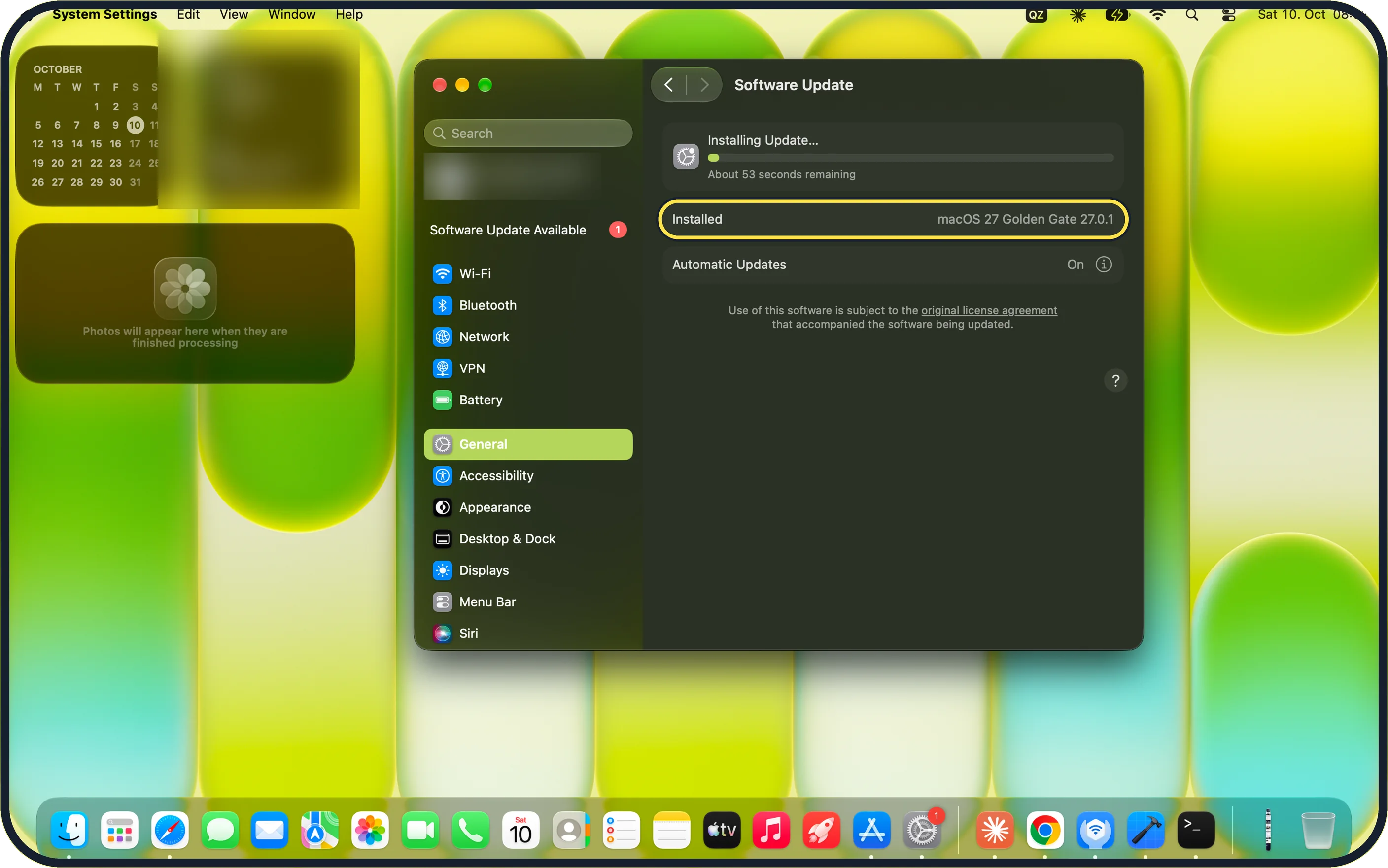
Zoomed in on the setting. Tap to see the whole screenTap the picture to see it full size Update the app and macOS
Open System Settings, General, Software Update and install what it offers; apps from the App Store update in the App Store. Our MacBook Neo shows Installed macOS 27 Golden Gate 27.0.1 and Automatic Updates On.
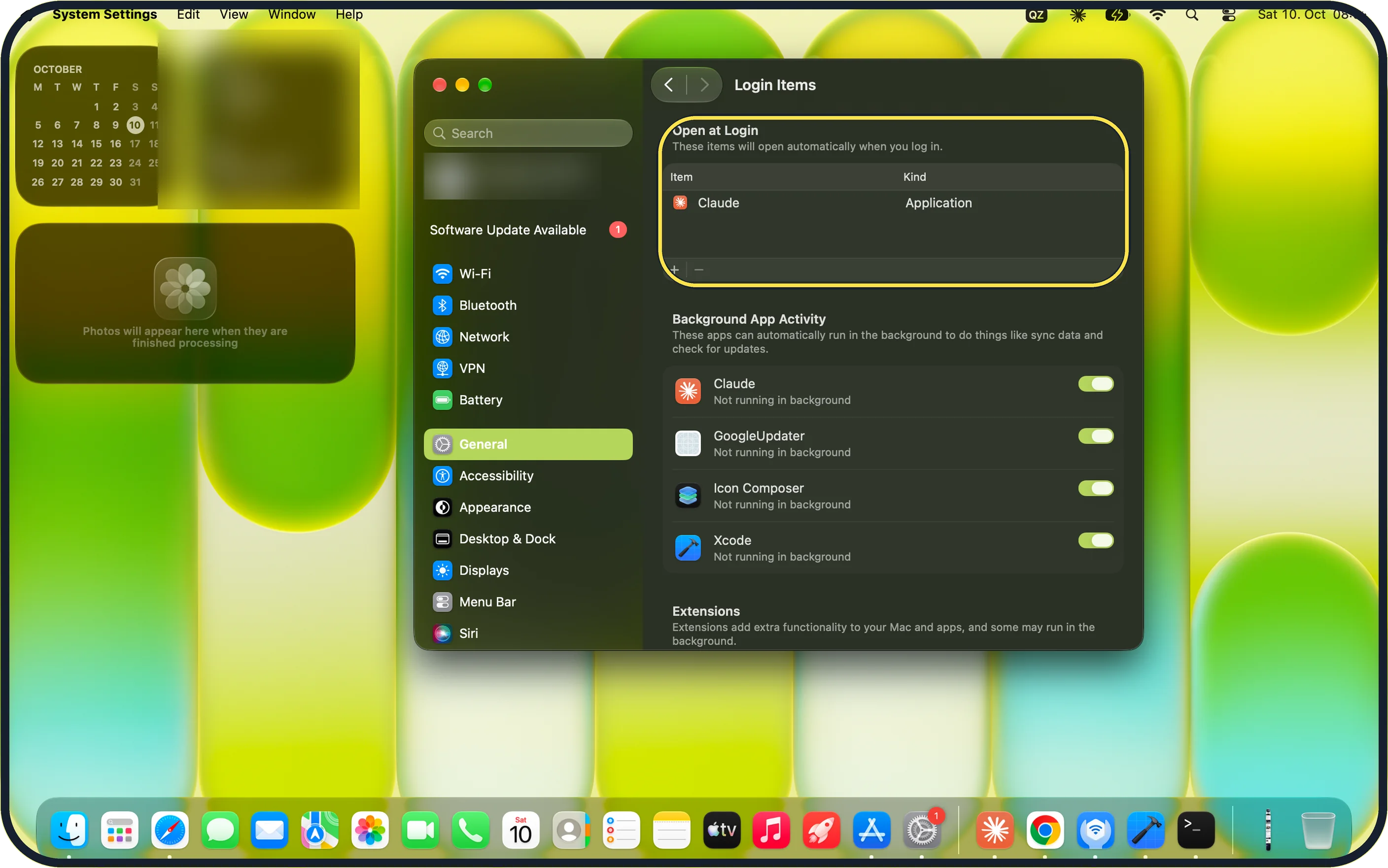
Zoomed in on the setting. Tap to see the whole screenTap the picture to see it full size Test in safe mode, then check Login Items
Apple's Mac guide says safe mode helps you find out whether software that loads as the Mac starts is the cause. On a Mac with Apple silicon, Apple's safe mode page says: shut down, hold the power button until Loading startup options appears, select a volume, then hold Shift and click Continue in Safe Mode. If the Mac is stable there, remove recent additions under System Settings, General, Login Items. On our MacBook Neo that page lists Claude under Open at Login and four apps under Background App Activity.
What we saw on our device
- Force quit the app: On our MacBook Neo the window says: If an app doesn't respond for a while, select its name and click Relaunch.
- Check memory: On our MacBook Neo, with 8 GB and Chrome, Xcode and Claude open, the graph was yellow, Memory Used showed 6,97 GB and Swap Used 2,75 GB.
- Test in safe mode, then check Login Items: On our MacBook Neo that page lists Claude under Open at Login and four apps under Background App Activity.
If you do not see this option
- The button says Relaunch, not Force Quit Finder was selected on our MacBook Neo, and for Finder the button reads Relaunch. Select the frozen app instead.
- No Memory Pressure graph On our MacBook Neo the graph is only on the Memory tab of Activity Monitor, next to CPU, Energy, Disk and Network.
- No Chip line in About This Mac Apple's safe mode page: if About This Mac lists Processor with an Intel name, the Mac is Intel-based. Turn it on or restart it and hold Shift until the login window appears. With Chip listed, use the power-button route in step 7. Source: Start up your Mac in safe mode
If this does not work
- The whole Mac waits with a drive attached Eject and unplug external drives and accessories, then test again. Source: If an app freezes or quits unexpectedly on Mac
- The Mac does not respond at all Press and hold the power button until the Mac shuts down, then start it in safe mode, as Apple's safe mode page describes. Source: Start up your Mac in safe mode
About this guide
The spinning coloured wheel means an app is busy and not responding. Once in a while is normal. If it keeps happening, check memory, disk space and the app itself.
Screenshots: MacBook Neo, macOS 27.0.1, dark mode.
Good to know
If the wheel appears mainly in one app, reinstall that app.
Run First Aid on the disk: open Disk Utility, select the startup volume and click First Aid.
More causes of a slow Mac: Mac running slow.
In short: Force quit, restart, check memory and storage, update.
Links checked in October 2026. Menus and features can change after software updates. These steps match the version named at the top.
Did this guide work for you?
Sorry about that. What happened?