
howtosimply.com/guides/how-to-make-keys-repeat-faster-on-a-mac/ · Checked October 2026 · MacBook Pro · macOS Tahoe 26
In this guide
Open System Settings, click Keyboard, and drag the Key repeat rate slider toward Fast and the Delay until repeat slider toward Short. A held key, such as an arrow key or Delete, then starts repeating sooner and repeats more quickly.
4 of 4 steps with real screenshots · 4 official sources below
- Device
- Mac
- Shown on
- macOS Tahoe 26 (MacBook Pro)
- App
- System Settings
- Path
- System Settings › Keyboard
- Real screenshots
- 4 of 4 steps
- Checked
- October 2026
- Sources
- 4 official, linked below
Step by step
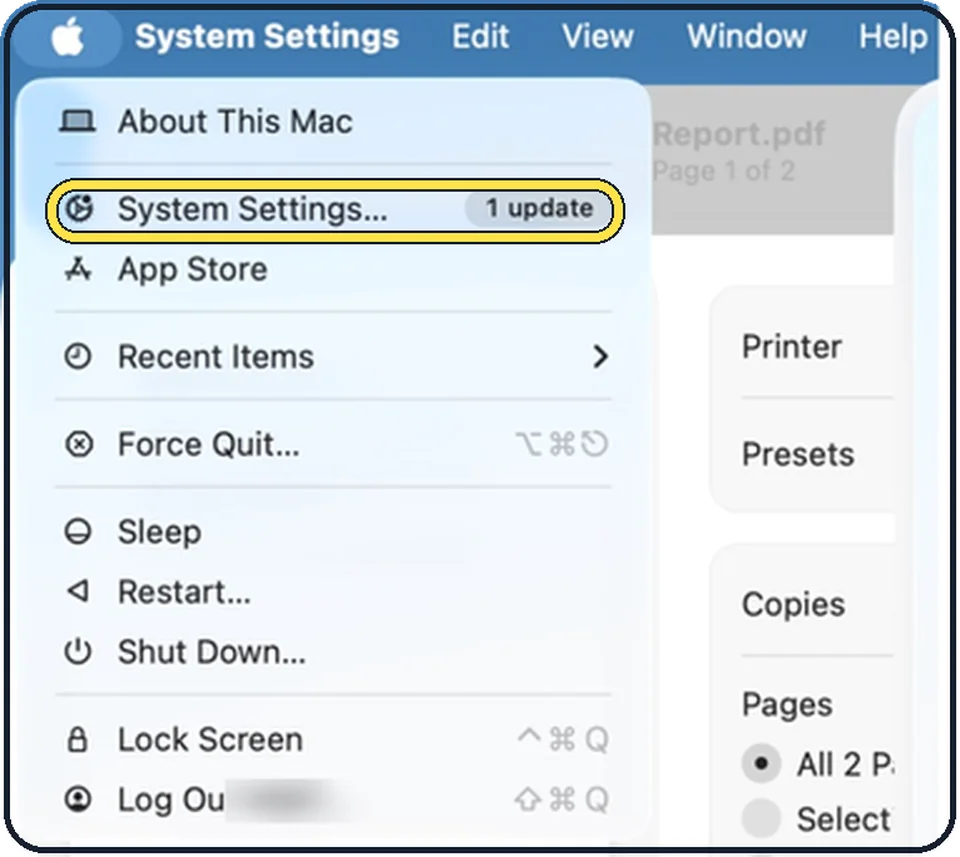
Tap the picture to see it full size Open System Settings
Click the Apple menu in the top left corner of the screen and choose System Settings.
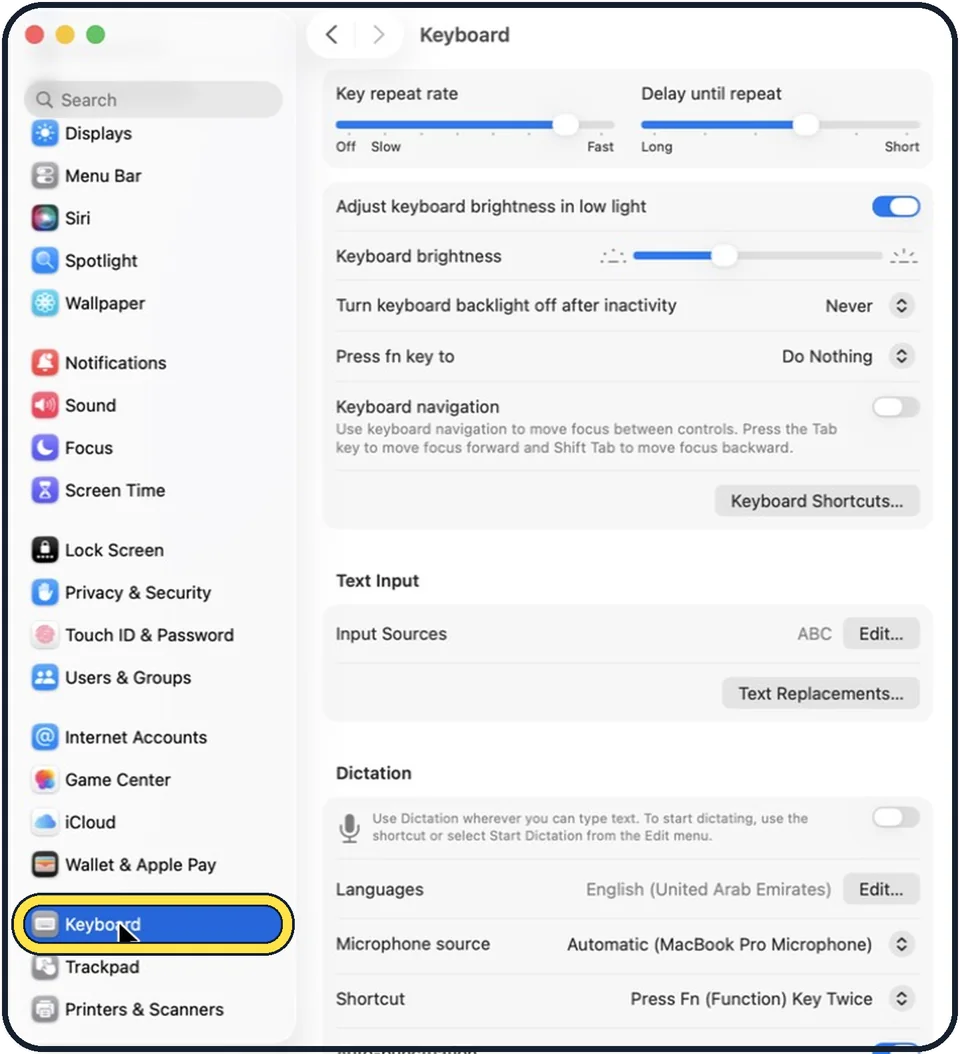
Zoomed in on the setting. Tap to see the whole screenTap the picture to see it full size Click Keyboard in the sidebar
Keyboard is near the bottom of the sidebar. Scroll down to find it.
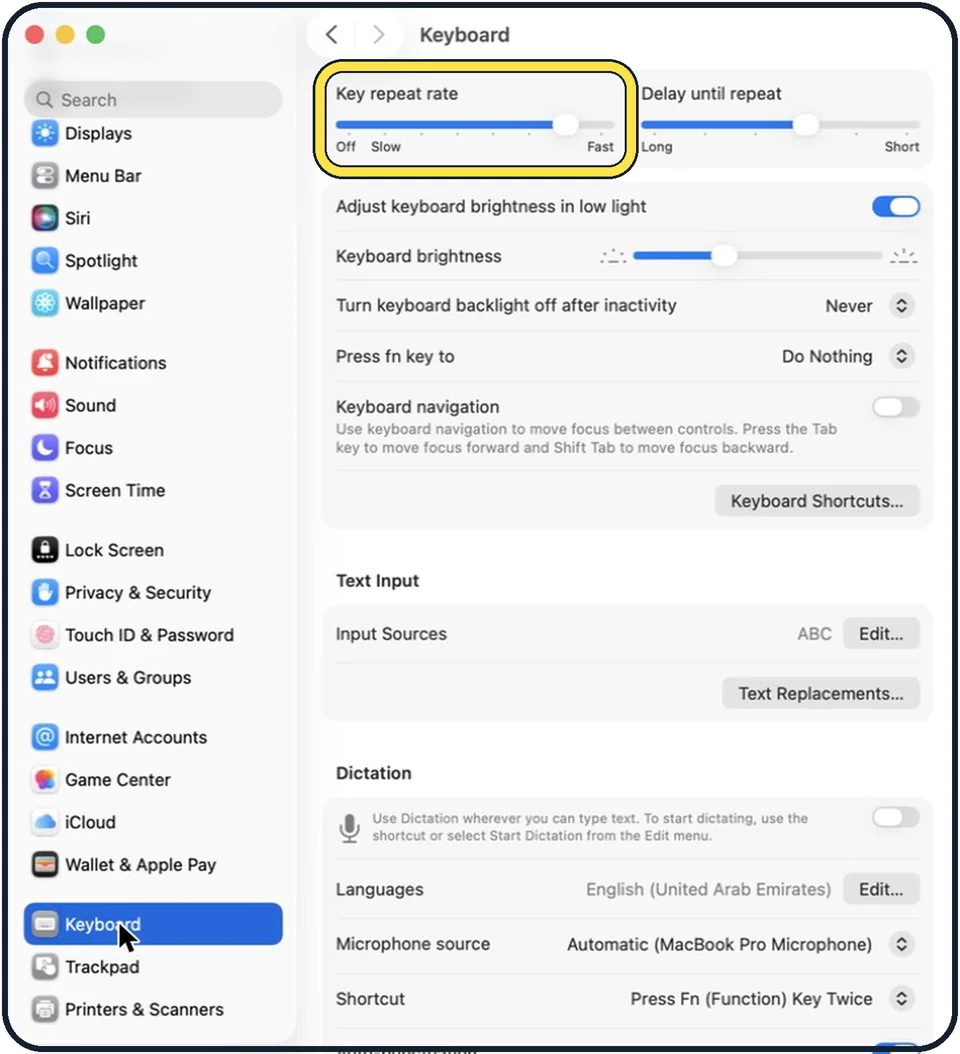
Zoomed in on the setting. Tap to see the whole screenTap the picture to see it full size Drag Key repeat rate toward Fast
It is the left slider at the top of the page. The scale goes from Off and Slow to Fast. In the picture it is set close to Fast.
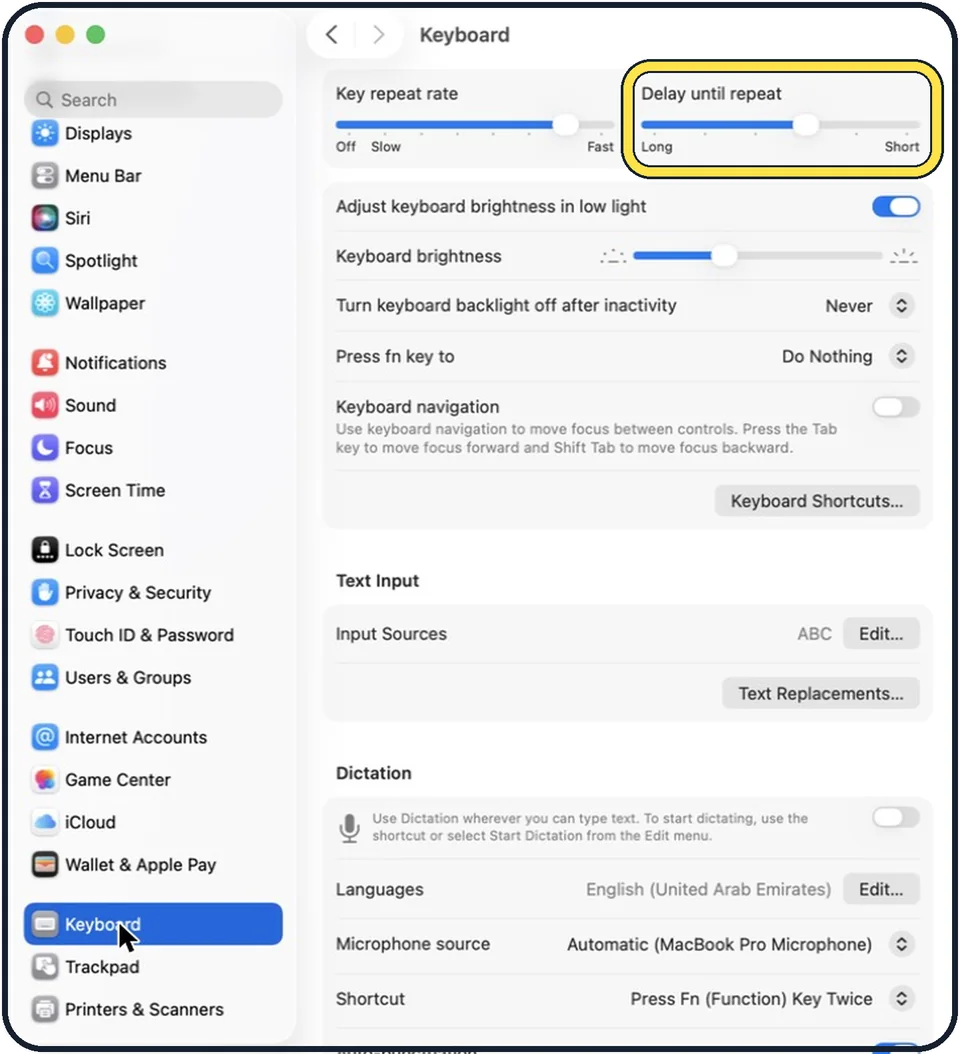
Zoomed in on the setting. Tap to see the whole screenTap the picture to see it full size Drag Delay until repeat toward Short
It is the right slider. The scale goes from Long to Short. In the picture it is about two-thirds of the way to Short.
If you do not see this option
- Your Mac has System Preferences, not System Settings. Apple says that on macOS Monterey you choose Apple menu, System Preferences, click Keyboard, then the Keyboard tab. The sliders are called Key Repeat and Delay Until Repeat. Source: Change Keyboard preferences on Mac
- You cannot find Keyboard in the sidebar. Apple says you can type a word, such as repeat, in the search field at the top of System Settings and click the matching option. Source: Find options in System Settings on Mac
If this does not work
- Holding a letter shows accented letters instead. Apple says that holding some letter keys, such as a, lets you type characters like à, á or â. Apple also says that with Key repeat rate at Off, these characters do not appear. Source: Set how quickly a key repeats on Mac
- Nothing repeats when you hold a key. Apple says characters repeat when you press and hold a key in a text area. Click in a document or text box first, and check that Key repeat rate is not at Off. Source: Set how quickly a key repeats on Mac
About this guide
When you hold the Delete key or an arrow key, the Mac waits a moment and then repeats it. Two sliders set how long it waits and how quickly characters repeat.
The screenshots show System Settings on macOS Tahoe 26.
Good to know
With Key repeat rate at Off, a held key does not repeat at all.
In short: System Settings, Keyboard, Key repeat rate and Delay until repeat.
- Mac User Guide: Keyboard settings on Mac
- Apple Support: Set how quickly a key repeats on Mac
- Apple Support: Change Keyboard preferences on Mac
- Apple Support: Find options in System Settings on Mac
Links checked in October 2026. Menus and features can change after software updates. These steps match the version named at the top.
Did this guide work for you?
Sorry about that. What happened?