
You are viewing the macOS 26 version of this guide, recorded on macOS Tahoe 26 (MacBook Pro) on 4 October 2026. It is kept as it was and not updated. See the macOS 27 version.
howtosimply.com/guides/mac-app-keeps-crashing-or-freezing-8-fixes-to-try/ · Checked 4 October 2026 · MacBook Pro · macOS Tahoe 26
In this guide
Click the Apple menu, choose Force Quit, select the app and click Force Quit, then open the app again. If it keeps happening, restart the Mac, update the app and macOS, and test with a different file. After that, unplug new devices and remove plug-ins.
3 of 8 steps with real screenshots · 3 official sources below
- Device
- Mac
- Shown on
- macOS Tahoe 26 (MacBook Pro)
- App
- System Settings
- Real screenshots
- 3 of 8 steps
- Checked
- 4 October 2026
- Sources
- 3 official, linked below
Step by step
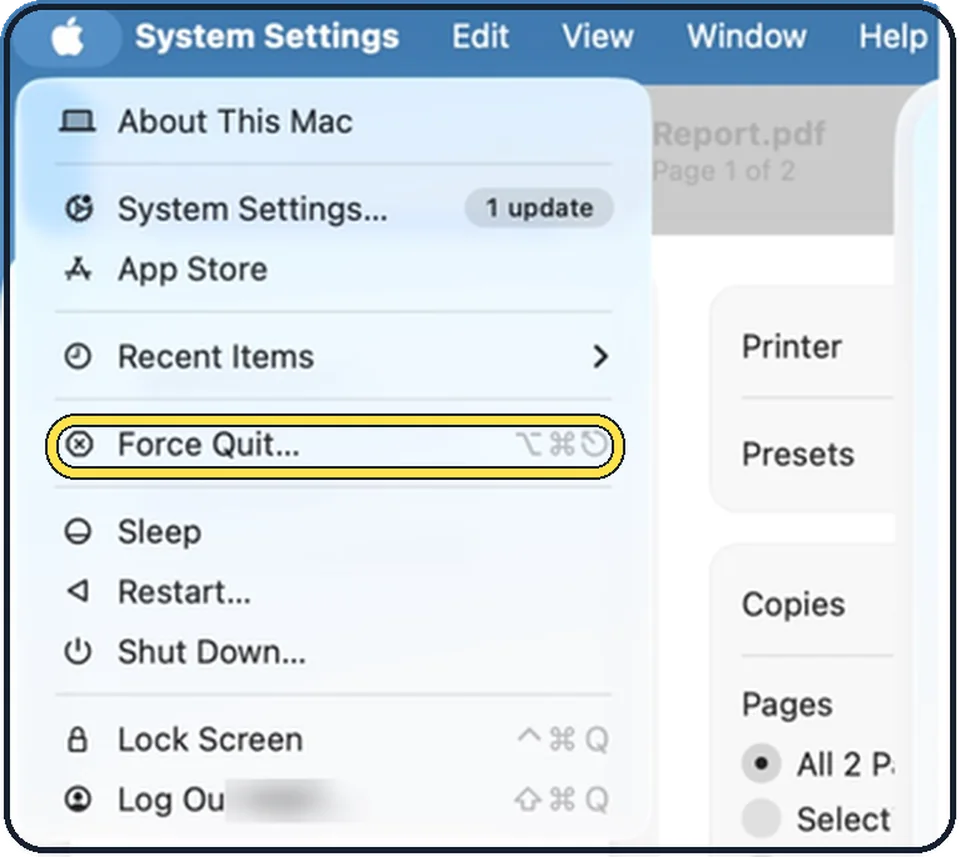
Tap the picture to see it full size Force the app to quit
Click the Apple menu in the top left corner and choose Force Quit, or press Option, Command and Esc together. Select the app and click Force Quit. Changes you had not saved may be lost.
Open it again
If the app closed by itself, a window appears with a Reopen button. Click it. Otherwise open the app from the Dock or the Applications folder.
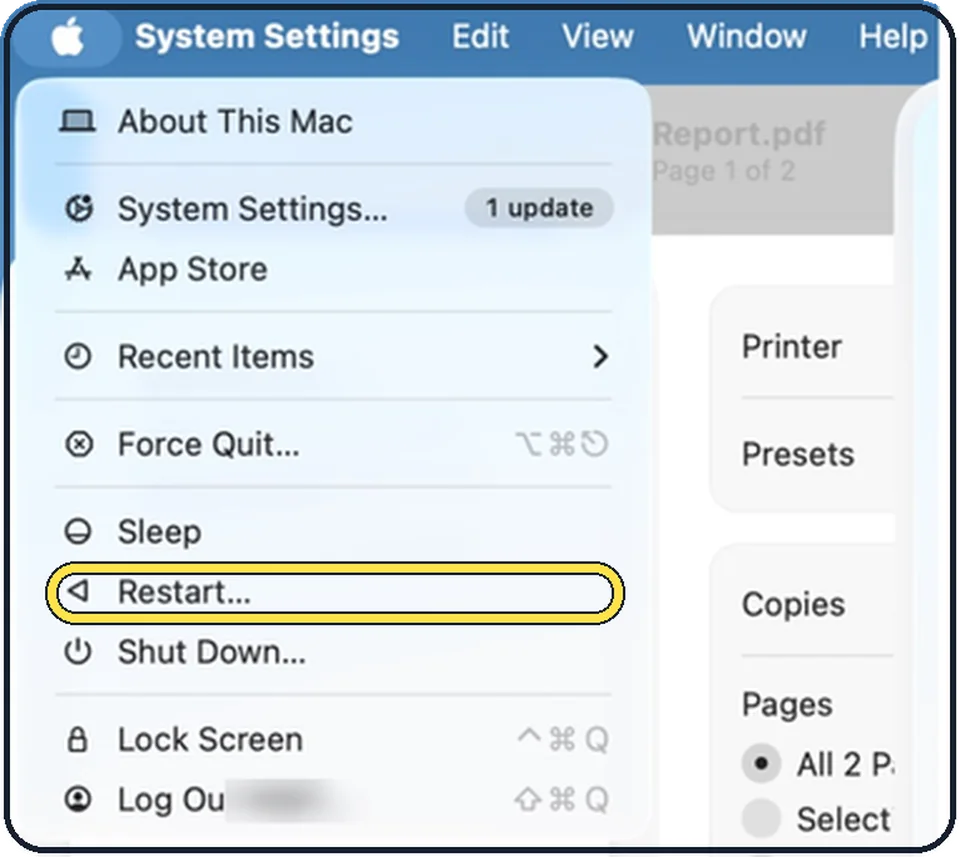
Tap the picture to see it full size Restart the Mac
Choose Restart from the Apple menu. This clears memory and stops background parts of the app that may still be stuck.
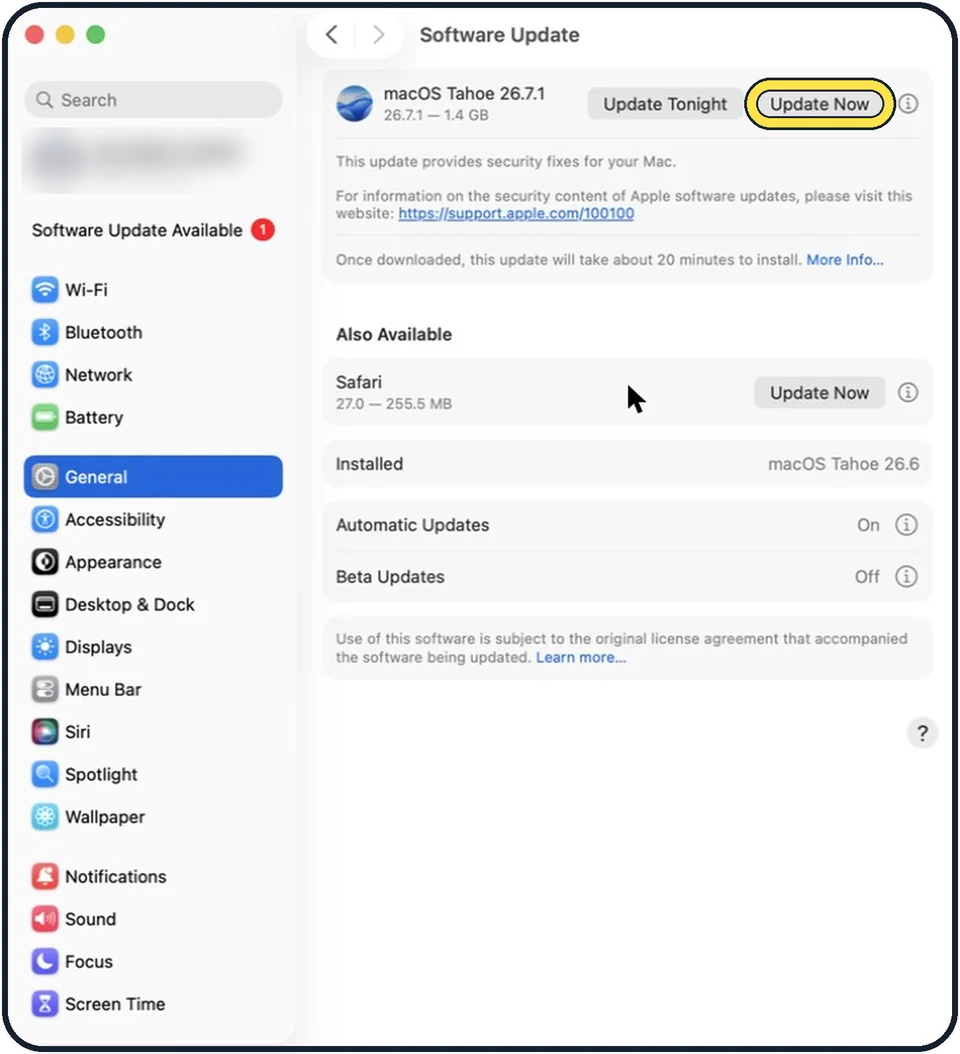
Tap the picture to see it full size Update the app and macOS
Check that the app is made for your version of macOS. Install updates for the app from the App Store or from its maker, and updates for macOS under System Settings, General, Software Update.
Try a different file
Open another document in the app. If the app only fails with one file, that file is damaged, and the app itself is fine.
Unplug new devices
If the trouble began after you connected a printer, a drive or another device, disconnect it. It may not be compatible with your version of macOS.
Remove plug-ins and add-ons
Extensions from other makers can stop working after an update of the app or of macOS. Remove them, or switch them off in the settings of the app, and test again.
Reinstall the app
Delete the app and install it again. How to delete it completely: how to uninstall apps on a Mac.
What we saw on our device
- Force the app to quit: On our MacBook Neo, with Calculator selected in the list of open apps, the button read Force Quit.
- Restart the Mac: On our MacBook Neo, Restart… sits between Sleep and Shut Down….
- See if any app is Intel-based: On our MacBook Neo no app was of the kind Intel: 304 Apple Silicon, 14 Universal, 8 iOS and 5 Other.
About this guide
An app that shows the spinning wheel for minutes, or closes without warning, can usually be brought back with a few steps. If only one app is affected, the fault is in the app or its files, not in the Mac.
Menu names are from recent versions of macOS, where the settings app is called System Settings.
Good to know
If several apps crash, test the hardware, including the memory: how to run Apple Diagnostics on a Mac.
Safe mode shows whether software that starts with the Mac is causing the crashes: how to start a Mac in safe mode.
More detail on the first step: how to force quit a frozen app on a Mac. If the whole Mac hangs: Mac keeps freezing or showing the spinning wheel.
In short: Force Quit, reopen, restart, update, other file, unplug devices, remove plug-ins, reinstall.
Links checked in October 2026. Menus and features can change after software updates. These steps match the version named at the top.
Did this guide work for you?
Sorry about that. What happened?