
What changed: the screenshots are now our own iPhone 17e on iOS 27.0.1, dark mode, and the wording is checked against those screens and Apple's iOS 27 guide.
howtosimply.com/guides/how-to-turn-on-subtitles-and-captions-on-an-iphone/ · Checked October 2026 · iPhone 17e · iOS 27.0.1
In this guide
Open Settings, tap Accessibility, scroll to Hearing and tap Subtitles & Captioning. Switch on Closed Captions + SDH. The iPhone then prefers closed captions or subtitles for the deaf and hard of hearing whenever a video offers them.
5 of 5 steps with real screenshots · 3 official sources below
- Device
- iPhone
- Shown on
- iOS 27.0.1 (iPhone 17e)
- App
- Settings
- Path
- Settings › Accessibility › Subtitles & Captioning
- Real screenshots
- 5 of 5 steps
- Checked
- October 2026
- Sources
- 3 official, linked below
Step by step
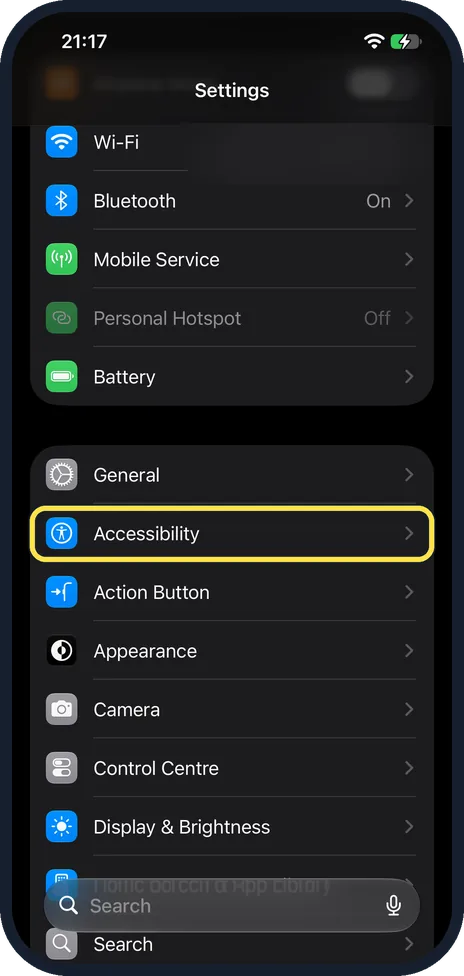
Open Settings and tap Accessibility
Open Settings and scroll down past Battery.
On our iPhone 17e Accessibility sat directly below General and above Action Button. Tap it.
Watch these steps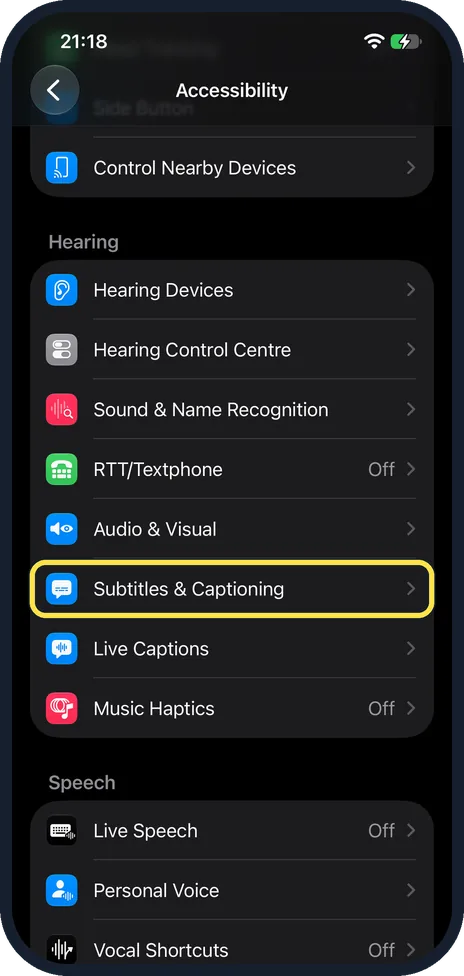
Scroll to Hearing and tap Subtitles & Captioning
On our iPhone 17e the Hearing group had eight rows, from Hearing Devices to Music Haptics, above Speech.
Subtitles & Captioning was between Audio & Visual and Live Captions. Tap it.
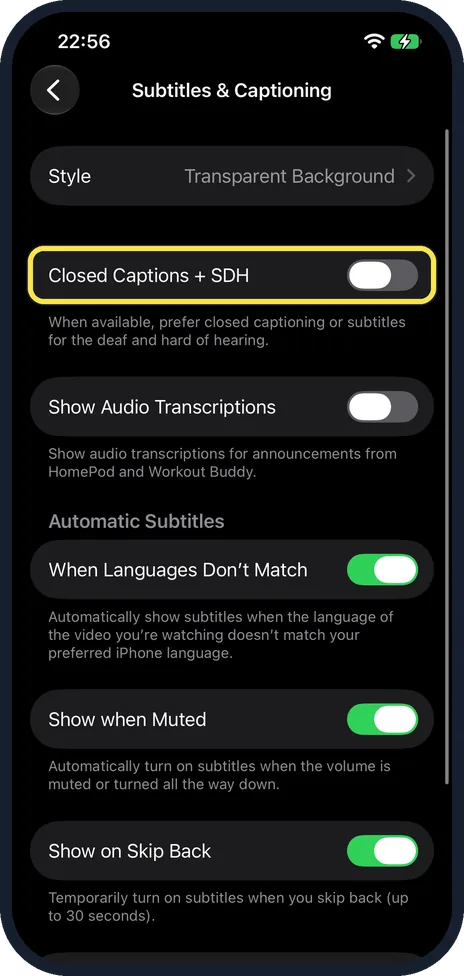
Switch on Closed Captions + SDH
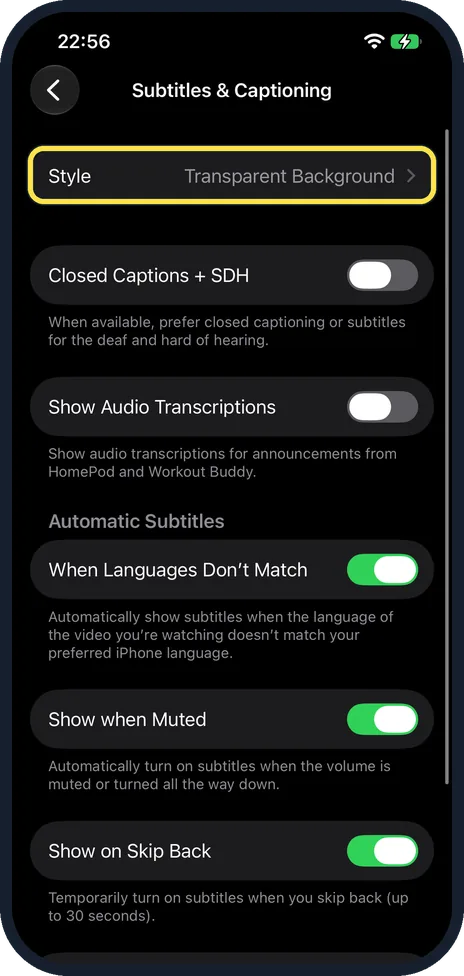
The note below says: when available, the iPhone prefers closed captioning or subtitles for the deaf and hard of hearing.
On our iPhone 17e it was off.
Show Audio Transcriptions, the next switch, is for announcements from HomePod and Workout Buddy, and was off too.
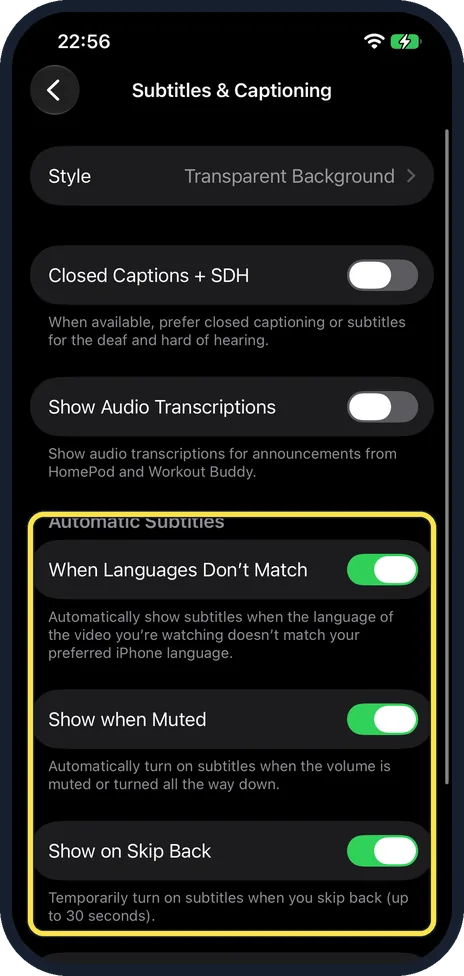
Check the automatic subtitles
On our iPhone 17e the three switches under Automatic Subtitles were on: When Languages Don't Match, Show when Muted and Show on Skip Back.
They show subtitles when the video's language does not match your preferred iPhone language, when the volume is muted or turned all the way down, and for up to 30 seconds when you skip back.
Apple says automatic subtitles also include generated subtitles for videos in Photos and Messages.
Change how the captions look
Tap Style at the top of the page to pick how subtitles look.
On our iPhone 17e it was set to Transparent Background.
What changed: the screenshots are now our own iPhone 17e on iOS 27.0.1, dark mode, and the wording is checked against those screens and Apple's iOS 27 guide.
Watch these steps
If you do not see this option
- You cannot find Subtitles & Captioning. It is in the Hearing group of Accessibility. On our iPhone 17e it was the sixth of eight rows, between Audio & Visual and Live Captions.
- Your iPhone does not show generated subtitles. Apple says generated subtitles and subtitles in several languages need iOS 27 or later, on iPhone 15 Pro, iPhone 15 Pro Max and iPhone 16 models or later. By Apple's wording this includes the iPhone 17e. Generated subtitles are in English (US and Canada), for videos that have none. Source: Display subtitles and captions on iPhone · Source: Display subtitles and captions on iPhone (iOS 26) · Source: Accessibility features for hearing on iPhone
- The Automatic Subtitles switches are not on the page. Apple's guide puts them behind an Automatic Subtitles row: tap it to see the three switches. On our iPhone 17e they were on the Subtitles & Captioning page itself, under the Automatic Subtitles heading. Source: Display subtitles and captions on iPhone · Source: Display subtitles and captions on iPhone (iOS 26) · Source: Accessibility features for hearing on iPhone
- Your iPhone runs iOS 26. Apple's iOS 26 guide lists only Closed Captions + SDH and Style on this page, not the Automatic Subtitles switches. Source: Display subtitles and captions on iPhone · Source: Display subtitles and captions on iPhone (iOS 26) · Source: Accessibility features for hearing on iPhone
If this does not work
- No captions appear in a video. Apple says captions only show in supported apps, and only when the video has them, unless your iPhone can generate English subtitles (see above). Check the list under Subtitles in the player. Source: Display subtitles and captions on iPhone · Source: Display subtitles and captions on iPhone (iOS 26) · Source: Accessibility features for hearing on iPhone
- You cannot pick a translated language. Apple says translated subtitles need English subtitles in the video and more than one preferred language in Settings. Then tap Languages in the player and choose one. Source: Display subtitles and captions on iPhone · Source: Display subtitles and captions on iPhone (iOS 26) · Source: Accessibility features for hearing on iPhone
- Subtitles appear when you did not ask for them. On our iPhone 17e When Languages Don't Match, Show when Muted and Show on Skip Back were all on. Switch off the ones you do not want on the Subtitles & Captioning page.
About this guide
Subtitles help when you cannot hear well, when the room is loud, or when the sound has to stay off. The iPhone has one switch for captions in general and three more that bring subtitles up by themselves in certain moments.
Screenshots: iPhone 17e, iOS 27.0.1, dark mode.
Good to know
In a video app, tap the button for audio and subtitles while the video plays, tap Subtitles, and choose from the list. This works in supported apps, and the list only has the subtitles and captions that video offers. Subtitles made from spoken audio are labelled Transcribed, and translated ones Translated.
Under Style you can use an existing caption style or create your own, with font, size, colour, background and opacity.
Text too small in general? How to make text bigger on an iPhone.
In short: Settings, Accessibility, Subtitles & Captioning, Closed Captions + SDH on.
- Apple Support: Display subtitles and captions on iPhone
- Apple iPhone User Guide: Display subtitles and captions on iPhone (iOS 26)
- Apple iPhone User Guide: Accessibility features for hearing on iPhone
Links checked in October 2026. Menus and features can change after software updates. These steps match the version named at the top.
Did this guide work for you?
Sorry about that. What happened?