
What changed: the screenshots are now our own iPhone 17e on iOS 27.0.1, dark mode, and the wording is checked against those screens and Apple's iOS 27 guide.
howtosimply.com/guides/how-to-turn-on-live-captions-on-an-iphone/ · Checked October 2026 · iPhone 17e · iOS 27.0.1
In this guide
Open Settings, tap Accessibility, then Live Captions under Hearing, and switch on Live Captions. The iPhone then shows spoken audio as text in any app, such as FaceTime or Podcasts, and for conversations around you.
5 of 5 steps with real screenshots · 1 official source below
- Device
- iPhone
- Shown on
- iOS 27.0.1 (iPhone 17e)
- App
- Settings
- Path
- Settings › Accessibility › Live Captions
- Real screenshots
- 5 of 5 steps
- Checked
- October 2026
- Sources
- 1 official, linked below
Step by step
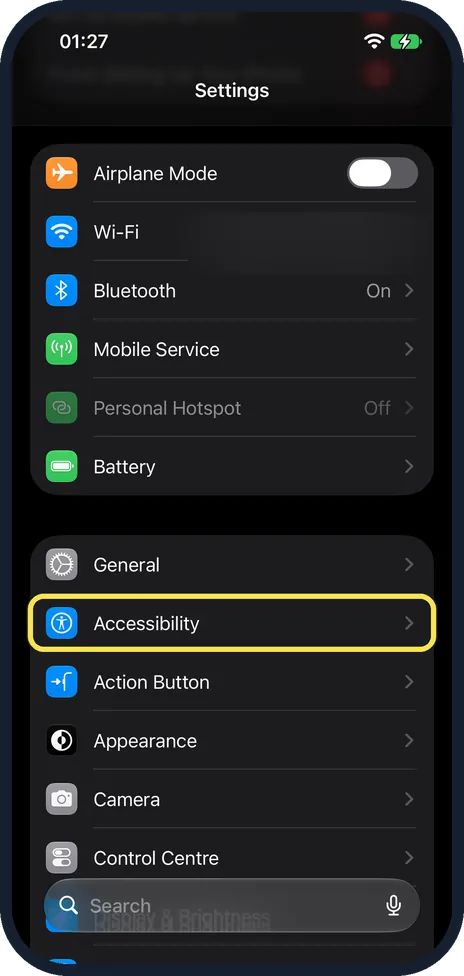
Open Accessibility
Open Settings and tap Accessibility. On our iPhone 17e with iOS 27, it is right below General.
Watch these steps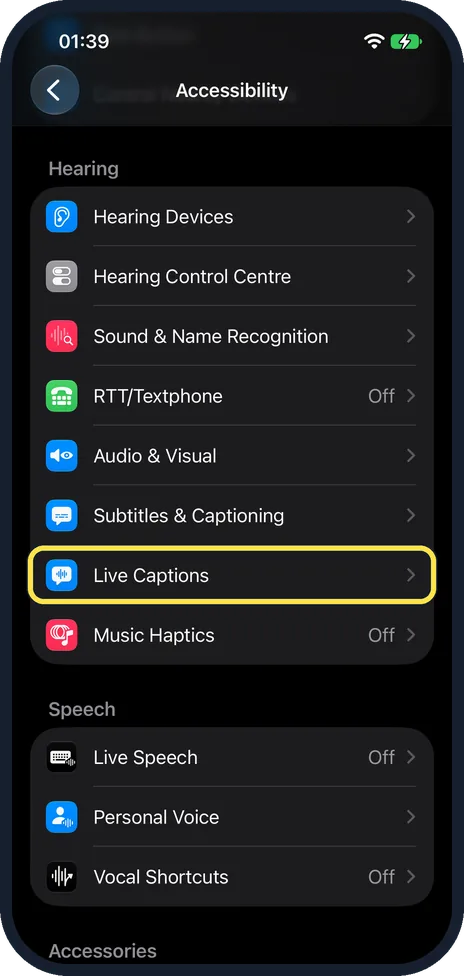
Tap Live Captions
Scroll down to the Hearing group. On our iPhone 17e with iOS 27, Live Captions is the second-last row of Hearing, below Subtitles & Captioning and above Music Haptics.
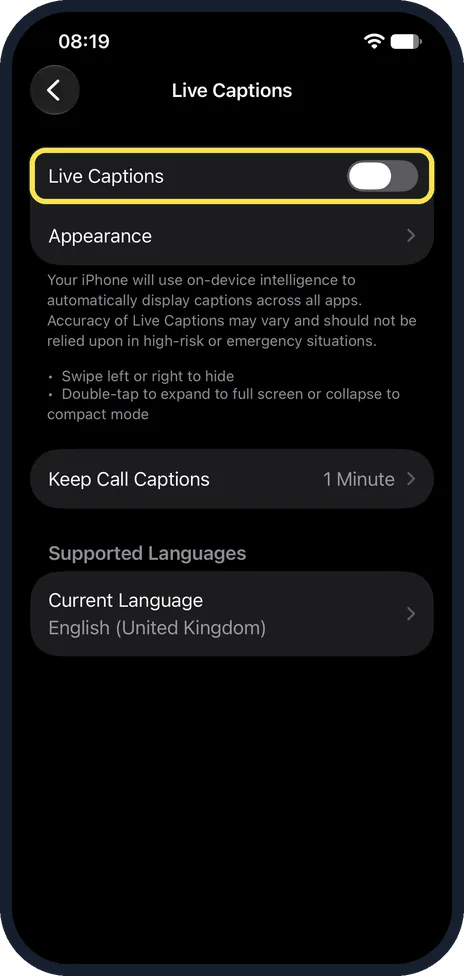
Switch on Live Captions
Tap the switch at the top. On our iPhone 17e with iOS 27 it was off in our picture, with Appearance below it. Apple says the iPhone then transcribes spoken audio in apps, or from dialogue around you, in a Live Captions window.
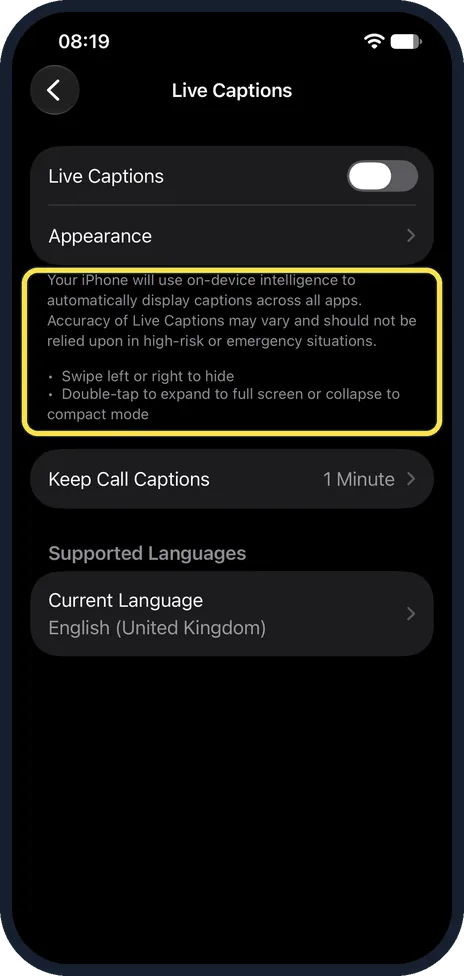
Learn the gestures
The note on the page explains them: swipe the panel left or right to hide it, double-tap it to switch between full screen and the small panel. Apple warns that the accuracy can vary. Apple adds that you can drag the window to move it, and tap Live Captions to choose Microphone for a conversation in the room or iPhone Audio for sound from the phone.
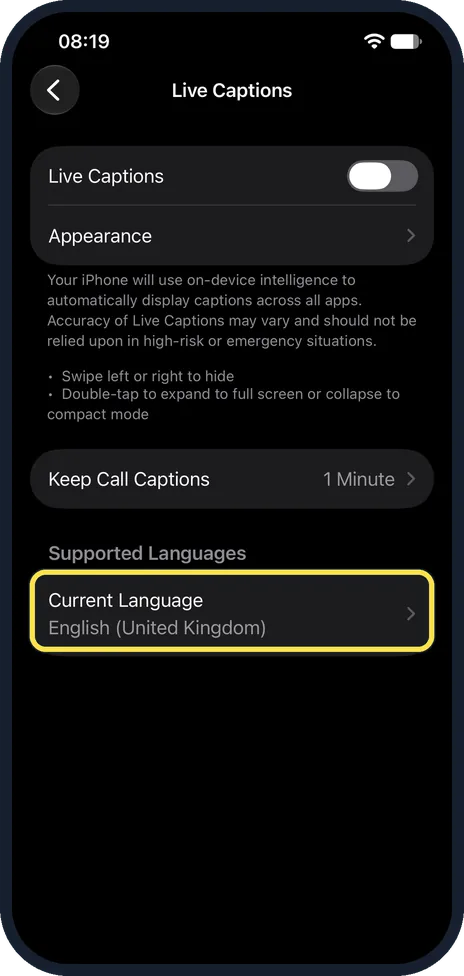
Check the language
Current Language shows what it listens for: English (United Kingdom) on our phone. Keep Call Captions sets how long call captions are kept. Apple says 1 Hour lets you copy or screenshot call captions and plays a short announcement to everyone on the call, while 1 Minute clears them when the call ends. On our iPhone 17e with iOS 27, it was set to 1 Minute.
What changed: the screenshots are now our own iPhone 17e on iOS 27.0.1, dark mode, and the wording is checked against those screens and Apple's iOS 27 guide.
Watch these steps
If you do not see this option
- No Live Captions row Apple says Live Captions is available on iPhone 11 or later and is not available in all languages, countries or regions. On our iPhone 17e with iOS 27 it is under Accessibility, Hearing. Source: Get live captions of spoken audio on iPhone
- Your language is not offered Current Language shows the language it listens for. On our iPhone 17e with iOS 27 it read English (United Kingdom), under Supported Languages. Apple says Live Captions is not available in all languages. Source: Get live captions of spoken audio on iPhone
If this does not work
- The captions are wrong Apple says the accuracy of Live Captions may vary and should not be relied on in high-risk or emergency situations. Source: Get live captions of spoken audio on iPhone
- You cannot copy or screenshot call captions Apple says this works only with Keep Call Captions set to 1 Hour. On our iPhone 17e with iOS 27 it was set to 1 Minute. Source: Get live captions of spoken audio on iPhone
- The caption window has gone Apple says the window hides by itself when no audio is detected, and a swipe left or right on it hides it too. Apple says you tap the Live Captions button to restore it. Source: Get live captions of spoken audio on iPhone
About this guide
Live Captions turns speech into text on the screen as it happens: a video without subtitles, a FaceTime call, or someone talking next to you. The page says it uses on-device intelligence.
Screenshots: our own iPhone 17e with iOS 27.0.1, dark mode. Live Captions was off when we took them.
Good to know
Do not rely on Live Captions in emergencies or high-risk situations, as the page itself says.
In short: Settings, Accessibility, Live Captions, switch on.
Links checked in October 2026. Menus and features can change after software updates. These steps match the version named at the top.
📷 See real photos from the iPhone 17e in our Camera Lab, next to 10 other phones.
Did this guide work for you?
Sorry about that. What happened?