
What changed: the screenshots are now our own iPhone 17e on iOS 27.0.1, dark mode, and the wording is checked against those screens and Apple's iOS 27 guide.
howtosimply.com/guides/how-to-turn-on-sensitive-content-warning-on-an-iphone/ · Checked October 2026 · iPhone 17e · iOS 27.0.1
In this guide
Open Settings, tap Privacy & Security, scroll down, tap Sensitive Content Warning and switch it on. Apple says the iPhone then warns you about photos and videos that might contain nudity before you view them, and from iOS 27 also gore and violence in FaceTime video messages.
3 of 3 steps with real screenshots · 3 official sources below
- Device
- iPhone
- Shown on
- iOS 27.0.1 (iPhone 17e)
- App
- Settings
- Path
- Settings › Privacy & Security › Sensitive Content Warning
- Real screenshots
- 3 of 3 steps
- Checked
- October 2026
- Sources
- 3 official, linked below
Step by step
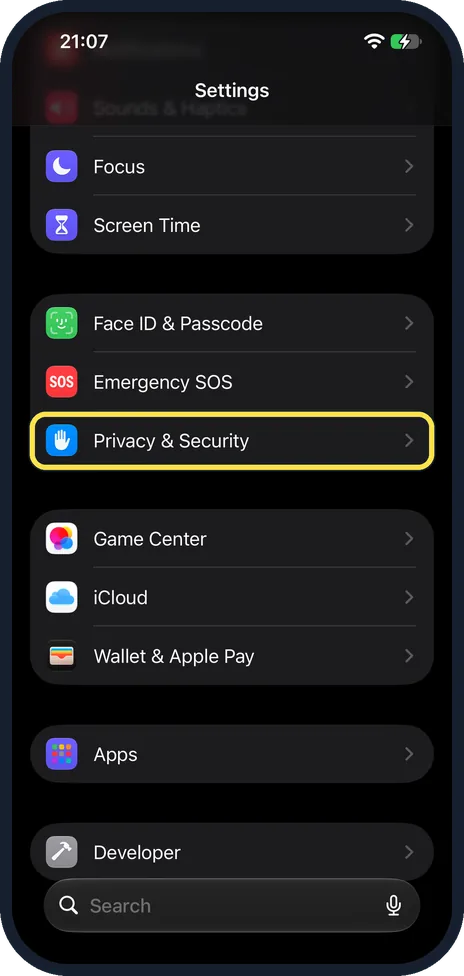
Open Settings and tap Privacy & Security
Scroll down to find Privacy & Security.
On our iPhone 17e it is below Screen Time, in the same group as Face ID & Passcode and Emergency SOS.
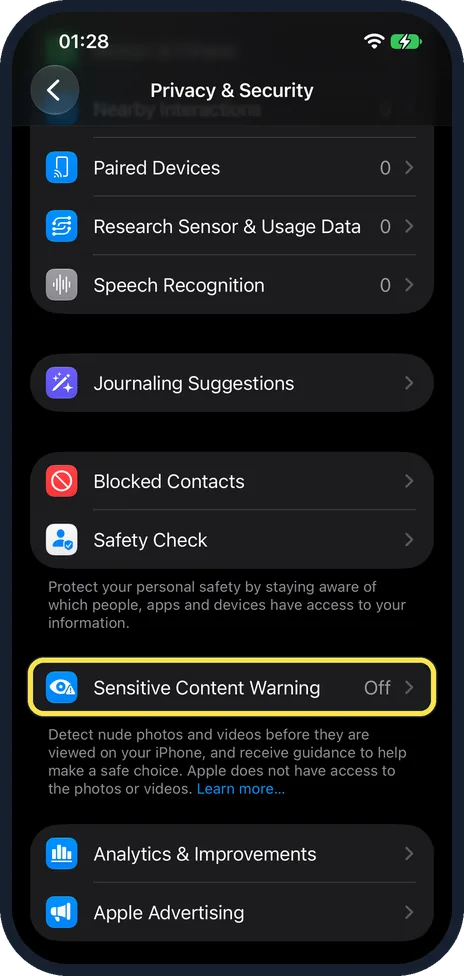
Scroll down and tap Sensitive Content Warning
Scroll down past the rows at the top of the page.
On our iPhone 17e it is below Blocked Contacts and Safety Check, just above Analytics & Improvements, and it showed Off.
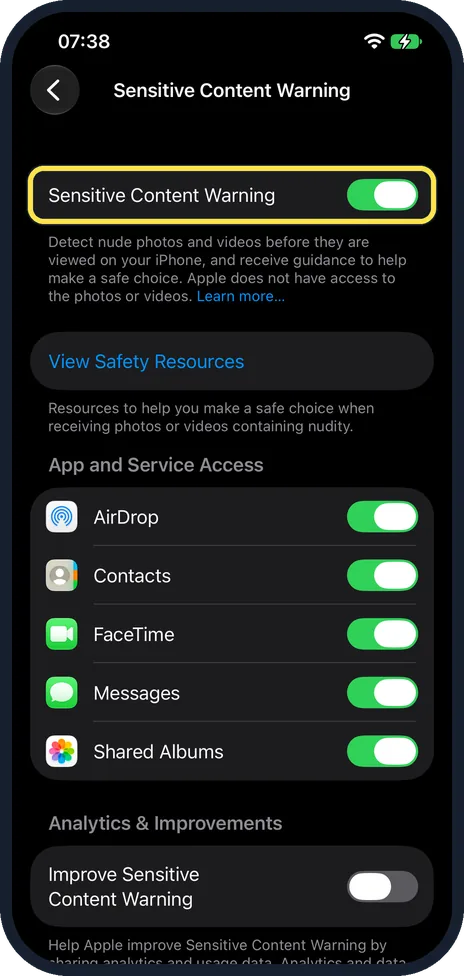
Switch on Sensitive Content Warning
The switch is at the top of the page. It was Off before (see step 2); the screenshot shows it switched on.
On our iPhone 17e, App and Service Access then listed AirDrop, Contacts, FaceTime, Messages and Shared Albums, all switched on, and you can switch off any of them.
Improve Sensitive Content Warning, under Analytics & Improvements, was off.
What changed: the screenshots are now our own iPhone 17e on iOS 27.0.1, dark mode, and the wording is checked against those screens and Apple's iOS 27 guide.
If you do not see this option
- Your iPhone runs iOS 16 or earlier. Apple says Sensitive Content Warning needs iOS 17 or later. Update the iPhone first. Source: About Sensitive Content Warning on Apple devices · Source: Receive warnings about sensitive content on iPhone · Source: What’s new in iOS 27
- You are setting this up on a child's iPhone. For children, Apple points to Communication Safety in Screen Time. Apple says it helps protect children from viewing or sharing images and videos containing detected nudity or gore, and that turning it on also turns on Sensitive Content Warning. Source: About Sensitive Content Warning on Apple devices · Source: Receive warnings about sensitive content on iPhone · Source: What’s new in iOS 27
- You cannot find Privacy & Security. On our iPhone 17e it sits just below Face ID & Passcode and Emergency SOS. You can also type its name into the Search field at the bottom of Settings.
If this does not work
- It is already on and you did not switch it on. Apple says Sensitive Content Warning is turned on automatically when Screen Time is set up with Communication Safety turned on. Check Screen Time if you want to change it. Source: About Sensitive Content Warning on Apple devices · Source: Receive warnings about sensitive content on iPhone · Source: What’s new in iOS 27
- A FaceTime video with violence is not blurred. Apple says gore and violence detection needs iOS 27 or later and works only in FaceTime video messages, not in live calls. Source: About Sensitive Content Warning on Apple devices · Source: Receive warnings about sensitive content on iPhone · Source: What’s new in iOS 27
- Pictures in one app are not blurred. Open Sensitive Content Warning again and check App and Service Access. On our iPhone 17e it has separate switches for AirDrop, Contacts, FaceTime, Messages and Shared Albums.
About this guide
Sensitive Content Warning hides unwanted nude pictures and videos behind a blur until you decide to look. From iOS 27, Apple says it also detects gore and violence, but only in FaceTime video messages, not in live calls. On our iPhone 17e the text under the switch still mentioned only nude photos and videos. The check happens on the iPhone itself: Apple states that it does not learn that something was detected and gets no access to the pictures. The feature needs iOS 17 or later.
Screenshots: iPhone 17e, iOS 27.0.1, dark mode.
Good to know
When something is blurred, you can tap to see it anyway, open safety resources or block the sender. If nudity is detected in an iMessage or FaceTime video call, you can also report the sender to Apple. The content is then sent to Apple for review.
Apple says that when you turn on Sensitive Content Warning, it is turned on automatically for all supported apps, but you can manage access for each app.
Apple says that when you turn on Sensitive Content Warning on your iPhone, it is also turned on for your paired Apple Watch.
On a child's iPhone the stronger version is Communication Safety, which is switched on in Screen Time: how to set up parental controls on a child's iPhone.
Unwanted pictures often arrive by AirDrop. Limit who can send to you: how to use AirDrop on an iPhone.
Apple lists where Sensitive Content Warning works: Messages, AirDrop, Contact Posters in the Phone app and the Contacts app, FaceTime calls and video messages, shared photo albums, and some third-party apps when you select a photo or video to share.
In short: Settings, Privacy & Security, Sensitive Content Warning, switch on.
- Apple Support: About Sensitive Content Warning on Apple devices
- Apple iPhone User Guide: Receive warnings about sensitive content on iPhone
- Apple iPhone User Guide: What’s new in iOS 27
Links checked in October 2026. Menus and features can change after software updates. These steps match the version named at the top.
Did this guide work for you?
Sorry about that. What happened?