
What changed: the screenshots are now our own iPhone 17e on iOS 27.0.1, dark mode, and the wording is checked against those screens.
howtosimply.com/guides/how-to-turn-off-predictive-text-on-an-iphone/ · Checked October 2026 · iPhone 17e · iOS 27.0.1
In this guide
Open Settings, tap General, then Keyboard, and switch off Predictive Text under All Keyboards.
5 of 5 steps with real screenshots · 2 official sources below
- Device
- iPhone
- Shown on
- iOS 27.0.1 (iPhone 17e)
- App
- Settings
- Path
- Settings › General › Keyboard
- Real screenshots
- 5 of 5 steps
- Checked
- October 2026
- Sources
- 2 official, linked below
Step by step
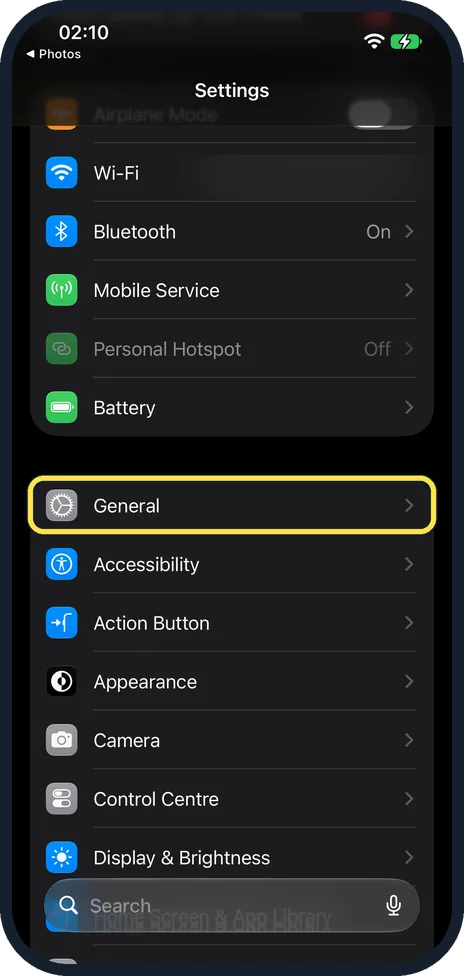
Open Settings and tap General
Open the Settings app, then tap General.
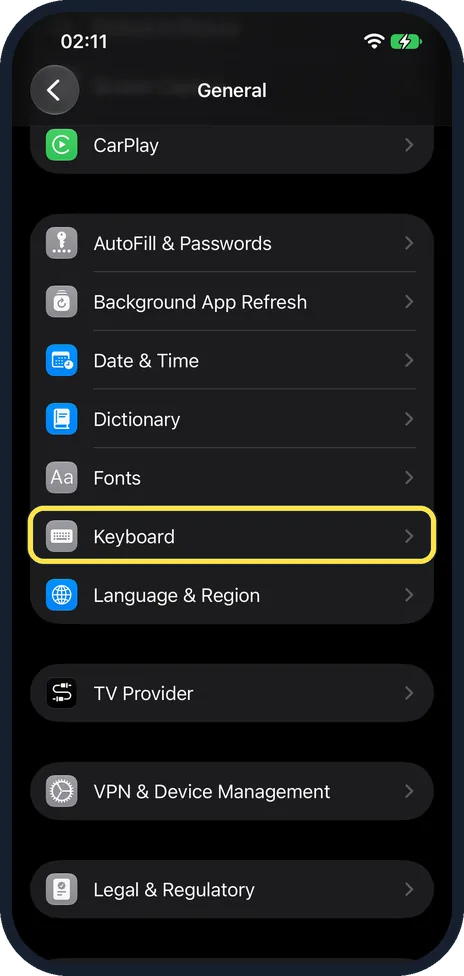
Tap Keyboard
This opens the Keyboards page.
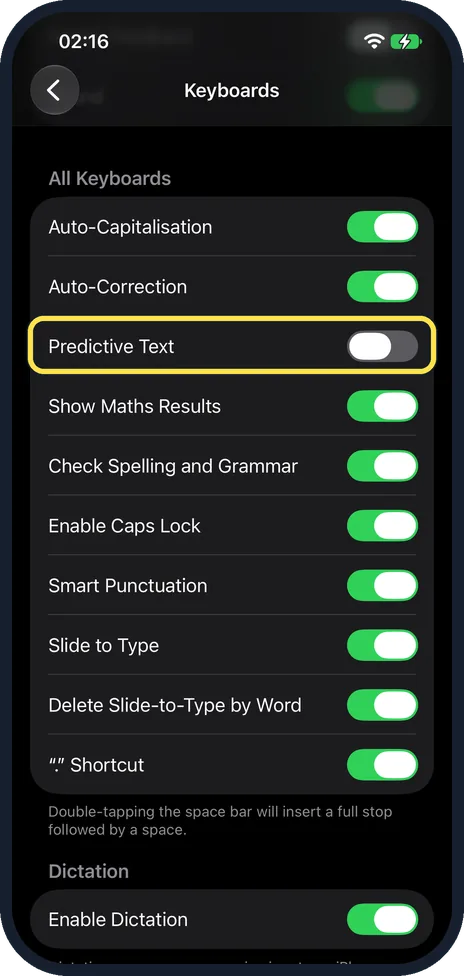
Switch off Predictive Text
It is on the Keyboards page under the heading All Keyboards, below Auto-Correction.
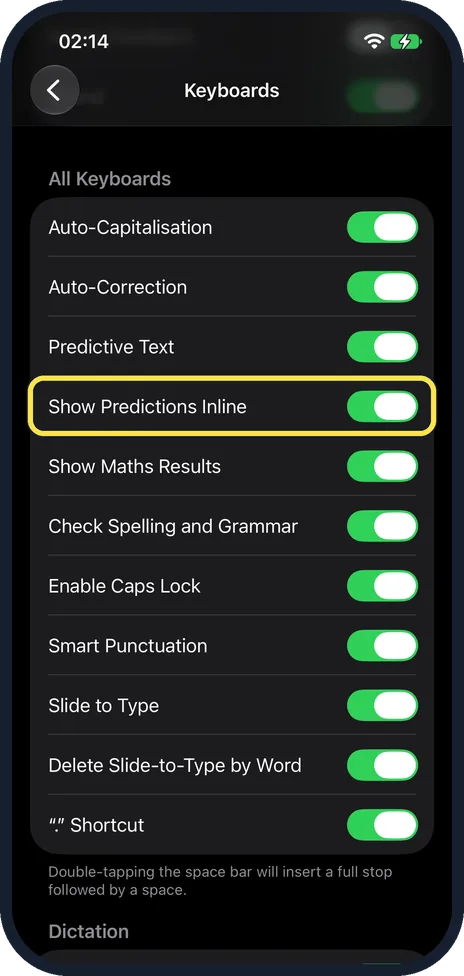
Decide about Show Predictions Inline
With Predictive Text on, the row below it is Show Predictions Inline, which writes a grey suggestion ahead of your cursor. You can switch it off on its own. Once Predictive Text is off, the row disappears from the page.
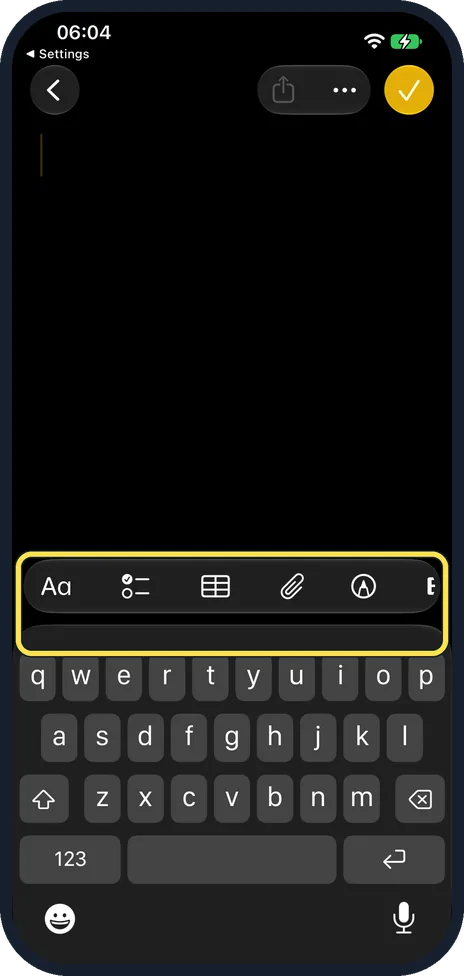
Check the keyboard
With Predictive Text off, the row of word suggestions above the letters is gone. On ours the formatting bar in Notes sat straight above the keys.
What changed: the screenshots are now our own iPhone 17e on iOS 27.0.1, dark mode, and the wording is checked against those screens.
If you do not see this option
- Change it from the keyboard. Touch and hold the emoji or globe key, tap Keyboard Settings, then switch off Predictive Text. Source: Use predictive text on iPhone
- Your language has no predictions. Apple says predictive typing and inline predictions may not be supported in your language. Source: Use predictive text on iPhone
If this does not work
- Corrections still pop up. Apple notes that with Predictive Text off you may still see corrections for misspelled words. That is Auto-Correction, a separate switch. Source: Use predictive text on iPhone
- You only wanted the grey text gone. Turning off Predictive Text also turns off inline predictions, Apple says. To keep the suggestions above the keyboard, leave Predictive Text on and switch off Show Predictions Inline. Source: Use predictive text on iPhone
- Old words keep coming back. Settings, General, Transfer or Reset iPhone, Reset, Reset Keyboard Dictionary deletes the words the keyboard has learned. Source: Save keystrokes with text replacements on iPhone
About this guide
Predictive text is one of the typing features that Apple lets you switch off and on in the keyboard settings. The screenshots are our own, taken on an iPhone 17e running iOS 27.0.1, in dark mode.
Good to know
Autocorrect is a separate switch on the same page: how to turn off autocorrect on iPhone.
In short: Settings, General, Keyboard, Predictive Text off.
- Apple Support: Type with the onscreen keyboard on iPhone
- Apple iPhone User Guide: Use predictive text on iPhone
Links checked in October 2026. Menus and features can change after software updates. These steps match the version named at the top.
Did this guide work for you?
Sorry about that. What happened?