
What changed: the screenshots are now our own iPhone 17e on iOS 27.0.1, dark mode, and the wording is checked against those screens.
howtosimply.com/guides/how-to-add-a-keyboard-language-on-iphone/ · Checked October 2026 · iPhone 17e · iOS 27.0.1
In this guide
Open Settings, tap General, then Keyboard, then Keyboards, and tap Add New Keyboard. Pick the language. To switch while typing, tap the globe key.
8 of 8 steps with real screenshots · 1 official source below
- Device
- iPhone
- Shown on
- iOS 27.0.1 (iPhone 17e)
- App
- Settings
- Path
- Settings › General › Keyboard › Keyboards › Add New Keyboard
- Real screenshots
- 8 of 8 steps
- Checked
- October 2026
- Sources
- 1 official, linked below
Step by step
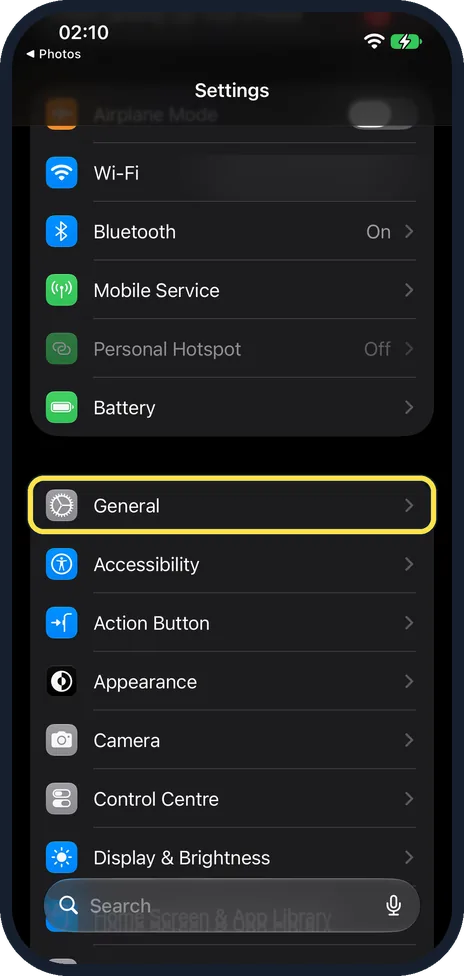
Open Settings and tap General
Find the grey Settings icon on your Home Screen and open it. Scroll a little and tap General.
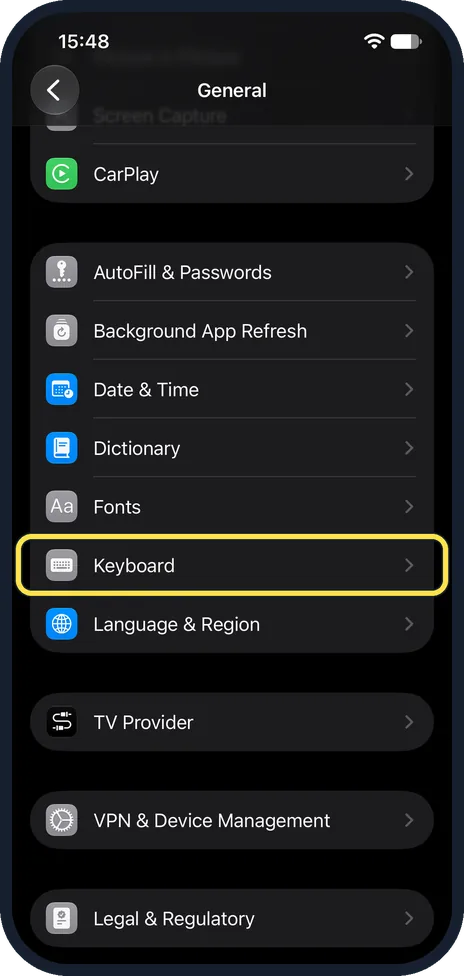
Tap Keyboard
General is a long list. Keyboard sits in the group with Fonts, Dictionary and Language & Region.
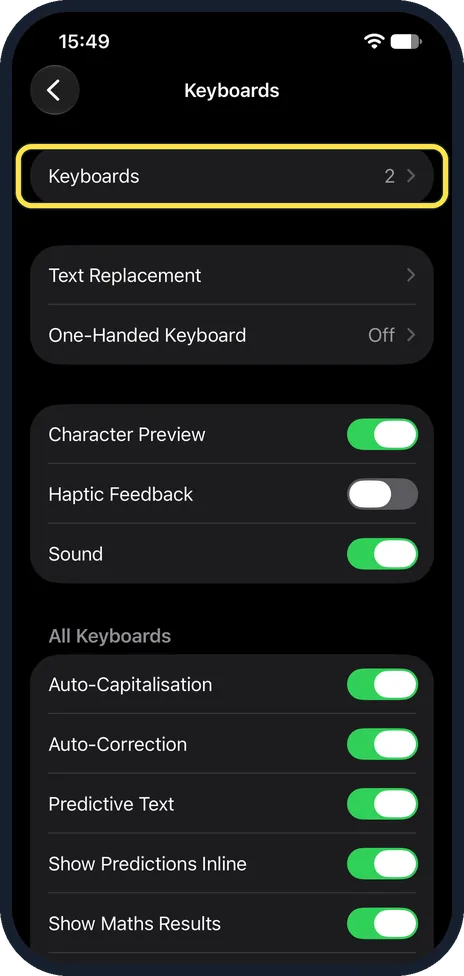
Tap Keyboards at the top
The first row shows how many keyboards you have now. Ours had two: English (US) and Emoji. Tap that row.
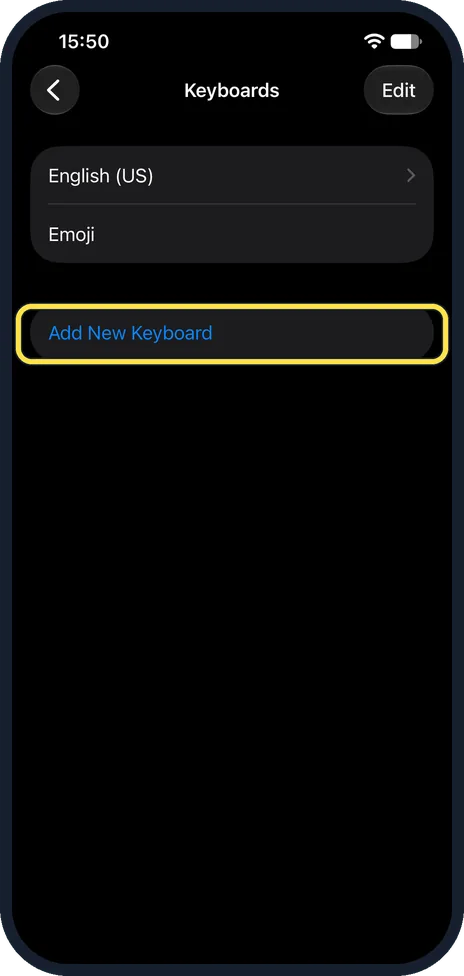
Tap Add New Keyboard
You see the keyboards that are already on the phone. Tap Add New Keyboard underneath them.
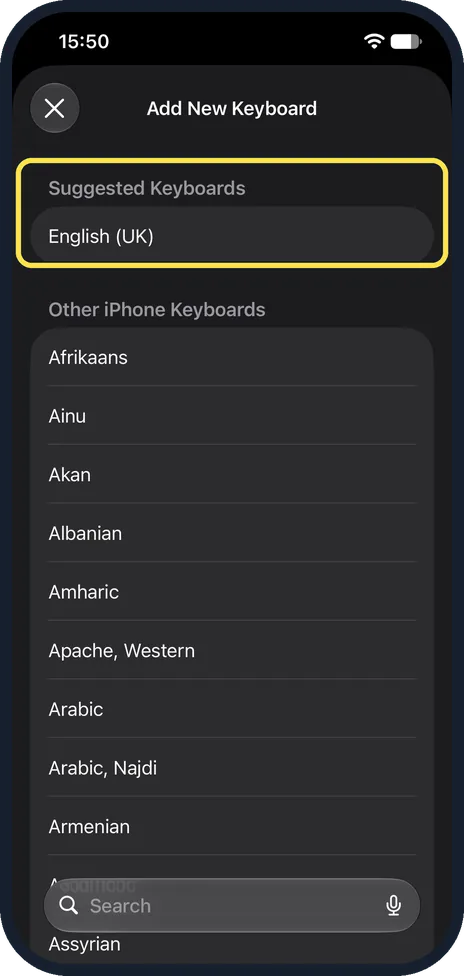
Pick your language
Suggested keyboards are at the top, and the full list follows in alphabetical order. Tap the language you want. To choose another layout for a language later, Apple says: tap the language in the Keyboards list, then pick the layout.
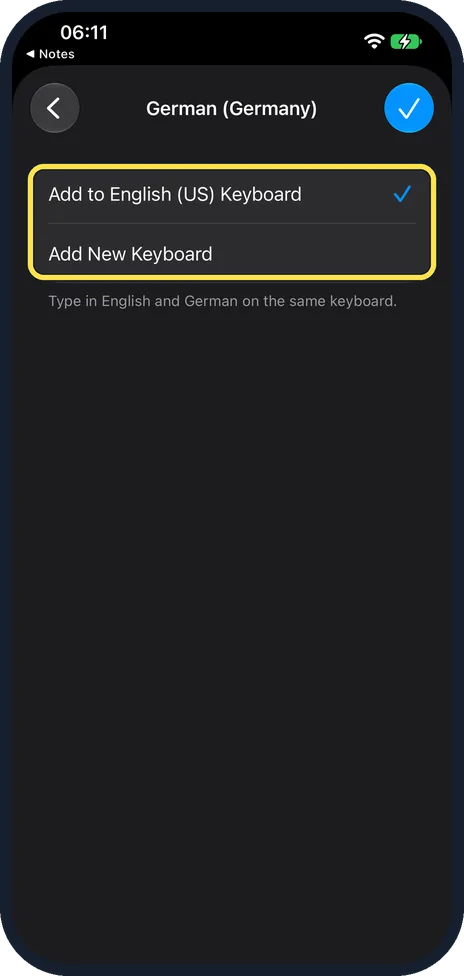
Choose how to add it
For German, ours then asked: Add to English (US) Keyboard, the choice ticked at first, or Add New Keyboard. The note says the first lets you type in English and German on the same keyboard.
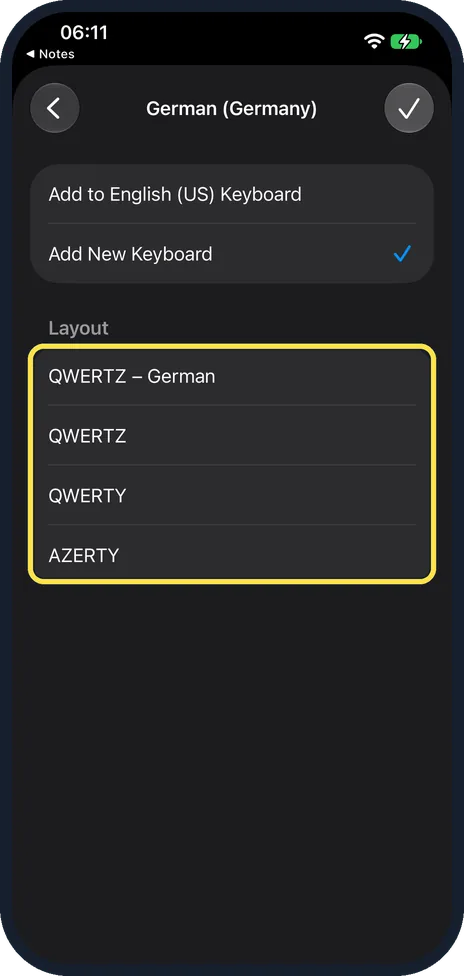
Pick a layout and tap the tick
With Add New Keyboard, a Layout list appeared: QWERTZ – German, QWERTZ, QWERTY and AZERTY. Ours kept QWERTZ – German. Tap the tick at the top right. The Keyboards list then showed three keyboards.
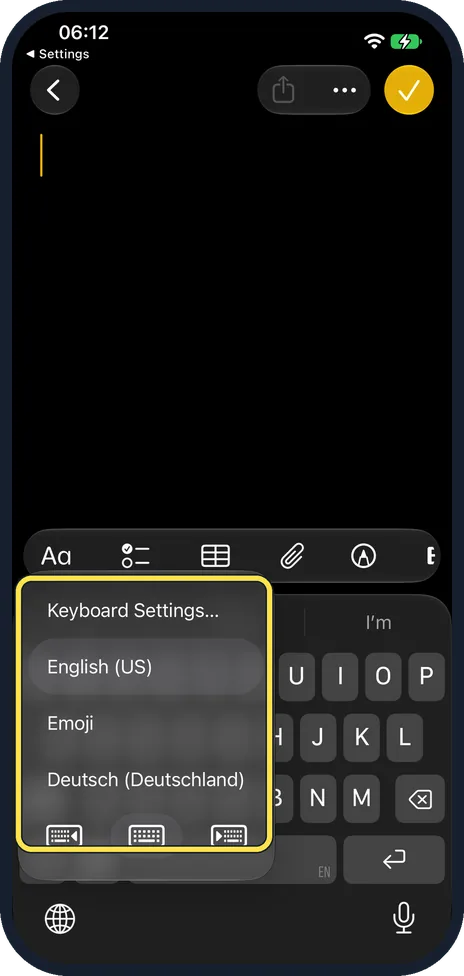
Switch languages while typing
Open any app where you can type. With two or more language keyboards, the key at the bottom left is a globe: tap it for the next language, or touch and hold it for the list. With German added, ours showed the globe key, and holding it listed Keyboard Settings…, English (US), Emoji and Deutsch (Deutschland).
What changed: the screenshots are now our own iPhone 17e on iOS 27.0.1, dark mode, and the wording is checked against those screens.
What we saw on our device
- Tap Keyboards at the top: Ours had two: English (US) and Emoji.
- Pick a layout and tap the tick: Ours kept QWERTZ – German.
If you do not see this option
- You see an emoji key, not a globe key. With only one language keyboard, as on ours, the key shows an emoji. Touch and hold it to switch keyboards. Source: Add or change keyboards on iPhone
- You want to type two languages without switching. For select language pairs, such as English (U.S.) and Spanish (Latin America), Apple offers Add to [language] Keyboard when you add the second one. Source: Add or change keyboards on iPhone
If this does not work
- Menus did not change language. A keyboard does not change the language of the iPhone. Apple adds the language to Preferred Languages under General, Language & Region; the order of that list decides what apps show. Source: Add or change keyboards on iPhone
- You want to remove a keyboard. In the Keyboards list, swipe left on it and tap Delete. Source: Add or change keyboards on iPhone
- Dictation does not work in the new language. Apple says you can dictate in the language of a keyboard you added, but Dictation is not available in all languages. Source: Dictate text on iPhone
About this guide
You can type in more than one language on an iPhone without changing the language of the whole phone. Each language is added as a keyboard, and you switch between them with one key.
The screenshots are our own, taken on an iPhone 17e running iOS 27.0.1, in dark mode.
Good to know
To remove a keyboard, go back to the Keyboards list, tap Edit, tap the red minus next to the language, then Delete.
In short: Settings, General, Keyboard, Keyboards, Add New Keyboard. Then use the globe key to switch.
Links checked in October 2026. Menus and features can change after software updates. These steps match the version named at the top.
Did this guide work for you?
Sorry about that. What happened?