
howtosimply.com/guides/how-to-use-the-interpreter-app-on-a-samsung-galaxy-s26/ · Checked October 2026 · Samsung Galaxy S26 (SM-S942N, Korean model), One UI 9, Android 17
In this guide
- Tap Interpreter in the quick panel
- Tap Continue
- Allow the microphone
- Allow nearby devices, if you like
- Pick the two languages
- Or type instead
- Read the translation, then open More options
- Choose how the mic and voice behave
- Open History
- Find earlier translations
- Check the language packs
- If you do not see this option
- If this does not work
- Good to know
- Sources
Swipe down and tap Interpreter in the quick panel, tap Continue and allow the microphone, pick the two languages at the top, then tap the mic button to talk or the empty area to type. Earlier translations are under History in the menu at the top left.
11 of 11 steps with real screenshots · 1 official source below
- Device
- Android
- Shown on
- Samsung Galaxy S26 (SM-S942N, Korean model), One UI 9, Android 17
- Starts in
- Quick Settings
- Real screenshots
- 11 of 11 steps
- Checked
- October 2026
- Sources
- 1 official, linked below
Step by step
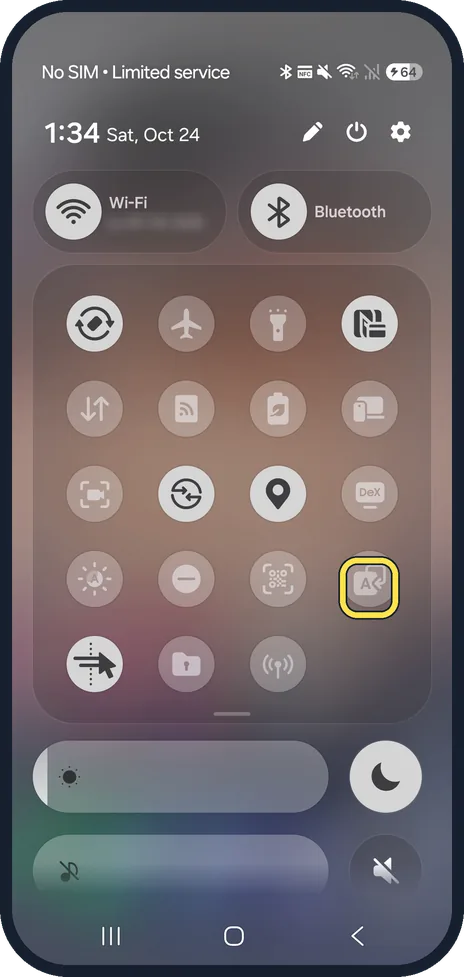
Tap Interpreter in the quick panel
Swipe down from the top right. Ours already had an Interpreter button in the fourth row. If yours doesn't, add it with the pencil.
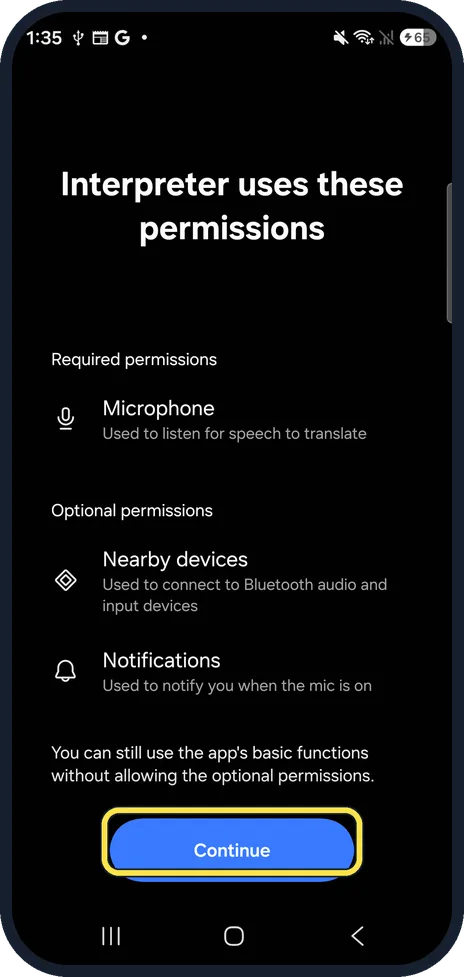
Tap Continue
The first time, Interpreter uses these permissions lists Microphone as required, and Nearby devices and Notifications as optional. It says you can still use the basic functions without the optional ones. Tap Continue.
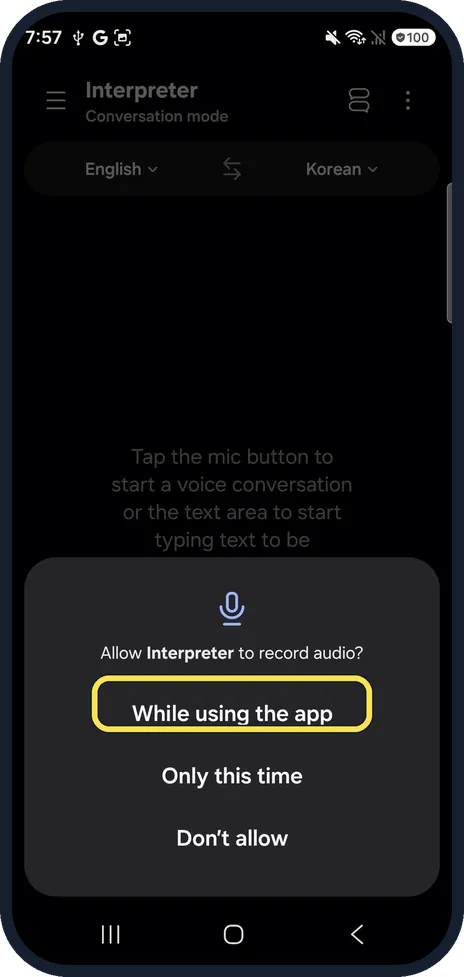
Allow the microphone
When Android asks Allow Interpreter to record audio?, tap While using the app.
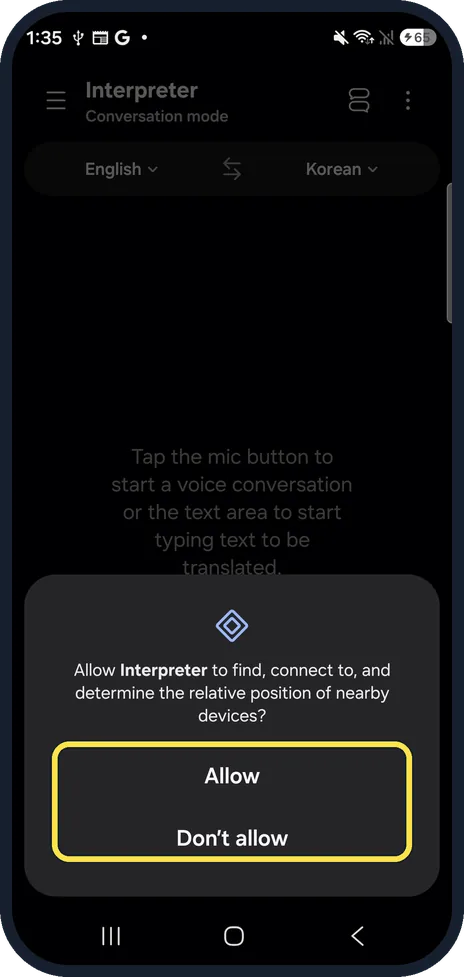
Allow nearby devices, if you like
Next it asks to find and connect to nearby devices, which is for Bluetooth earbuds. Tap Allow or Don't allow. We tapped Allow; Don't allow is fine if you don't use earbuds.
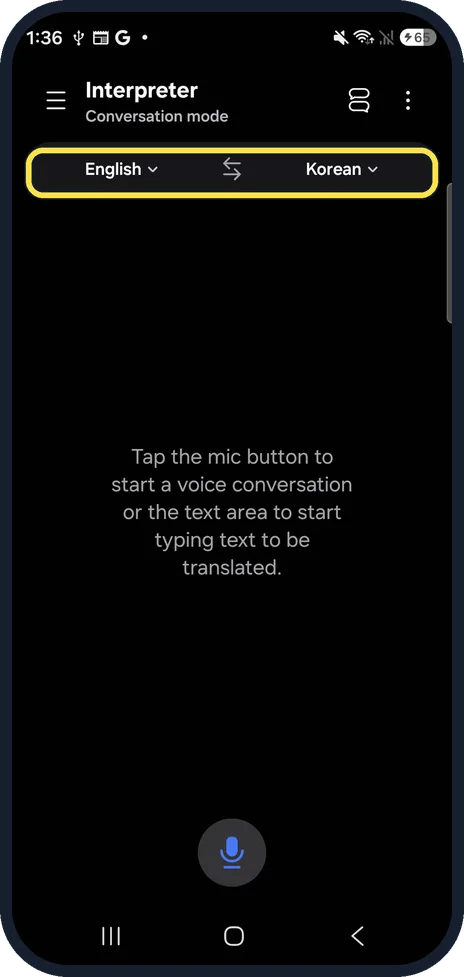
Pick the two languages
The two languages sit at the top; tap either one to change it, and the arrows swap them. Ours were English and Korean. Then tap the mic button at the bottom to talk, or tap the empty area to type.
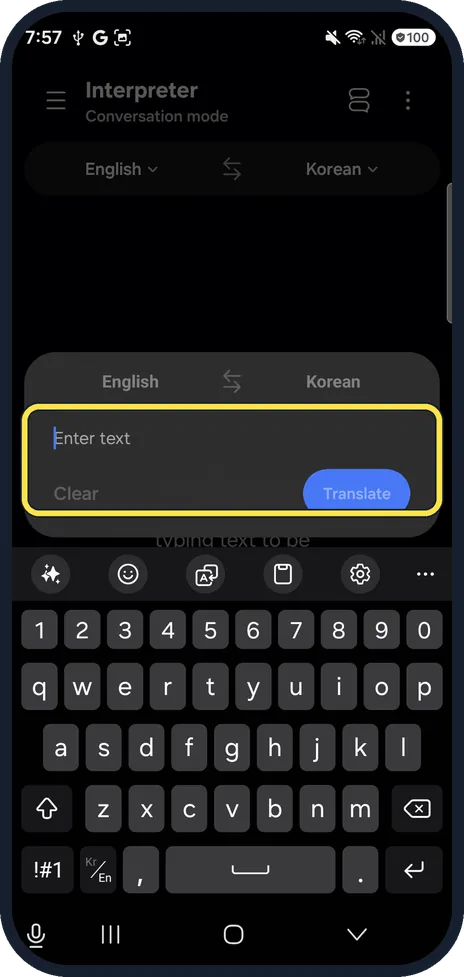
Or type instead
Tap the empty area to type: an Enter text box opens with Clear and Translate. We typed Where is the station? and tapped Translate.
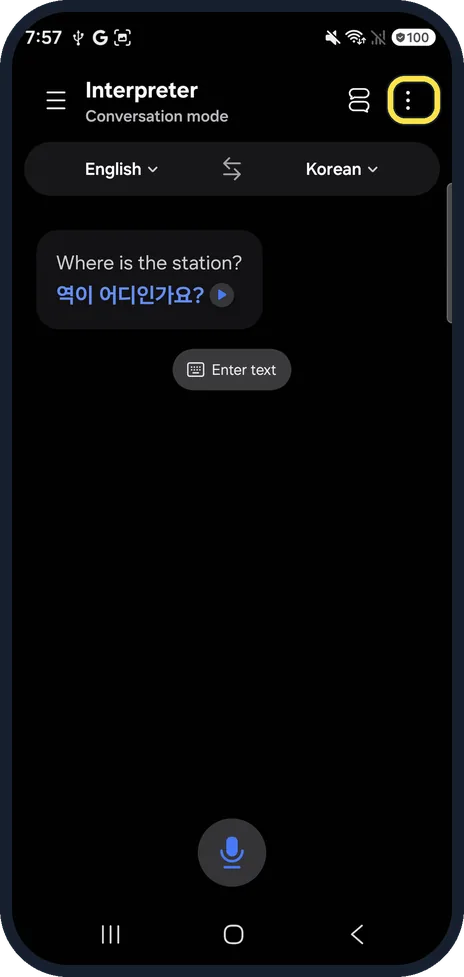
Read the translation, then open More options
Your text and the translation appear in the conversation; ours showed 역이 어디인가요? in Korean, with a play button to hear it. To change how the mic and voice behave, tap the three dots at the top right.
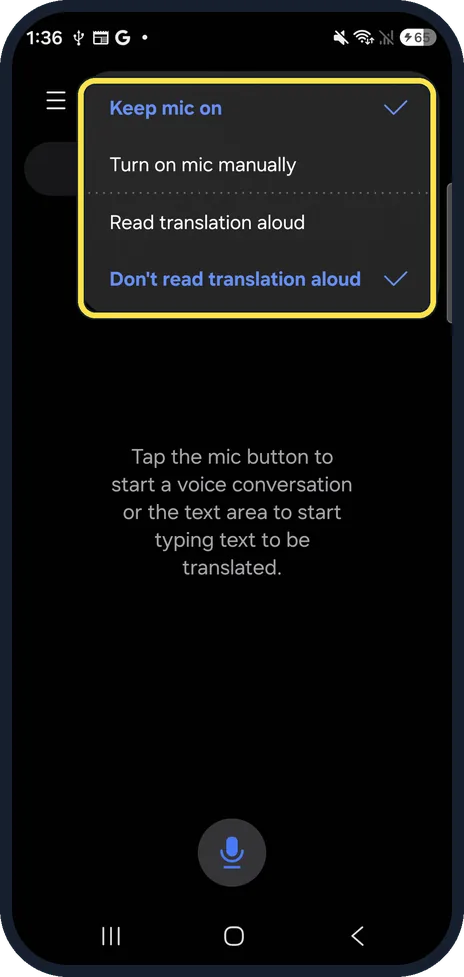
Choose how the mic and voice behave
More options sets Keep mic on or Turn on mic manually, and Read translation aloud or Don't read translation aloud. Ours had Keep mic on and Don't read translation aloud.
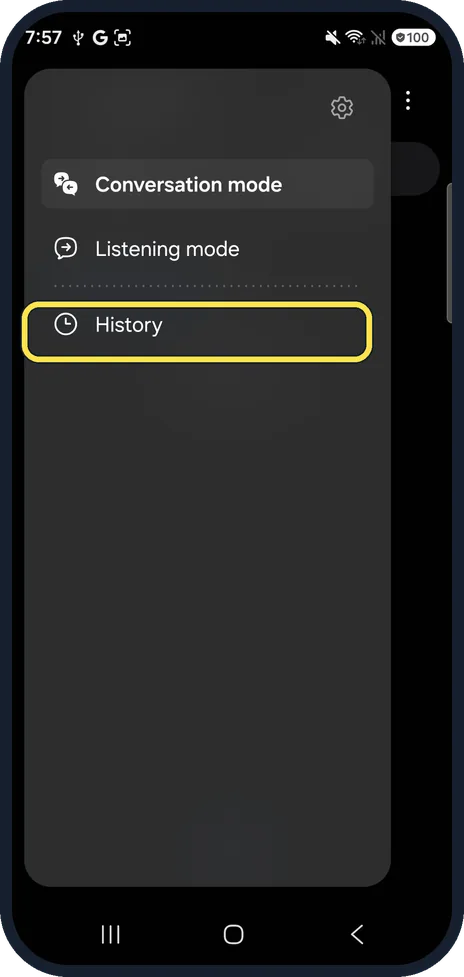
Open History
Tap the three lines at the top left. The menu lists Conversation mode, Listening mode and History. Tap History.
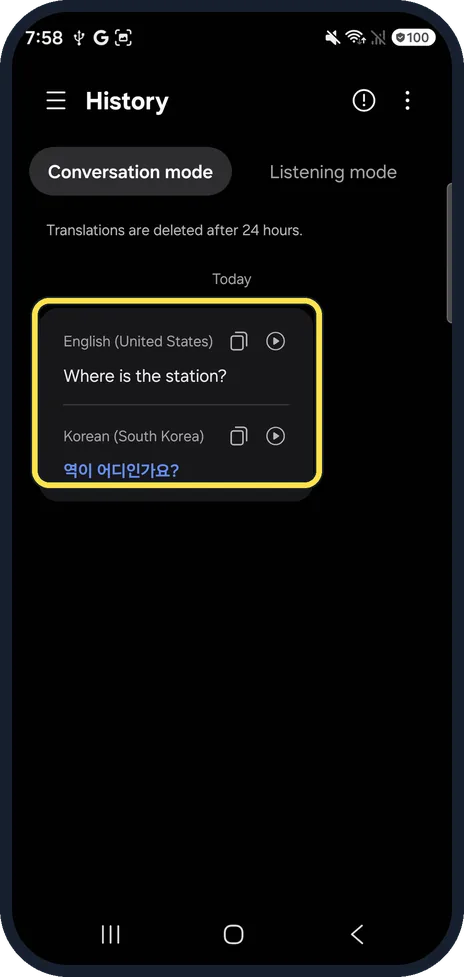
Find earlier translations
History has Conversation mode and Listening mode tabs. Ours listed the phrase under Today, and the page says translations are deleted after 24 hours.
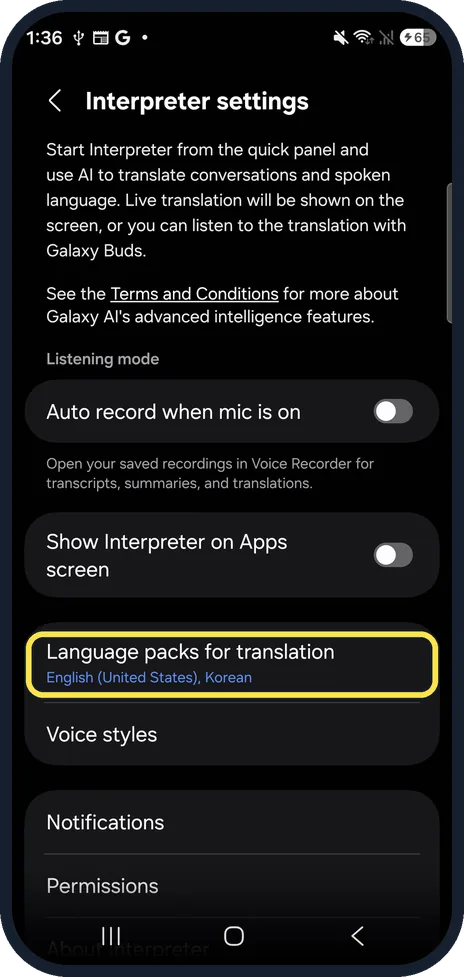
Check the language packs
Touch and hold the Interpreter button in the quick panel to open Interpreter settings. It shows Language packs for translation; ours had English (United States) and Korean. Auto record when mic is on and Show Interpreter on Apps screen were both off.
If you do not see this option
- Not sure which button it is? The quick panel buttons on our S26 have no names. Touch and hold the button: it opens a page called Interpreter settings.
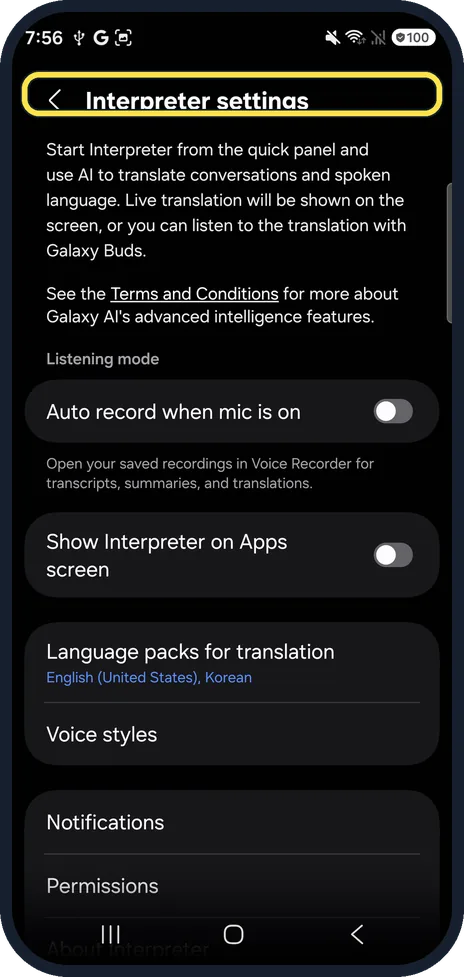
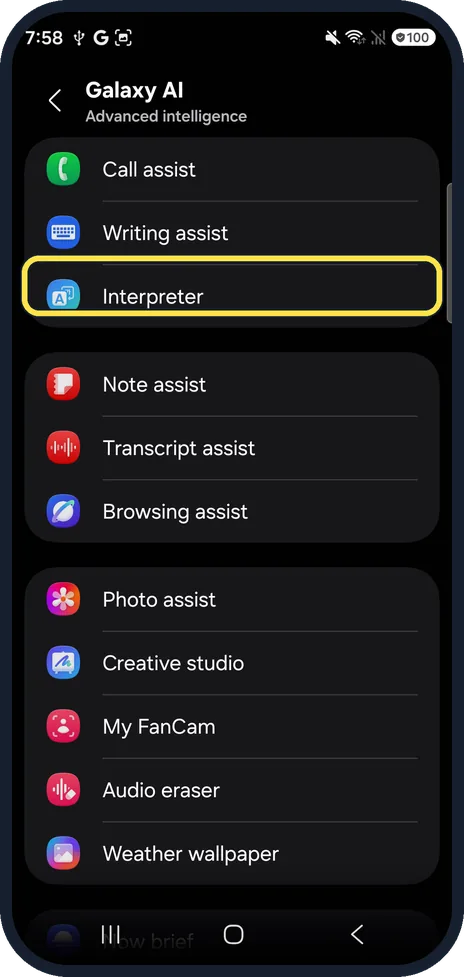
- No Interpreter button? Swipe down, tap the pencil and add it from the list of buttons. Or open Settings, Galaxy AI, Interpreter; Samsung's Interpreter page covers Galaxy AI phones. Source: How to set up and use the Interpreter app on Galaxy devices
If this does not work
- Earlier translation gone? Samsung says recent translations are discarded after 24 hours, and our History page says the same. On our S26 they are in History, in the three-line menu at the top left; the three-dot menu has only mic and voice options. Source: How to set up and use the Interpreter app on Galaxy devices
- Nothing happens when you speak? Check that the Microphone permission was allowed: Interpreter settings, Permissions.
About this guide
Interpreter translates a conversation with someone in front of you, out loud and on screen. Samsung says the bottom half of the screen is yours and the top half is for the person you're speaking to.
The screenshots are from our Samsung Galaxy S26, the Korean model SM-S942N, with One UI 9 and Android 17, in Dark mode. Menus can differ on models sold in other regions. We opened Interpreter for the first time, allowed its permissions, looked at every menu and translated one typed phrase; nothing was played aloud.
Good to know
Keep Galaxy AI processing on the phone: how to make Galaxy AI process data only on your Galaxy.
In short: Quick panel, Interpreter, Continue, allow the mic, pick languages, tap the mic or type. Three dots: mic and voice options. Three lines, History: translations for 24 hours.
Links checked in October 2026. Menus and features can change after software updates. These steps match the version named at the top.
📷 See real photos from the Galaxy S26 in our Camera Lab, next to 10 other phones.
Did this guide work for you?
Sorry about that. What happened?