
howtosimply.com/guides/how-to-use-extra-dim-on-a-samsung-galaxy-phone/ · Checked October 2026 · Samsung Galaxy A57 5G (SM-A576B), One UI 8.5, Android 16
In this guide
Open Settings, Accessibility, Vision enhancements, scroll down and switch on Extra dim. The screen goes darker than the lowest brightness setting allows. It can also be switched on from the quick panel.
If you do not see this option
- Your phone calls the page Visibility enhancements Samsung lists Extra dim among its Visibility enhancement features, next to Reduce transparency and blur. Our A57 named the page Vision enhancements. Source: Galaxy device Visibility enhancement features
- The quick panel has no Extra dim button Samsung says that if the icon does not appear in the Quick settings panel, you can add it to the panel. Source: Reduce eye strain on your Galaxy phone or tablet
3 of 3 steps with real screenshots · 2 official sources below
- Device
- Android
- Shown on
- Samsung Galaxy A57 5G (SM-A576B), One UI 8.5, Android 16
- App
- Settings
- Path
- Settings › Accessibility › Vision enhancements
- Real screenshots
- 3 of 3 steps
- What we did
- Observed: looked at each screen, changed nothing
- Checked
- October 2026
- Sources
- 2 official, linked below
Step by step
Open Vision enhancements
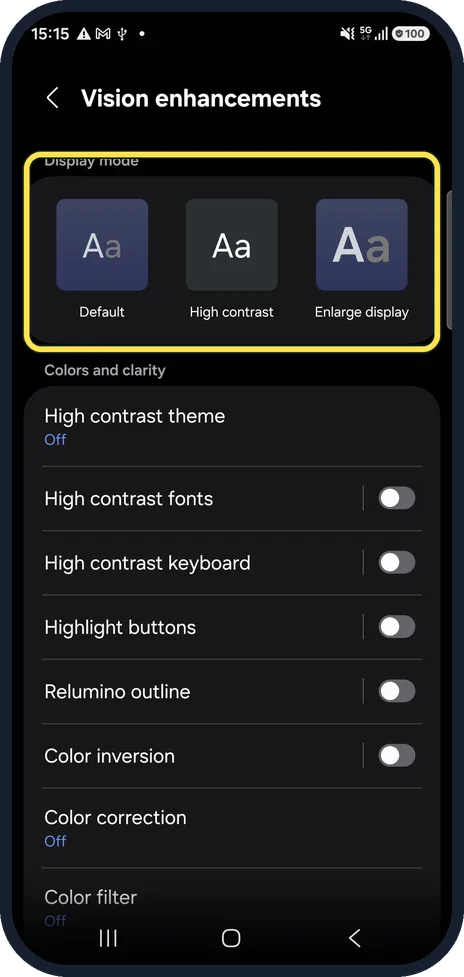
Open Settings, tap Accessibility, then Vision enhancements. On our phone the page starts with Display mode (Default, High contrast, Enlarge display), then Colors and clarity. You do not need to change Display mode.
Watch these steps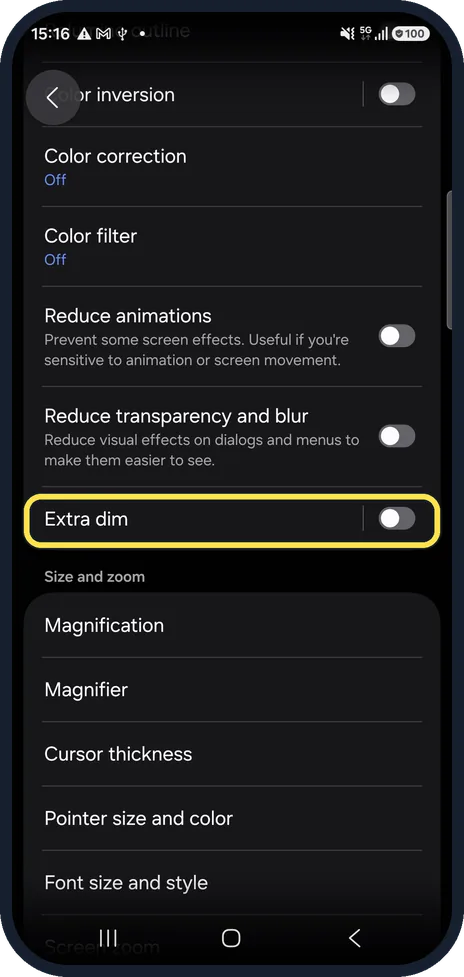
Scroll down and switch on Extra dim
On our phone it is below Reduce animations and Reduce transparency and blur, just above Size and zoom. Tap the switch next to Extra dim.
Or use the quick panel
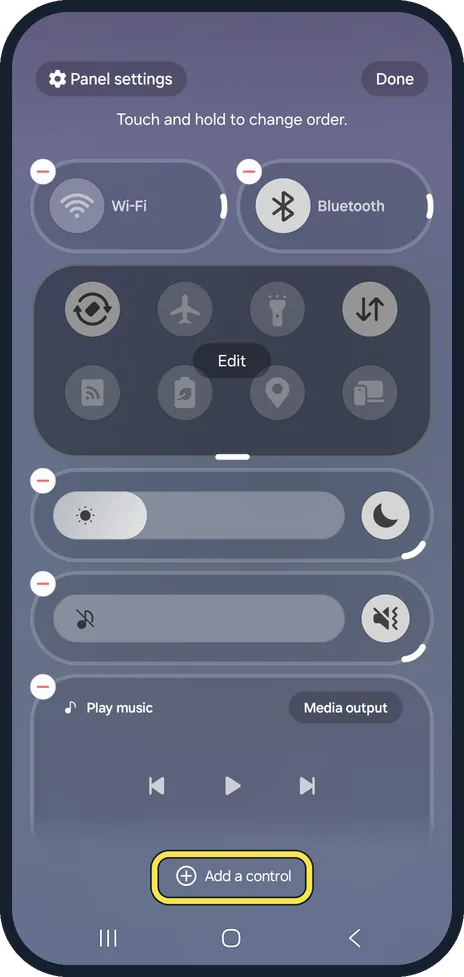
Samsung says Extra dim can also be switched on from Quick settings, the panel you swipe down from the top. When you edit the panel, tap Add a control at the bottom and add Extra dim. It is then one tap away at night.
Watch these steps
If this does not work
- The screen is not dim enough Samsung says to touch and hold the Extra dim button in the quick panel to open its settings, then drag the Intensity slider. Source: Reduce eye strain on your Galaxy phone or tablet
- Extra dim switches off when you restart In the same settings Samsung lists a Turn off after restart switch. Turn it off to keep Extra dim on after a restart. Source: Reduce eye strain on your Galaxy phone or tablet
About this guide
Even at the lowest brightness a phone can be too bright in a dark bedroom. Extra dim lowers the screen further.
Other Galaxy phones on One UI 8 should use similar menus; on older One UI versions a few names and positions differ.
Good to know
Extra dim is not the same as Eye comfort shield, which makes the colours warmer: how to turn on Eye comfort shield on a Samsung Galaxy phone.
Reduce transparency and blur, just above Extra dim, reduces visual effects on dialogs and menus to make them easier to see.
In short: Settings, Accessibility, Vision enhancements, Extra dim on.
- Samsung US: Galaxy device Visibility enhancement features
- Samsung US: Reduce eye strain on your Galaxy phone or tablet
Links checked in October 2026. Menus and features can change after software updates. These steps match the version named at the top.
📷 See real photos from the Galaxy A57 in our Camera Lab, next to 10 other phones.
Did this guide work for you?
Sorry about that. What happened?