SAMSUNG GALAXY
How to turn on the camera grid on a Samsung Galaxy (One UI 9)

In short
Open Camera, tap the Quick controls button (four dots) next to the zoom, then the gear. In Camera settings, under General, turn on Composition guide. Choose Grid lines and level, Grid lines only or Level only.
7 of 7 steps show a real screenshot from our Galaxy A57. Each step was checked against the maker's own instructions, linked at the end.
Steps
- 1
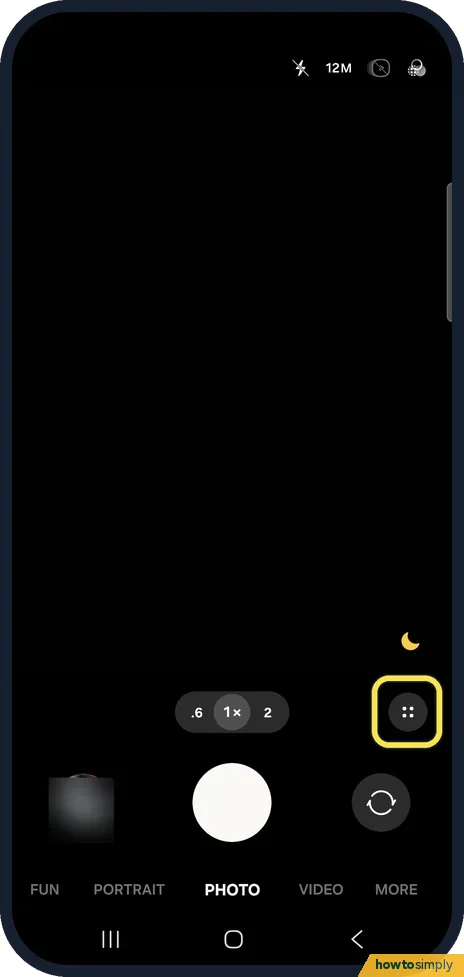
Tap Quick controls
Open Camera. Next to the zoom buttons, at the right, tap the round button with four dots.
- 2
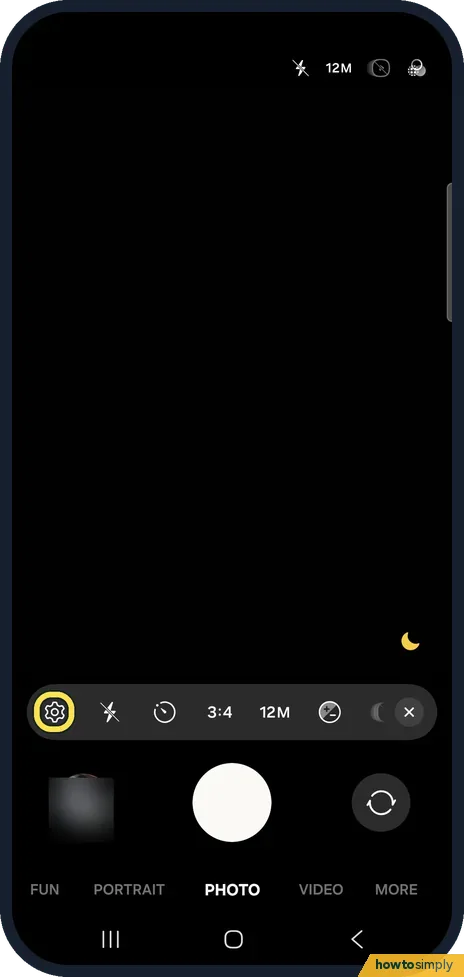
Tap the gear
A bar of quick controls opens. Tap the gear at its left end to go to Settings.
- 3
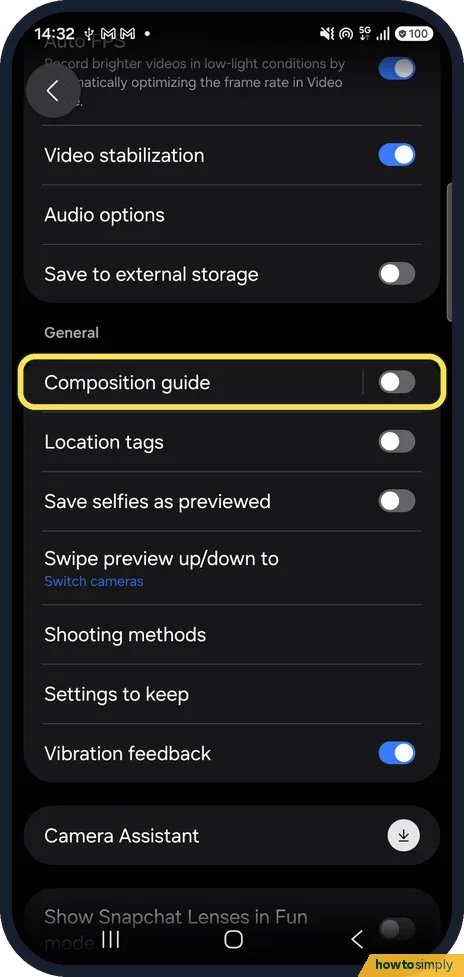
Find Composition guide
Scroll down Camera settings to General. Composition guide is the first row. Ours was off.
- 4
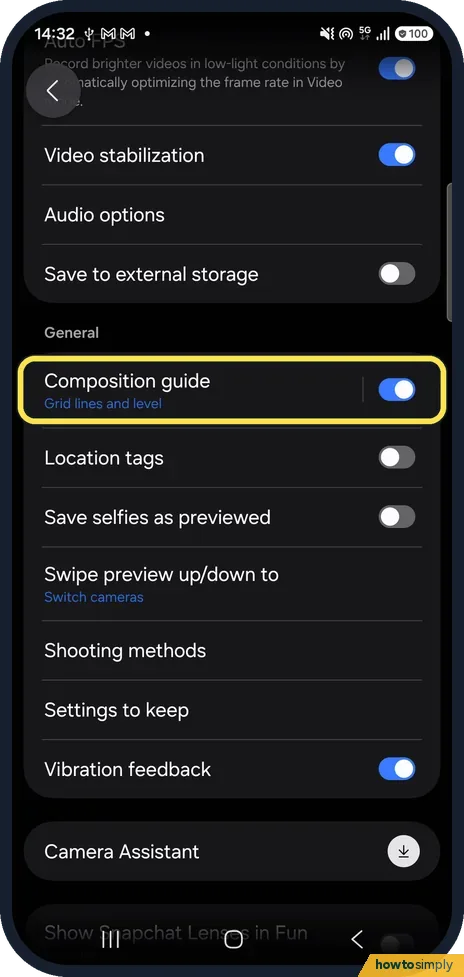
Switch it on
Turn on the Composition guide switch. Grid lines and level appears under the name.
- 5
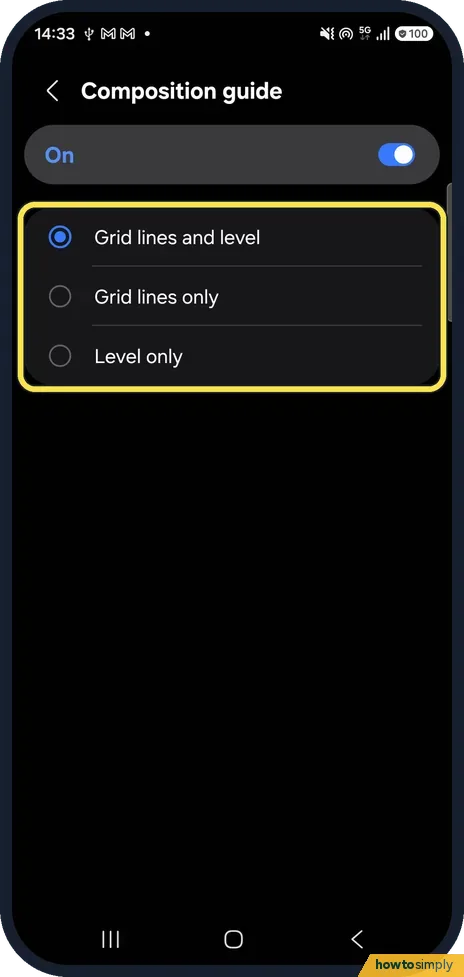
Choose grid, level or both
Tap the name to choose Grid lines and level, Grid lines only or Level only. Grid lines and level was picked on ours.
- 6
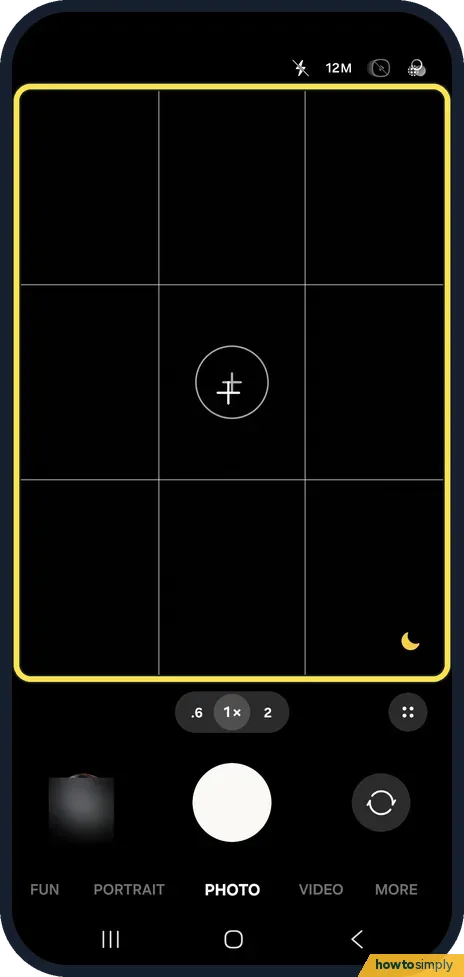
Check the viewfinder
Back in Camera, two lines across and two down split the picture into nine parts, with a level circle in the middle.
- 7
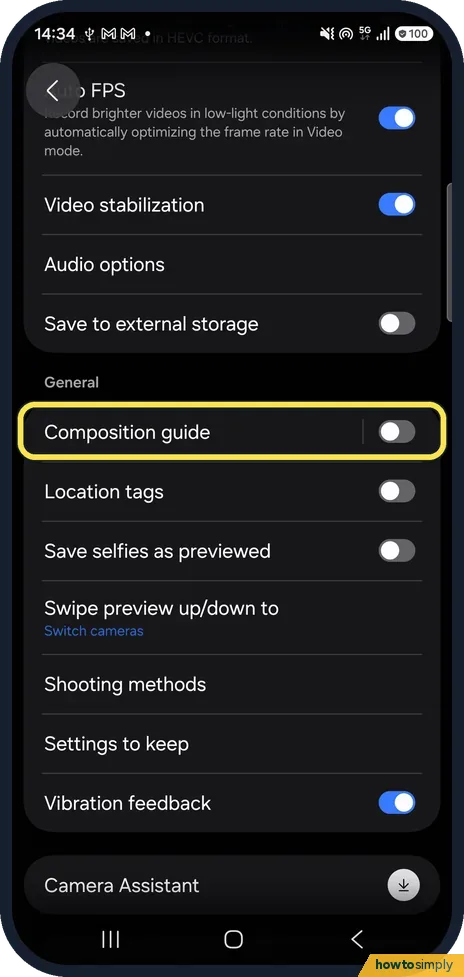
Turn it off again
To remove the lines, switch Composition guide off. Ours is off again here, and the lines were gone.
If you do not see this option
- No Composition guide? Samsung says on One UI versions before 7 the setting is Settings, Grid lines, On. Ours, on One UI 9, is under General in Camera settings. Source: How to use composition guide feature in Galaxy devices
- No gear in the camera? On ours the gear is inside Quick controls, the four-dot button next to the zoom. Source: How to use composition guide feature in Galaxy devices
If this does not work
- Only a circle, no lines? Level only may be picked. Tap Composition guide and choose Grid lines and level or Grid lines only.
- Lines in your photos? We did not take a photo with the grid on, so we can't say from ours.
- Camera won't open? Camera failed on a Galaxy? 6 fixes.
- Lines gone after an update? Open Camera settings again and check Composition guide under General. If you came from a One UI version before 7, Samsung says the old setting was called Grid lines, so the switch may now sit under the new name.
Good to know
Add a watermark to your photos: add a watermark in the Galaxy camera.
On a Pixel: turn on the camera grid on a Google Pixel.
Composition guide is a Camera setting, so it stays on for every photo session until you switch it off. It does not change the photo settings, the file size or battery use in any noticeable way. Samsung describes the lines in the live preview, where they help you frame and keep things straight before you press the shutter. A straight horizon is easier to get right at the time than to fix later, because straightening in an editor crops the edges. To add your phone's name or the date to photos, see add a watermark in the Galaxy camera.
About this guide
- Device
- Android
- Shown on
- Samsung Galaxy A57 (SM-A576B), One UI 9, Android 17 (build A576BXXU6BZIE)
- App
- Camera
- Path
- Camera › Quick controls › Settings › Composition guide
- Real screenshots
- 7 of 7 steps
- Checked
- October 2026
- Sources
- 1 official, linked below
Sources
Links checked October 2026. Menus and features can change with updates.Spotted a mistake? Menus change with updates, and we want every step to match your screen. Email us about this page or use the contact form. We read every report, and fixes are listed on What changed.
Liked this guide?
Follow us for new guides and short how-to videos.
Did this guide work for you?
Sorry about that. What happened?