SAMSUNG GALAXY
How to turn off camera access on a Samsung Galaxy (One UI 9)

In short
Open Settings, Security and privacy, scroll to Privacy and tap Controls and alerts. Turn off Camera access and tap Block. No app can then use the camera. Opening Camera asks Turn on Camera access? with a Turn on button.
10 of 10 steps show a real screenshot from our Galaxy A57. Each step was checked against the maker's own instructions, linked at the end.
Steps
- 1
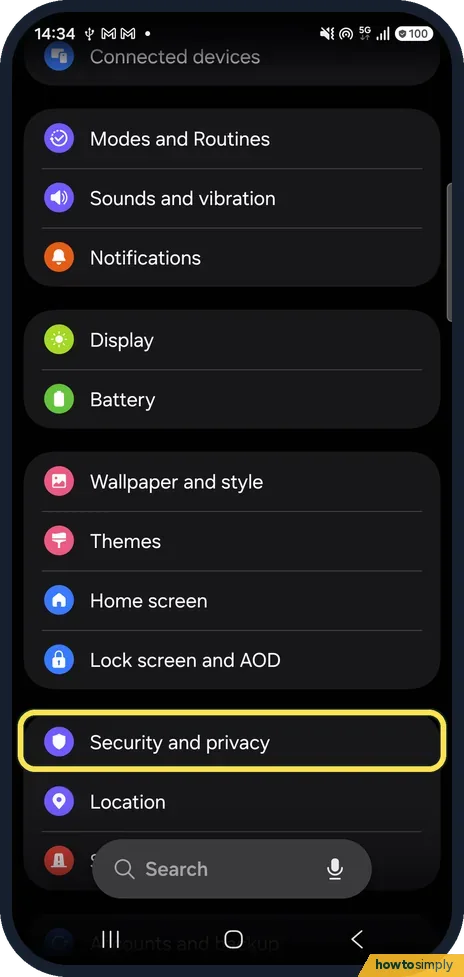
Open Security and privacy
Open Settings and tap Security and privacy.
- 2
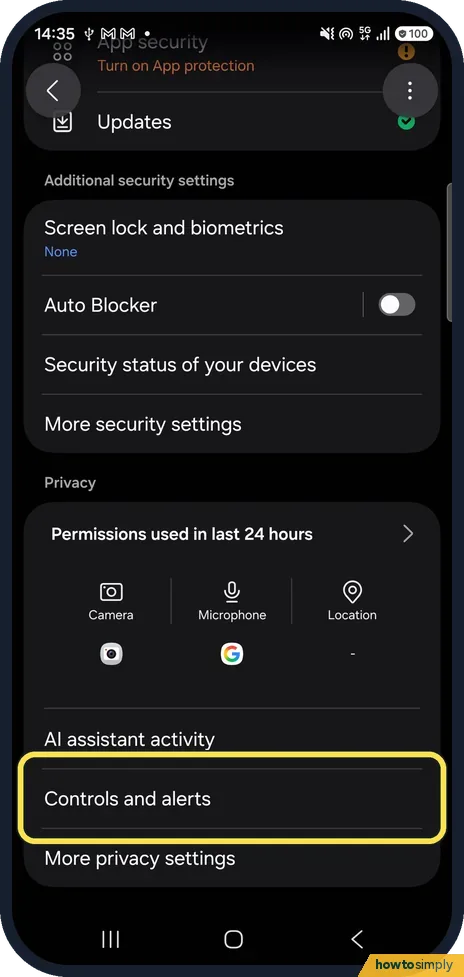
Tap Controls and alerts
Scroll down to the Privacy section and tap Controls and alerts.
- 3
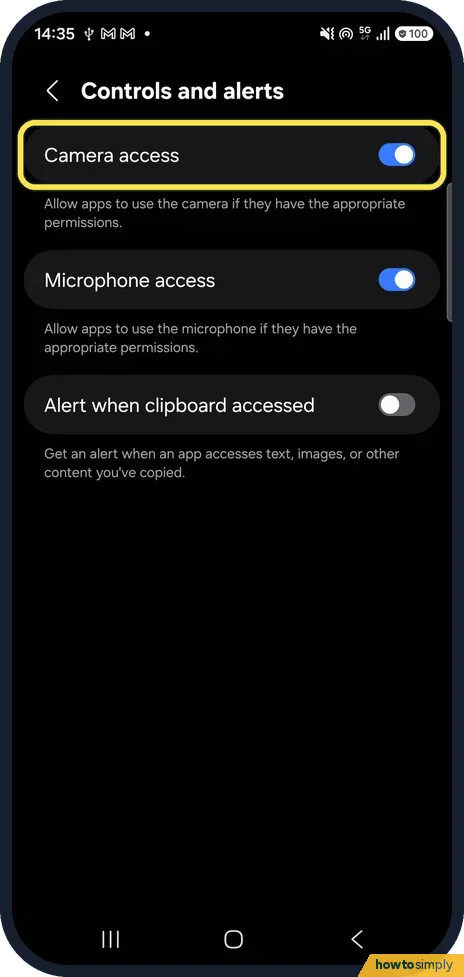
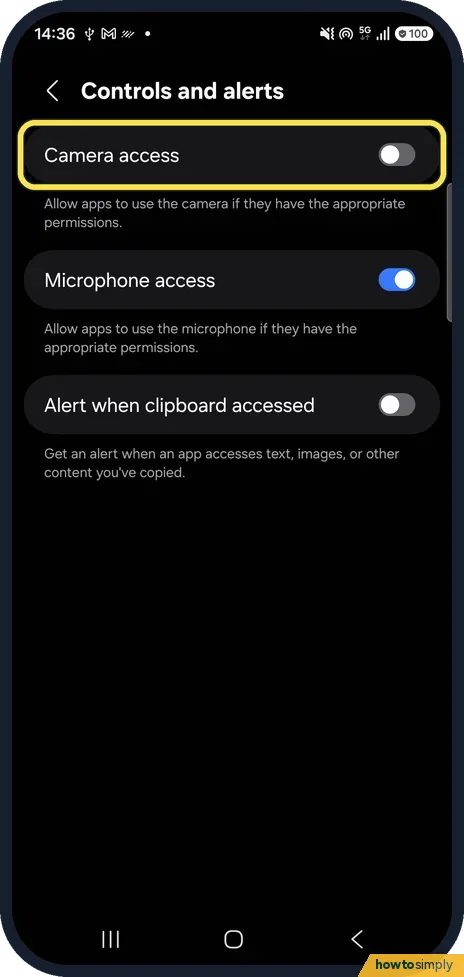
Turn off Camera access
Camera access is at the top: Allow apps to use the camera if they have the appropriate permissions. Ours was on. Tap the switch.
- 4
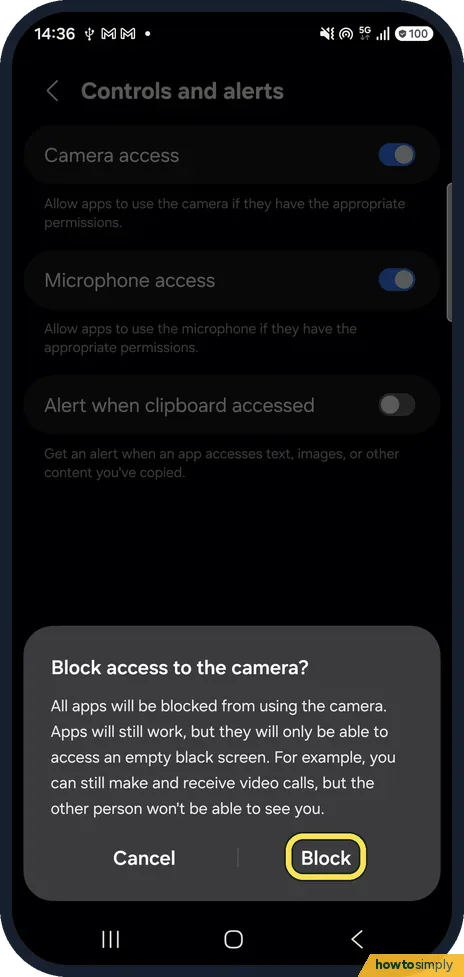
Tap Block
Block access to the camera? All apps will be blocked from using the camera. Apps still work but only see an empty black screen; in video calls the other person won't see you. Tap Block.
- 5
Camera access is off
The switch is off. Microphone access is still on.
- 6
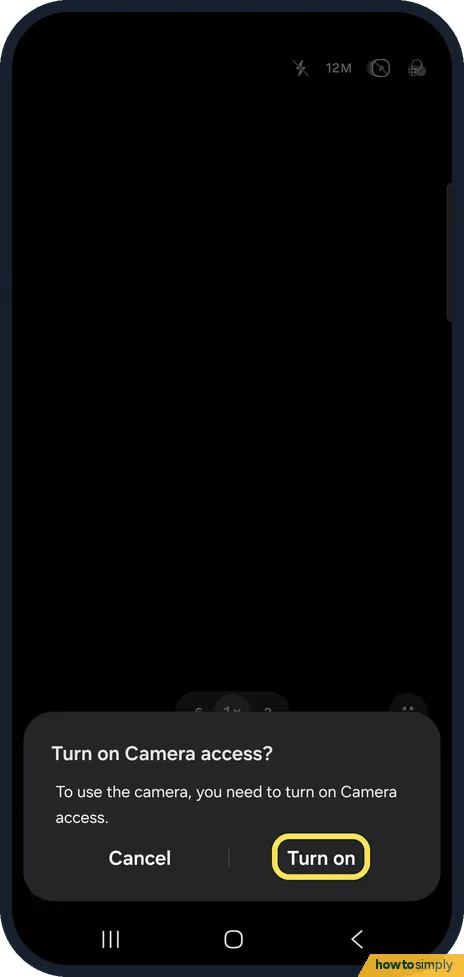
Turn it on from the Camera app
Opening Camera now shows a black viewfinder and Turn on Camera access? To use the camera, you need to turn on Camera access. Tap Turn on.
- 7
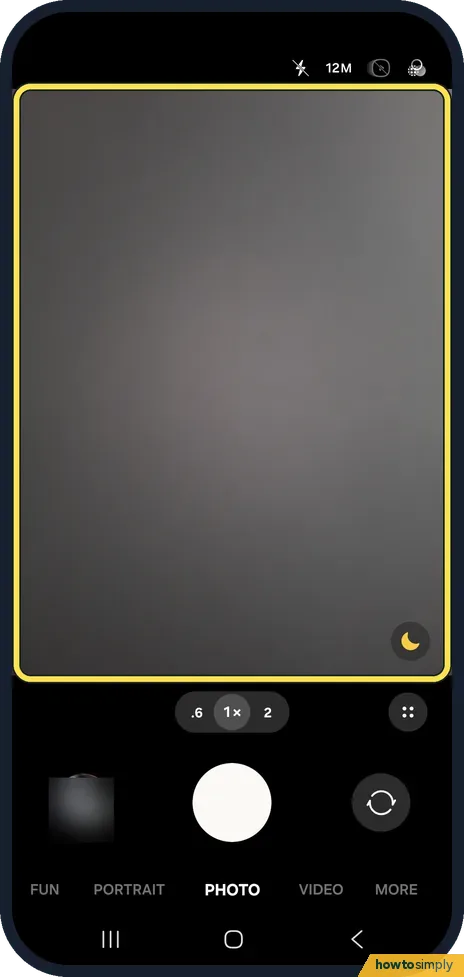
The camera works again
The live picture came back at once, and Controls and alerts showed Camera access on again.
- 8
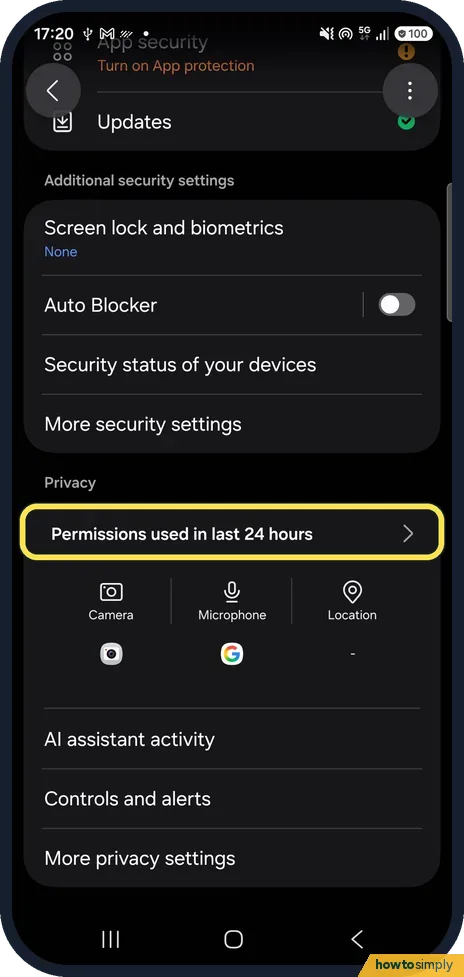
See which apps used it
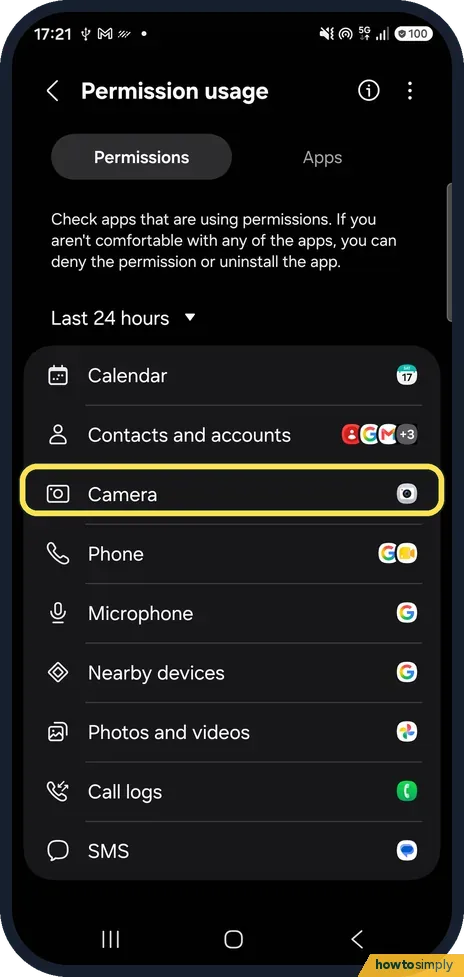
To check which apps used the camera, go back to Security and privacy and tap Permissions used in last 24 hours in the Privacy section.
- 9
Tap Camera
Permission usage lists Camera, Microphone and other permissions, each with the icons of the apps that used it. Tap Camera.
- 10
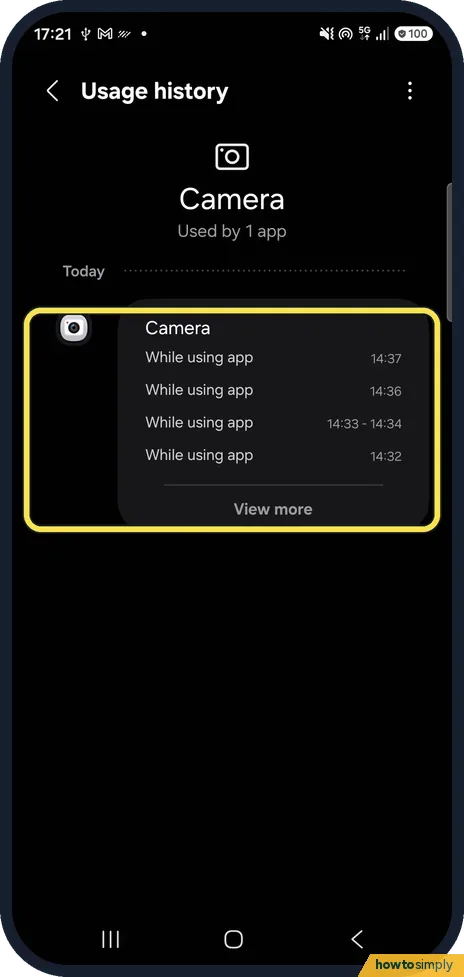
Read the usage history
Usage history lists each use with the time. Ours showed only the Camera app, used while we made this guide.
If you do not see this option
- No Controls and alerts? On ours it is in the Privacy section of Security and privacy, below AI assistant activity. Google's Android help names the switches Camera access and Microphone access. Source: Change app permissions on your Android phone
- Want to block the microphone? Microphone access is the next switch on the same page. We did not try it. Source: Change app permissions on your Android phone
- Want to block the camera for one app? Samsung says to open Settings, Apps, tap More options, then Permission manager, choose the permission and then the app, and change its setting. Other apps keep the camera. Source: Green camera & microphone icon appearing on my Galaxy phone
If this does not work
- Camera shows only black? Camera access is off. Tap Turn on in the Camera app, or switch it on in Controls and alerts.
- Camera failed message? Check Camera access first, then the other fixes: Camera failed on a Galaxy.
- Microphone not working? Microphone access may be off: Galaxy microphone not working.
- Need a faster switch? Samsung says quick panel controls can temporarily block all apps from using the camera or microphone. Swipe down with two fingers to open the panel.
Good to know
A green dot at the top of the screen means an app is using the camera or microphone: green dot on a Galaxy.
On a Pixel: turn off camera and microphone access on a Google Pixel.
Turning Camera access off changes nothing else: apps keep the camera permission they had, and they get it back when you turn the switch on. Turning it off is useful for a private meeting or when the phone lies in a bedroom, but the Camera app, QR scanning and video calls all stay black until you undo it.
About this guide
- Device
- Android
- Shown on
- Samsung Galaxy A57 (SM-A576B), One UI 9, Android 17 (build A576BXXU6BZIE)
- App
- Settings
- Path
- Settings › Security and privacy › Privacy › Controls and alerts › Camera access
- Real screenshots
- 10 of 10 steps
- Checked
- October 2026
- Sources
- 1 official, linked below
Sources
Links checked October 2026. Menus and features can change with updates.Spotted a mistake? Menus change with updates, and we want every step to match your screen. Email us about this page or use the contact form. We read every report, and fixes are listed on What changed.
Liked this guide?
Follow us for new guides and short how-to videos.
Did this guide work for you?
Sorry about that. What happened?