GOOGLE PIXEL
How to turn on the camera grid on a Google Pixel (Android 17)

In short
Open Camera and tap the Photo settings button at the bottom left, then the ⋯ button to open Camera settings. Under Composition, tap Grid type, pick 3 x 3, 4 x 4 or Golden ratio, and tap Done. The lines then show on the viewfinder.
7 of 7 steps show a real screenshot from our Pixel 10a. Each step was checked against the maker's own instructions, linked at the end.
Steps
- 1
Tap the Photo settings button
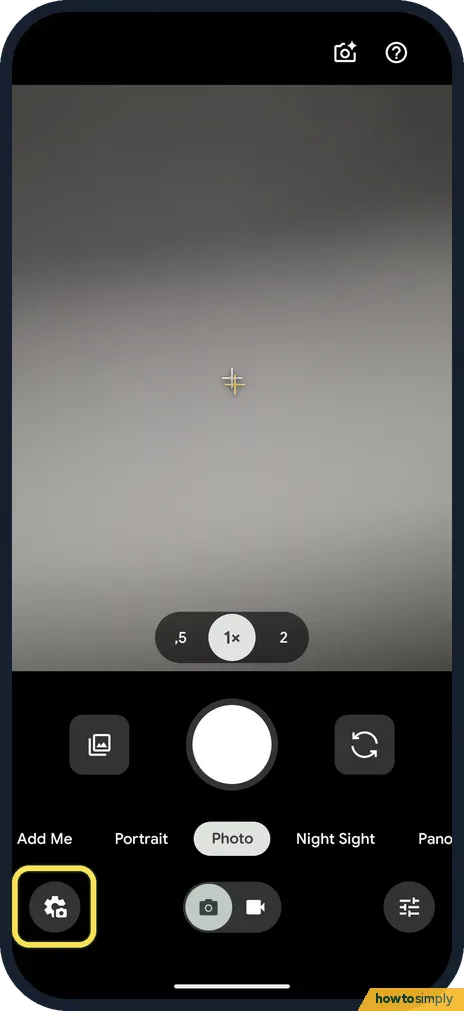
Open Camera. At the bottom left, tap the round Photo settings button, the one with a gear on a camera.
- 2
Open settings
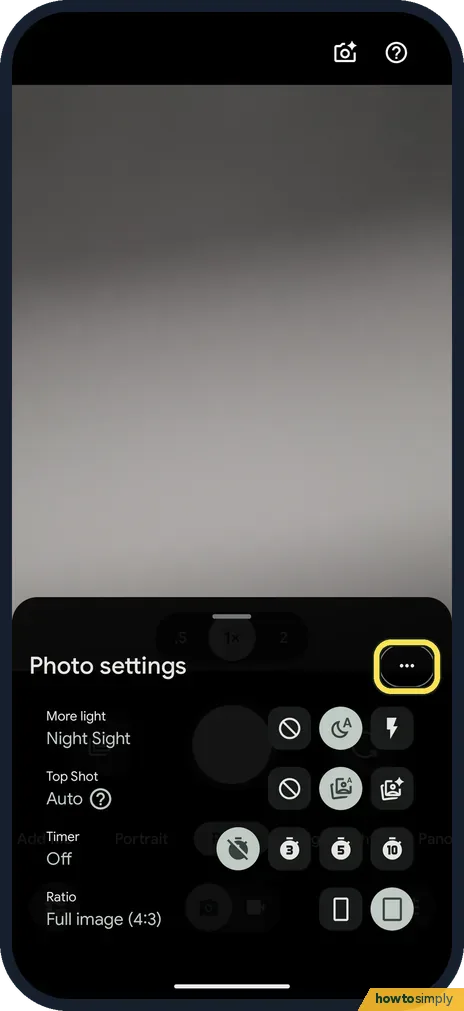
The Photo settings panel opens with More light, Top Shot, Timer and Ratio. At its top right, tap the ⋯ button to open settings.
- 3
Tap Grid type
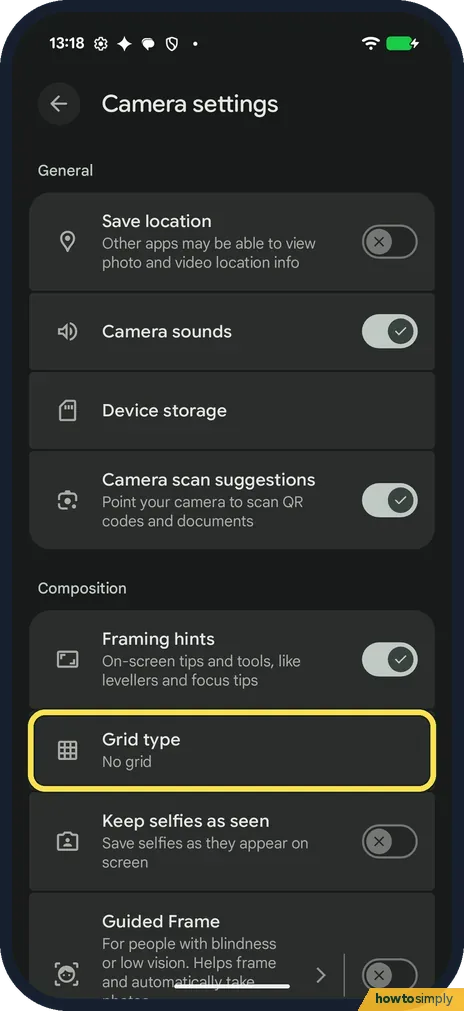
Camera settings opens. Under Composition, tap Grid type. Ours said No grid.
- 4
Pick 3 x 3 and tap Done
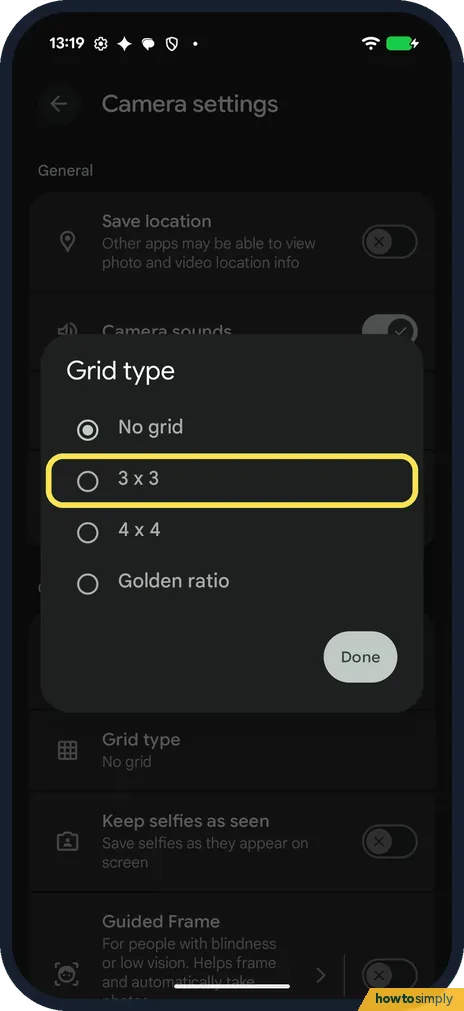
Choose No grid, 3 x 3, 4 x 4 or Golden ratio, then tap Done. We picked 3 x 3.
- 5
Check the viewfinder
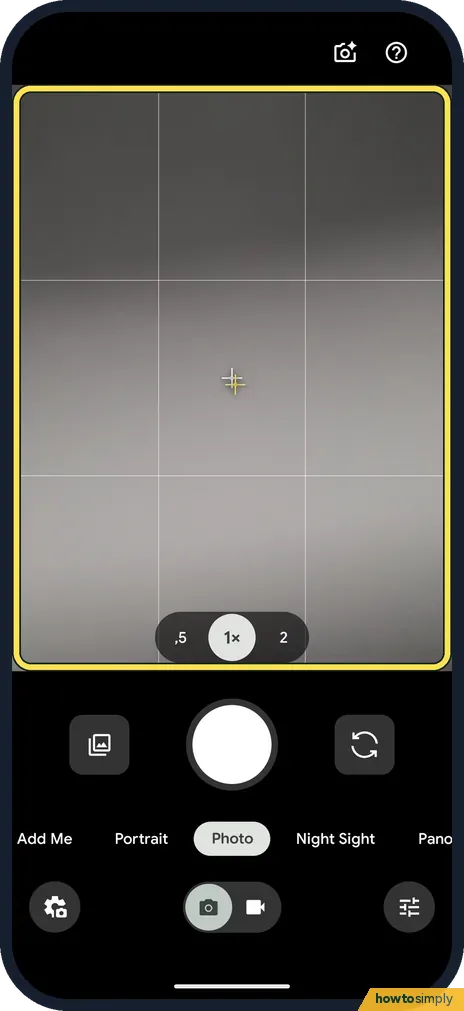
Go back to the camera. With 3 x 3, two lines across and two lines down split the viewfinder into nine parts.
- 6
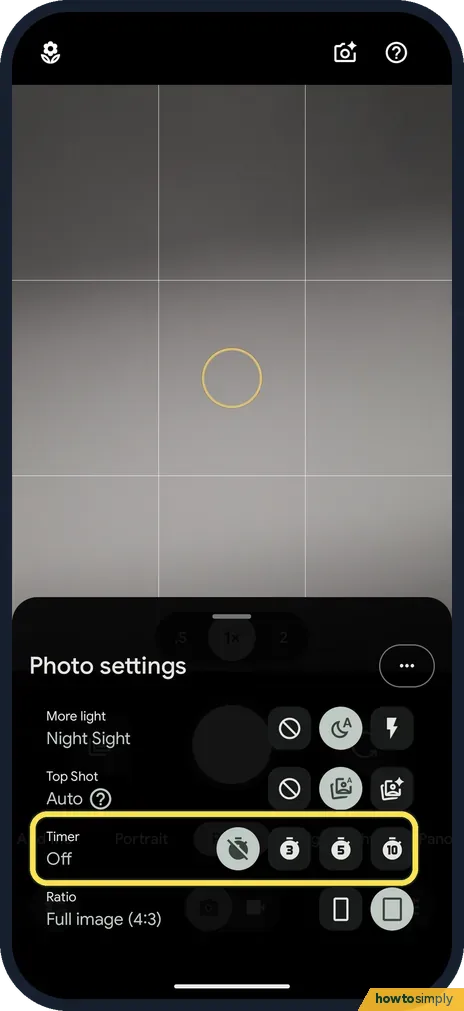
Set the Timer if you want one
The Photo settings panel also has Timer: Off, 3, 5 or 10 seconds. The grid stays on behind the panel. Ours was Off and we left it.
- 7
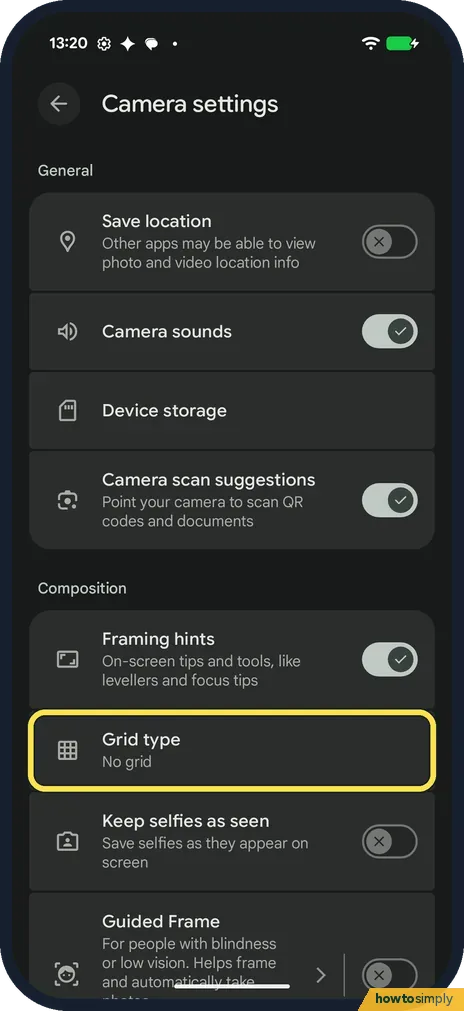
Turn the grid off again
To remove the lines, open Camera settings, tap Grid type and pick No grid. Ours said No grid again.
If you do not see this option
- No Grid type row? On ours it is under Composition in Camera settings, below Framing hints. Google's help calls the button More Settings. Source: Change your Camera app settings
- What are Framing hints? The switch just above Grid type: On-screen tips and tools, like levellers and focus tips. It was on on ours and we left it; we did not test what it shows.
- Want a wider or taller photo? Google puts the photo ratio in the same group as gridlines, for straightening and adjusting shots. It names Wide crop (16:9) and Full image (4:3). On ours, Ratio is in the Photo settings panel next to Timer. Source: Change your Camera app settings
If this does not work
- No lines in the viewfinder? Check that Grid type doesn't say No grid. On ours the 3 x 3 lines showed as soon as we went back to the camera.
- Too many or too few lines? Pick another Grid type. We only tried 3 x 3 and No grid.
- Selfies saved flipped? Keep selfies as seen, below Grid type, saves selfies as they appear on screen. It was off on ours.
Good to know
This grid is only for the camera. To change the app grid on the home screen: change the home screen grid on a Pixel.
On an iPhone the grid is in Settings, Camera: turn on the camera grid and level on an iPhone. Control which apps can use the camera: turn off camera and microphone access.
Google describes the grid as a way to straighten photos. The 3 x 3 grid also suits the rule of thirds: put the subject where two lines cross rather than in the middle. Undo it with No grid, as in the last step.
About this guide
- Device
- Android
- Shown on
- Google Pixel 10a, Android 17 (build CP3A.261005.005)
- App
- Camera
- Path
- Camera › Photo settings › Open settings › Grid type
- Real screenshots
- 7 of 7 steps
- Checked
- October 2026
- Sources
- 1 official, linked below
Sources
Links checked October 2026. Menus and features can change with updates.Spotted a mistake? Menus change with updates, and we want every step to match your screen. Email us about this page or use the contact form. We read every report, and fixes are listed on What changed.
Liked this guide?
Follow us for new guides and short how-to videos.
Did this guide work for you?
Sorry about that. What happened?