
howtosimply.com/guides/how-to-make-a-collage-in-google-photos-on-android/ · Checked October 2026 · build CP3A.261005.005 · Google Pixel 10a, Android 17
In this guide
Open Google Photos, tap Create, then Collage. Tap the + in each empty slot and pick a photo, tap Done, then Save. Templates and Borders at the bottom change the layout and the frame.
5 of 5 steps with real screenshots · 1 official source below
- Device
- Android
- Shown on
- Google Pixel 10a, Android 17 (build CP3A.261005.005)
- App
- Google Photos
- Real screenshots
- 5 of 5 steps
- Checked
- October 2026
- Sources
- 1 official, linked below
Step by step
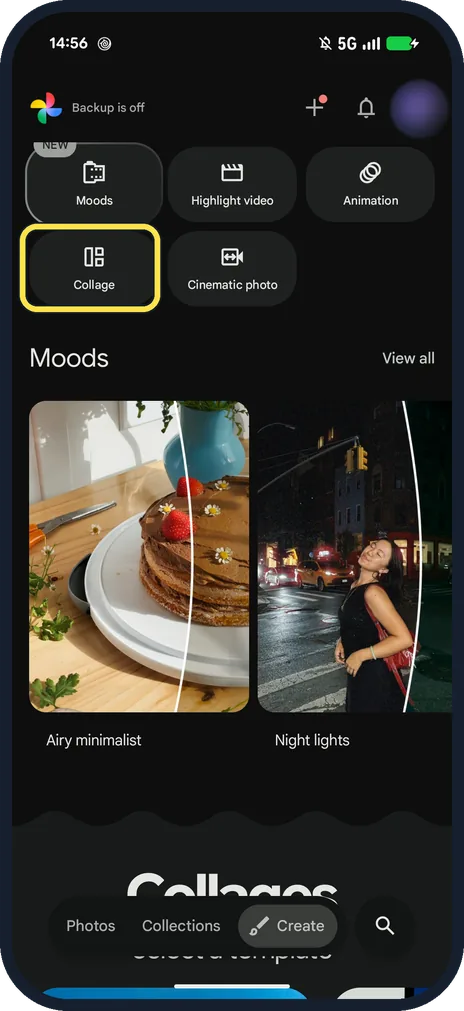
Tap Create, then Collage
Create is at the bottom. Collage sits with Moods, Highlight video, Animation and Cinematic photo.
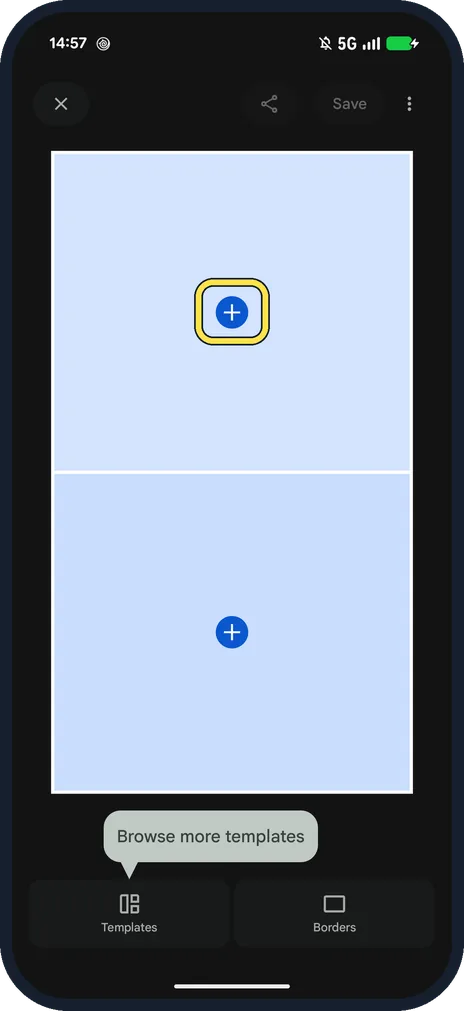
Tap the + in a slot
Ours started with two empty slots, with Browse more templates, Templates and Borders below.
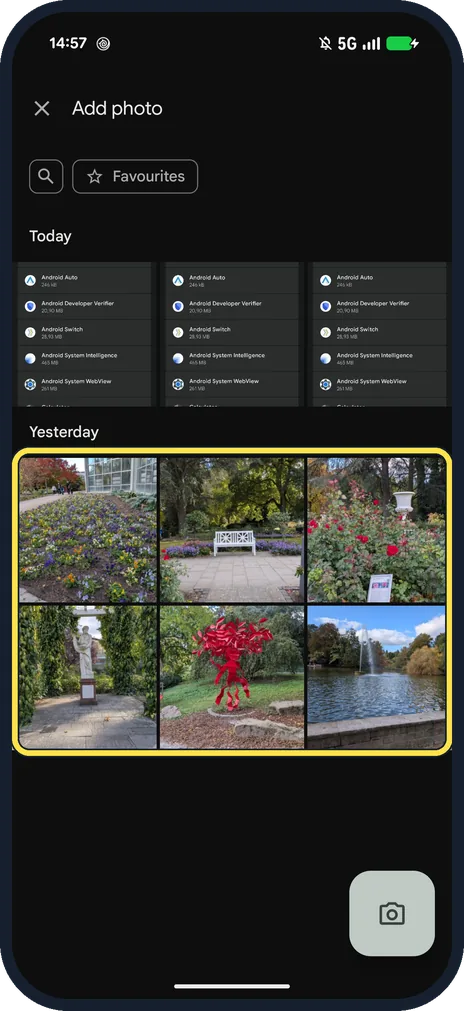
Pick a photo
Add photo shows your library by day. We picked a flower bed for the top slot and a red sculpture for the bottom.
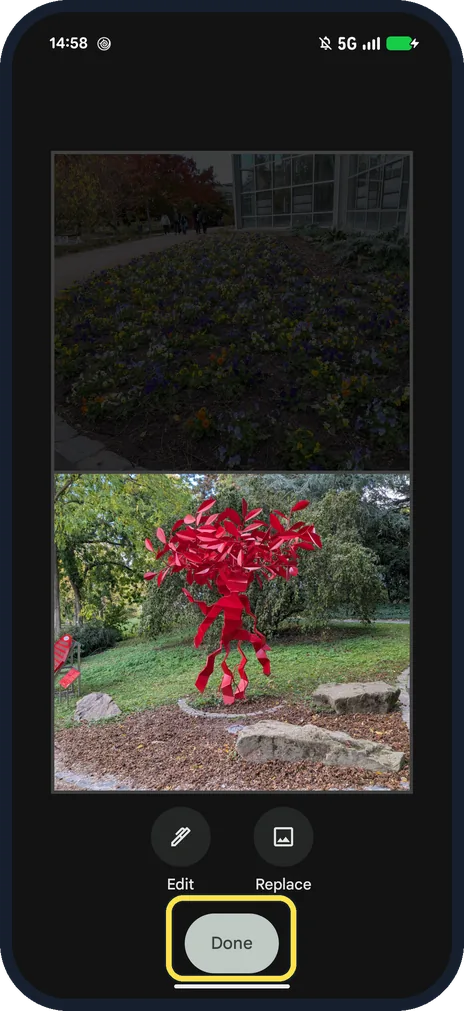
Tap Done
Tap a photo in the collage for Edit and Replace.
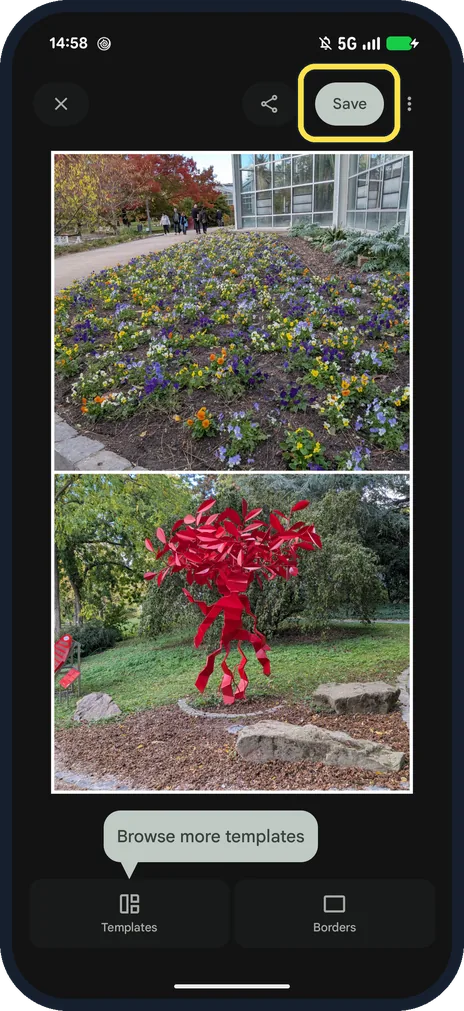
Tap Save
Save sits at the top right next to Share.
If you do not see this option
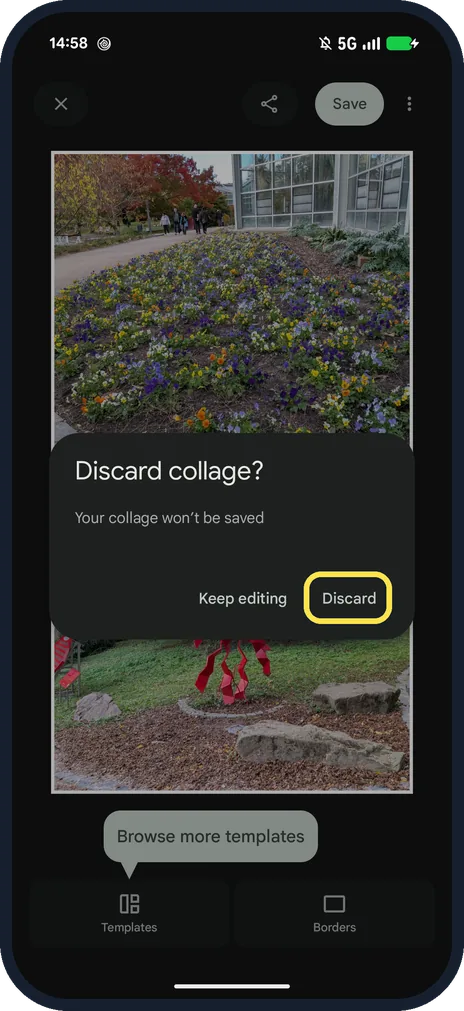
- Left without saving? The X at the top left asks: Discard collage? Your collage won't be saved, with Keep editing and Discard.
- Starting from photos you already picked? Google says: select up to 6 photos, then tap Create, Collage at the bottom. Source: Make & edit collages in Google Photos (Android)
If this does not work
- No Collage option? Google says your phone needs at least 3 GB of RAM and Android 8.0 or later. Source: Make & edit collages in Google Photos (Android)
- Want more or fewer photos? Google says to tap Templates and switch to a layout with a different photo count, or tap Add or Remove. Source: Make & edit collages in Google Photos (Android)
About this guide
Google says you can start a collage from up to 6 photos. We made a two-photo collage from our own park photos.
The screenshots are from our Google Pixel 10a with Android 17 and the Google Photos app, taken on 25 October 2026. Backup was off. We discarded the collage, so nothing was saved. Our profile picture is blurred.
Good to know
To clean up a photo first, see remove objects from photos in Snapseed.
In short: Create, Collage, + in each slot, Done, Save.
Links checked in October 2026. Menus and features can change after software updates. These steps match the version named at the top.
📷 See real photos from the Pixel 10a in our Camera Lab, next to 10 other phones.
Did this guide work for you?
Sorry about that. What happened?