
howtosimply.com/guides/nfc-or-tap-to-pay-not-working-on-a-samsung-galaxy-fixes/ · Checked October 2026 · Samsung Galaxy A57 5G (SM-A576B), One UI 8.5, Android 16
In this guide
Open Settings, Connections, NFC and contactless payments and check it is On. Under Contactless payments, make sure your payment app is the Default wallet app. Then hold the part of the back marked by the circle on that page's phone picture flat against the reader for a second or two.
4 of 5 steps with real screenshots · 3 official sources below
- Device
- Android
- Shown on
- Samsung Galaxy A57 5G (SM-A576B), One UI 8.5, Android 16
- App
- Settings
- Path
- Settings › Connections
- Real screenshots
- 4 of 5 steps
- What we did
- Observed: looked at each screen, changed nothing
- Our phone
- Shown on Galaxy A57, One UI 8.5
- Checked
- October 2026
- Sources
- 3 official, linked below
Step by step
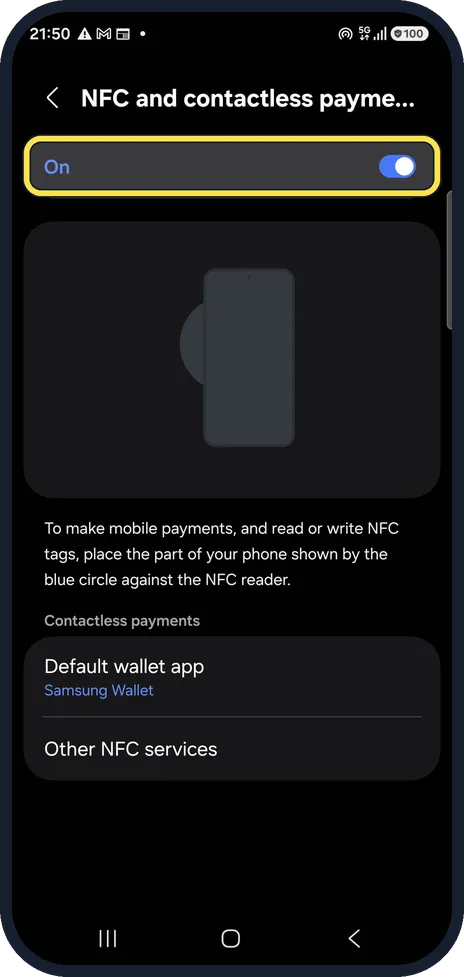
Turn on NFC
Open Settings, Connections, NFC and contactless payments. The switch at the top must say On. Ours is on.
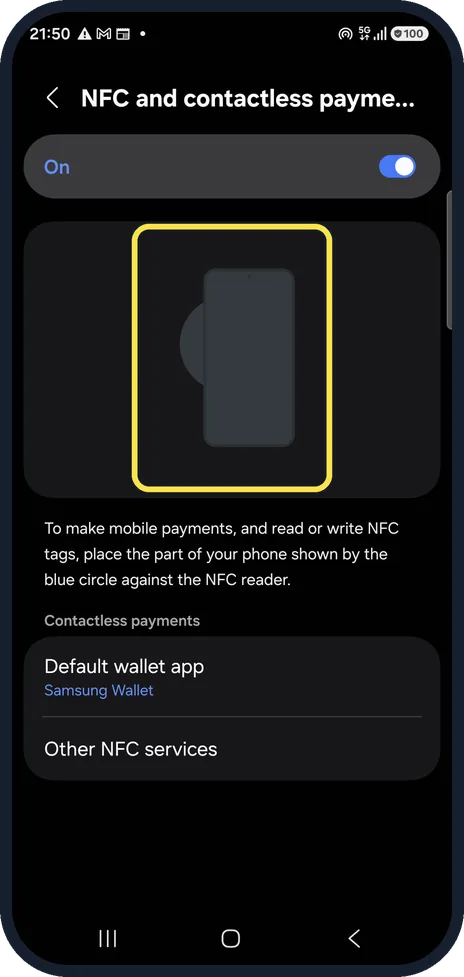
Find where to hold the phone
The picture shows where the NFC antenna sits. Hold that part of the phone against the reader, not the bottom edge.
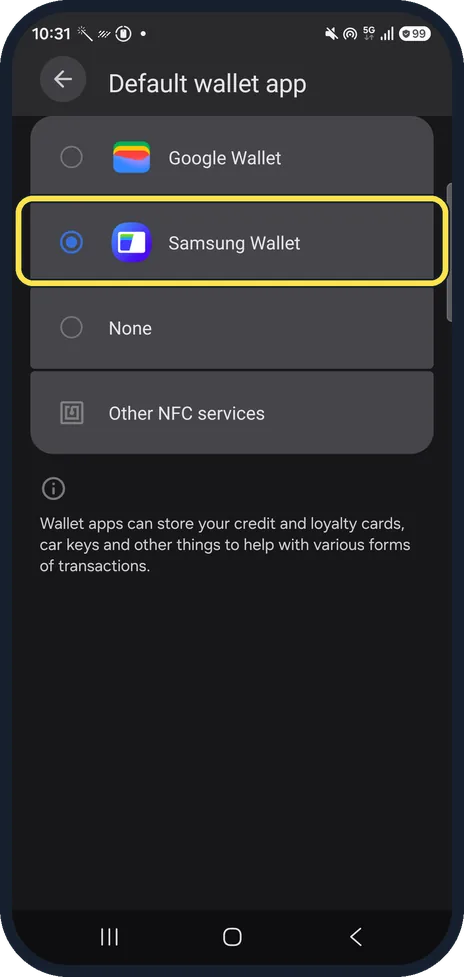
Choose the default wallet app
Tap Default wallet app and pick the app you pay with, for example Google Wallet or your bank's app. Ours uses Samsung Wallet.
Remove what blocks the signal
Take the phone out of a thick, metal or magnetic case and remove cards stored behind it, then try again.
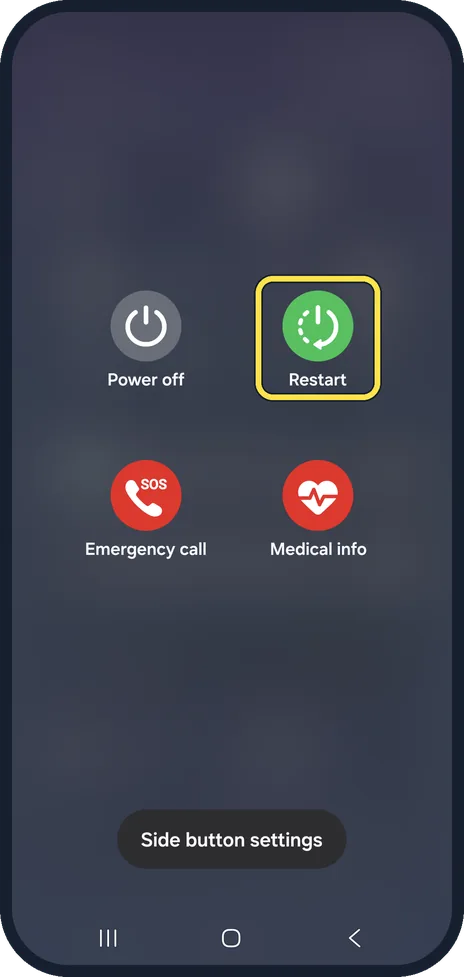
Restart and try again
Restart the phone and try the payment once more. Hold it still on the reader until it vibrates or beeps.
If you do not see this option
- Your payment app is not in the list Samsung says more payment apps are on the Others tab under Contactless payments. There is also a switch for Pay with currently open app. Source: Troubleshoot NFC issues on Galaxy devices
- You want NFC in the quick panel Samsung says to open the Quick settings panel, tap the Edit icon, Add a control and NFC, then drag the NFC button up and tap Done. Source: What to do when NFC appears to be not working properly on your Samsung Galaxy device
If this does not work
- Payments fail with the case on Samsung US says cases with magnets, cards or metal can block NFC. Take the case off and try again. Source: NFC is not working properly on a Samsung Galaxy device
- Still not working Samsung US says some NFC services keep data on the SIM card: take the SIM out, put it back, restart, and ask for a new SIM if it still fails. Source: NFC is not working properly on a Samsung Galaxy device
- NFC stopped working suddenly Samsung suggests turning NFC off and back on, for example with the NFC button in the Quick settings panel. Source: What to do when NFC appears to be not working properly on your Samsung Galaxy device
- You use an LED cover Samsung says NFC does not work while an LED cover is lit. Source: Troubleshoot NFC issues on Galaxy devices
About this guide
Tap to pay needs three things: NFC on, the right wallet app chosen, and the phone's NFC antenna close to the reader. A thick case, a magnetic holder or a card behind the phone can block it.
Good to know
Payment apps may refuse to pay without a screen lock, because a payment needs your fingerprint, face or PIN.
If NFC works with one reader but not another, the reader may be at fault; try a different till or terminal.
In short: Settings, Connections, NFC and contactless payments on; set the Default wallet app; hold the NFC area against the reader; remove the case.
- Samsung Latin: What to do when NFC appears to be not working properly on your Samsung Galaxy device
- Samsung US: NFC is not working properly on a Samsung Galaxy device
- Samsung Latin: Troubleshoot NFC issues on Galaxy devices
Links checked in October 2026. Menus and features can change after software updates. These steps match the version named at the top.
📷 See real photos from the Galaxy A57 in our Camera Lab, next to 10 other phones.
Did this guide work for you?
Sorry about that. What happened?