
What changed: the screenshots are now our own iPhone 17e on iOS 27.0.1, dark mode, and the wording is checked against those screens.
howtosimply.com/guides/how-to-turn-off-autocorrect-on-iphone/ · Checked October 2026 · iPhone 17e · iOS 27.0.1
In this guide
Open Settings, tap General, then Keyboard, and switch off Auto-Correction. The iPhone stops changing words as you type but still underlines spelling mistakes.
4 of 4 steps with real screenshots · 1 official source below
- Device
- iPhone
- Shown on
- iOS 27.0.1 (iPhone 17e)
- App
- Settings
- Path
- Settings › General › Keyboard
- Real screenshots
- 4 of 4 steps
- What we did
- Performed: we made the change on our device and show the result
- Checked
- October 2026
- Sources
- 1 official, linked below
Step by step
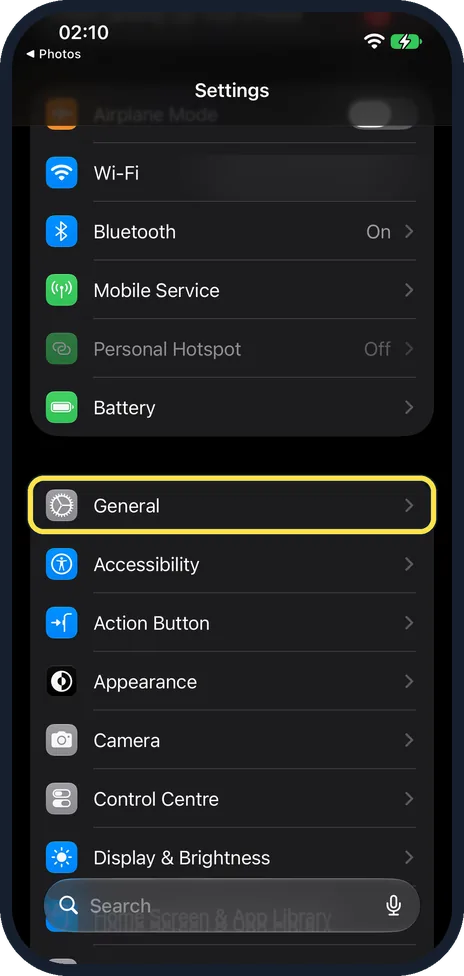
Open Settings and tap General
Open the grey Settings icon and tap General.
Watch these steps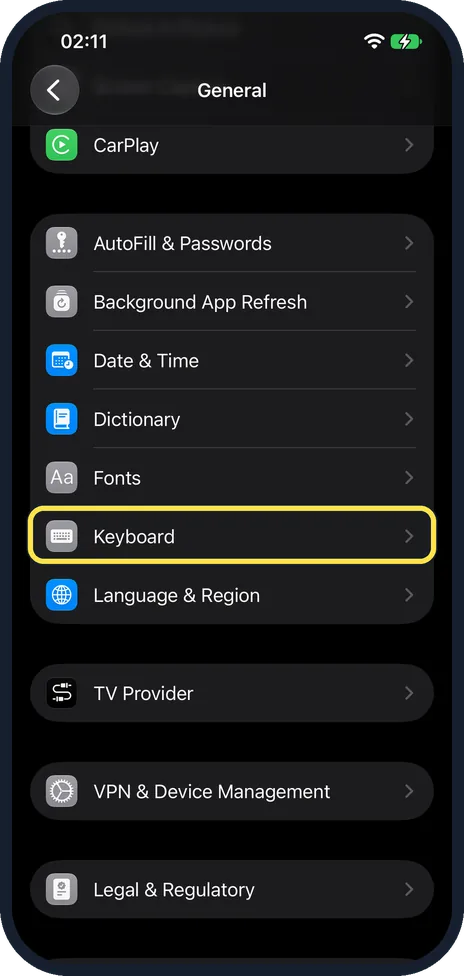
Tap Keyboard
It is in the group with Fonts, Dictionary and Language & Region. The page that opens is titled Keyboards.
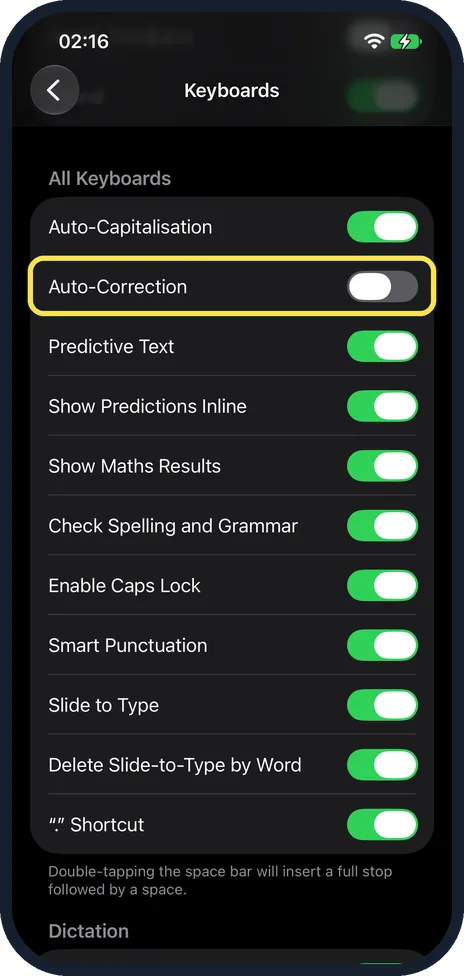
Switch off Auto-Correction
Scroll to the All Keyboards section. Tap the switch next to Auto-Correction so it turns grey. The picture shows ours after we switched it off.
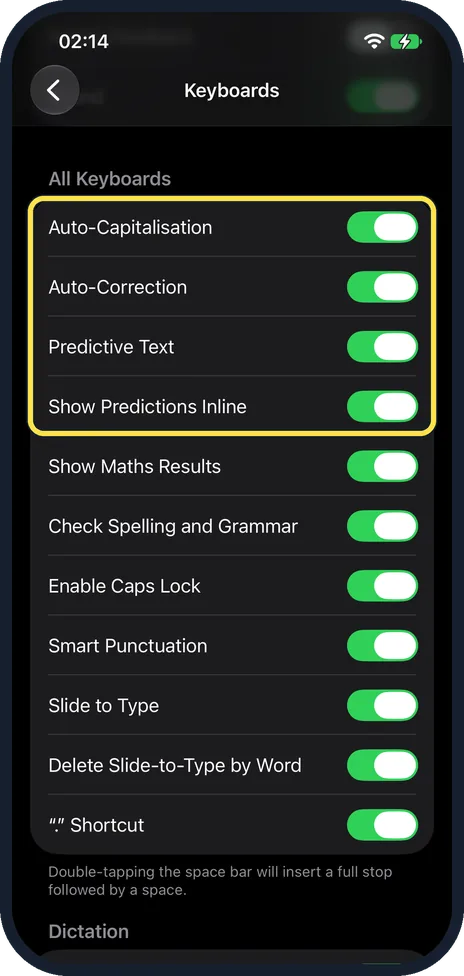
Decide about the other helpers
Predictive Text shows word suggestions above the keyboard. Show Predictions Inline writes a grey suggestion ahead of your cursor. Auto-Capitalisation starts sentences with a capital letter. Each has its own switch in the same list. This picture was taken before we switched off Auto-Correction, so its switch is still green here.
What changed: the screenshots are now our own iPhone 17e on iOS 27.0.1, dark mode, and the wording is checked against those screens.
Watch these steps
If you do not see this option
- Change it from the keyboard. While typing, touch and hold the emoji or globe key and tap Keyboard Settings. On our iPhone 17e the menu listed Keyboard Settings, English (US) and Emoji. Source: Type with the onscreen keyboard on iPhone
- Your iPhone runs iOS 16 or earlier. Apple says the underline on corrected words, which you tap to undo a correction, came with iOS 17. Source: Use Auto-Correction and predictive text on your iPhone
- You use a keyboard app from the App Store. This switch is for the Apple keyboard. A keyboard app such as Gboard has its own autocorrect setting inside that app.
If this does not work
- Spelling mistakes are still underlined. That is Check Spelling and Grammar, a separate switch in the same list. It was on on our iPhone.
- A word is still replaced. Check Text Replacement on the Keyboards page: a shortcut listed there is replaced by its phrase even with Auto-Correction off. Source: Save keystrokes with text replacements on iPhone
- The keyboard keeps suggesting a wrong word. Settings, General, Transfer or Reset iPhone, Reset, Reset Keyboard Dictionary. Apple warns that this deletes all custom words and shortcuts. Source: Save keystrokes with text replacements on iPhone
About this guide
Autocorrect is helpful until it keeps replacing a name, a word in another language or slang with something you did not mean. You can switch it off completely, or keep it and teach it the words it gets wrong.
The screenshots are our own, taken on an iPhone 17e running iOS 27.0.1, in dark mode.
Good to know
To keep autocorrect but stop one wrong correction, add the word as a text replacement: on the Keyboards page tap Text Replacement, tap the plus sign, and type the same word in both Phrase and Shortcut.
When autocorrect changes a word, tap the underlined word to see what you typed and switch back.
In short: Settings, General, Keyboard, switch off Auto-Correction.
Links checked in October 2026. Menus and features can change after software updates. These steps match the version named at the top.
Did this guide work for you?
Sorry about that. What happened?