
howtosimply.com/guides/how-to-change-the-wallpaper-on-an-iphone/ · Checked October 2026 · iPhone 17e · iOS 27.0.1
In this guide
Open Settings, tap Wallpaper, then Add New Wallpaper. Pick Photos, Emoji or Colour at the top, or a wallpaper from a set further down, then tap Add. Apple says you then tap Set as Wallpaper Pair to use it on the Lock Screen and Home Screen.
7 of 7 steps with real screenshots · 1 official source below
- Device
- iPhone
- Shown on
- iOS 27.0.1 (iPhone 17e)
- App
- Settings
- Path
- Settings › Wallpaper › Add New Wallpaper
- Real screenshots
- 7 of 7 steps
- Checked
- October 2026
- Sources
- 1 official, linked below
Step by step
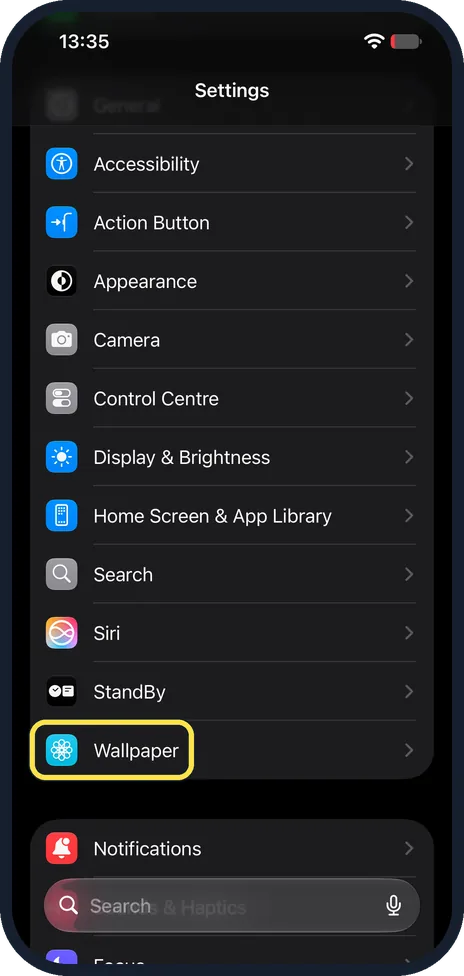
Open Wallpaper in Settings
Open the Settings app and scroll down to the group with Display & Brightness and StandBy. Tap Wallpaper, the last row in that group.
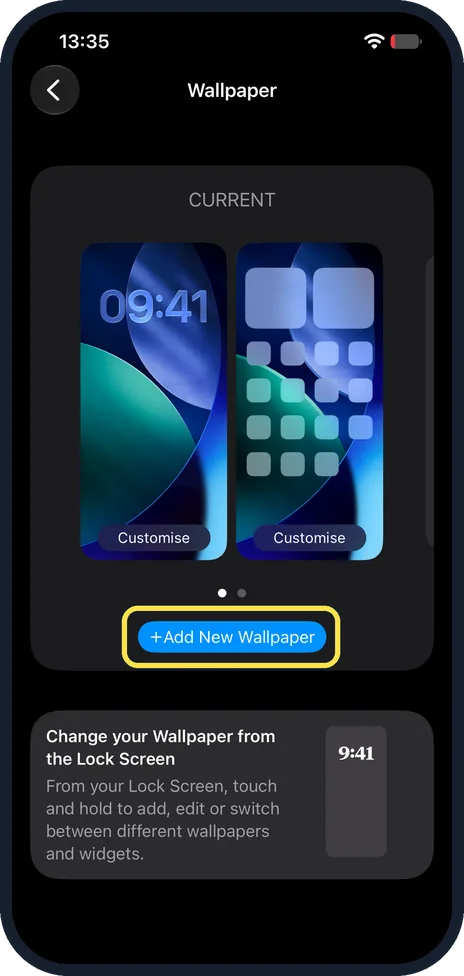
Tap Add New Wallpaper
Under CURRENT you see your Lock Screen and Home Screen side by side, each with a Customise button. To start a new one, tap the blue Add New Wallpaper button below them.
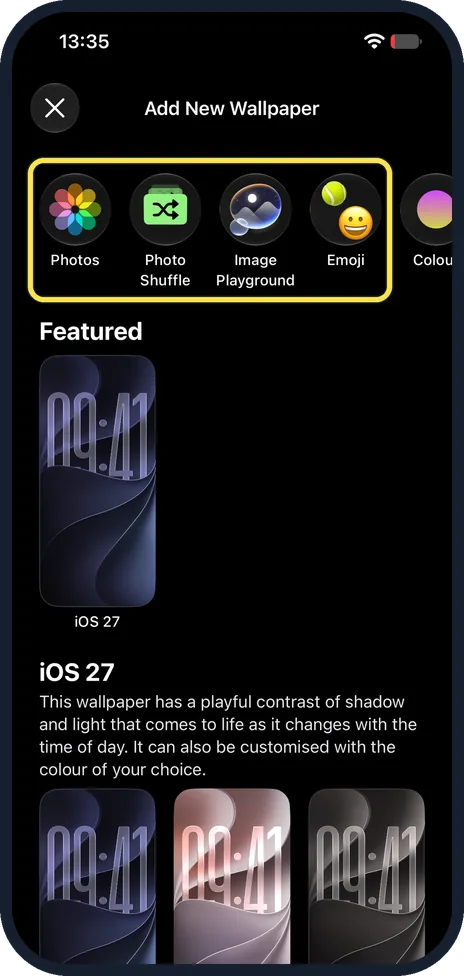
Start from a photo, emoji or colour
The row at the top has Photos, Photo Shuffle, Image Playground, Emoji and Colour. Tap one to design your own. Below it are Featured and the iOS 27 set.
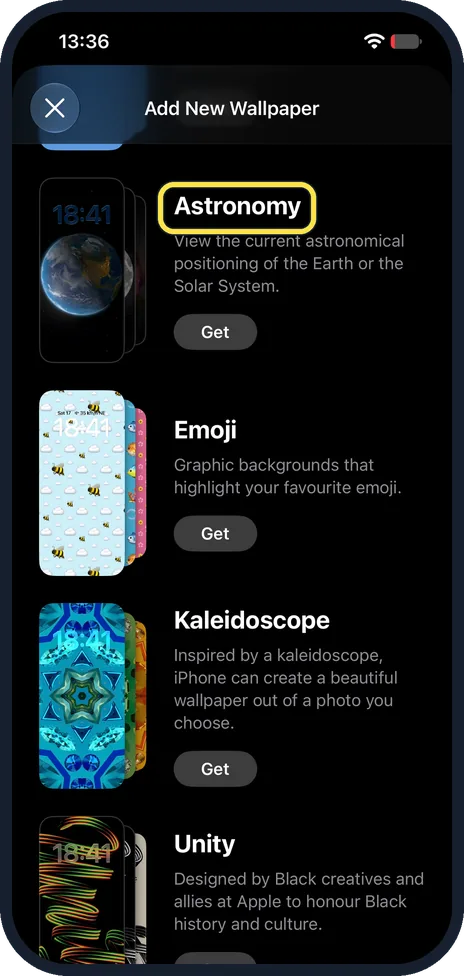
Scroll down to more styles
Further down each style has a short note and a Get button: Astronomy, Emoji, Kaleidoscope and Unity on ours. Astronomy shows the Earth or the Solar System.
Tap Get under a style
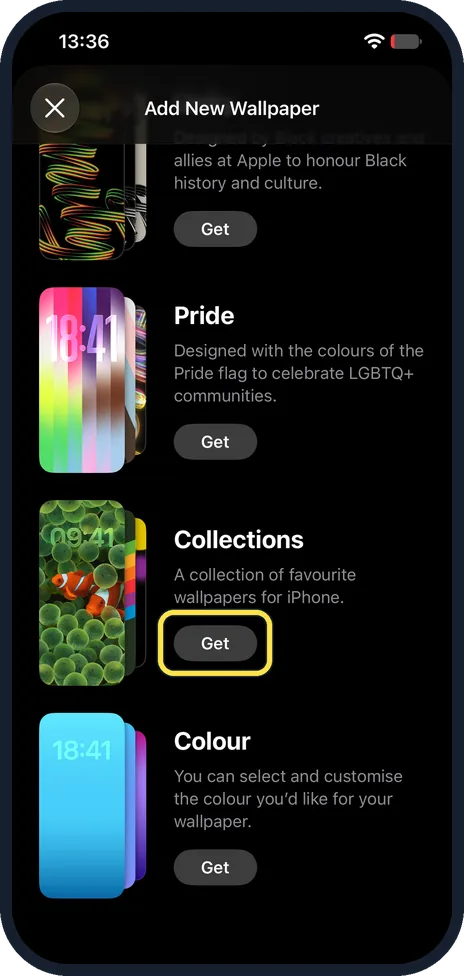
Below Pride come Collections and Colour. Tap Get under the one you like. We tapped Get under Collections; it opened in place in the list.
Tap a wallpaper
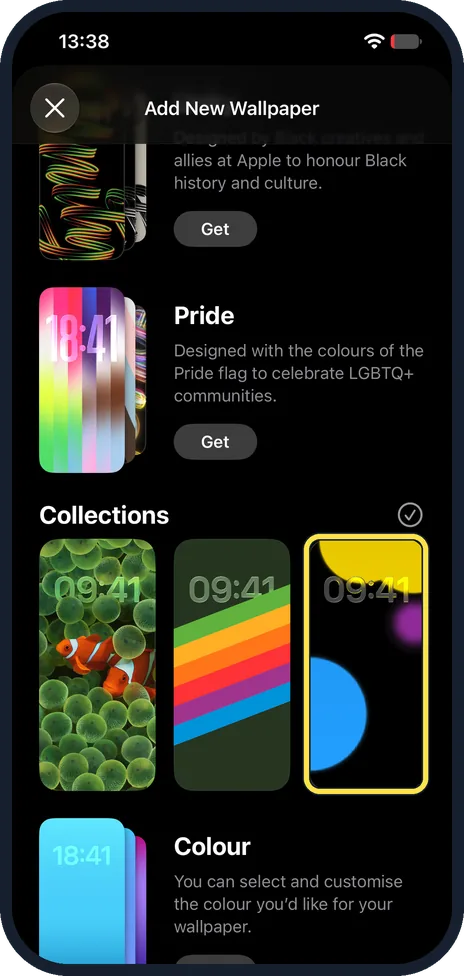
Collections opened as three wallpapers: clownfish, colour stripes and coloured circles. Tap the one you want. We tapped the third.
Check the preview, then tap Add
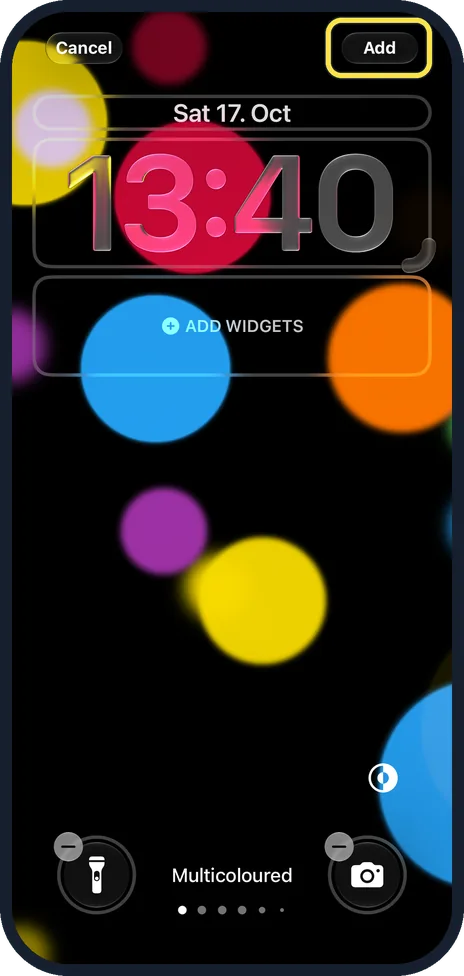
The wallpaper opens on the Lock Screen with the date, the time and Add Widgets. Ours is called Multicoloured. Apple says to tap Add at the top right next. We stopped before Add and tapped Cancel.
If you do not see this option
- No Weather or Astronomy wallpaper? Apple says to scroll down the gallery for more options and tap Get below the one you like. On ours Astronomy sat below Featured and the iOS 27 set, with its own Get button. Source: Change the wallpaper on your iPhone
- Rather start from the Lock Screen? The Wallpaper page on ours has a card: from your Lock Screen, touch and hold to add, edit or switch between wallpapers and widgets.
If this does not work
- Only the Lock Screen changed? Apple says that after Add you tap Set as Wallpaper Pair to use it on both the Lock Screen and the Home Screen. We stopped before Add, so we did not see that choice. Source: Change the wallpaper on your iPhone
- Apps hard to read on the Home Screen? Apple says to tap Customise Home Screen after Add, then pick a colour, a custom photo or Blur, which blurs the wallpaper so the apps stand out. Source: Change the wallpaper on your iPhone
- The wallpaper changes by itself? Apple says a Lock Screen can be linked to a Focus, and the wallpaper switches when that Focus turns on. Check the Focus linked to that Lock Screen. Source: Change the wallpaper on your iPhone
About this guide
On iOS 27 a wallpaper is a Lock Screen and Home Screen pair. You add a new one in Settings, Wallpaper, or by touching and holding the Lock Screen.
The screenshots are from our iPhone 17e with iOS 27.0.1, in Dark mode. We opened the gallery and previewed one wallpaper, then we stopped before Add and tapped Cancel, so nothing was set. The last part follows Apple's guide.
Good to know
A wallpaper you already have can be changed with the Customise button under it on the Wallpaper page. For a darker look overall: how to turn on Dark Mode on an iPhone.
On other devices: change the wallpaper on a Mac, on a Google Pixel and on a Xiaomi phone.
In short: Settings, Wallpaper, Add New Wallpaper, pick one, Add, then Set as Wallpaper Pair.
Links checked in October 2026. Menus and features can change after software updates. These steps match the version named at the top.
Did this guide work for you?
Sorry about that. What happened?