
What changed: the screenshots are now our own iPhone 17e on iOS 27.0.1, dark mode, and the wording is checked against those screens.
howtosimply.com/guides/how-to-turn-off-dictation-on-an-iphone/ · Checked October 2026 · iPhone 17e · iOS 27.0.1
In this guide
Open Settings, tap General, then Keyboard, scroll down to Dictation and switch off Enable Dictation. The microphone key then disappears from the keyboard. Switch it on again in the same place to dictate text.
6 of 6 steps with real screenshots · 1 official source below
- Device
- iPhone
- Shown on
- iOS 27.0.1 (iPhone 17e)
- App
- Settings
- Path
- Settings › General › Keyboard
- Real screenshots
- 6 of 6 steps
- What we did
- Performed: we made the change on our device and show the result
- Checked
- October 2026
- Sources
- 1 official, linked below
Step by step
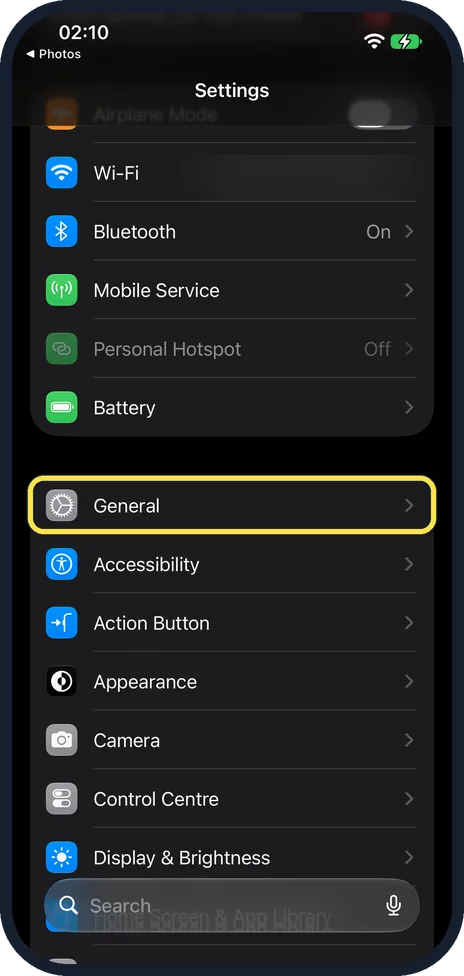
Open Settings and tap General
General is the first row of the group below Battery, after Airplane Mode, Wi-Fi and Bluetooth.
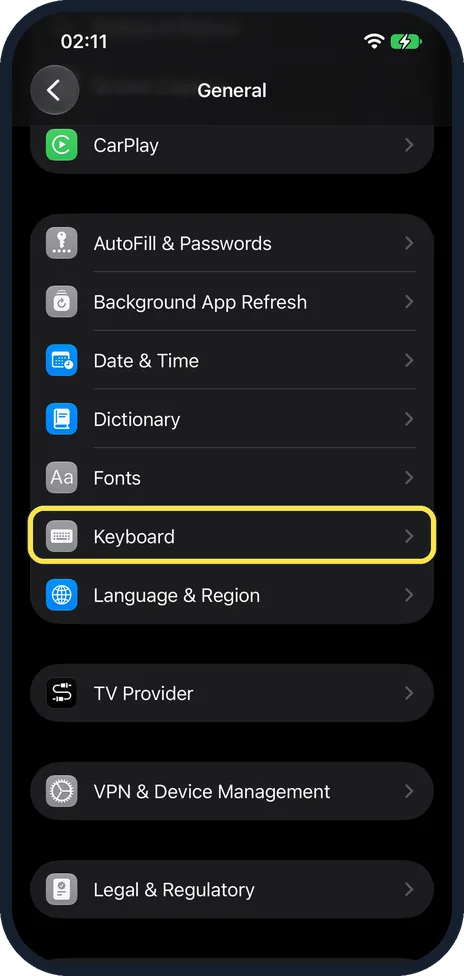
Tap Keyboard
It is just below Fonts, in the group that starts with AutoFill & Passwords.
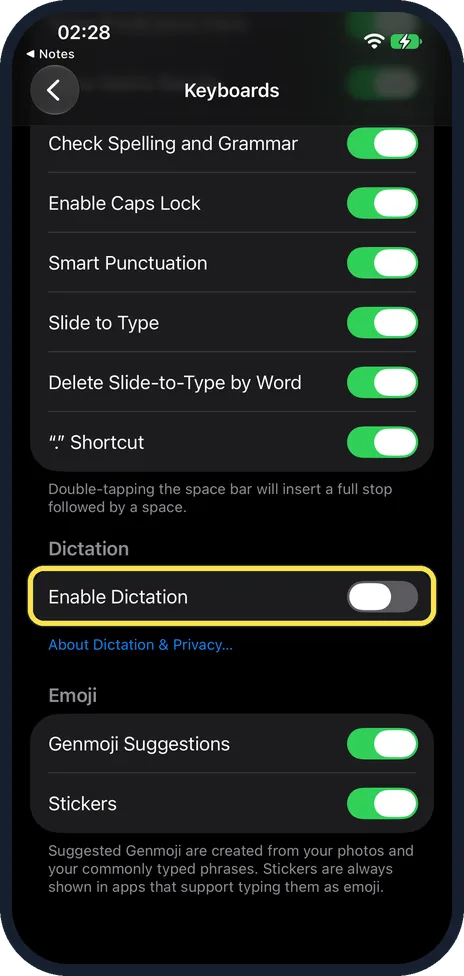
Scroll down and switch off Enable Dictation
It is under the heading Dictation, near the bottom of the page. The first time we switched it off on our iPhone 17e, no confirmation appeared. The next time, a message did.
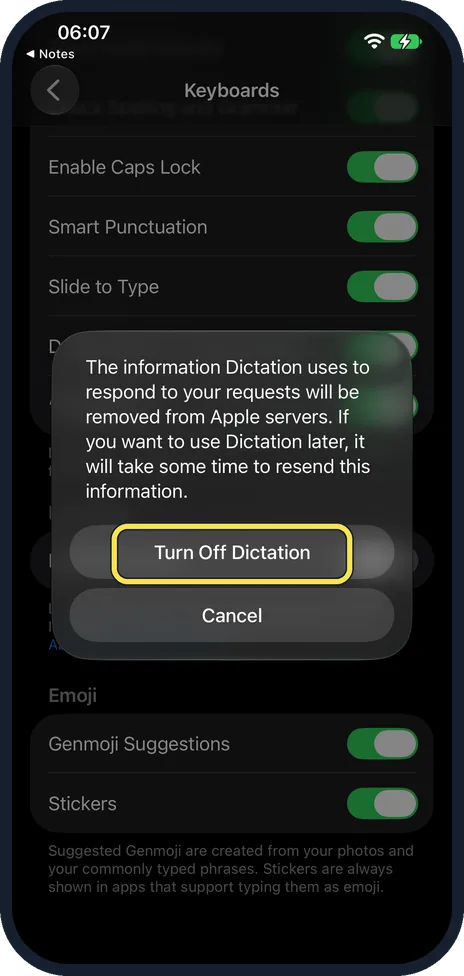
If a message appears, tap Turn Off Dictation
The message says: "The information Dictation uses to respond to your requests will be removed from Apple servers. If you want to use Dictation later, it will take some time to resend this information." Tap Turn Off Dictation, or Cancel to keep it.
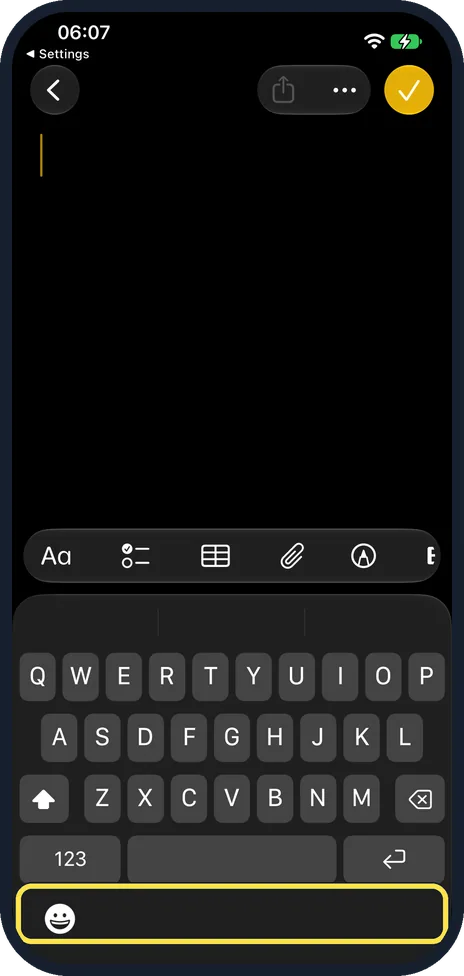
Check the keyboard
The microphone key at the bottom right of the keyboard is gone.
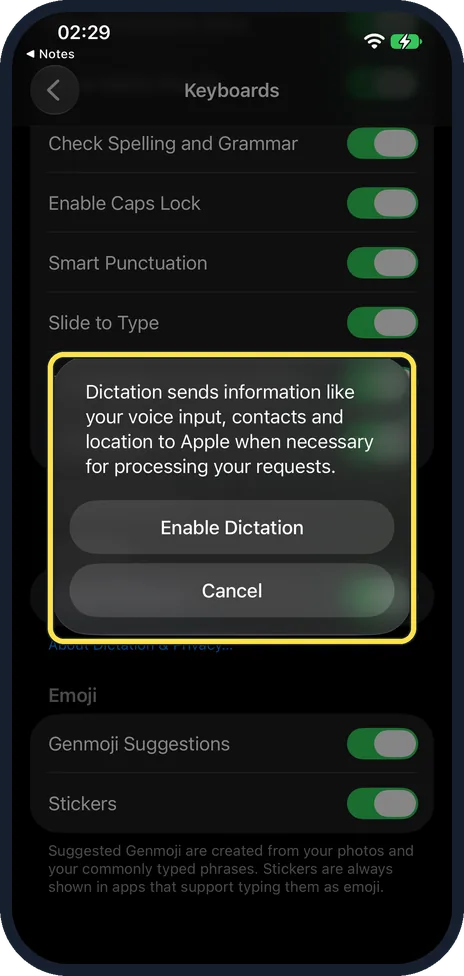
To turn it back on, tap Enable Dictation
Switch Enable Dictation on again. A message says: "Dictation sends information like your voice input, contacts and location to Apple when necessary for processing your requests." Tap Enable Dictation, or Cancel to keep it off.
What changed: the screenshots are now our own iPhone 17e on iOS 27.0.1, dark mode, and the wording is checked against those screens.
If you do not see this option
- Dictation is not offered. Apple says Dictation may not be available in all languages or in all countries or regions, and features may vary. Source: Dictate text on iPhone
- You look for Auto-Punctuation. Apple's iOS 27 guide names an Auto-Punctuation switch for supported languages. On our iPhone 17e with English (US) and iOS 27.0.1, Enable Dictation was the only switch under Dictation. Source: Dictate text on iPhone
If this does not work
- You want to keep Dictation but share less. Tap About Dictation & Privacy below the switch. The note on our screen said: Dictation processes many voice inputs on iPhone. Information will be sent to Apple in some cases. Source: Dictate text on iPhone
- Dictated searches still leave the phone. Apple notes that text dictated into a search field may be sent to the search engine to process the search. Source: Dictate text on iPhone
- You use several keyboard languages. Apple says you can dictate in the language of each keyboard you added. Enable Dictation is one switch for all of them. Source: Dictate text on iPhone
About this guide
Dictation puts a microphone key on the keyboard, and it is easy to hit by accident. If you never dictate, you can switch the feature off. Apple notes that Dictation is processed on the iPhone in many languages and needs no internet connection.
The screenshots are our own, taken on an iPhone 17e running iOS 27.0.1, in dark mode.
Good to know
About Dictation & Privacy, the blue link below the switches, explains what is shared with Apple.
In short: Settings, General, Keyboard, Enable Dictation off.
Links checked in October 2026. Menus and features can change after software updates. These steps match the version named at the top.
Did this guide work for you?
Sorry about that. What happened?