GOOGLE PIXEL
How to add an eSIM or second SIM on a Google Pixel (Android 17)
Open Settings, Network and Internet, SIMs, and tap Add SIM. Choose Set up an eSIM for a new eSIM, or Transfer a SIM from another device to move one from your old phone.

3 of 3 steps show a real screenshot from our Pixel 10a. Each step was checked against the maker's own instructions, linked at the end.
Steps
- 1
Open SIMs
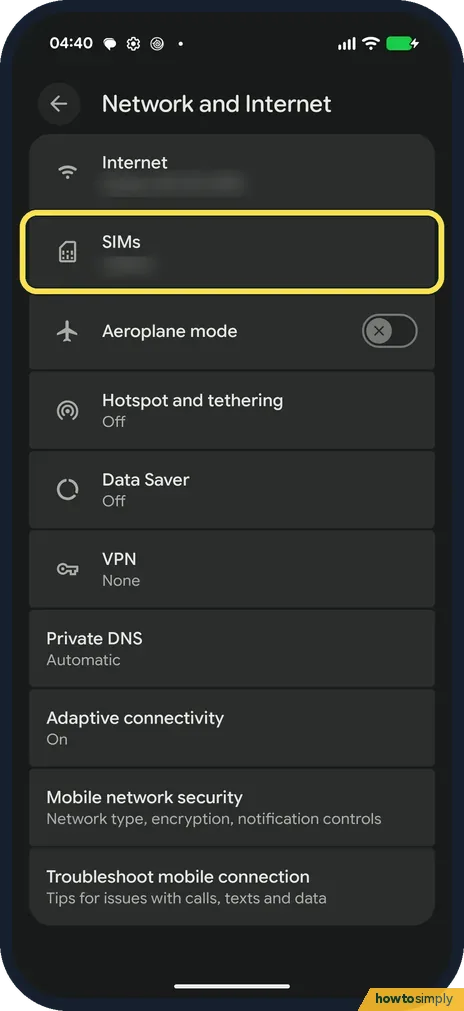
Go to Settings, Network and Internet, SIMs.
- 2
Tap Add SIM
Your SIM is at the top. Tap Add SIM below it.

- 3
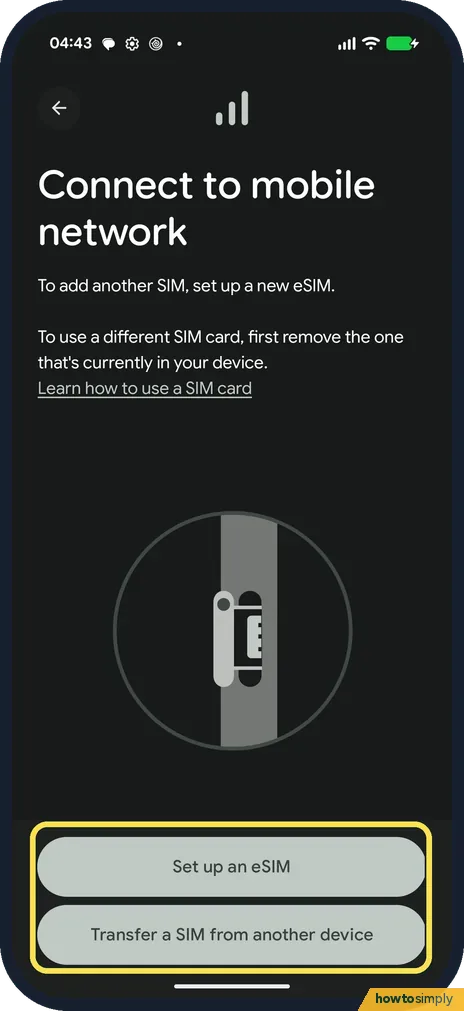
Choose Set up an eSIM or Transfer a SIM
Connect to mobile network opens. To use a different SIM card, it says to first remove the one in the phone. Tap Set up an eSIM for a new eSIM from your carrier, or Transfer a SIM from another device to move a SIM from your old phone.
If you do not see this option
- No default SIM choices? With one SIM, ours showed no choice of default SIM for calls or data. Those appear once a second SIM is added.
- Swapping physical SIMs? The screen says to remove the current SIM card first.
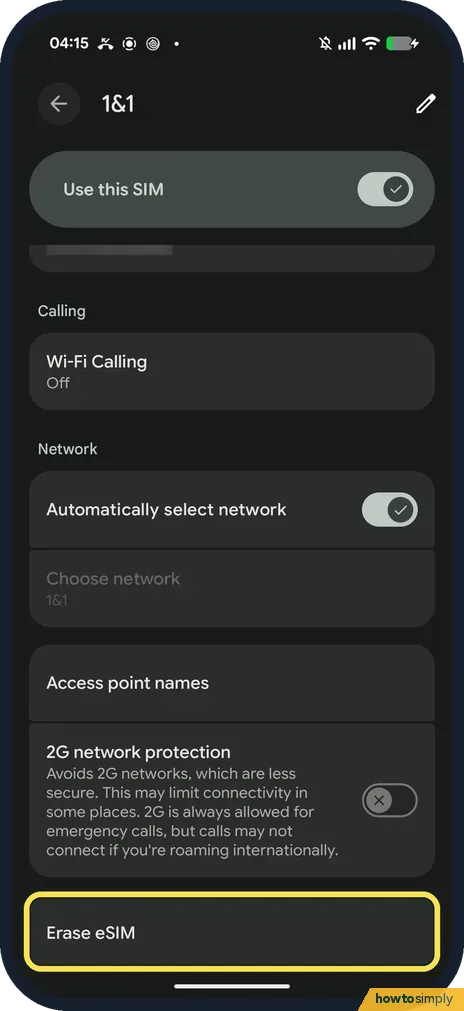
- Looking for Erase eSIM? It is on the SIM's own page: Settings, Network and Internet, SIMs, then tap the SIM and scroll to the bottom. On 1 November 2026 (build CP3A.261005.005) ours had Erase eSIM as the last row, below 2G network protection, and not under Security. We did not tap it.
- Want two eSIMs, no physical SIM? Google says two eSIM profiles at once need a Pixel 7, 7 Pro or later, and carrier support. In the US, Pixel 10 and later (except the 10 Pro Fold) are eSIM only. Source: How to use dual SIMs on your Google Pixel phone
If this does not work
- eSIM setup fails? Google's eSIM help covers the QR code and carrier app routes.
- No data after adding? Check Mobile data on the SIMs page: Pixel mobile data not working.
- SIM not detected during setup? Google says you may need to activate it through your carrier first. Contact them, then try Add SIM again.
- Transfer from the old phone fails? Google says to try again, and to contact your carrier if it keeps failing.
- Voice unavailable notice with two SIMs? Google says Voice unavailable or Voice interruptions means the two networks don't work well together. Your carrier is the one to ask.
- Calls to the other SIM go to voicemail? Google says on Pixel 8, 8 Pro and earlier, calls to the other SIM go to voicemail while you are on a call. From Pixel 8a, a second call can be answered if both SIMs have mobile data on, the second SIM has automatic data switching on, and the carrier supports Wi-Fi calling on it.
Good to know
5G and 4G calling settings: how to turn on 4G calling and 5G.
Once a second SIM is added, the SIMs page lets you choose which one handles calls, texts and mobile data. Google says calls can be set to Ask every time, so the phone asks which SIM to use for each call. To stop using one for a while, select it in Network and Internet and turn off Use this SIM.
Your carrier may ask for IMEI 1, IMEI 2 or the EID when it sends an eSIM. To find them, see how to find the IMEI on a Google Pixel.
About this guide
- Device
- Android
- Shown on
- Google Pixel 10a, Android 17 (build CP3A.260905.009)
- App
- Settings
- Path
- Settings › Network and Internet › SIMs › Add SIM
- Real screenshots
- 3 of 3 steps
- What we did
- Observed: looked at each screen, changed nothing
- Checked
- October 2026
- Sources
- 1 official, linked below
Sources
Links checked October 2026. Menus and features can change with updates.Spotted a mistake? Menus change with updates, and we want every step to match your screen. Email us about this page or use the contact form. We read every report, and fixes are listed on What changed.
Liked this guide?
Follow us for new guides and short how-to videos.
Did this guide work for you?
Sorry about that. What happened?