
howtosimply.com/guides/how-to-lock-or-hide-an-app-on-an-iphone/ · Checked October 2026 · iPhone 14 Pro · iOS 27.0.1
In this guide
Touch and hold the app icon and tap Require Face ID. Choose Require Face ID to lock the app, or Hide and Require Face ID to move it into a hidden folder in the App Library. This needs iOS 18 or later.
2 of 4 steps with real screenshots · 1 official source below
- Device
- iPhone
- Shown on
- iOS 27.0.1 (iPhone 14 Pro)
- Real screenshots
- 2 of 4 steps
- Checked
- October 2026
- Sources
- 1 official, linked below
Step by step
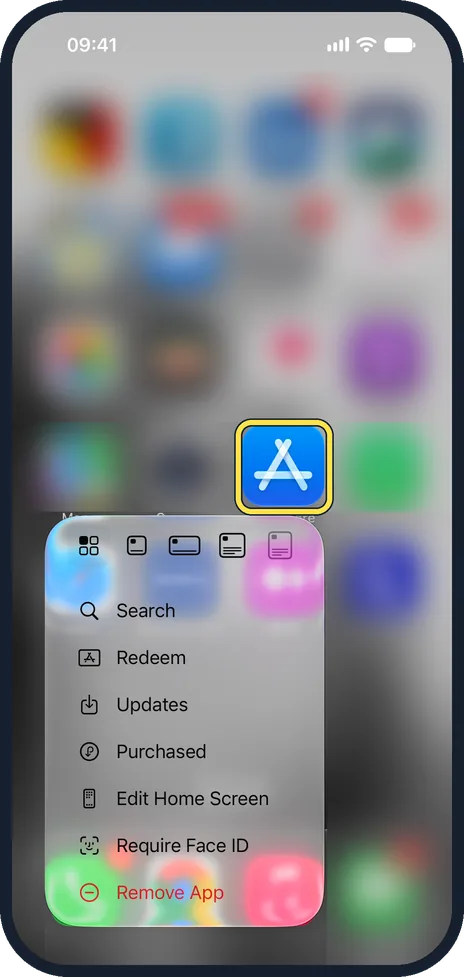
Touch and hold the app icon
Do this on the Home Screen or in the App Library. A menu appears.
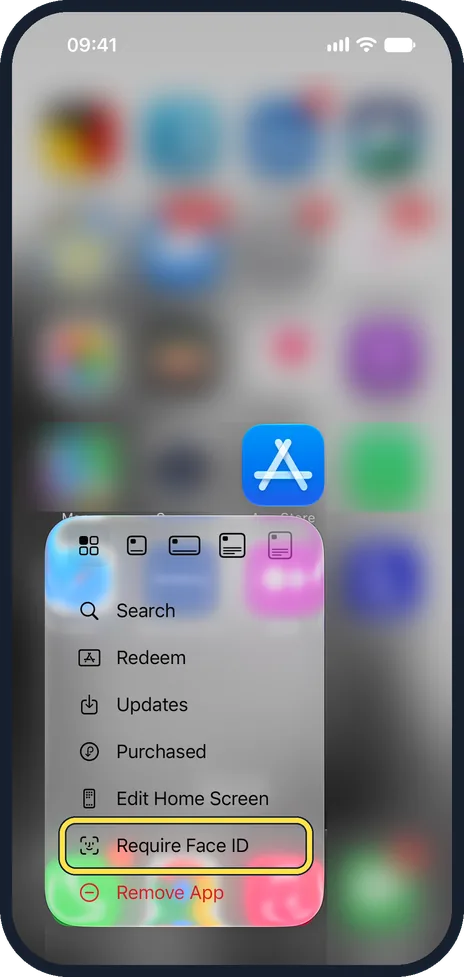
Tap Require Face ID
On iPhones with a Home button it says Require Touch ID. Not every app offers it: on our iPhone the Calculator menu had no Require Face ID, while the App Store did.
Lock it or hide it
Choose Require Face ID to lock the app where it is; opening it then needs Face ID, and its content no longer shows in search or notification previews. Or choose Hide and Require Face ID to take the icon off the Home Screen. Only apps you downloaded can be hidden.
Open a hidden app
Swipe left past your last Home Screen page to the App Library, scroll to the bottom and tap the Hidden folder. Unlock it with Face ID to see the apps.
If you do not see this option
- There is no Hide and Require Face ID choice. Apple says only apps you downloaded from the App Store can be hidden; apps that come installed with the iPhone cannot. An app set as your default web browser or app marketplace cannot be hidden either. You can still lock it. Source: Lock or hide an app on iPhone
If this does not work
- The app is still unlocked on your iPad or other iPhone. Apple says the locked or hidden status stays on the iPhone where you set it and does not sync with iCloud. Lock or hide it on each device. Source: Lock or hide an app on iPhone
- A child in your family cannot lock or hide apps. Apple says children under 13 in a Family Sharing group cannot lock or hide apps. From 13 to 17 they can, but a parent or guardian can still see that the app was downloaded and how much it is used. Source: Lock or hide an app on iPhone
- The app opened without Face ID. Apple says opening a locked app does not unlock it for good: it locks again after you quit it. Close it in the app switcher and open it again to check. Source: Lock or hide an app on iPhone
About this guide
You can hand your phone to someone to show a photo without them being able to open your banking app or messages. A locked app needs your face, fingerprint or passcode every time. A hidden app also disappears from the Home Screen, search and notifications. The screenshots are our own, taken on an iPhone 14 Pro running iOS 27.0.1. They were recorded over USB in QuickTime. We opened the menu on the App Store app and did not lock it.
Good to know
To undo it, touch and hold the app and tap Don't Require Face ID.
A hidden app sends no notifications and does not receive calls, so do not hide apps you need to hear from.
Hidden apps still appear in a few places, such as Settings, Apps, and your App Store purchase history.
This protects against casual looks. Someone who knows your passcode can still open locked apps.
In short: Hold the icon, Require Face ID, then lock or hide.
Links checked in October 2026. Menus and features can change after software updates. These steps match the version named at the top.
Did this guide work for you?
Sorry about that. What happened?