
What changed: the screenshots are now our own iPhone 17e on iOS 27.0.1, dark mode, and the wording is checked against those screens.
howtosimply.com/guides/how-to-create-text-shortcuts-on-iphone/ · Checked October 2026 · iPhone 17e · iOS 27.0.1
In this guide
Open Settings, tap General, Keyboard, then Text Replacement. Tap the plus button, type the full phrase and a short code such as "omw" or "@@", and tap Save. Typing the code now inserts the phrase.
7 of 7 steps with real screenshots · 1 official source below
- Device
- iPhone
- Shown on
- iOS 27.0.1 (iPhone 17e)
- App
- Settings
- Path
- Settings › General › Keyboard › Text Replacement
- Real screenshots
- 7 of 7 steps
- Checked
- October 2026
- Sources
- 1 official, linked below
Step by step
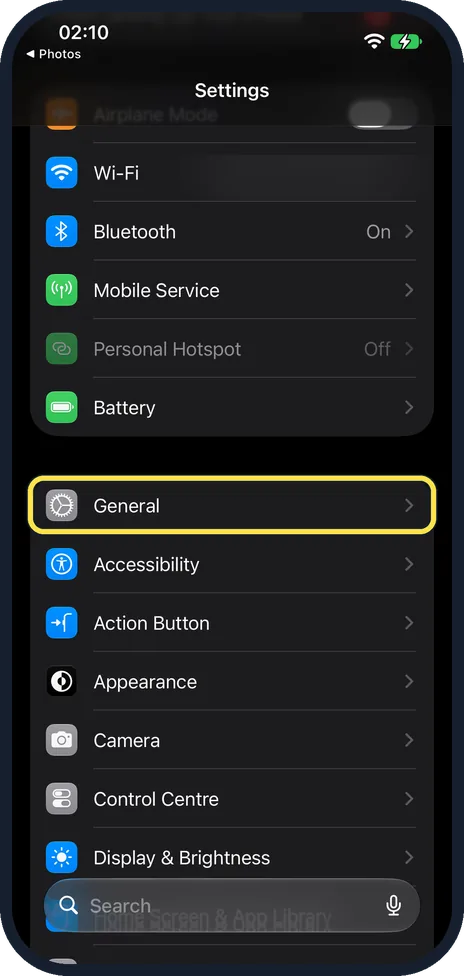
Open Settings and tap General
Open the grey Settings icon and tap General.
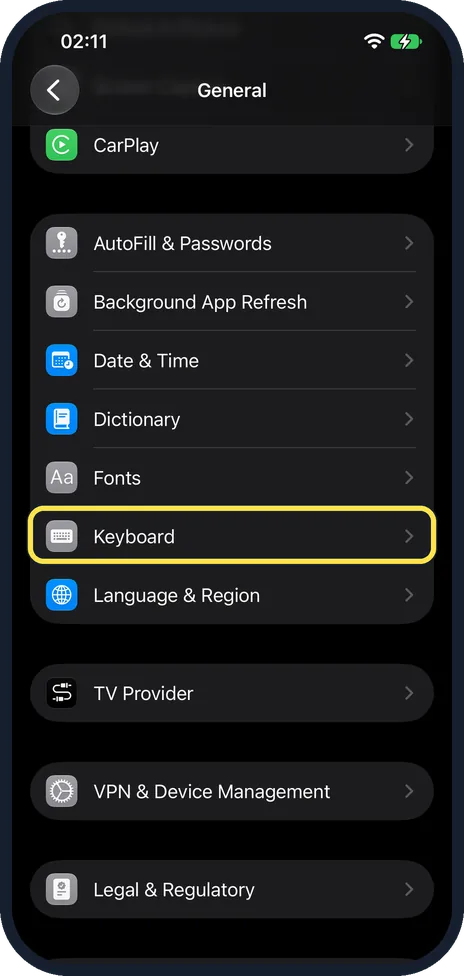
Tap Keyboard
It is in the group with Fonts, Dictionary and Language & Region.
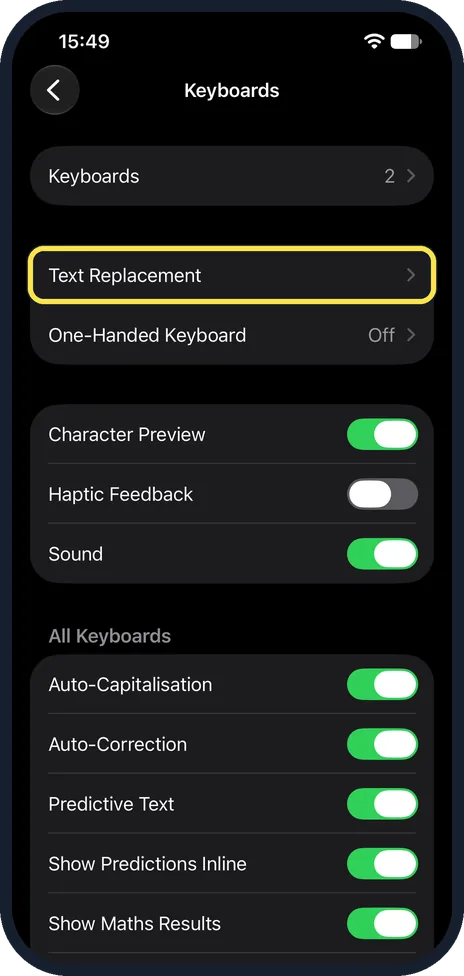
Tap Text Replacement
It is the second row on the Keyboards page, just below Keyboards.
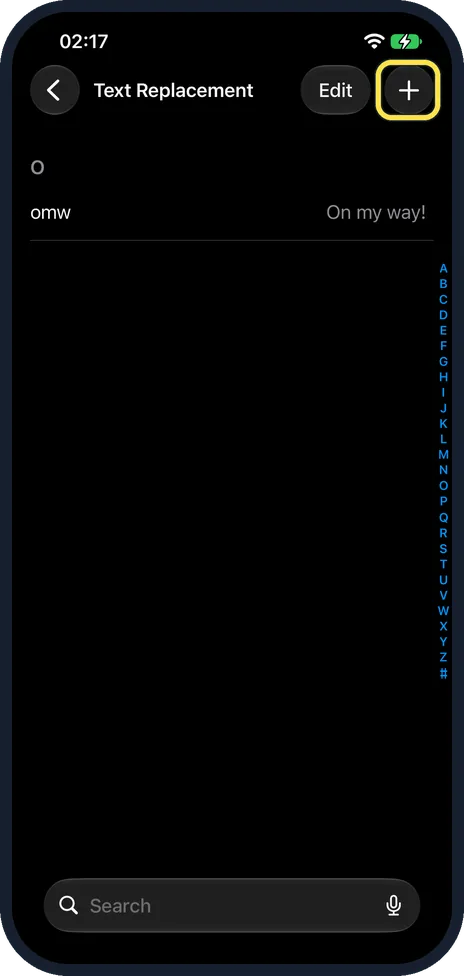
Tap the plus button
It is at the top right of the Text Replacement page. Ours already listed one entry, omw for On my way!, which Apple sets up for you.
Fill in both fields and tap Save
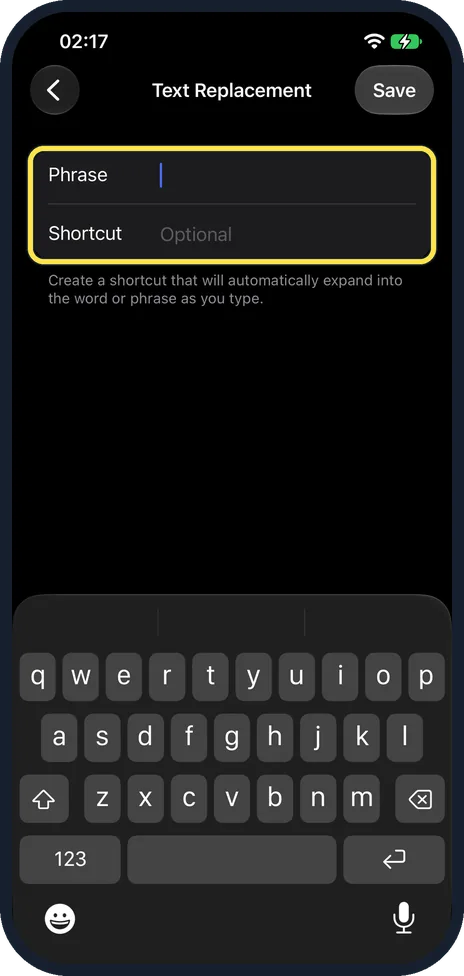
Phrase is the full text you want to appear. Shortcut is what you will type; the field is marked Optional. Choose a shortcut that is not a real word, for example "@@" for your email address or "addr" for your street address. Tap Save.
Try it
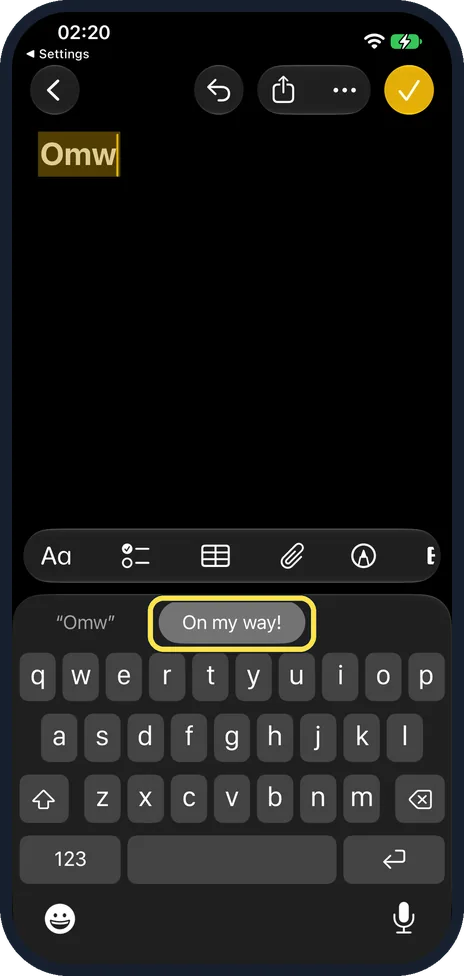
Open Messages or Notes and type the shortcut. The phrase appears in the suggestions above the keyboard. Ours offered On my way! as soon as we typed omw.
Press space
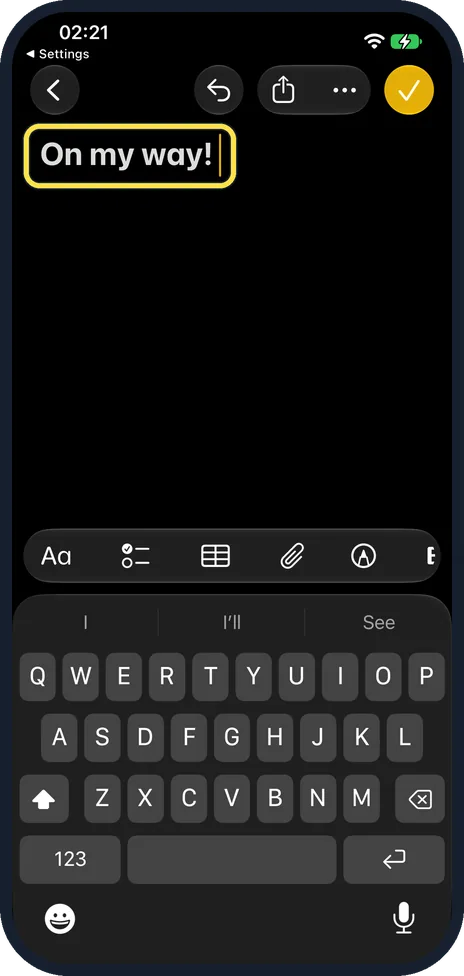
Press space, or tap the suggestion. The shortcut is replaced: our note then read On my way!
What changed: the screenshots are now our own iPhone 17e on iOS 27.0.1, dark mode, and the wording is checked against those screens.
What we saw on our device
- Tap the plus button: Ours already listed one entry, omw for On my way!, which Apple sets up for you.
- Try it: Ours offered On my way!
If you do not see this option
- You are typing and want to add one. Touch and hold the emoji or globe key, tap Keyboard Settings, then Text Replacement. Source: Save keystrokes with text replacements on iPhone
- You want to stop a word being replaced. Apple's tip: tap the plus button, type the word as the Phrase and leave the Shortcut field empty. Source: Save keystrokes with text replacements on iPhone
- You type in Chinese or Japanese. With certain Chinese or Japanese keyboards, Apple says a text replacement can pair a word with its Pinyin, Zhuyin, Romaji or Kana input. Source: Save keystrokes with text replacements on iPhone
If this does not work
- The phrase does not appear. Open Text Replacement and check the entry. On our iPhone the phrase showed as a suggestion as soon as the shortcut was typed, and went in when we pressed space.
- Your shortcuts are missing on your Mac or iPad. Apple syncs the personal dictionary through iCloud: Settings, your name, iCloud, See All, iCloud Drive, turn on Sync this iPhone. Source: Save keystrokes with text replacements on iPhone
- All your shortcuts are gone. Reset Keyboard Dictionary deletes all custom words and shortcuts, Apple says. They come back only from iCloud on another device. Source: Save keystrokes with text replacements on iPhone
About this guide
Text replacement lets a few letters expand into something long: your email address, your home address, a bank number or a sentence you type every day. It works in every app and syncs to your other Apple devices through iCloud.
The screenshots are our own, taken on an iPhone 17e running iOS 27.0.1, in dark mode.
Good to know
To change or delete a shortcut, open Text Replacement, tap Edit, then tap the red minus next to it.
Shortcuts ignore capital letters, so "Addr" and "addr" behave the same.
Do not store passwords as text replacements. Anyone holding your unlocked phone could trigger them.
Text shortcuts sync to your Mac through iCloud: how to set up text replacements on a Mac.
On a Samsung phone: How to create text shortcuts on the Samsung Keyboard.
In short: Settings, General, Keyboard, Text Replacement, plus sign, Phrase and Shortcut, Save.
Links checked in October 2026. Menus and features can change after software updates. These steps match the version named at the top.
Did this guide work for you?
Sorry about that. What happened?