
What changed: the screenshots are now our own iPhone 17e on iOS 27.0.1, dark mode, and the wording is checked against those screens and Apple's iOS 27 guide.
howtosimply.com/guides/how-to-turn-off-location-for-system-services-on-an-iphone/ · Checked October 2026 · iPhone 17e · iOS 27.0.1
In this guide
- Open Settings and tap Privacy & Security
- Tap Location Services
- Scroll down and tap System Services
- Switch services off or on
- Keep Setting Time Zone on if you use Night Shift
- Decide about Improve Maps
- If a switch will not move: check Screen Time
- Check the Location Services row
- If you do not see this option
- If this does not work
- Good to know
- Video demo
- Sources
Open Settings, tap Privacy & Security, then Location Services, then System Services, and switch off the services you do not want to use your location. On our iPhone 17e the closest row to Apple's location-based suggestions was Suggestions & Search.
8 of 8 steps with real screenshots · 5 official sources below
- Device
- iPhone
- Shown on
- iOS 27.0.1 (iPhone 17e)
- App
- Settings
- Path
- Settings › Privacy & Security › Location Services › System Services
- Real screenshots
- 8 of 8 steps
- Checked
- October 2026
- Sources
- 5 official, linked below
Step by step
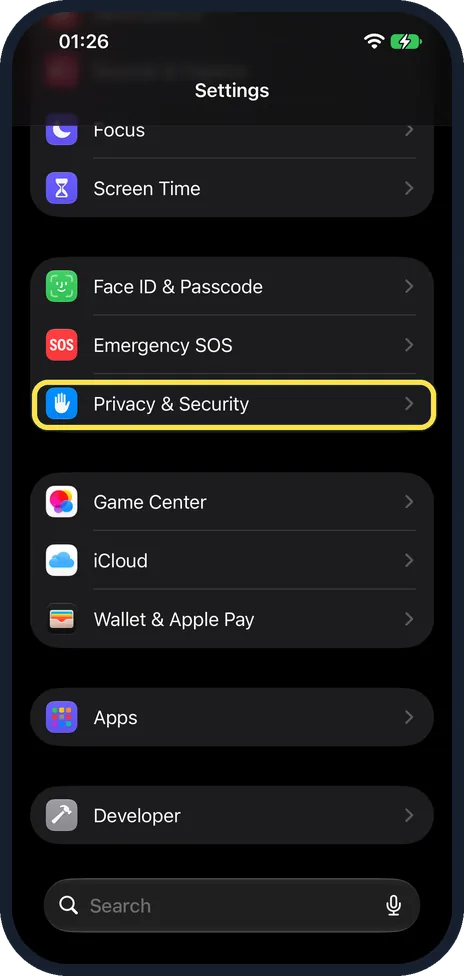
Open Settings and tap Privacy & Security
Scroll down in Settings to find it, in the group with Face ID & Passcode and Emergency SOS.
Watch these steps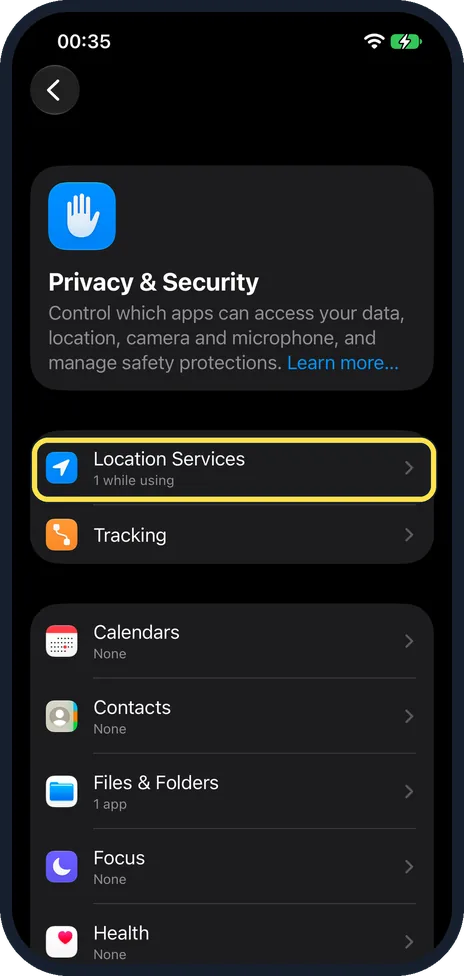
Tap Location Services
It is the first row under the Privacy & Security heading, above Tracking.
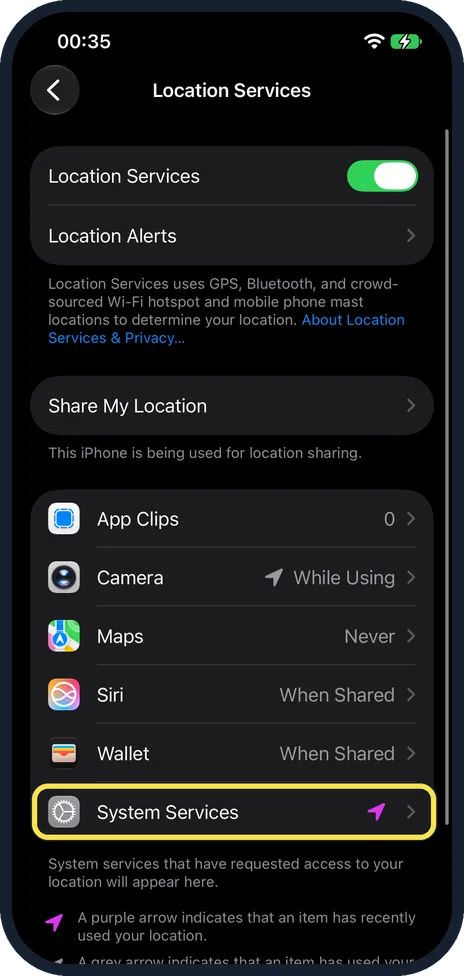
Scroll down and tap System Services
It is the last row of the list of apps, whatever apps your list contains.
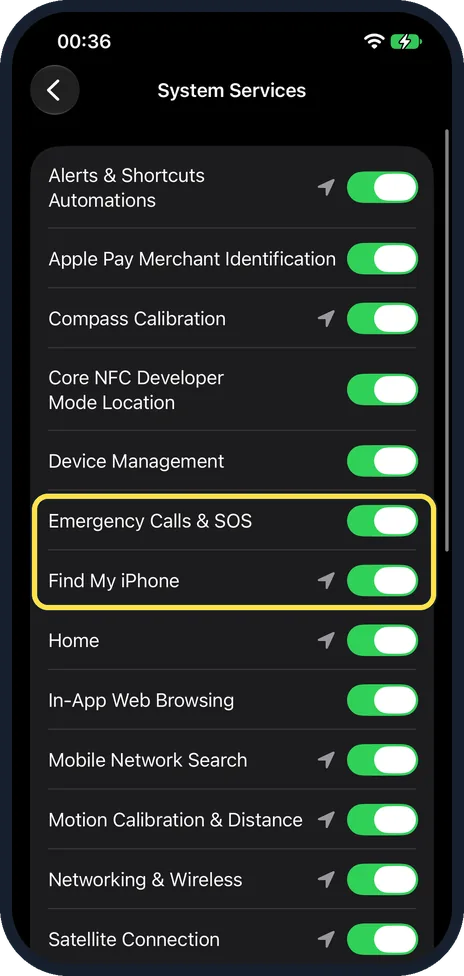
Switch services off or on
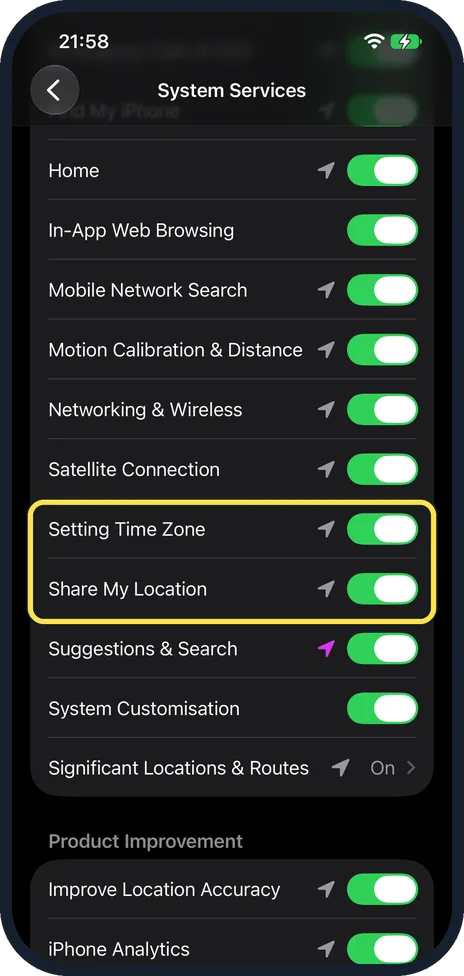
On our iPhone 17e the list was Alerts & Shortcuts Automations, Apple Pay Merchant Identification, Compass Calibration, Core NFC Developer Mode Location, Device Management, Emergency Calls & SOS, Find My iPhone, Home, In-App Web Browsing, Mobile Network Search, Motion Calibration & Distance, Networking & Wireless, Satellite Connection, Setting Time Zone, Share My Location, Suggestions & Search and System Customisation. Our picture shows the top of the list, from Alerts & Shortcuts Automations to Satellite Connection. The next step shows the middle of the list. Every switch we could see was on. Significant Locations & Routes is a separate row with its own page; it showed On, and it asks for your passcode, so we did not open it. Apple's Maps pages say Significant Locations must be on for Maps to mark where you parked. A purple arrow shows a service used your location recently, a grey arrow in the last 24 hours. Our advice: keep Emergency Calls & SOS and Find My iPhone on.
Keep Setting Time Zone on if you use Night Shift
Further down come Satellite Connection, Setting Time Zone, Share My Location and Suggestions & Search. On our iPhone 17e all four were on. Apple names Setting Time Zone as needed for Night Shift's Sunset to Sunrise option, so leave it on if you use that.
Decide about Improve Maps
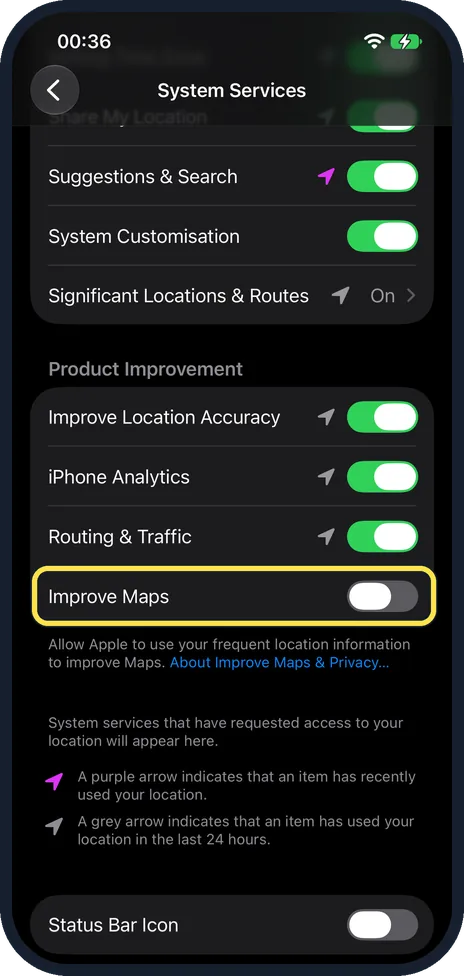
Under Product Improvement there are four switches: Improve Location Accuracy, iPhone Analytics, Routing & Traffic and Improve Maps. On our iPhone 17e the first three were on and Improve Maps was off. The note under it reads: Allow Apple to use your frequent location information to improve Maps. At the bottom of the page is a Status Bar Icon switch, which shows the location arrow in the status bar when these services use your location. On our iPhone 17e it was off.
If a switch will not move: check Screen Time
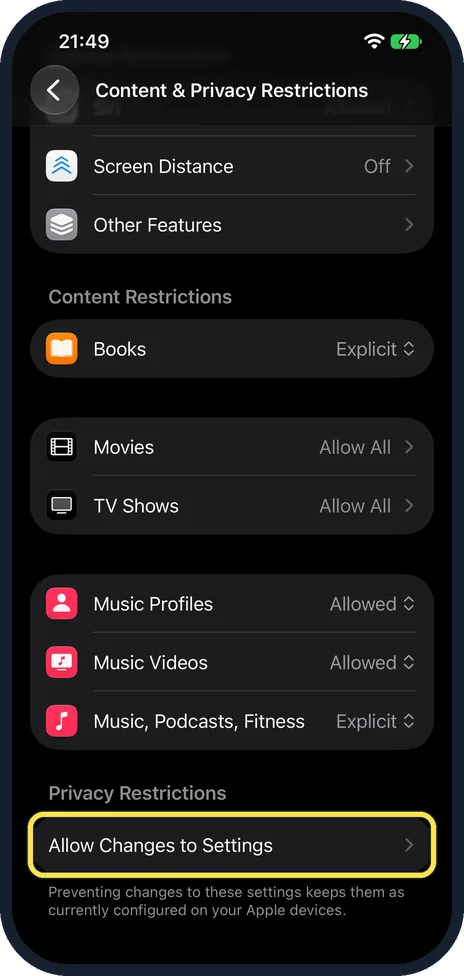
Open Settings, Screen Time, Content & Privacy Restrictions and scroll to the bottom. On our iPhone 17e with iOS 27.0.1, Privacy Restrictions had a single row, Allow Changes to Settings. Location Services is not listed on this page itself: it is inside that row. The note under Allow Changes to Settings says preventing changes keeps these settings as currently configured on your Apple devices. Tap Allow Changes to Settings.
Check the Location Services row
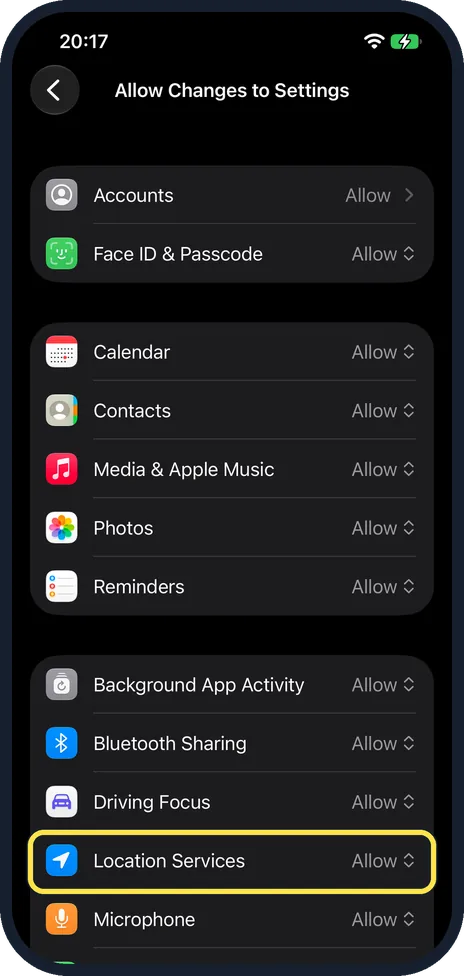
On our iPhone 17e with iOS 27.0.1 this page started with Accounts, Face ID & Passcode, Calendar, Contacts, Media & Apple Music, Photos, Reminders, Background App Activity, Bluetooth Sharing, Driving Focus, Location Services and Microphone, with more rows below, all set to Allow. Most rows are a pop-up menu with Allow and Don't Allow; Accounts opens its own page. A Don't Allow on Location Services would explain switches that will not move; we did not change it on our 17e to test this. This is what our 17e showed. Apple's iOS 27 Screen Time user guide does not describe this page, but Apple's parental controls article describes the same Allow or Don't Allow choice under Privacy Restrictions (linked under If this does not work).
What changed: the screenshots are now our own iPhone 17e on iOS 27.0.1, dark mode, and the wording is checked against those screens and Apple's iOS 27 guide.
Watch these steps
If you do not see this option
- A service from another guide is not in your list The list above is what our iPhone 17e with iOS 27.0.1 showed. If a service named elsewhere is not in your list, there is nothing to turn off for it.
- Significant Locations & Routes is not a switch It opens its own page and asks for your passcode first. On our iPhone 17e it showed On.
If this does not work
- Night Shift no longer offers Sunset to Sunrise Apple says that option isn't available if you turned off Location Services or Setting Time Zone. Switch Setting Time Zone back on. Source: Adjust the screen brightness and color on iPhone
- Maps no longer shows where you parked Apple lists Significant Locations under System Services as one of the things that must be on. It also lists Show Parked Location in Settings, Apps, Maps, and your iPhone must be paired to CarPlay or Bluetooth in your car. Check all three. Source: Get directions to your parked car in Maps on iPhone
- The switches will not move Screen Time may be locking Location Services. Step 7 shows where to check. Source: Use parental controls on your child's iPhone or iPad
About this guide
Apart from apps, the iPhone itself uses your location for a number of services. Each has a switch. An arrow next to a service shows that it used your location: purple for recently, grey for the last 24 hours.
Screenshots: iPhone 17e, iOS 27.0.1, dark mode.
Good to know
Apple's warning applies to the main switch, not to these: if you turn off Location Services altogether, many important iPhone features stop working.
To see when these services use your location: how to show the location arrow in the iPhone status bar.
In short: Settings, Privacy & Security, Location Services, System Services.
- Apple iPhone User Guide: Control the location information you share on iPhone
- Apple iPhone User Guide: Adjust the screen brightness and color on iPhone
- Apple iPhone User Guide: Block apps, app downloads, websites, and purchases on iPhone (iOS 26)
- Apple iPhone User Guide: Get directions to your parked car in Maps on iPhone
- Apple iPhone User Guide: Block features or content with Screen Time on iPhone (iOS 27)
Links checked in October 2026. Menus and features can change after software updates. These steps match the version named at the top.
Did this guide work for you?
Sorry about that. What happened?