
What changed: the screenshots are now our own iPhone 17e on iOS 27.0.1, dark mode, and the wording is checked against those screens and Apple's iOS 27 guide.
howtosimply.com/guides/how-to-turn-off-in-app-purchases-on-an-iphone/ · Checked October 2026 · iPhone 17e · iOS 27.0.1
In this guide
Open Settings and tap Screen Time. Tap Manage Screen Time, then Turn On App & Website Activity. Then tap Apps & Websites, App Store and In-app Purchases, and choose Blocked. Use Lock Screen Time Settings to set a passcode so the block stays on.
8 of 8 steps with real screenshots · 6 official sources below
- Device
- iPhone
- Shown on
- iOS 27.0.1 (iPhone 17e)
- App
- Settings
- Path
- Settings › Screen Time › Apps & Websites › App Store › In-app Purchases › Blocked
- Real screenshots
- 8 of 8 steps
- Checked
- October 2026
- Sources
- 6 official, linked below
Step by step
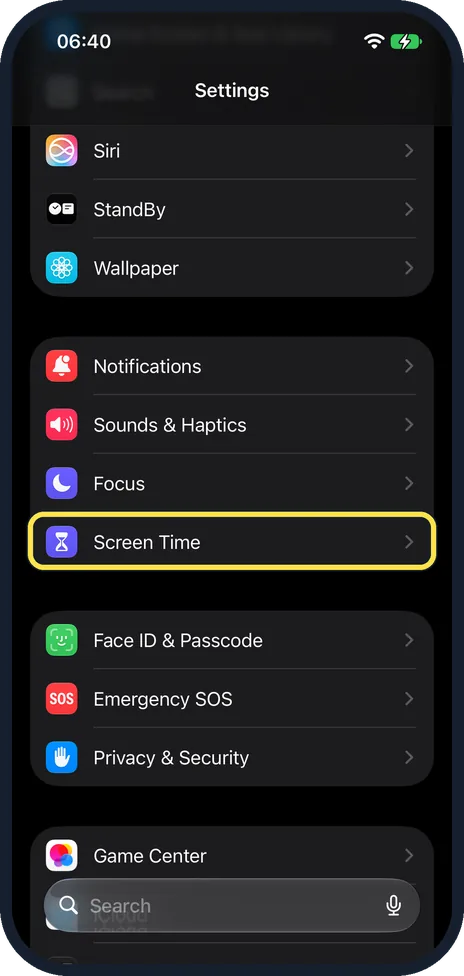
Open Screen Time
Open Settings, scroll down and tap Screen Time. It is below Focus.
Watch these steps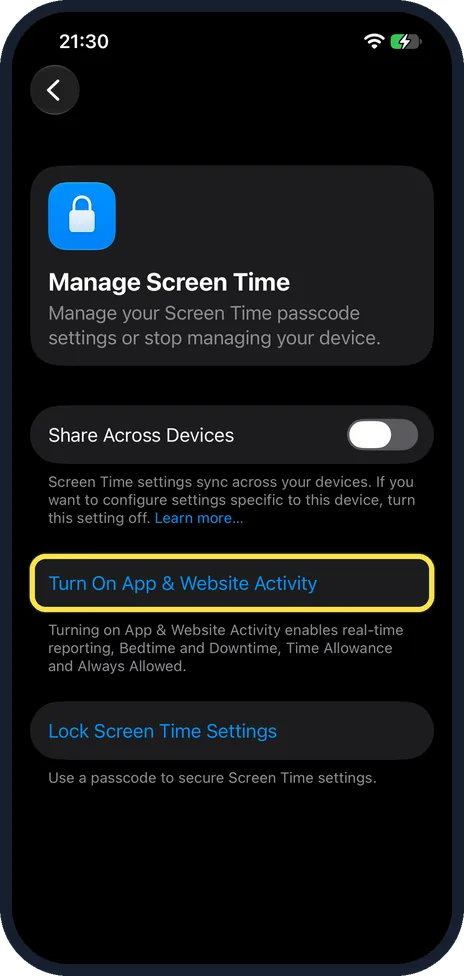
Turn on App & Website Activity
Apple says you need to turn on Screen Time first. Tap Manage Screen Time at the bottom of the Screen Time page, then tap Turn On App & Website Activity.
More detail: how to turn on Screen Time on iPhone.
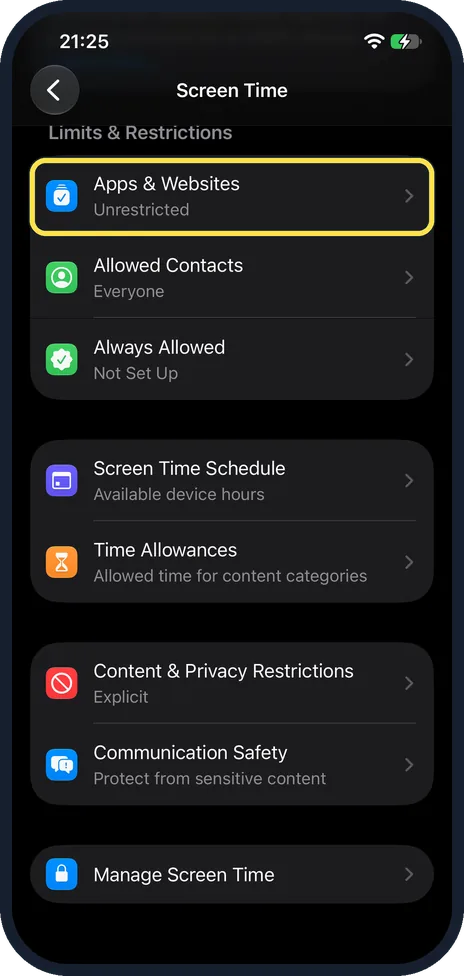
Tap Apps & Websites
Go back to the Screen Time page and tap Apps & Websites, under Limits & Restrictions.
On our iPhone 17e it showed Unrestricted.
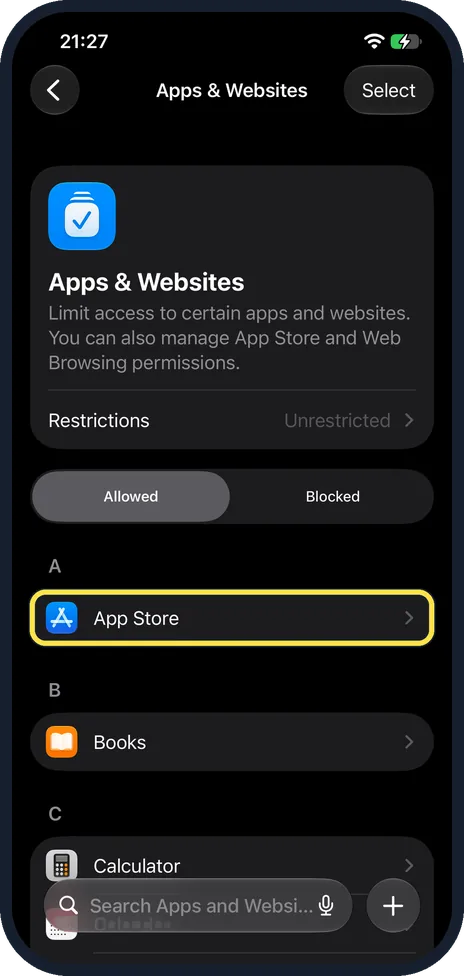
Tap App Store
On the Apps & Websites page, tap App Store. It is listed under A.
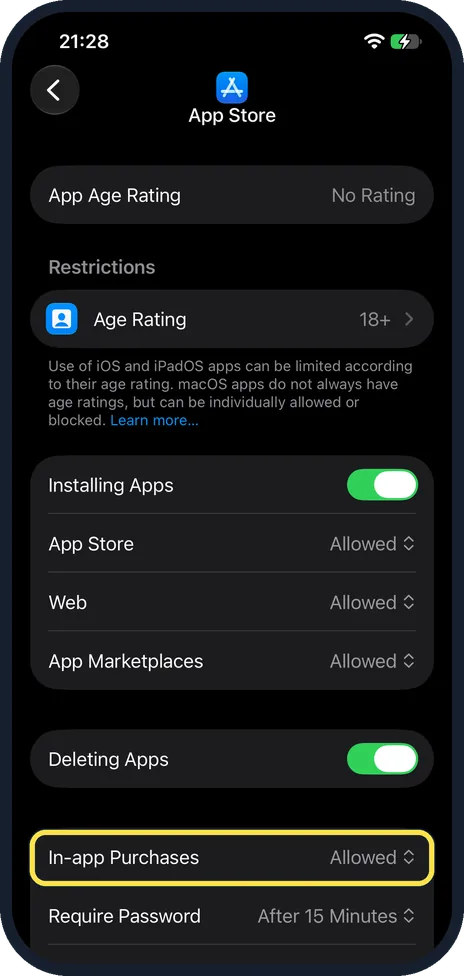
Tap In-app Purchases
Scroll down the App Store page to In-app Purchases, below Deleting Apps, and tap it.
On our iPhone 17e it was set to Allowed.
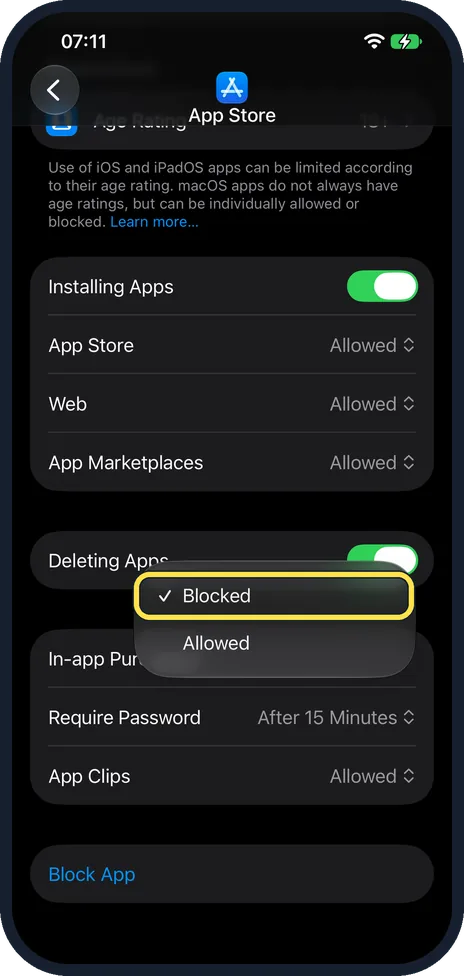
Choose Blocked
A small menu opens with Blocked and Allowed. Tap Blocked so the tick sits next to it.
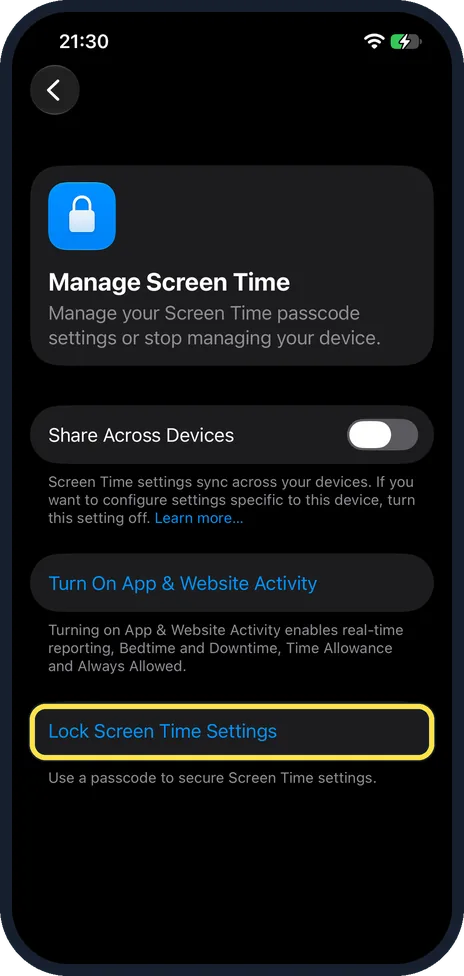
Set a Screen Time passcode
Go back to Manage Screen Time and tap Lock Screen Time Settings. Its note says: Use a passcode to secure Screen Time settings.
Follow Apple's steps to set the passcode, and choose one that is different from the code that unlocks the phone. Without it, anyone can switch the block off again.
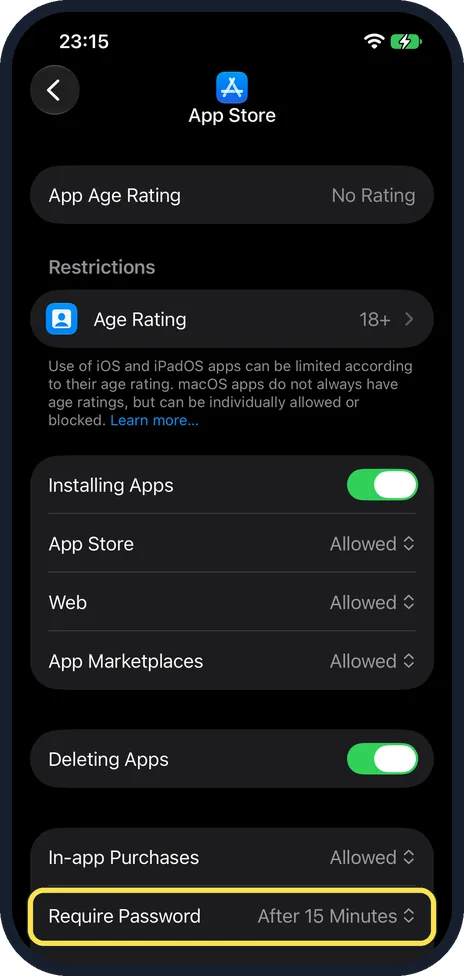
Or require the password for every purchase
If you only want a hurdle, not a block, use Require Password on the same App Store page, below In-app Purchases.
On our iPhone 17e it was set to After 15 Minutes.
What changed: the screenshots are now our own iPhone 17e on iOS 27.0.1, dark mode, and the wording is checked against those screens and Apple's iOS 27 guide.
Watch these steps
If you do not see this option
- In-app Purchases is not on the App Store page. Scroll down. It sits in the last group, below Installing Apps and Deleting Apps, with Require Password under it.
- Your iPhone runs iOS 26. Apple's iOS 26 guide gives another way: Screen Time, Content & Privacy Restrictions, switch on Content & Privacy Restrictions, then tap iTunes & App Store Purchases. Source: Turn off Apple In-App Purchases from Screen Time on your iPhone or iPad · Source: Alternative app marketplaces · Source: Create, change, or remove a Screen Time passcode on iPhone · Source: Set up Screen Time for yourself on iPhone · Source: Share Apple and App Store subscriptions with family members on iPhone · Source: Block apps, app downloads, websites, and purchases on iPhone (iOS 26)
- Ask to Buy is not offered for a family member. Apple says age rules for Ask to Buy vary by country or region. In the US the organiser can turn it on for anyone under 18, and it is on by default under 13. Source: Turn off Apple In-App Purchases from Screen Time on your iPhone or iPad · Source: Alternative app marketplaces · Source: Create, change, or remove a Screen Time passcode on iPhone · Source: Set up Screen Time for yourself on iPhone · Source: Share Apple and App Store subscriptions with family members on iPhone · Source: Block apps, app downloads, websites, and purchases on iPhone (iOS 26)
If this does not work
- You forgot the Screen Time passcode. Apple says that after setting it, you can set up Screen Time Passcode Recovery, so your Apple Account can reset the code. Source: Turn off Apple In-App Purchases from Screen Time on your iPhone or iPad · Source: Alternative app marketplaces · Source: Create, change, or remove a Screen Time passcode on iPhone · Source: Set up Screen Time for yourself on iPhone · Source: Share Apple and App Store subscriptions with family members on iPhone · Source: Block apps, app downloads, websites, and purchases on iPhone (iOS 26)
- An app from an alternative marketplace or the web still sells things. Apple says restrictions on In-App Purchases in Screen Time and Ask to Buy are not supported for those apps. Alternative app distribution is available in Brazil, Japan and the EU. On our iPhone 17e the App Store page lists App Store, Web and App Marketplaces under Installing Apps, all set to Allowed. Source: Turn off Apple In-App Purchases from Screen Time on your iPhone or iPad · Source: Alternative app marketplaces · Source: Create, change, or remove a Screen Time passcode on iPhone · Source: Set up Screen Time for yourself on iPhone · Source: Share Apple and App Store subscriptions with family members on iPhone · Source: Block apps, app downloads, websites, and purchases on iPhone (iOS 26)
- The change also appears on your other devices. Manage Screen Time has a Share Across Devices switch. Its note says Screen Time settings sync across your devices, and to turn this setting off to configure settings specific to this device.
About this guide
Games and apps sell coins, lives and subscriptions with one tap. Blocking in-app purchases stops surprise bills, most of all on a phone a child uses. The switch is part of Screen Time.
Screenshots: iPhone 17e, iOS 27.0.1, dark mode.
Good to know
The block covers only in-app purchases made through Apple, as the title of Apple's article on it says: Turn off Apple In-App Purchases.
Subscriptions that already run keep renewing. To end them: how to cancel a subscription on an iPhone.
A purchase that should not have happened can often be refunded: how to get a refund from Apple for an app or subscription.
For a child with their own device, Apple says: use Ask to Buy to review and approve their purchase requests.
The full set of controls for a child: how to set up parental controls on a child's iPhone.
In short: Settings, Screen Time, Apps & Websites, App Store, In-app Purchases, Blocked, plus Lock Screen Time Settings.
- Apple Support: Turn off Apple In-App Purchases from Screen Time on your iPhone or iPad
- Apple Support: Alternative app marketplaces
- Apple iPhone User Guide: Create, change, or remove a Screen Time passcode on iPhone
- Apple iPhone User Guide: Set up Screen Time for yourself on iPhone
- Apple iPhone User Guide: Share Apple and App Store subscriptions with family members on iPhone
- Apple iPhone User Guide: Block apps, app downloads, websites, and purchases on iPhone (iOS 26)
Links checked in October 2026. Menus and features can change after software updates. These steps match the version named at the top.
Did this guide work for you?
Sorry about that. What happened?