
howtosimply.com/guides/how-to-turn-on-stolen-device-protection-on-an-iphone/ · Checked October 2026 · iPhone 14 Pro · iOS 27.0.1
In this guide
Open Settings, tap Face ID & Passcode, enter your passcode, and switch on Stolen Device Protection. Choose Always if you want the extra checks everywhere, or Away from Familiar Locations.
4 of 6 steps with real screenshots · 1 official source below
- Device
- iPhone
- Shown on
- iOS 27.0.1 (iPhone 14 Pro)
- App
- Settings
- Path
- Settings › Face ID & Passcode › Stolen Device Protection
- Real screenshots
- 4 of 6 steps
- Checked
- October 2026
- Sources
- 1 official, linked below
Step by step
Check the requirements
You need two-factor authentication for your Apple Account, a passcode, Face ID or Touch ID, Find My switched on, and Significant Locations on under Location Services. It needs iOS 17.3 or later.
Watch these steps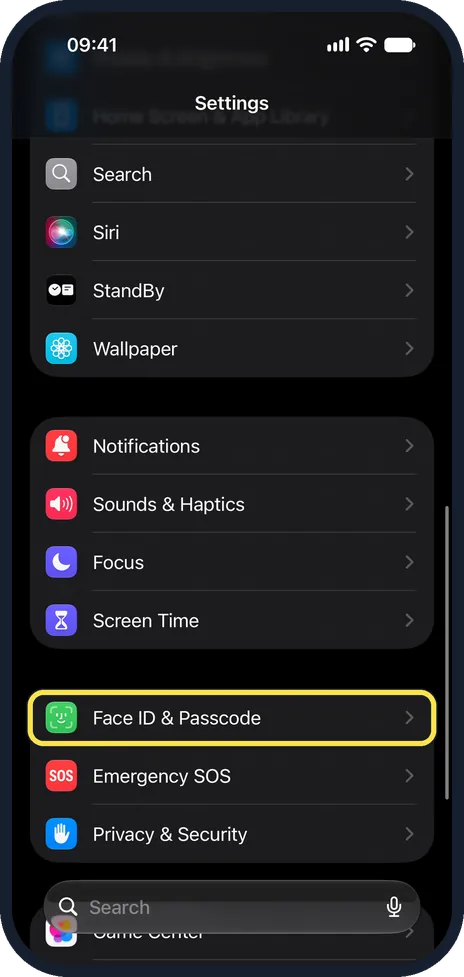
Open Settings and tap Face ID & Passcode
It is in the group with Emergency SOS and Privacy & Security, below Screen Time.
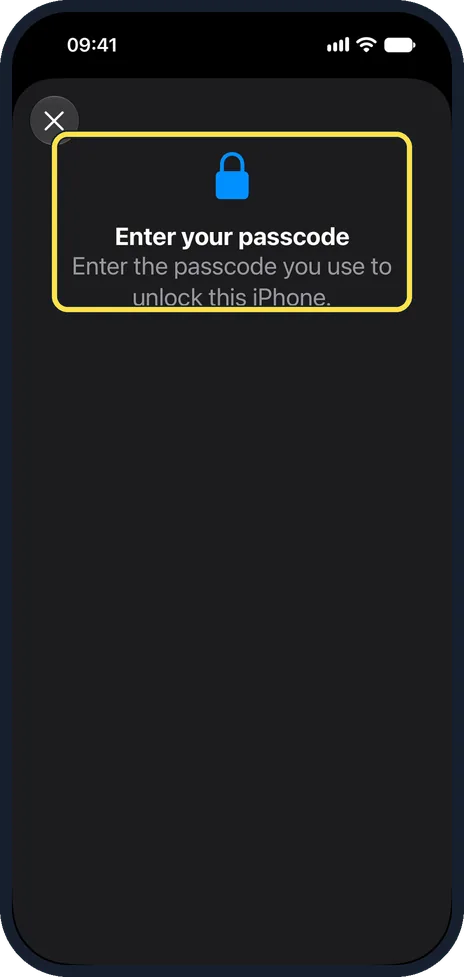
Enter your passcode
The page only opens after you type the passcode you use to unlock the phone.
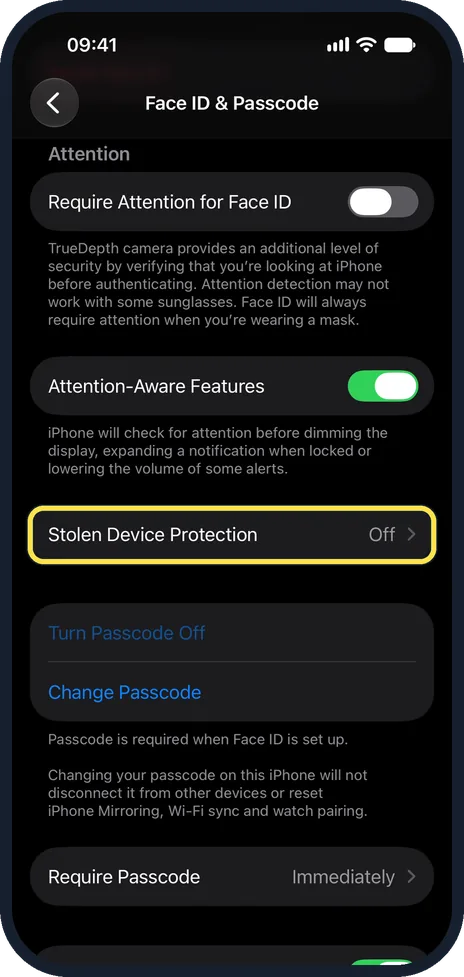
Tap Stolen Device Protection
Scroll down to it. On our phone the row showed Off.
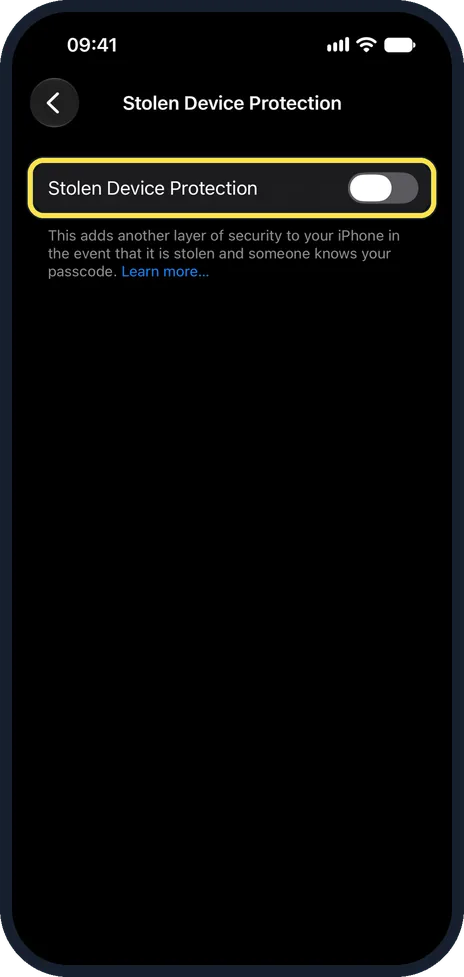
Switch on Stolen Device Protection
Tap the switch so that it turns green. If the switch is greyed out, one of the requirements in step 1 is missing.
Choose when the delay applies
Once it is on, the same page offers Away from Familiar Locations, which applies the security delay only when you are not at home or work, and Always, which applies it everywhere.
Watch these steps
About this guide
Thieves sometimes watch a victim type their passcode, then steal the phone. With the passcode alone they could change the Apple Account password and lock the owner out. Stolen Device Protection makes the most damaging changes require your face or fingerprint and, for some, an hour's wait. The screenshots are our own, taken on an iPhone 14 Pro running iOS 27.0.1. They were recorded over USB in QuickTime. The feature was switched off on that phone and we left it that way, so the last step has no screenshot.
Should you turn it on? For most people, yes. It only adds checks when the phone is away from places it knows, such as home or work, unless you choose Always. The cost: when you are away, saved passwords and passkeys need Face ID or Touch ID with no passcode fallback, and some changes need an hour's wait. Apple Pay still works with your passcode. Turn it off before you sell or trade in the phone.
Good to know
With it on, away from familiar locations, viewing saved passwords, turning off Lost Mode and erasing the phone need Face ID or Touch ID, with no passcode fallback.
Changing the Apple Account password or the iPhone passcode also needs a one-hour wait and a second Face ID scan when you are away from familiar places.
Turn it off before you sell, give away or send the phone for repair. Turning it off is itself subject to the delay when you are away from home.
Still cover the screen when you type your passcode in public, and consider a longer passcode.
In short: Settings, Face ID & Passcode, Stolen Device Protection, on.
Links checked in October 2026. Menus and features can change after software updates. These steps match the version named at the top.
Did this guide work for you?
Sorry about that. What happened?