
What changed: the screenshots are now our own iPhone 17e on iOS 27.0.1, dark mode, and the wording is checked against those screens and Apple's iOS 27 guide.
howtosimply.com/guides/how-to-turn-location-services-on-or-off-on-iphone/ · Checked October 2026 · iPhone 17e · iOS 27.0.1
In this guide
Open Settings, tap Privacy & Security, then Location Services. The switch at the top turns location on or off for the whole phone. The choices depend on the app: Camera on our iPhone 17e offered Never, Ask Next Time or When I Share, and While Using the App, but no Always.
7 of 7 steps with real screenshots · 5 official sources below
- Device
- iPhone
- Shown on
- iOS 27.0.1 (iPhone 17e)
- App
- Settings
- Path
- Settings › Privacy & Security › Location Services
- Real screenshots
- 7 of 7 steps
- Checked
- October 2026
- Sources
- 5 official, linked below
Step by step
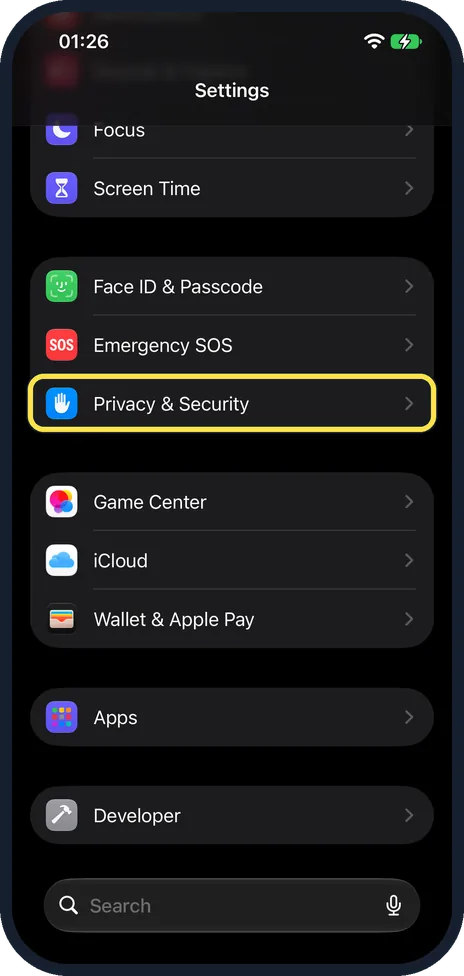
Open Settings and tap Privacy & Security
Scroll down the Settings list to Privacy & Security, with the blue hand icon.
On our iPhone 17e it sat in the group with Face ID & Passcode and Emergency SOS.
Watch these steps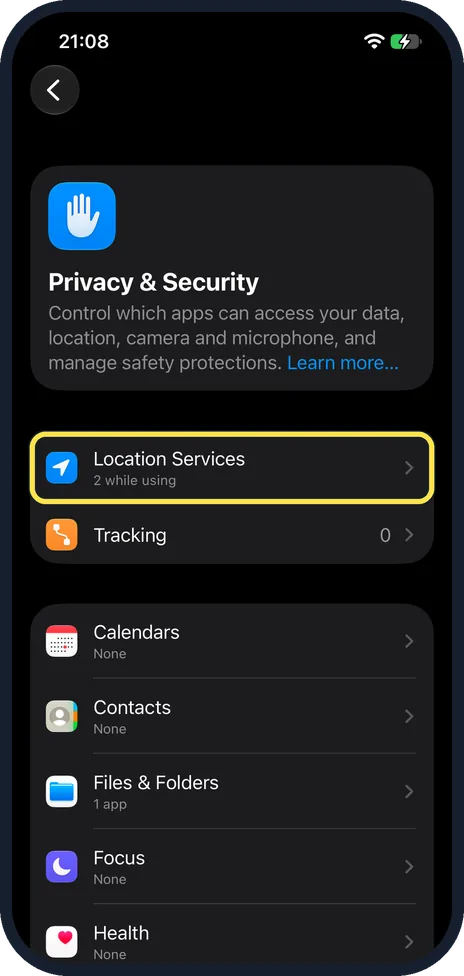
Tap Location Services
It is the first row on the Privacy & Security page, with a short summary below its name.
On our iPhone 17e the summary read 2 while using.
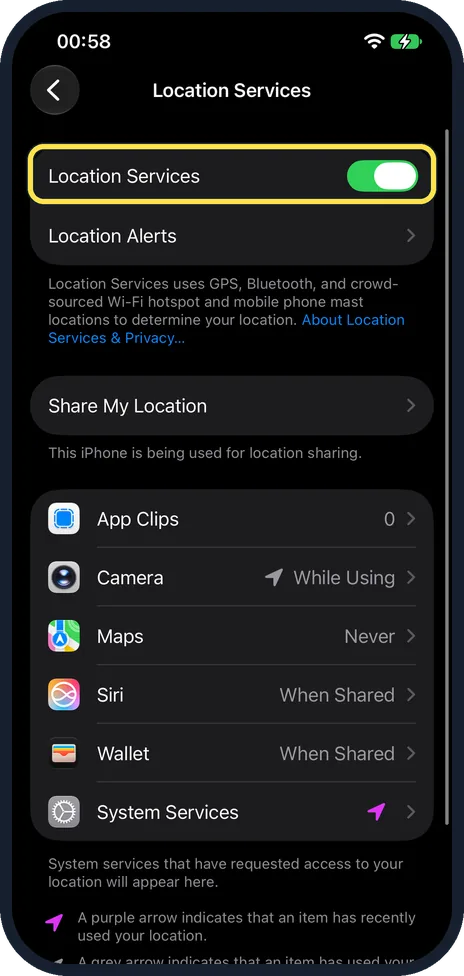
Use the main switch
The Location Services switch at the top turns location on or off for everything. On our iPhone 17e it was on.
Apple warns that if you turn it off, many important iPhone features stop working, so most people leave it on and limit single apps instead.
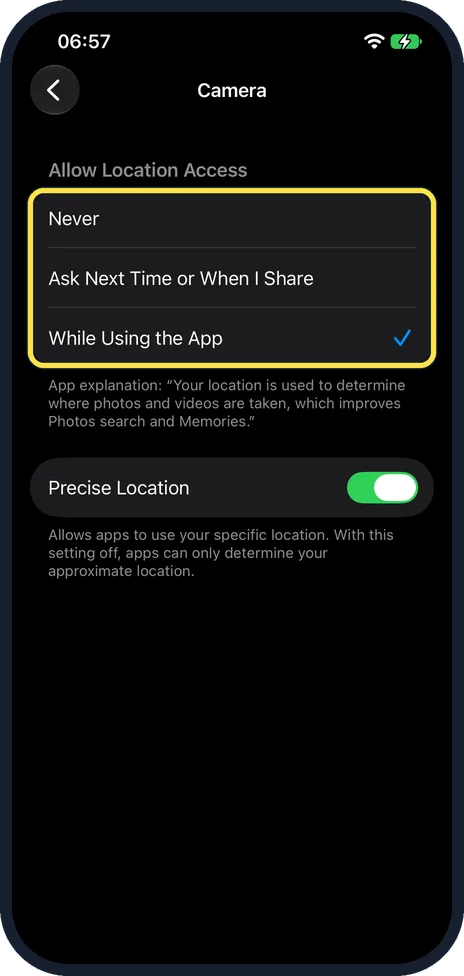
Set each app
Tap an app in the list and choose under Allow Location Access. While Using the App is right for most.
On our iPhone 17e Camera offered only Never, Ask Next Time or When I Share, and While Using the App, and was set to While Using the App.
Below the choices, the Precise Location switch was on. Turn it off when an app only needs your approximate location.
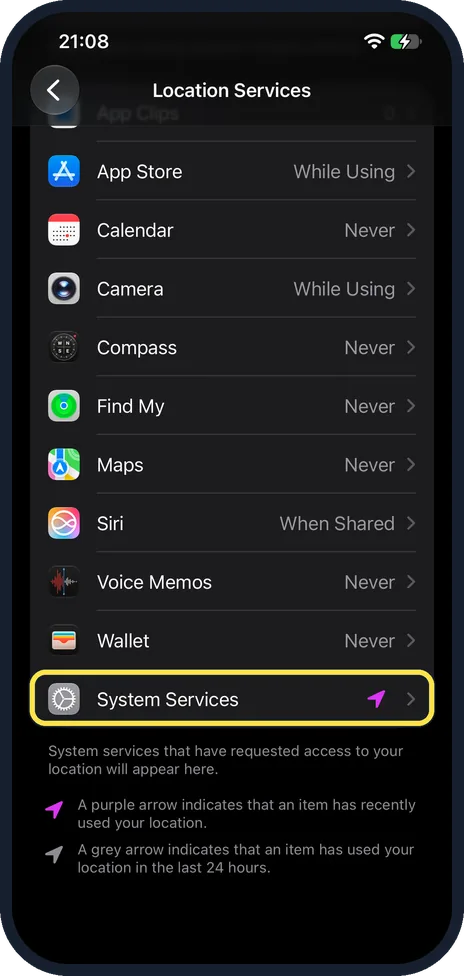
Look at System Services
System Services, at the bottom of the Location Services page, covers what the iPhone itself uses location for.
On our iPhone 17e it was the last row, below Voice Memos and Wallet, with a purple arrow. Tap it to see the list.
More detail: how to turn off location for system services on an iPhone.
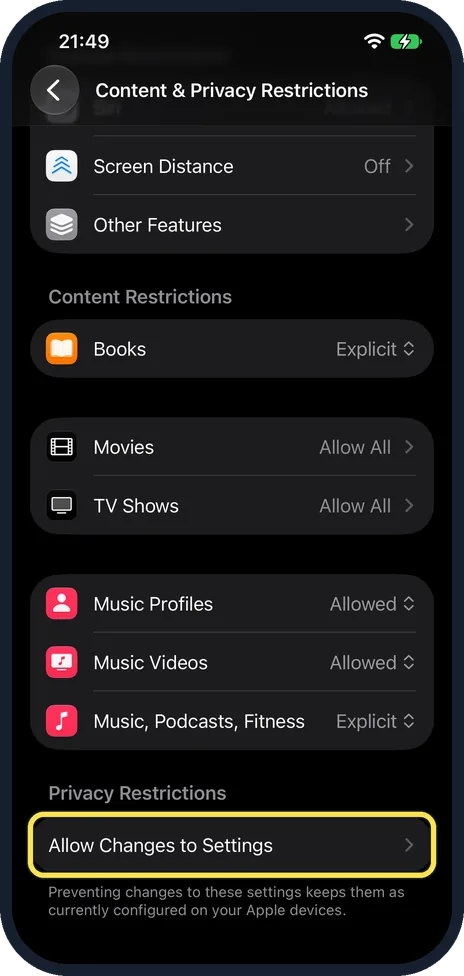
If a switch will not move: check Screen Time
Open Settings, Screen Time, Content & Privacy Restrictions and scroll to the bottom.
On our iPhone 17e, Privacy Restrictions had a single row, Allow Changes to Settings. Location Services is inside that row, not on this page.
Tap Allow Changes to Settings.
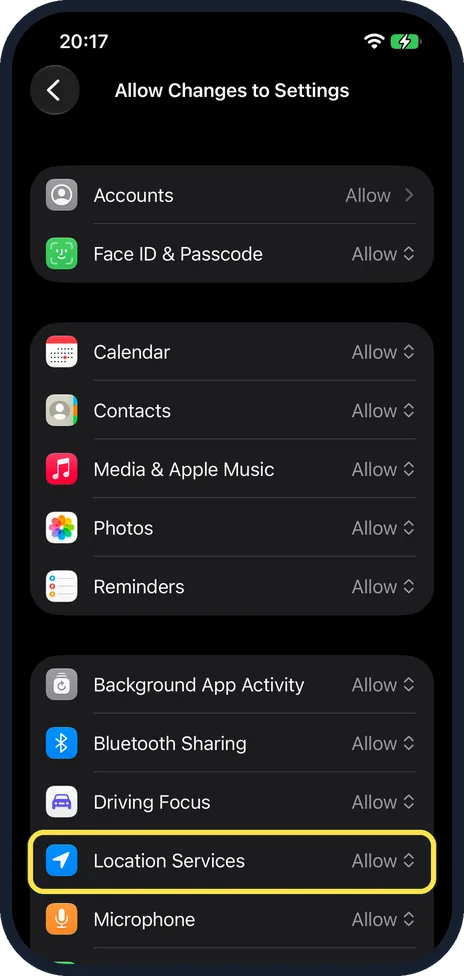
Check the Location Services row
On our iPhone 17e Location Services sat below Driving Focus and was set to Allow, like every other row shown.
A Don't Allow here would explain switches that will not move. We did not change it to test this.
Apple's parental controls article describes the same Allow or Don't Allow choice under Privacy Restrictions.
What changed: the screenshots are now our own iPhone 17e on iOS 27.0.1, dark mode, and the wording is checked against those screens and Apple's iOS 27 guide.
Watch these steps
What we saw on our device
- Open Settings and tap Privacy & Security: On our iPhone 17e it sat in the group with Face ID & Passcode and Emergency SOS.
- Tap Location Services: On our iPhone 17e the summary read 2 while using.
- Use the main switch: On our iPhone 17e it was on.
- Set each app: On our iPhone 17e Camera offered only Never, Ask Next Time or When I Share, and While Using the App, and was set to While Using the App.
- Look at System Services: On our iPhone 17e it was the last row, below Voice Memos and Wallet, with a purple arrow.
- If a switch will not move: check Screen Time: On our iPhone 17e, Privacy Restrictions had a single row, Allow Changes to Settings.
If you do not see this option
- No Always option Camera on our iPhone 17e offered no Always, only Never, Ask Next Time or When I Share, and While Using the App. Apple's iPhone User Guide mentions Always only for apps that use your location in the background. Source: Turn Location Services and GPS on or off on your iPhone · Source: Control the location information you share on iPhone · Source: Control the location information you share on iPhone · Source: Block apps, app downloads, websites, and purchases on iPhone (iOS 26) · Source: Block features or content with Screen Time on iPhone (iOS 27)
- No Precise Location switch On our iPhone 17e it was shown for Camera, set to While Using the App. Apple's iPhone User Guide describes it for apps that may use your location. Source: Turn Location Services and GPS on or off on your iPhone · Source: Control the location information you share on iPhone · Source: Control the location information you share on iPhone · Source: Block apps, app downloads, websites, and purchases on iPhone (iOS 26) · Source: Block features or content with Screen Time on iPhone (iOS 27)
If this does not work
- An app keeps asking again Apple's iPhone User Guide says that if you set an app to Ask Next Time, you are asked again the next time the app tries to use your location. Source: Turn Location Services and GPS on or off on your iPhone · Source: Control the location information you share on iPhone · Source: Control the location information you share on iPhone · Source: Block apps, app downloads, websites, and purchases on iPhone (iOS 26) · Source: Block features or content with Screen Time on iPhone (iOS 27)
- The switches will not move Screen Time may be locking Location Services. Step 6 shows where to check, and Apple's parental controls article describes the Allow or Don't Allow choice. Source: Turn Location Services and GPS on or off on your iPhone · Source: Control the location information you share on iPhone · Source: Control the location information you share on iPhone · Source: Block apps, app downloads, websites, and purchases on iPhone (iOS 26) · Source: Block features or content with Screen Time on iPhone (iOS 27)
About this guide
Location Services lets apps and the iPhone itself work out where you are, using GPS, Bluetooth, and crowd-sourced Wi-Fi hotspot and mobile phone mast locations, as the page itself explains. Maps and weather need it. Many other apps ask for it too, so it is worth checking what each one is allowed.
Screenshots: iPhone 17e, iOS 27.0.1, dark mode.
Good to know
A small arrow in the status bar shows that something is using your location. In the list, a purple arrow means an app used it recently and a grey arrow means it was used in the last 24 hours.
Share My Location, on the same page, controls whether friends and family can see where you are in Find My and Messages.
In short: Settings, Privacy & Security, Location Services. Leave the main switch on and set single apps to While Using.
- Apple Support: Turn Location Services and GPS on or off on your iPhone
- Apple Support: Control the location information you share on iPhone
- Apple iPhone User Guide: Control the location information you share on iPhone
- Apple iPhone User Guide: Block apps, app downloads, websites, and purchases on iPhone (iOS 26)
- Apple iPhone User Guide: Block features or content with Screen Time on iPhone (iOS 27)
Links checked in October 2026. Menus and features can change after software updates. These steps match the version named at the top.
Did this guide work for you?
Sorry about that. What happened?