
howtosimply.com/guides/camera-failed-on-a-samsung-galaxy-6-fixes/ · Checked October 2026 · Samsung Galaxy A57 5G (SM-A576B), One UI 8.5, Android 16
In this guide
Close the Camera app and restart the phone. If the warning stays, check that Camera access is on under Settings, Security and privacy, Privacy, Controls and alerts, close other apps using the camera, reset the camera settings, clear the Camera app's cache and install any software update.
7 of 7 steps with real screenshots · 2 official sources below
- Device
- Android
- Shown on
- Samsung Galaxy A57 5G (SM-A576B), One UI 8.5, Android 16
- App
- Camera
- Real screenshots
- 7 of 7 steps
- What we did
- Observed: looked at each screen, changed nothing
- Our phone
- Shown on Galaxy A57, One UI 8.5
- Checked
- October 2026
- Sources
- 2 official, linked below
Step by step
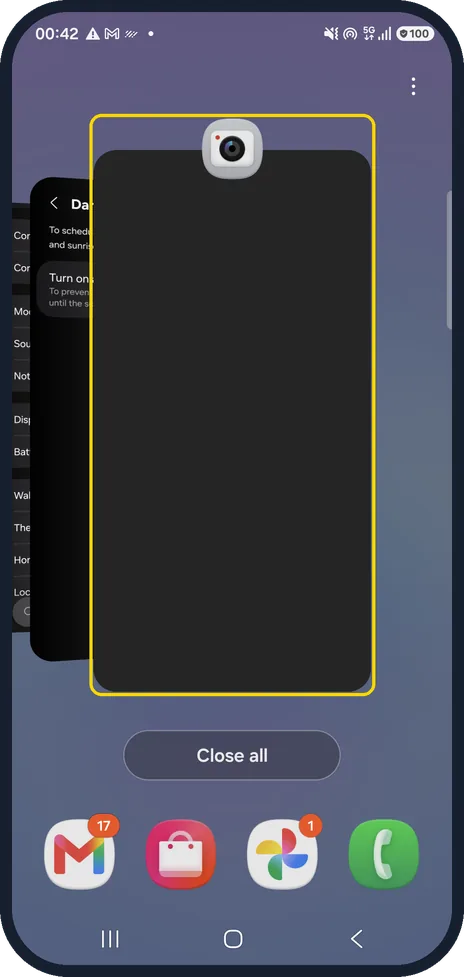
Close the camera and restart
Open the recent apps view and swipe the Camera card away, then restart the phone.
This frees a camera that another app kept open.
Watch these steps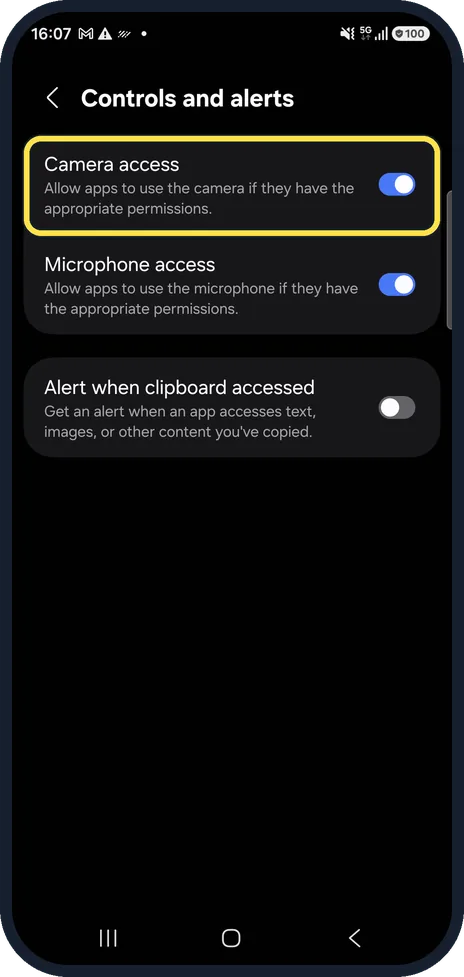
Check Camera access
Go to Settings, Security and privacy, Privacy, Controls and alerts. When Camera access is off, no app can use the camera.
On our Galaxy, Camera access and Microphone access were both on.
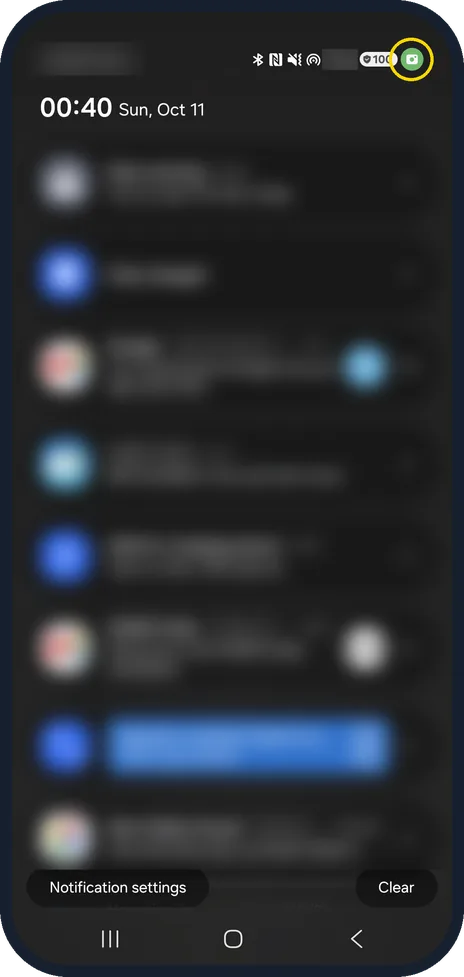
Close apps that use the camera
Video calls, scanners and flashlight apps can block the Camera app.
On our Galaxy, a green camera icon appeared at the top right of the screen while an app was using the camera.
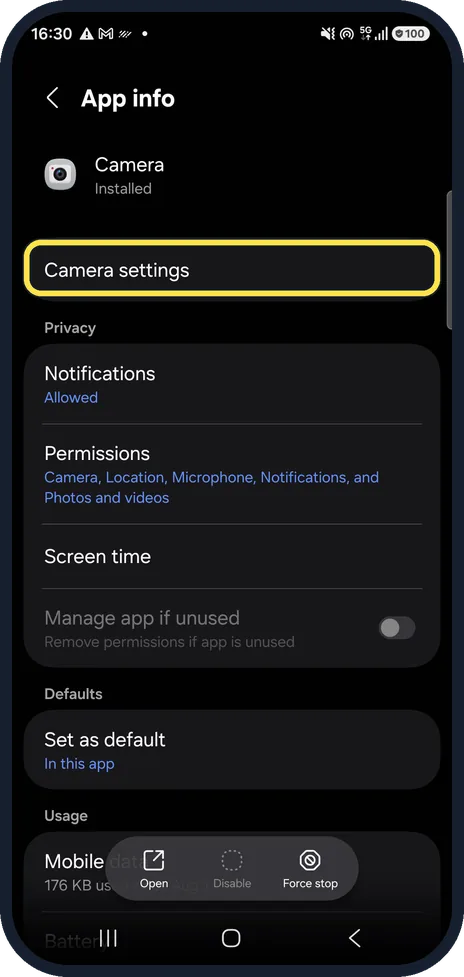
Open Camera settings
Go to Settings, Apps, Camera. On the App info page, tap Camera settings to open the camera's own settings.
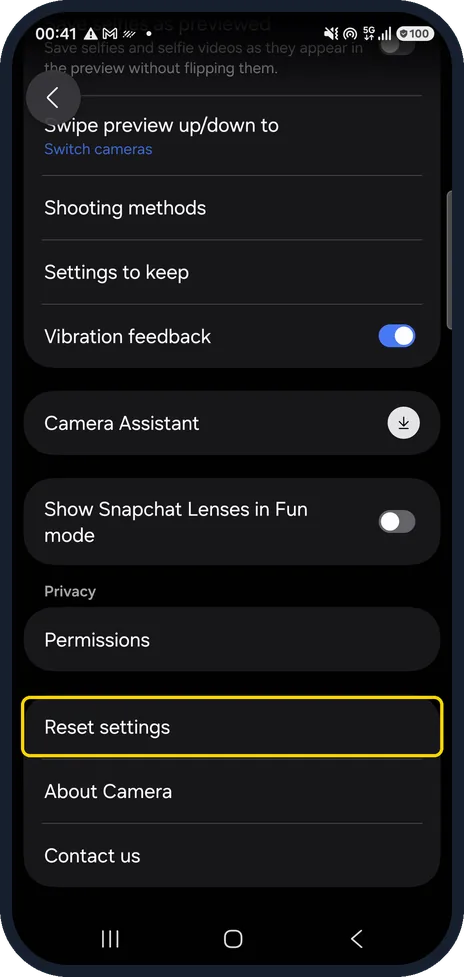
Tap Reset settings
Scroll to the bottom and tap Reset settings to put the camera settings back to default; your photos are not touched.
On our Galaxy, Reset settings sits below Permissions and above About Camera and Contact us.
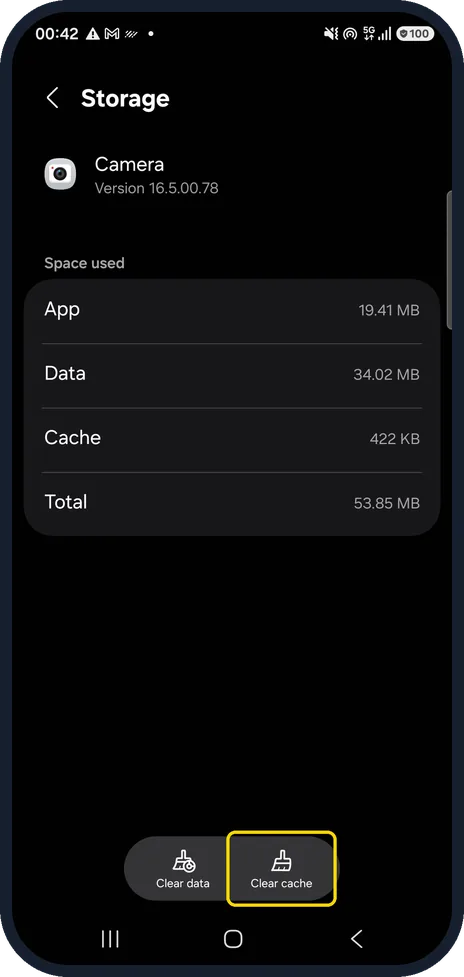
Clear the Camera app's cache
On the Camera App info page, open Storage and tap Clear cache. Do not use Clear data unless the other steps fail.
On our Galaxy, the cache was 422 KB of a 53.85 MB total, on Camera version 16.5.00.78.
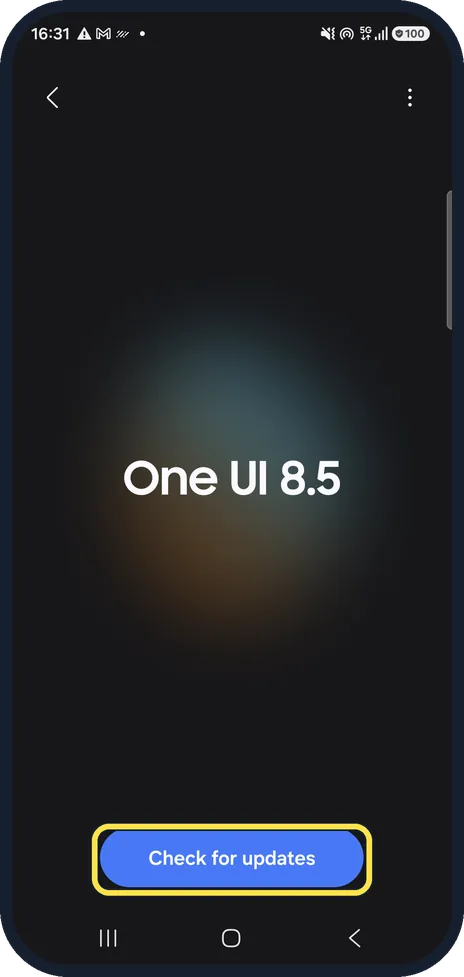
Install the latest software
Go to Settings, Software update and tap Check for updates. Our phone was on One UI 8.5.
Watch these steps
If you do not see this option
- No Controls and alerts On the Security and privacy page, scroll down to the Privacy section. On our Galaxy, Controls and alerts sits below Internet privacy protection.
- No Reset settings Scroll right to the bottom of Camera settings. It is in the last group, under Privacy and Permissions.
- No Clear cache Open Storage from the Camera App info page first. Clear cache is at the bottom, next to Clear data.
- Different menu names On older One UI versions a few names and positions differ from the ones shown here.
If this does not work
- Warning stays after a restart Open the recent apps view and tap Close all, then open Camera again.
- Green camera icon still showing Another app is still using the camera. Close video call, scanner and flashlight apps, then try Camera again.
- Still failing after a reset and cache clear Use Clear data on the Camera Storage page as a last step. If the warning still returns, have a Samsung service centre test the camera. Sources: How to fix 'Camera failed' error on Samsung Galaxy phone, Issues with Camera app on Samsung phone or tablet
About this guide
"Warning: Camera failed" means the Camera app could not reach the camera. Often another app holds it or the Camera app has a stuck setting; a hardware fault is the last explanation, not the first.
Good to know
How to clear an app's cache, step by step: how to clear an app's cache on a Samsung Galaxy.
If the warning comes back even after these steps, back up the phone and have a Samsung service centre test the camera.
In short: Restart, Camera access on, close apps using the camera, reset camera settings, clear the cache, update.
- Samsung PH: How to fix 'Camera failed' error on Samsung Galaxy phone
- Samsung US: Issues with Camera app on Samsung phone or tablet
Links checked in October 2026. Menus and features can change after software updates. These steps match the version named at the top.
📷 See real photos from the Galaxy A57 in our Camera Lab, next to 10 other phones.
Did this guide work for you?
Sorry about that. What happened?