
What changed: the screenshots are now our own iPhone 17e on iOS 27.0.1, dark mode, and the wording is checked against those screens and Apple's iOS 27 guide.
howtosimply.com/guides/how-to-turn-off-auto-brightness-on-an-iphone/ · Checked October 2026 · iPhone 17e · iOS 27.0.1
In this guide
Open Settings, tap Accessibility, then Display & Text Size, scroll to the bottom and switch off Auto-Brightness. The screen then stays at the level you set yourself in Control Centre or with the Brightness slider.
4 of 4 steps with real screenshots · 2 official sources below
- Device
- iPhone
- Shown on
- iOS 27.0.1 (iPhone 17e)
- App
- Settings
- Path
- Settings › Accessibility › Display & Text Size
- Real screenshots
- 4 of 4 steps
- Checked
- October 2026
- Sources
- 2 official, linked below
Step by step
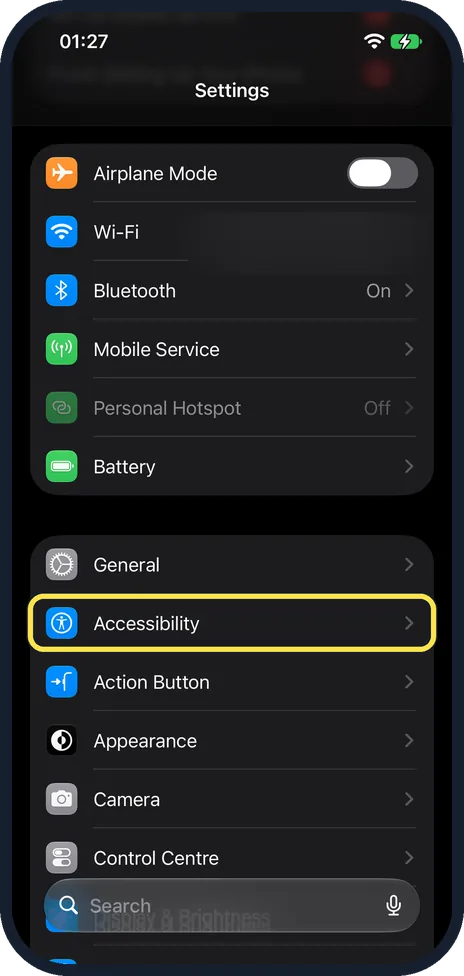
Open Settings and tap Accessibility
On our iPhone 17e with iOS 27, Accessibility is in the group that starts with General, above Action Button and Appearance.
Watch these steps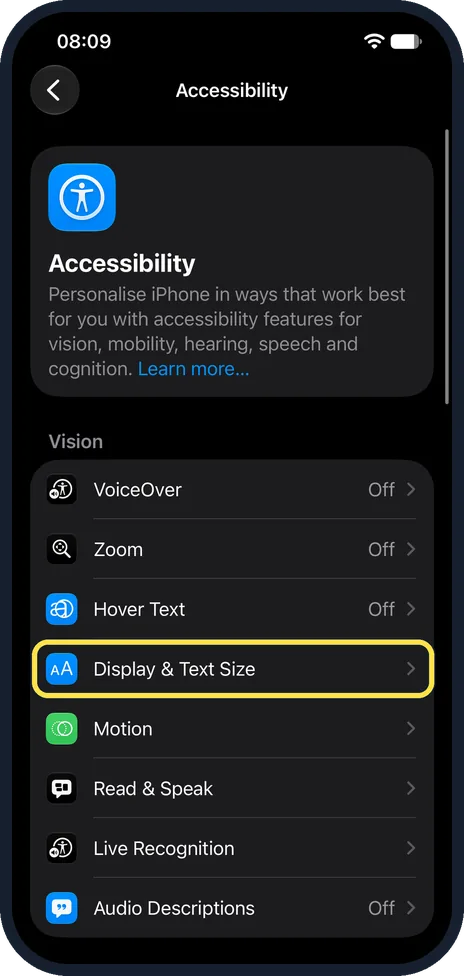
Tap Display & Text Size
It is in the Vision group. On our iPhone 17e it was the fourth row, below VoiceOver, Zoom and Hover Text.
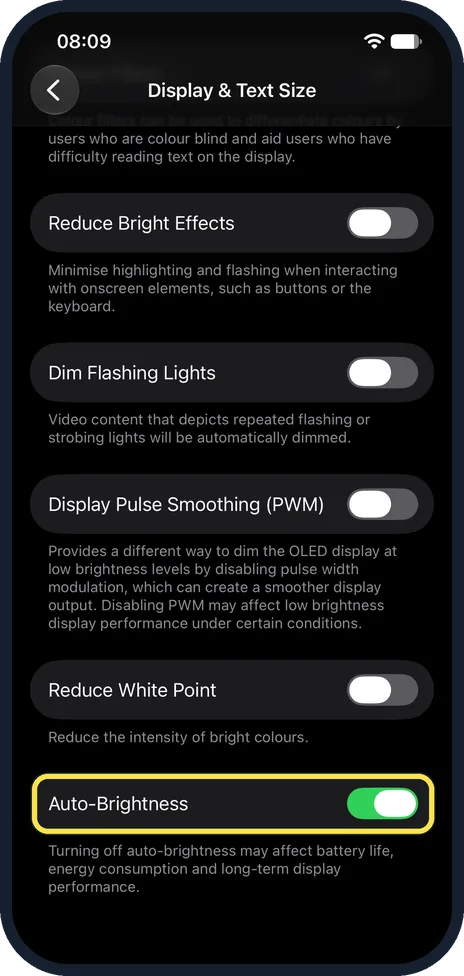
Scroll to the bottom and switch off Auto-Brightness
A note warns that turning off auto-brightness may affect battery life, energy consumption and long-term display performance. On our iPhone 17e with iOS 27 it was on, just below Reduce White Point.
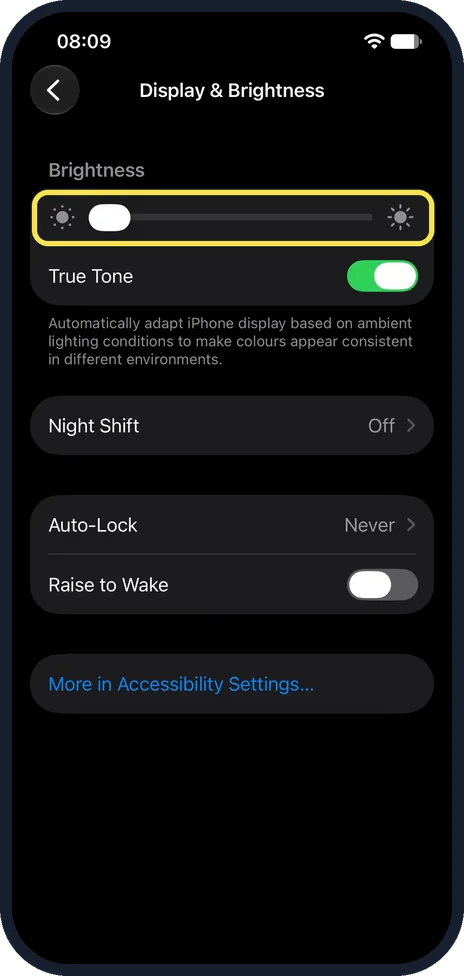
Set the brightness yourself
Open Control Centre and drag the brightness slider. You can also drag the Brightness slider under Settings, Display & Brightness. On our iPhone 17e with iOS 27 that page has no Auto-Brightness switch, only a More in Accessibility Settings link at the bottom.
What changed: the screenshots are now our own iPhone 17e on iOS 27.0.1, dark mode, and the wording is checked against those screens and Apple's iOS 27 guide.
Watch these steps
What we saw on our device
- Open Settings and tap Accessibility: On our iPhone 17e with iOS 27, Accessibility is in the group that starts with General, above Action Button and Appearance.
- Tap Display & Text Size: On our iPhone 17e it was the fourth row, below VoiceOver, Zoom and Hover Text.
- Scroll to the bottom and switch off Auto-Brightness: On our iPhone 17e with iOS 27 it was on, just below Reduce White Point.
- Set the brightness yourself: On our iPhone 17e with iOS 27 that page has no Auto-Brightness switch, only a More in Accessibility Settings link at the bottom.
If you do not see this option
- No Auto-Brightness on Display & Brightness Apple puts the switch under Accessibility, Display & Text Size. On our iPhone 17e with iOS 27, Display & Brightness had only the Brightness slider, True Tone, Night Shift, Auto-Lock, Raise to Wake and a More in Accessibility Settings link. Source: Adjust the screen brightness and color on iPhone
- Auto-Brightness is not near the top of Display & Text Size Scroll to the end of the page. On our iPhone 17e the last switches were Reduce Bright Effects, Dim Flashing Lights, Display Pulse Smoothing (PWM), Reduce White Point and then Auto-Brightness. Source: Adjust the screen brightness and color on iPhone
If this does not work
- The colours still change with the light That is True Tone, which Apple says adapts the colour and intensity of the display to the light around you. Turn it off under Settings, Display & Brightness. On our iPhone 17e it was on. Source: Adjust the screen brightness and color on iPhone
- Bright colours still look toned down Apple says Reduce White Point tones down the intensity of bright colours. It sits just above Auto-Brightness; on our iPhone 17e it was off. Source: Change display colors on iPhone to make it easier to see what’s onscreen
- The battery runs down faster Apple notes that turning off Auto-Brightness may increase power consumption. Lower the brightness yourself, or switch Auto-Brightness back on. Source: Adjust the screen brightness and color on iPhone
About this guide
Auto-Brightness changes the screen with the light around you. Apple says the iPhone uses its ambient light sensor to set the brightness for the current light. The switch is not on the Display & Brightness page: Apple puts it under Accessibility.
The screenshots are our own, taken on an iPhone 17e running iOS 27.0.1.
Good to know
True Tone, under Settings, Display & Brightness, changes the colour warmth with the room light, and Night Shift makes the screen warmer in the evening. Both are separate from Auto-Brightness.
Apple says dimming the screen extends battery life. With Auto-Brightness off, turn it down by hand in dark rooms.
In short: Settings, Accessibility, Display & Text Size, Auto-Brightness off.
- Apple Support: Adjust the brightness and color temperature on your iPhone or iPad
- Apple Support: Adjust the screen brightness and colour on iPhone
Links checked in October 2026. Menus and features can change after software updates. These steps match the version named at the top.
Did this guide work for you?
Sorry about that. What happened?