
What changed: the screenshots are now our own iPhone 17e on iOS 27.0.1, dark mode, and the wording is checked against those screens and Apple's iOS 27 guide.
howtosimply.com/guides/how-to-turn-off-attention-aware-features-on-an-iphone/ · Checked October 2026 · iPhone 17e · iOS 27.0.1
In this guide
Open Settings, tap Accessibility, then Face ID & Attention, and switch off Attention-Aware Features. The iPhone then stops checking whether you are looking at it before it dims the display or lowers some alerts. Apple says the switch is also under Face ID & Passcode.
If you do not see this option
- You look under Face ID & Passcode. Apple's iOS 27 guide says the same switch is there as well and gives both paths: Settings, Accessibility, Face ID & Attention, and Settings, Face ID & Passcode. That page asks for your passcode first. Source: Turn Attention Aware features on or off on your iPhone or iPad Pro · Source: Change Face ID and attention settings on iPhone · Source: Wake, unlock, and lock iPhone · Source: Accessibility features for mobility on iPhone · Source: Change Face ID and attention settings on iPhone (iOS 26) · Source: Keep the iPhone display on longer
- You set up the iPhone with VoiceOver on. Apple says these settings are turned off by default if VoiceOver was turned on when the iPhone was first set up. Source: Turn Attention Aware features on or off on your iPhone or iPad Pro · Source: Change Face ID and attention settings on iPhone · Source: Wake, unlock, and lock iPhone · Source: Accessibility features for mobility on iPhone · Source: Change Face ID and attention settings on iPhone (iOS 26) · Source: Keep the iPhone display on longer
- Your iPhone runs iOS 26. Apple's iOS 26 guide gives the same path: Settings, Accessibility, Face ID & Attention. Source: Turn Attention Aware features on or off on your iPhone or iPad Pro · Source: Change Face ID and attention settings on iPhone · Source: Wake, unlock, and lock iPhone · Source: Accessibility features for mobility on iPhone · Source: Change Face ID and attention settings on iPhone (iOS 26) · Source: Keep the iPhone display on longer
3 of 3 steps with real screenshots · 6 official sources below
- Device
- iPhone
- Shown on
- iOS 27.0.1 (iPhone 17e)
- App
- Settings
- Path
- Settings › Accessibility › Face ID & Attention
- Real screenshots
- 3 of 3 steps
- Checked
- October 2026
- Sources
- 6 official, linked below
Step by step
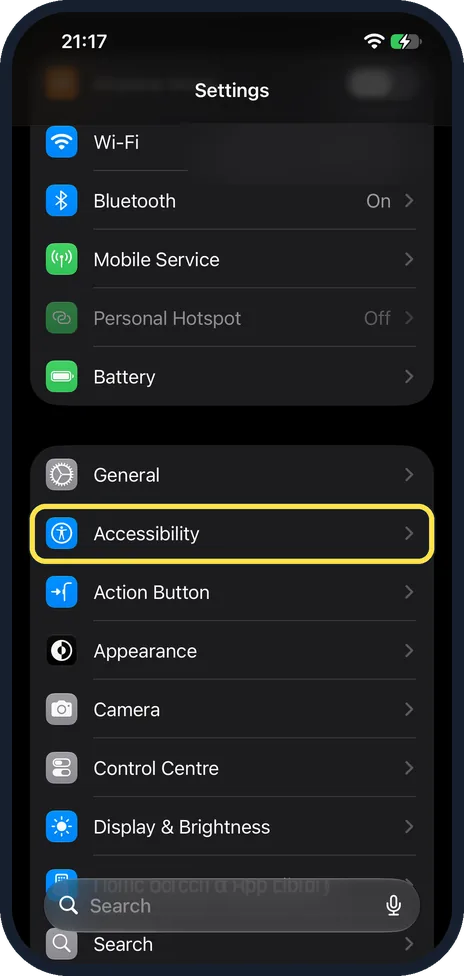
Open Settings and tap Accessibility
Scroll down the main Settings list to Accessibility, or type Accessibility into the Search field at the bottom of the screen.
On our iPhone 17e Accessibility is directly below General and above Action Button, in the same group.
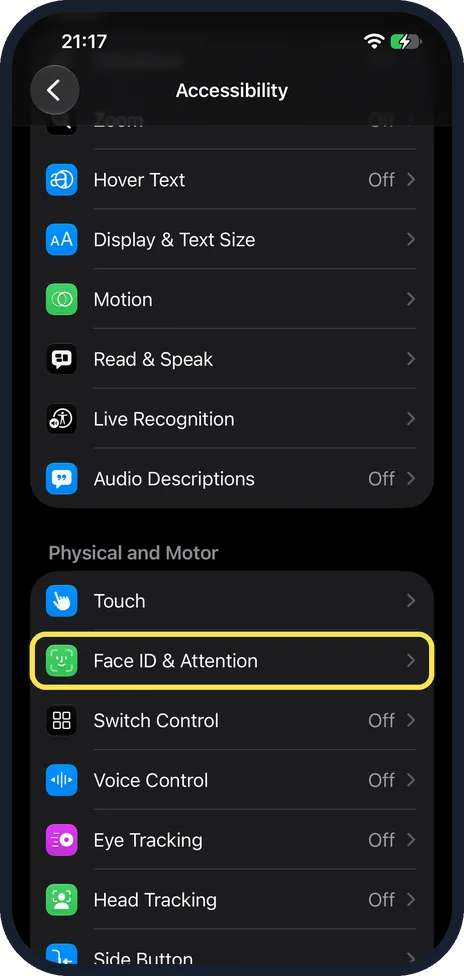
Tap Face ID & Attention
Scroll down the Accessibility page to the Physical and Motor section.
On our iPhone 17e Face ID & Attention is the second row there, below Touch and above Switch Control.
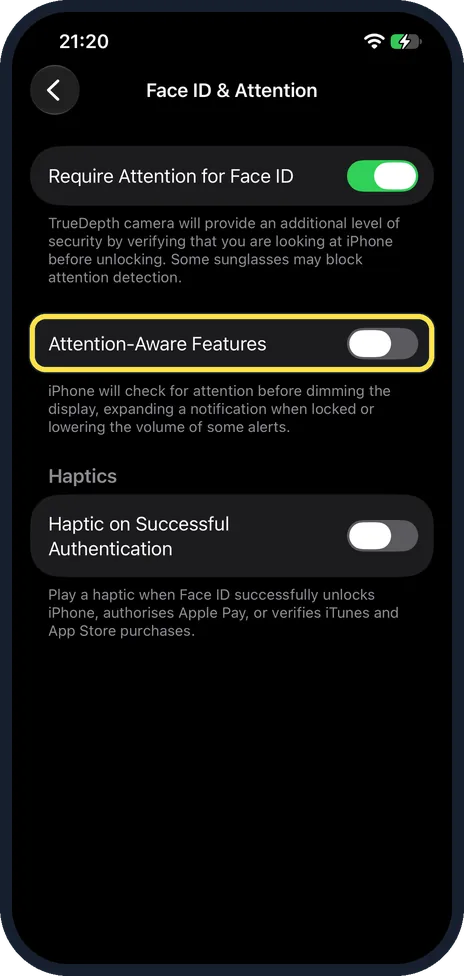
Switch off Attention-Aware Features
Tap the Attention-Aware Features switch so it turns grey. The note below it says the iPhone checks for attention before dimming the display, expanding a notification when locked or lowering the volume of some alerts.
Leave Require Attention for Face ID, the switch above it, as it is: it is a separate security setting for unlocking.
On our iPhone 17e Attention-Aware Features was already off, Require Attention for Face ID was on and Haptic on Successful Authentication was off.
What changed: the screenshots are now our own iPhone 17e on iOS 27.0.1, dark mode, and the wording is checked against those screens and Apple's iOS 27 guide.
If this does not work
- Alerts still get quieter while you look at the iPhone. Check that you switched off Attention-Aware Features and not Require Attention for Face ID, the switch above it. On our iPhone 17e the note under Attention-Aware Features says it is the one that lowers the volume of some alerts.
- The screen now locks while you are reading. Apple says that with Attention Aware Features on, the iPhone won't dim or lock as long as it detects attention. With it off, Auto-Lock decides. Go to Settings, Display & Brightness, Auto-Lock and choose a longer time; Apple notes this may increase power use. Source: Turn Attention Aware features on or off on your iPhone or iPad Pro · Source: Change Face ID and attention settings on iPhone · Source: Wake, unlock, and lock iPhone · Source: Accessibility features for mobility on iPhone · Source: Change Face ID and attention settings on iPhone (iOS 26) · Source: Keep the iPhone display on longer
About this guide
An iPhone with Face ID uses its front camera to notice whether you are looking at the screen. While you look, it keeps the display from dimming and makes alerts quieter. Apple says this works even if Face ID itself is not set up. If alerts seem to get quieter on their own while you look at the iPhone, this switch can be the reason. Apple also says that if you say "Hey Siri" near more than one Apple device, such as an iPhone and a HomePod, Attention Aware features make sure the correct device responds.
Screenshots: iPhone 17e, iOS 27.0.1.
Good to know
Apple lists the feature for iPhone X and later, except iPhone SE, because it needs the TrueDepth camera.
In short: Settings, Accessibility, Face ID & Attention, Attention-Aware Features off.
- Apple Support: Turn Attention Aware features on or off on your iPhone or iPad Pro
- Apple iPhone User Guide: Change Face ID and attention settings on iPhone
- Apple iPhone User Guide: Wake, unlock, and lock iPhone
- Apple iPhone User Guide: Accessibility features for mobility on iPhone
- Apple iPhone User Guide: Change Face ID and attention settings on iPhone (iOS 26)
- Apple iPhone User Guide: Keep the iPhone display on longer
Links checked in October 2026. Menus and features can change after software updates. These steps match the version named at the top.
Did this guide work for you?
Sorry about that. What happened?