
howtosimply.com/guides/how-to-take-a-screenshot-on-an-iphone/ · Checked October 2026 · iPhone 17e · iOS 27.0.1
In this guide
On an iPhone with Face ID, press the side button and the volume up button at the same time and let go. On an iPhone with a Home button, press the side or top button and the Home button together. On iOS 27 it opens full screen first, then it is saved in Photos, in the Screenshots album.
5 of 5 steps with real screenshots · 1 official source below
- Device
- iPhone
- Shown on
- iOS 27.0.1 (iPhone 17e)
- App
- Photos
- Real screenshots
- 5 of 5 steps
- Checked
- October 2026
- Sources
- 1 official, linked below
Step by step
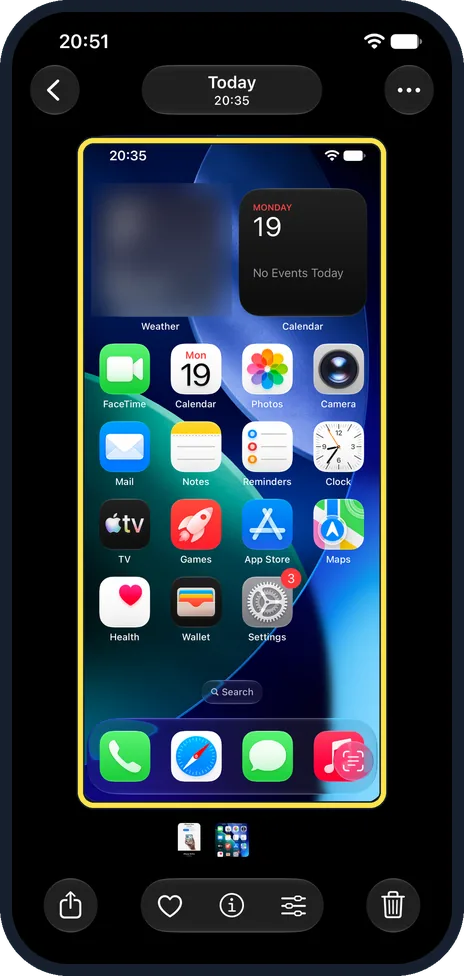
Press the side button and volume up together
Press the side button on the right and the volume up button on the left at the same moment, then let go quickly. Holding them down opens the power-off screen instead.
On an iPhone with a Home button, press the side button (the top button on the first iPhone SE and older) and the Home button together.
The picture shows one we took of our Home Screen this way, opened in Photos.
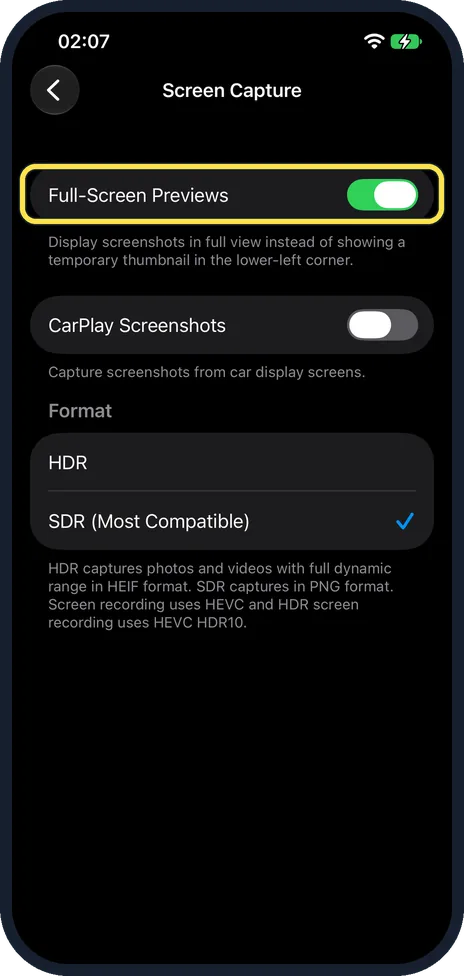
Full screen or a small thumbnail
Open Settings, General, Screen Capture. On our iPhone 17e, Full-Screen Previews was on: the switch's note says it displays screenshots in full view instead of showing a temporary thumbnail in the lower-left corner. Switch it off to get the thumbnail.
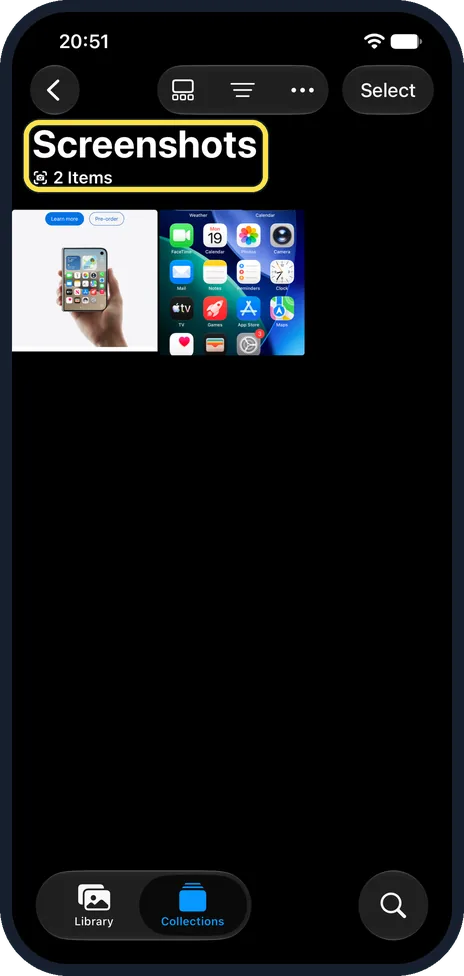
Find the screenshot
Open Photos, tap Collections, then Media Types and Screenshots. Ours showed the 2 we had taken. Tap one to open it. Screenshots are also in your Library with your other photos.
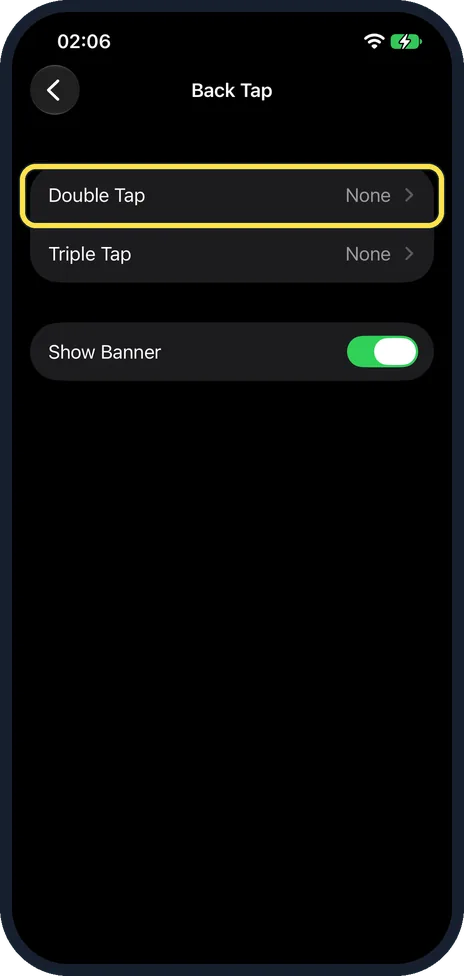
No buttons? Open Back Tap
Open Settings, Accessibility, Touch, Back Tap. On ours, Double Tap and Triple Tap were both set to None. Tap Double Tap.
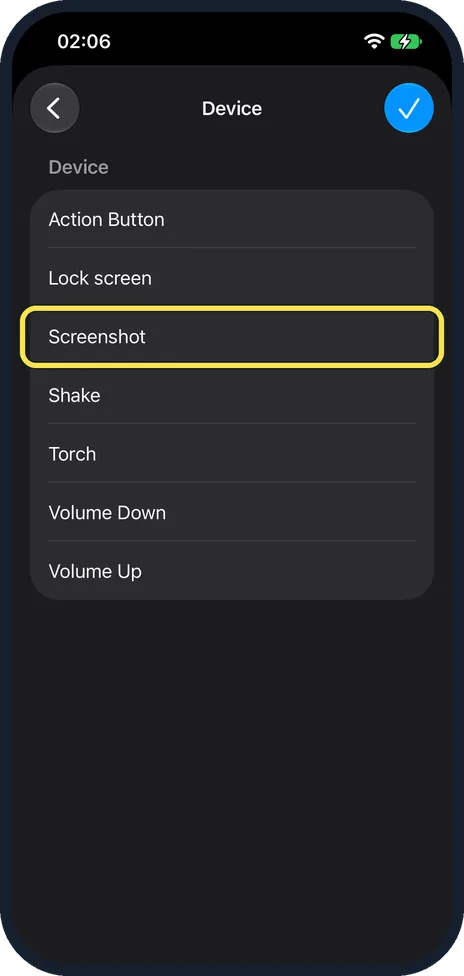
Choose Device, then Screenshot
In iOS 27 the actions are grouped: tap Device, then Screenshot. Two taps on the back of the iPhone then take a screenshot. We opened the list without choosing anything, so ours stayed at None.
What we saw on our device
- Full screen or a small thumbnail: On our iPhone 17e, Full-Screen Previews was on: the switch's note says it displays screenshots in full view instead of showing a temporary thumbnail in the lower-left corner.
- Find the screenshot: Ours showed the 2 we had taken.
- No buttons? Open Back Tap: On ours, Double Tap and Triple Tap were both set to None.
If you do not see this option
- A small thumbnail appears instead of the full-screen picture Full-Screen Previews is off. Tap the thumbnail in the lower-left corner to open it, or switch Full-Screen Previews on under Settings, General, Screen Capture (step 2).
- Your iPhone has a Home button Press the side or top button and the Home button together instead of volume up (Apple). Source: Take a screenshot on your iPhone
- No Screenshots album in Media Types Photos shows that album only once there is a screenshot in your library. Take one first, then look again.
If this does not work
- The power-off screen appears instead The buttons were held too long. Apple says to press the side button and volume up at the same time and quickly release both. Source: Take a screenshot on your iPhone
- Back Tap does nothing Check that Double Tap or Triple Tap is set to Screenshot under Settings, Accessibility, Touch, Back Tap. Ours showed None for both until one is chosen.
About this guide
A screenshot saves exactly what is on your screen as a picture. It takes one press, and you can crop it or draw on it before sharing.
The steps below cover every iPhone model.
The screenshots are from our iPhone 17e with iOS 27.0.1, in dark mode, taken on 19 October 2026.
Good to know
Under Format on the Screen Capture page, ours was set to SDR (Most Compatible). The page says SDR captures in PNG format and HDR in HEIF.
The same page has CarPlay Screenshots, which captures the car display too. It was off on ours.
In short: Side button and volume up together on Face ID iPhones. Side button and Home button on the others.
Links checked in October 2026. Menus and features can change after software updates. These steps match the version named at the top.
Did this guide work for you?
Sorry about that. What happened?