
howtosimply.com/guides/how-to-take-a-full-page-screenshot-on-an-iphone/ · Checked October 2026 · iPhone 17e · iOS 27.2
In this guide
Open the page in Safari and press the side button and volume up together. In the screenshot editor, tap Full Page at the top. Tap the tick, then Save PDF to Files, pick a folder such as Downloads and tap Save.
4 of 4 steps with real screenshots · 1 official source below
- Device
- iPhone
- Shown on
- iOS 27.2 (iPhone 17e)
- App
- Safari
- Path
- Safari › Screenshot › Full Page
- Real screenshots
- 4 of 4 steps
- Checked
- October 2026
- Sources
- 1 official, linked below
Step by step
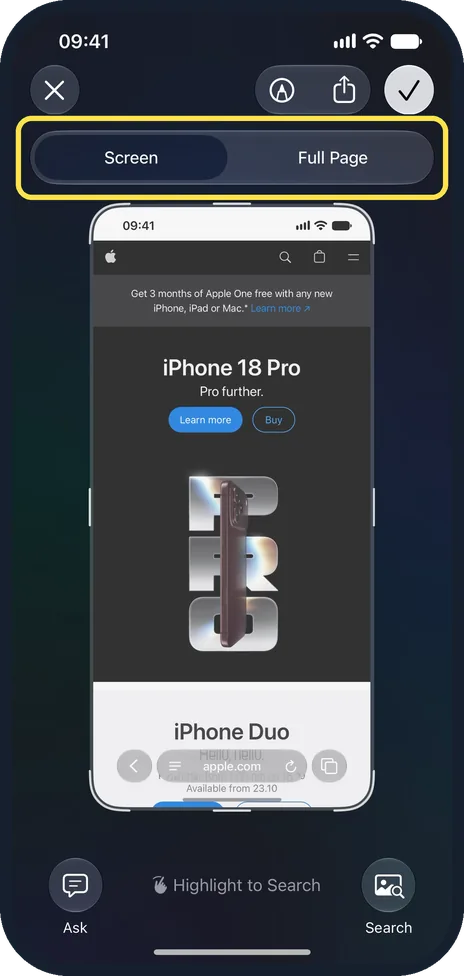
Take a screenshot in Safari
Open the web page in Safari; ours was apple.com. Press the side button and the volume up button at the same time and let go quickly. Ours opened the screenshot editor with Screen and Full Page at the top, and Screen picked.
Watch these steps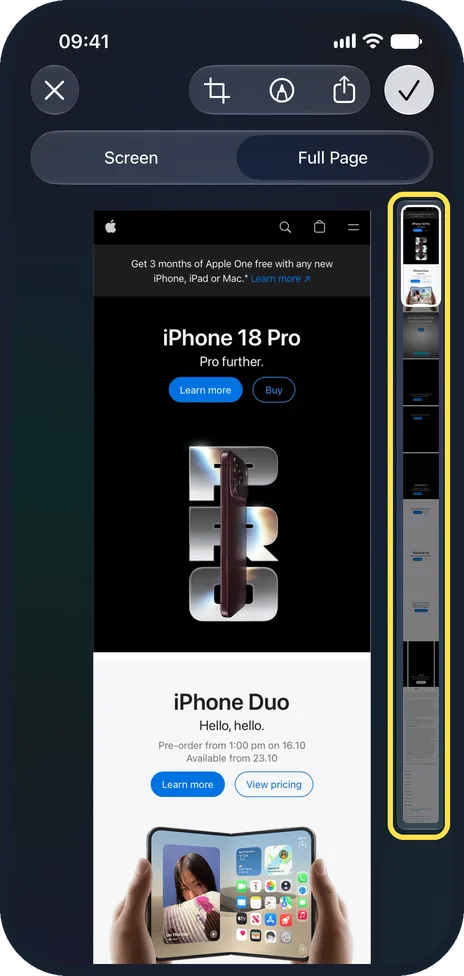
Tap Full Page
Tap Full Page. The page now runs past the bottom of the screen, with a narrow preview of the whole page on the right. Apple says to drag your finger on that preview to see more. A crop button also appeared, next to Markup and Share.
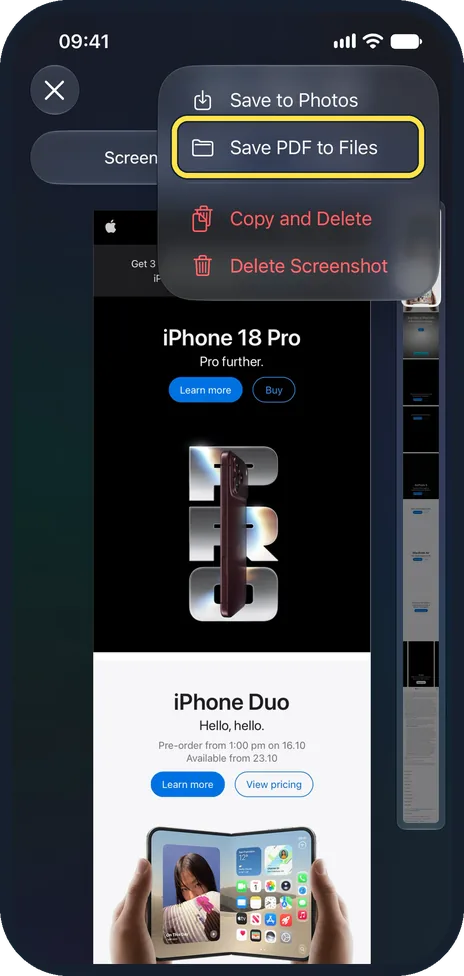
Tap the tick, then Save PDF to Files
Tap the tick at the top right. Ours offered Save to Photos, Save PDF to Files, Copy and Delete, and Delete Screenshot. Tap Save PDF to Files.
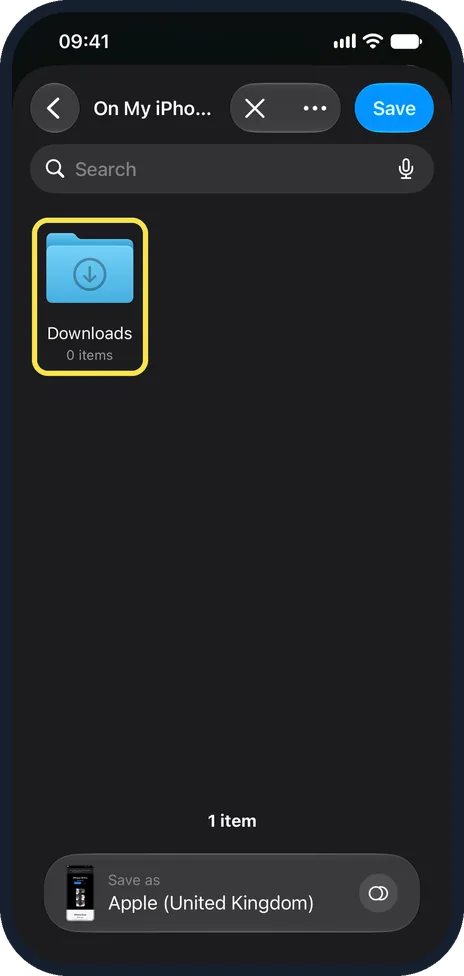
Pick a folder and tap Save
Ours opened On My iPhone, with the Downloads folder (0 items) and Save as: Apple (United Kingdom) at the bottom. Open the folder you want and tap Save at the top right.
Watch these steps
If you do not see this option
- No Full Page tab? Apple puts Full Page in the screenshot editor and gives a whole webpage in Safari as its example. We only tried Safari. If another app shows only the Screen view, open the page in Safari and take the screenshot there. Source: Take a screenshot on iPhone
- Only a small thumbnail appears? Apple says to tap the thumbnail in the lower left, then tap Full Page. Ours opened full screen straight away. See full-screen screenshot previews on an iPhone. Source: Take a screenshot on iPhone
If this does not work
- Can't find the PDF in Photos? Apple says screenshots are saved to your photo library. Save PDF to Files puts the full page in the folder you pick instead; ours offered On My iPhone, Downloads. Open the Files app and go to that folder. Source: Take a screenshot on iPhone
- No crop button? On ours the bar at the top had only Markup and Share while Screen was picked. The crop button appeared after we tapped Full Page. Apple says to tap it, then drag the handles, to save a smaller part of a full-page screenshot. Source: Take a screenshot on iPhone
About this guide
The screenshots are from our iPhone 17e with iOS 27.2, in Dark mode, taken on 27 October 2026 on apple.com in Safari. The editor showed 09:41 in its status bar.
Full Page is in the screenshot editor, which opens after you take a screenshot. Apple gives a whole webpage in Safari as its example.
Good to know
For the buttons and other ways to take a screenshot, see how to take a screenshot on an iPhone.
In short: Safari, side button and volume up, Full Page, tick, Save PDF to Files, pick a folder, Save.
Links checked in October 2026. Menus and features can change after software updates. These steps match the version named at the top.
📷 See real photos from the iPhone 17e in our Camera Lab, next to 10 other phones.
Did this guide work for you?
Sorry about that. What happened?