
howtosimply.com/guides/how-to-transfer-photos-from-an-iphone-to-a-mac/ · Checked October 2026 · MacBook Neo · macOS 27.2
In this guide
Connect the iPhone with a cable and unlock it. In Image Capture, click the iPhone under Devices, choose a folder in Import To and click Download or Download All. In Photos with iCloud Photos on, your photos are already there and the Import screen says Already Imported.
7 of 7 steps with real screenshots · 2 official sources below
- Device
- iPhone
- Shown on
- macOS 27.2 (MacBook Neo)
- App
- Image Capture
- Path
- Image Capture › Devices › Import To
- Real screenshots
- 7 of 7 steps
- Checked
- October 2026
- Sources
- 2 official, linked below
Step by step
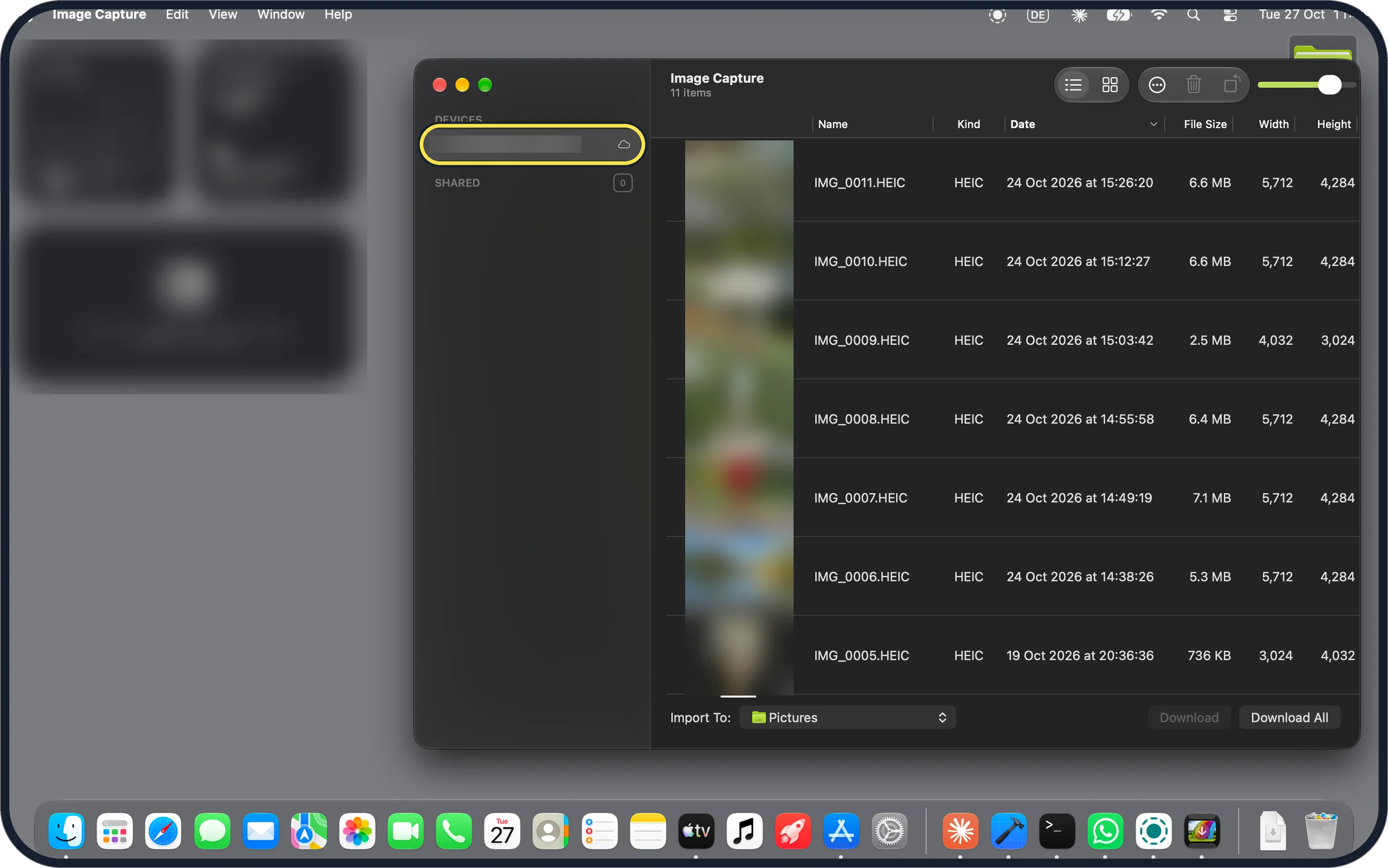
Zoomed in on the setting. Tap to see the whole screenTap the picture to see it full size Connect the iPhone and open Image Capture
Connect the iPhone with a cable and unlock it: ours showed a lock icon until we did. Open Image Capture and click the iPhone under Devices. Ours listed 11 items with Name, Kind (HEIC), Date, File Size, Width and Height.
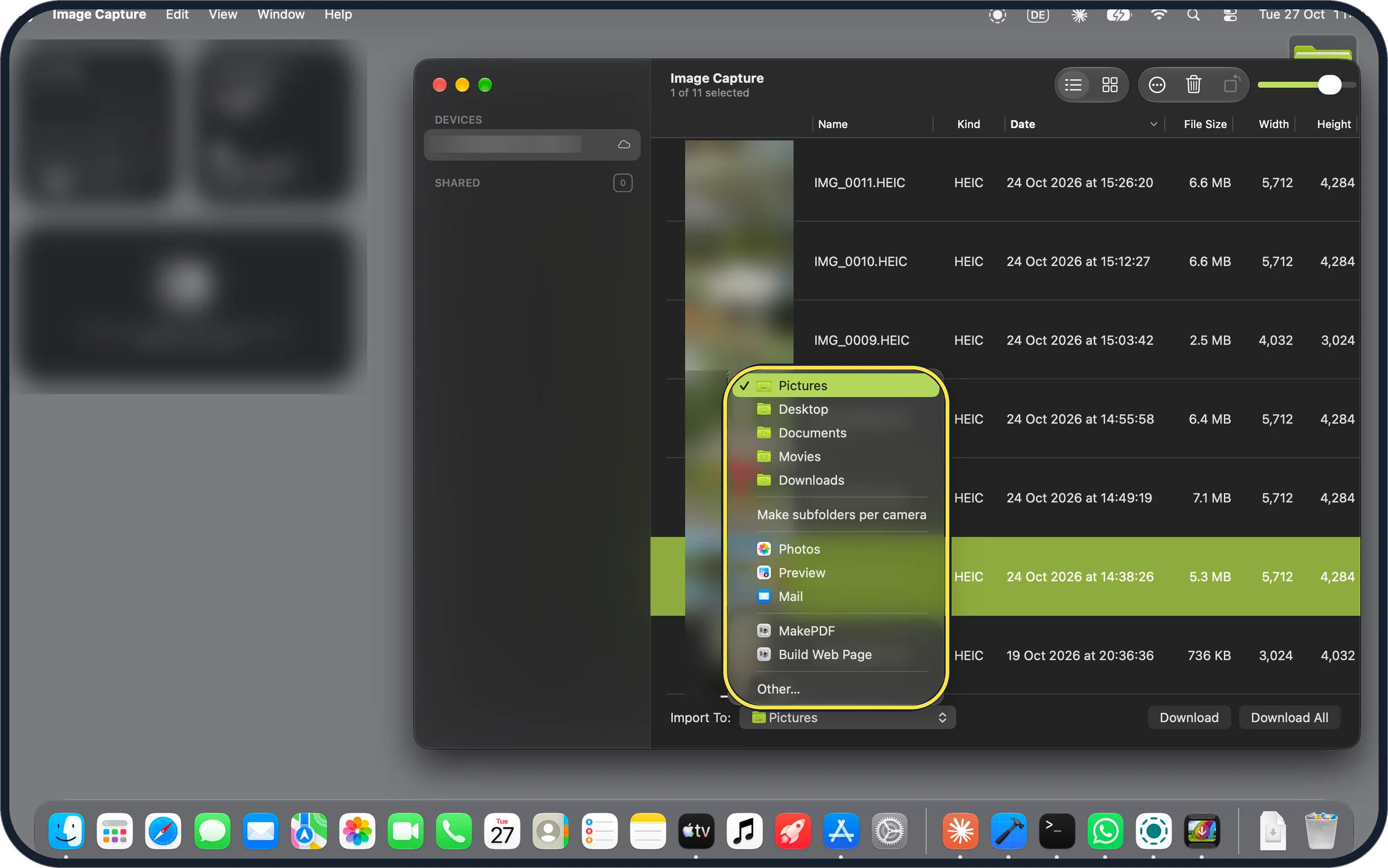
Zoomed in on the setting. Tap to see the whole screenTap the picture to see it full size Choose where the photos go
Click the Import To menu at the bottom. Ours offered Pictures, Desktop, Documents, Movies, Downloads, Make subfolders per camera, Photos, Preview, Mail, MakePDF, Build Web Page and Other….
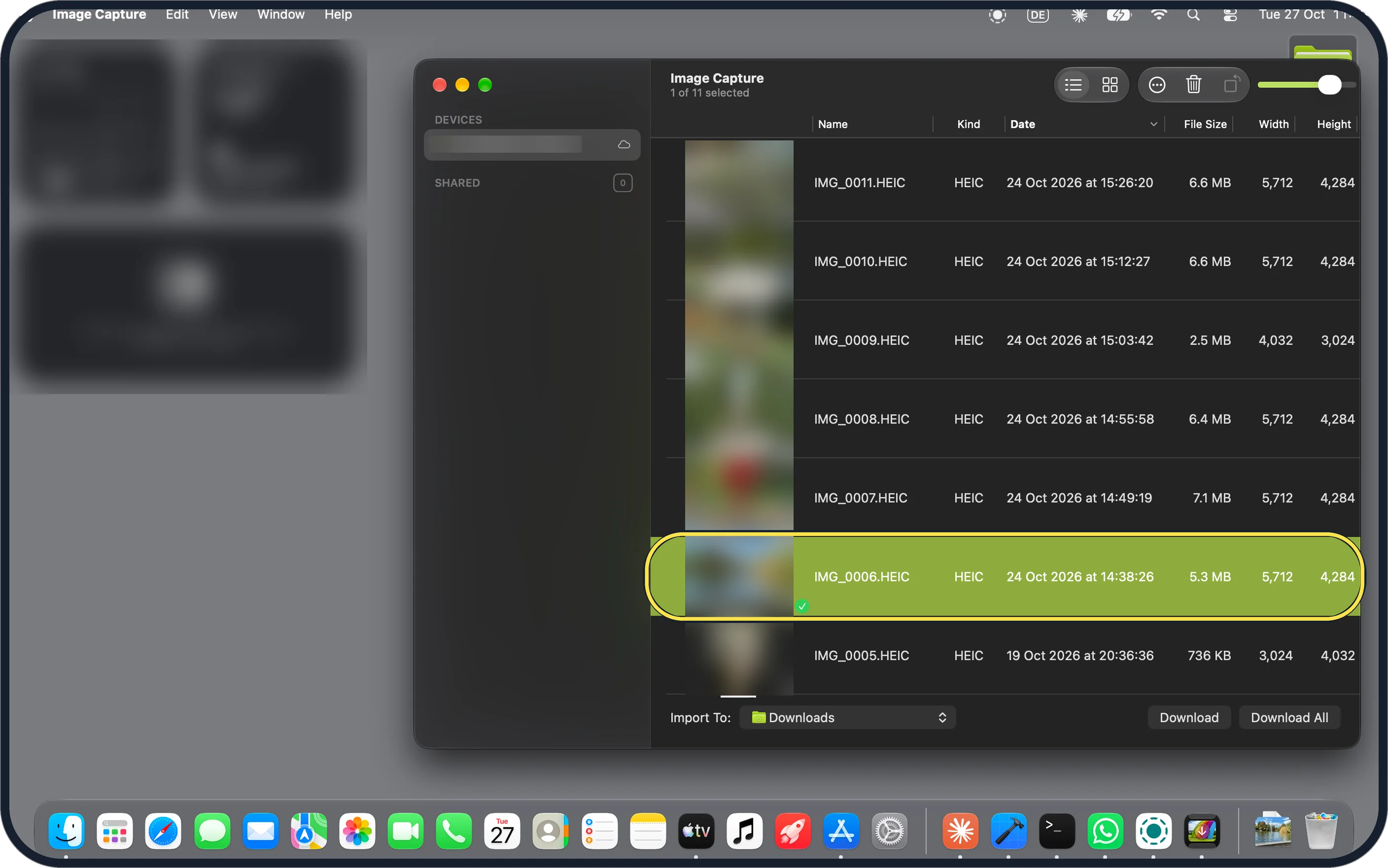
Zoomed in on the setting. Tap to see the whole screenTap the picture to see it full size Select photos and click Download
Click a photo (or several), then Download, or click Download All for everything. We chose Downloads and downloaded IMG_0006.HEIC; a green tick appeared on its row.
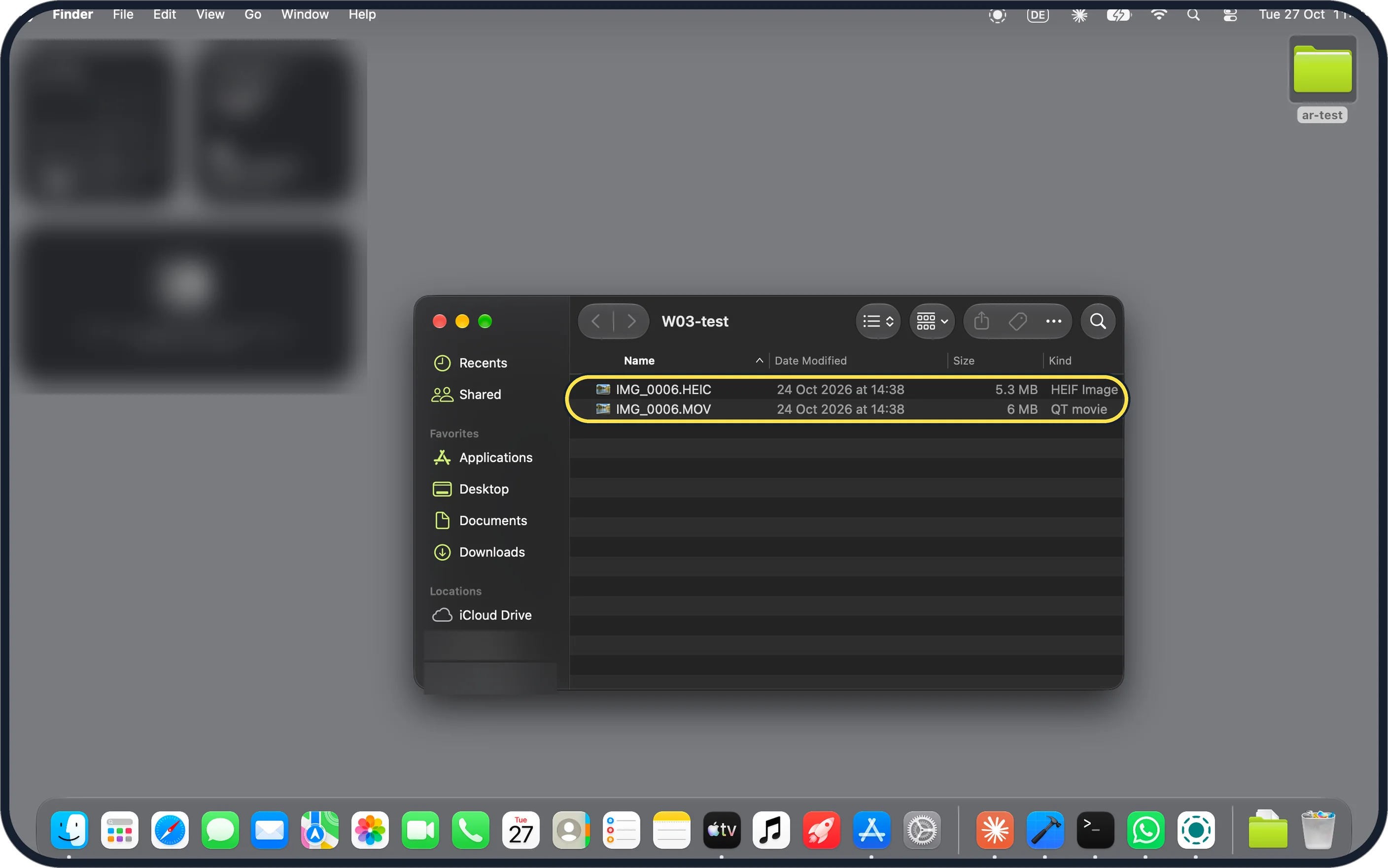
Zoomed in on the setting. Tap to see the whole screenTap the picture to see it full size A Live Photo arrives as two files
In Finder our photo was two files: IMG_0006.HEIC (HEIF Image, 5.3 MB) and IMG_0006.MOV (QT movie, 6 MB). Apple says a Live Photo is downloaded as a still-image file and a video file.
Zoomed in on the setting. Tap to see the whole screenTap the picture to see it full size Or open Photos
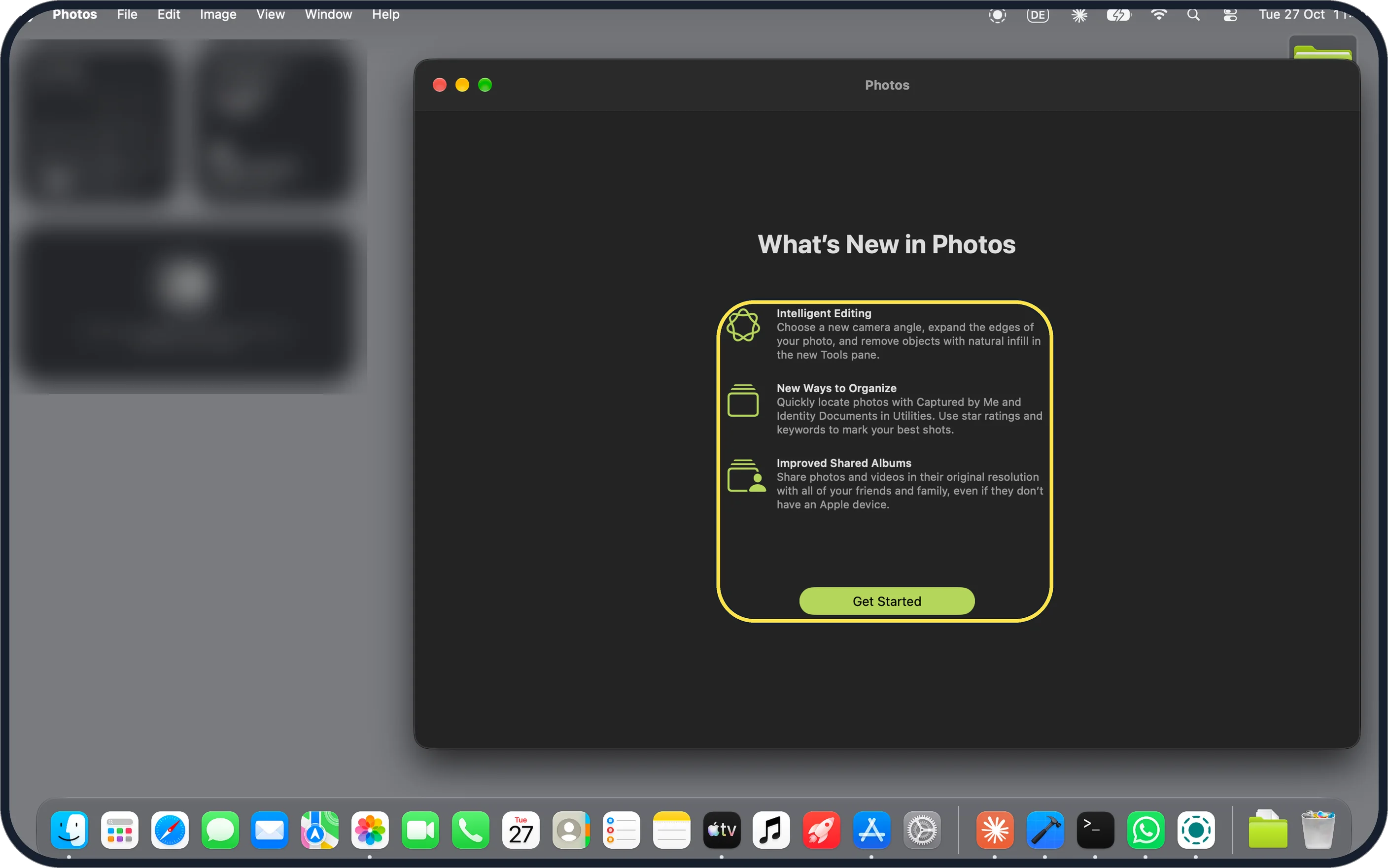
The first time we opened Photos on macOS 27.2 it showed What's New in Photos (Intelligent Editing, New Ways to Organize, Improved Shared Albums). Click Get Started.
Zoomed in on the setting. Tap to see the whole screenTap the picture to see it full size With iCloud Photos, they are already there
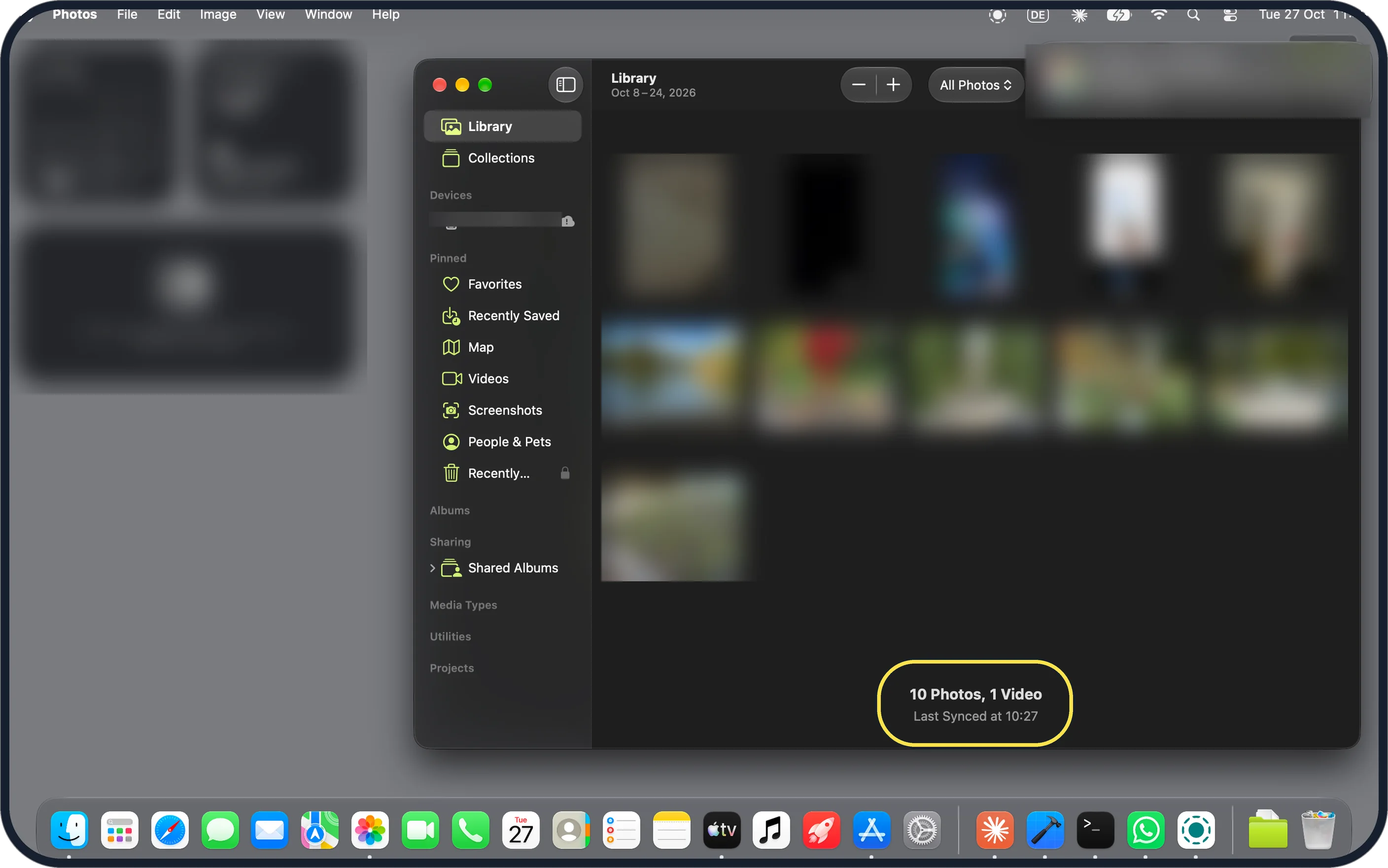
Our Library already held the iPhone's pictures: 10 Photos, 1 Video, Last Synced at 10:27. The iPhone also showed under Devices in the sidebar. Apple says that with iCloud Photos you don't need to import photos from one device to another.
Zoomed in on the setting. Tap to see the whole screenTap the picture to see it full size Import in Photos
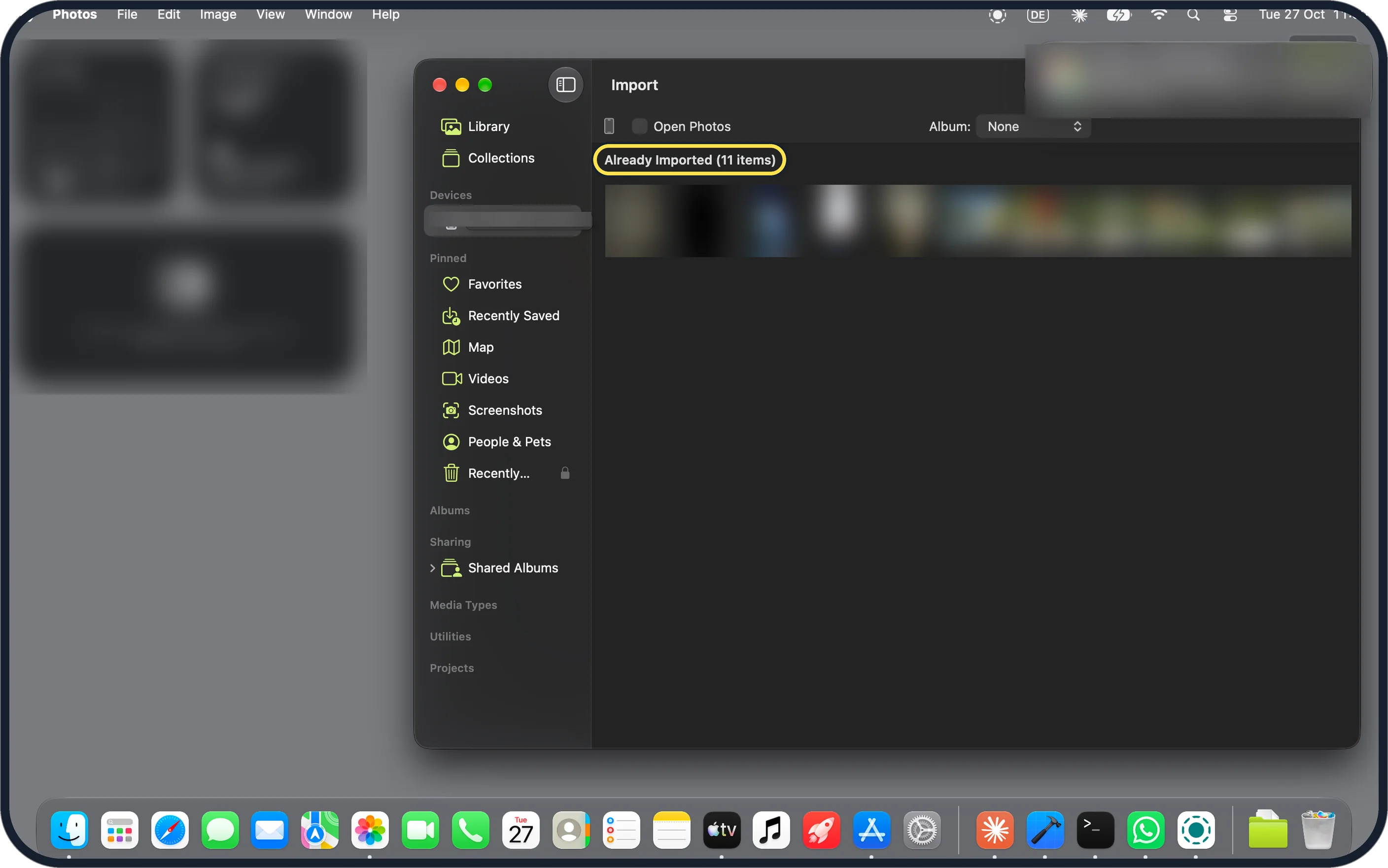
Click the iPhone under Devices. The Import screen has an Album menu (None on ours) and an Open Photos box. Ours said Already Imported (11 items), so a cable import had nothing new to bring in. Without iCloud Photos, Apple says to click Import Selected or Import All New Items.
If you do not see this option
- iPhone not under Devices? Apple says to connect it with a cable and turn it on; you may be asked to unlock it with its passcode or to trust the computer. Ours showed only after we unlocked it. Source: Image Capture User Guide for Mac
- Photos Import screen did not open? Apple says to click the device's name in the Photos sidebar. Source: Transfer photos and videos from your iPhone or iPad to your Mac or PC
If this does not work
- Files end in HEIC? That is the iPhone's photo format; ours were all HEIC. To convert them, see how to convert HEIC photos to JPG on a Mac. Apple says Camera, Formats, Most Compatible makes the iPhone take JPEG photos. Source: Transfer photos and videos from your iPhone or iPad to your Mac or PC
- Hidden photos missing? Apple says that with macOS 15.4 or later, photos and videos in a locked Hidden album are not imported by Image Capture. Source: Image Capture User Guide for Mac
About this guide
We used our iPhone 17e with iOS 27.2 and our MacBook Neo with macOS 27.2 (26B123), joined by a cable, on 27 October 2026, in Dark mode. The Mac's region is the United Kingdom, so dates read like 24 Oct 2026.
We downloaded one photo with Image Capture and deleted the copies afterwards. The Mac's Photos library was already synced with iCloud Photos. We did not try AirDrop.
Good to know
To make the iPhone take JPG photos, see how to make an iPhone take JPG photos instead of HEIC.
For AirDrop problems, see AirDrop not working on a Mac.
In short: Cable, unlock, Image Capture, the iPhone under Devices, Import To, Download. In Photos with iCloud Photos on, the pictures are already in the Library.
- Apple Support: Transfer photos and videos from your iPhone or iPad to your Mac or PC
- Apple Image Capture User Guide: Image Capture User Guide for Mac
Links checked in October 2026. Menus and features can change after software updates. These steps match the version named at the top.
📷 Camera Lab: the same 6 scenes photographed with 11 phones, side by side.
Did this guide work for you?
Sorry about that. What happened?