
howtosimply.com/guides/how-to-take-a-selfie-by-showing-your-palm-on-a-samsung-galaxy/ · Checked October 2026 · Samsung Galaxy A57 5G (SM-A576B), One UI 8.5, Android 16
In this guide
Open Camera, the settings gear, Shooting methods and turn on Show palm. Switch to the front camera and hold your open palm towards it; a short countdown starts and the photo is taken without touching the screen.
2 of 3 steps with real screenshots · 3 official sources below
- Device
- Android
- Shown on
- Samsung Galaxy A57 5G (SM-A576B), One UI 8.5, Android 16
- App
- Camera
- Real screenshots
- 2 of 3 steps
- What we did
- Observed: looked at each screen, changed nothing
- Our phone
- Shown on Galaxy A57, One UI 8.5
- Checked
- October 2026
- Sources
- 3 official, linked below
Step by step
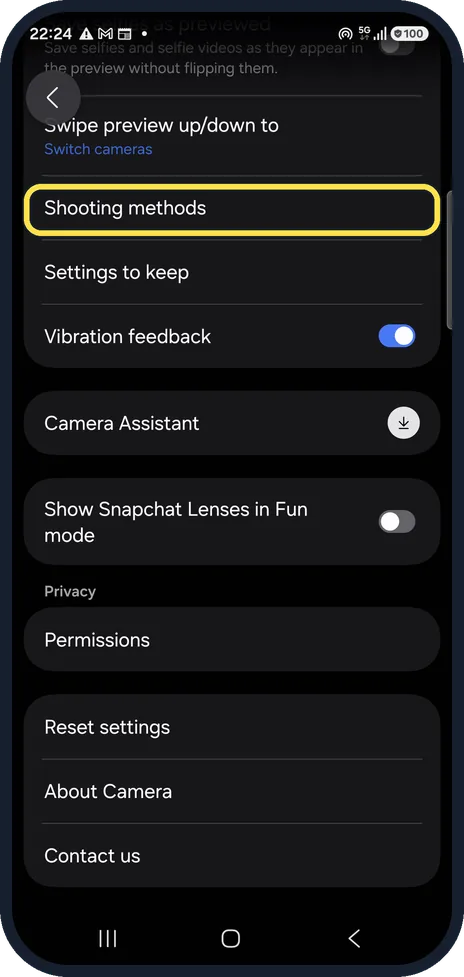
Open Shooting methods
In Camera settings, scroll down and tap Shooting methods.
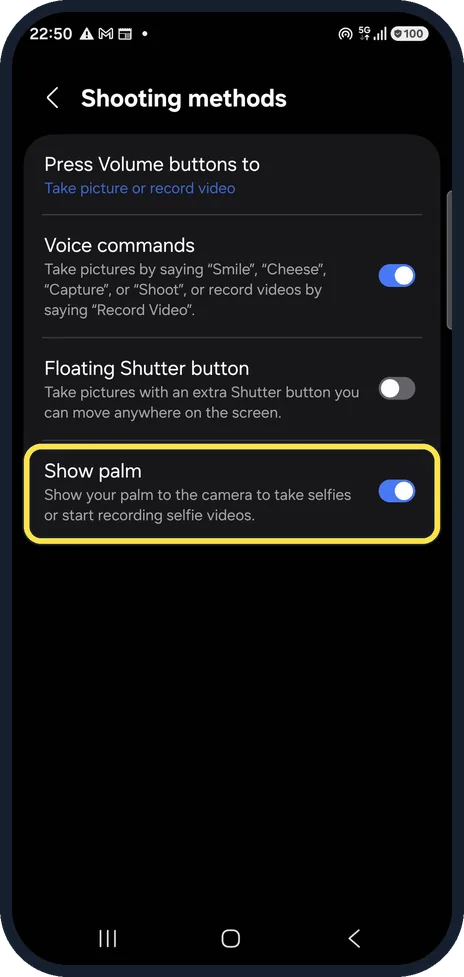
Turn on Show palm
Show palm is on on ours, as was Voice commands; Floating Shutter button was off. Its line says it takes selfies or starts selfie videos when you show your palm to the camera.
Show your palm to the front camera
Switch to the front camera, hold the phone or prop it up, and raise your open palm towards the lens until the countdown starts.
If you do not see this option
- You are using the rear camera Samsung describes Show palm as a way to take selfies, so switch to the front camera first. Source: What are the different camera modes and how do I use them?
- You would rather not raise your hand Shooting methods also has voice control. Samsung says you can take a picture by saying smile, cheese, capture or shoot, and record video by saying record video. Source: What are the different camera modes and how do I use them?
If this does not work
- The picture is taken before you are ready Samsung says that after you show your palm you have a few seconds to pose before the picture is taken. Lower your hand and pose straight away. Source: What are the different camera modes and how do I use them?
- The volume buttons take pictures instead In the same Shooting methods page, Press Volume buttons to can be set to take pictures. Samsung says the volume then cannot be changed while you record video. Source: Galaxy A Series Camera App: A16, A26, A36, and A56 5G
About this guide
Show palm is handy for group selfies and photos with the phone propped up, and it avoids the shake of pressing the shutter.
Good to know
The same page has other hands-free options: Voice commands ("Smile", "Cheese", "Capture" or "Shoot") and a Floating Shutter button you can move around the screen.
In short: Camera settings, Shooting methods, Show palm on; front camera, show your palm.
- Samsung Latin: How to take photos showing the palm of your hand with your Samsung Galaxy phone
- Samsung UK: What are the different camera modes and how do I use them?
- Samsung US: Galaxy A Series Camera App: A16, A26, A36, and A56 5G
Links checked in October 2026. Menus and features can change after software updates. These steps match the version named at the top.
📷 See real photos from the Galaxy A57 in our Camera Lab, next to 10 other phones.
Did this guide work for you?
Sorry about that. What happened?