SAMSUNG GALAXY
How to see when and where a photo was taken on a Samsung Galaxy
Open the photo in Gallery and swipe up on it. The details show the date and time, the file name, the folder it is saved in, its size in KB or MB, its resolution and megapixels, and the location if one was saved.

2 of 3 steps show a real screenshot from our Galaxy A57 5G. Each step was checked against the maker's own instructions, linked at the end.
- 1
Open the photo
Open Gallery and tap the photo so it fills the screen.
- 2
Swipe up for the date and folder
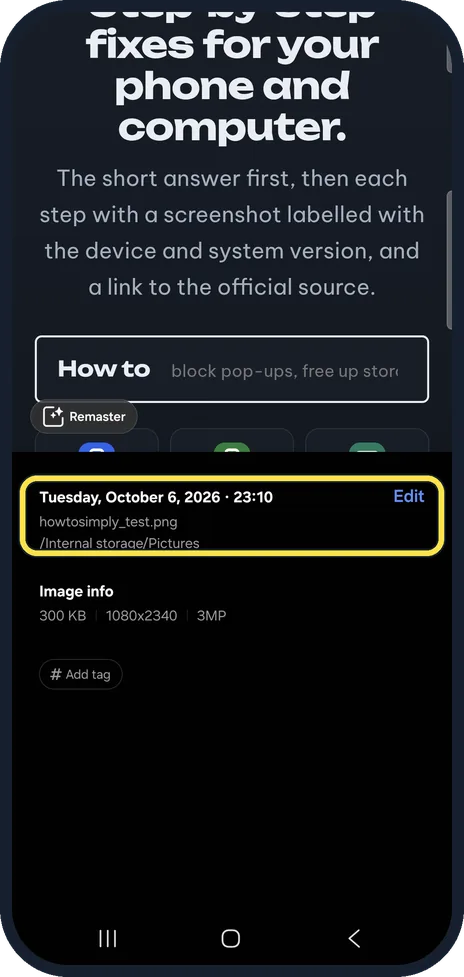
Swipe up on the photo. The top line shows the date and time; below it are the file name and the folder, here /Internal storage/Pictures.
- 3
Check the size and resolution
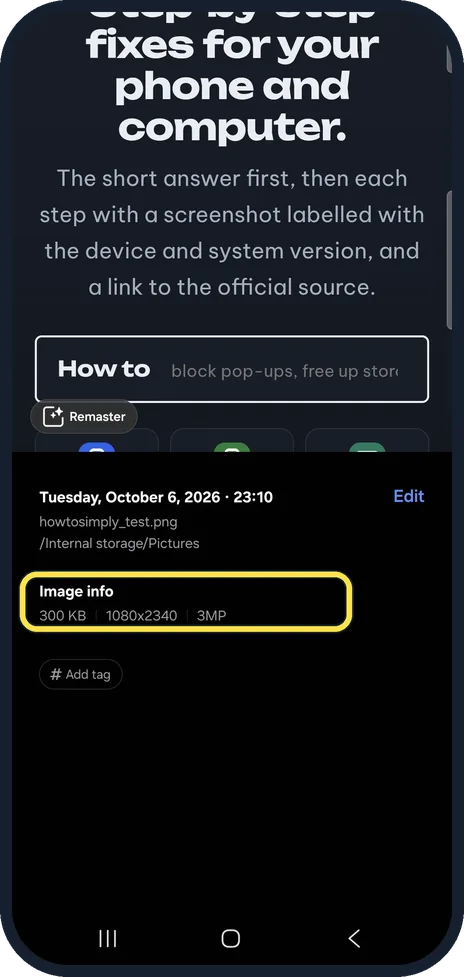
Image info shows the file size and the resolution. Our test picture is 300 KB, 1080x2340 and 3MP.
If you do not see this option
- No map or place shows for a photo someone sent Samsung says that when the sender ticks Remove location data while sharing from Gallery, the phone that receives it cannot show where the photo was taken. Source: Removing Location Data from Photos in the Gallery
- A photo from Samsung Messages has no location Samsung says Auto Blocker's Maximum restrictions removes location data from pictures sent through the Messages app. Source: Why Is Photo Location Removed on Galaxy Z Fold6 and Z Flip6?
If this does not work
- The date is when you saved it Samsung says a downloaded picture shows the date and time it was downloaded, not when it was taken.
- You want to correct the date Samsung says the date and time of a photo cannot be changed in Gallery.
Good to know
For a downloaded picture, the date is when it was downloaded, not when it was first taken, Samsung notes.
Our test picture has no saved location, so no map shows. Photos with a saved location show one in the same panel.
Tap Edit next to the date to rename the photo, Samsung says.
About this guide
- Device
- Android
- Shown on
- Samsung Galaxy A57 5G (SM-A576B), One UI 8.5, Android 16
- Real screenshots
- 2 of 3 steps
- Checked
- October 2026
- Sources
- 4 official, linked below
Sources
Links checked October 2026. Menus and features can change with updates.Did this guide work for you?
Sorry about that. What happened?