
howtosimply.com/guides/how-to-blur-part-of-a-photo-on-a-samsung-galaxy/ · Checked October 2026 · SM-A576B), One UI 9, Android 17 (build A576BXXU6BZIE · Samsung Galaxy A57
In this guide
Open the photo in Gallery, tap the pencil (Edit), the smiley face (Decorations), then Draw. Pick the Mosaic pen, the third pen, and paint over what you want hidden, then Save.
5 of 5 steps with real screenshots · 1 official source below
- Device
- Android
- Shown on
- Samsung Galaxy A57 (SM-A576B), One UI 9, Android 17 (build A576BXXU6BZIE)
- Real screenshots
- 5 of 5 steps
- Checked
- October 2026
- Sources
- 1 official, linked below
Step by step
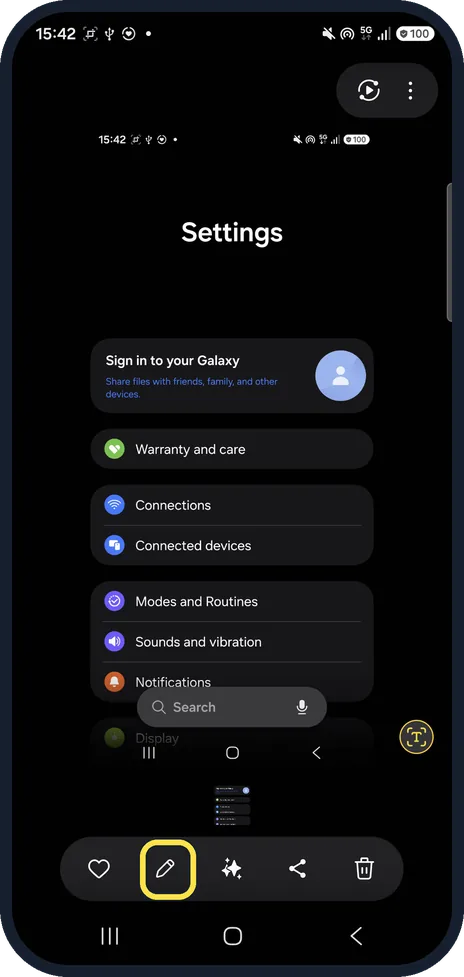
Open the photo and tap the pencil
The pencil (Edit) is in the bar at the bottom of the Gallery viewer, next to the heart.
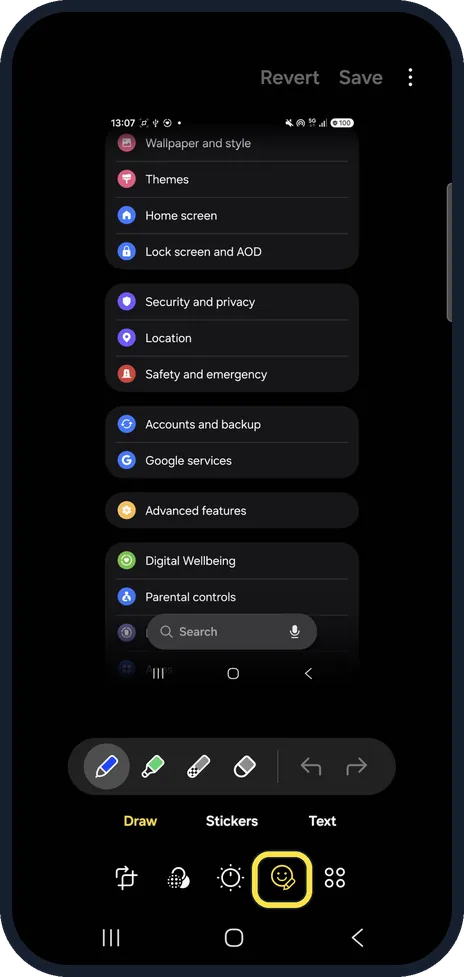
Tap the smiley face (Decorations)
Draw opens with four pens, shown as icons: a pen, a highlighter, the Mosaic pen (chequered tip) and an eraser.
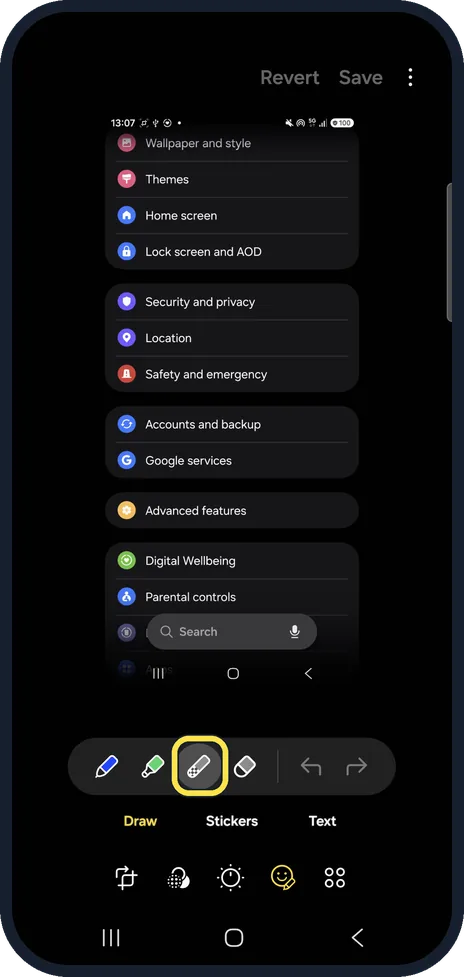
Pick the Mosaic pen
It is the third pen.
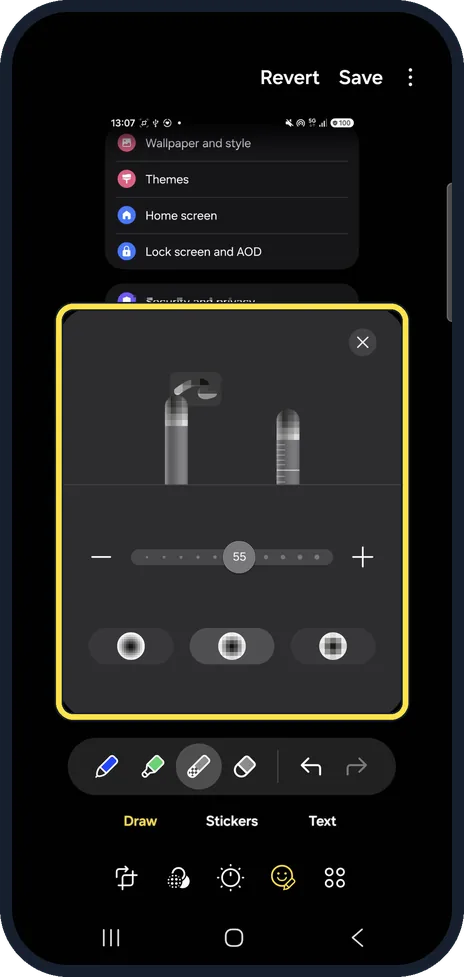
Set size and style (optional)
Tap the Mosaic pen again: a slider sets the size (55 on ours) and three styles change the pattern.
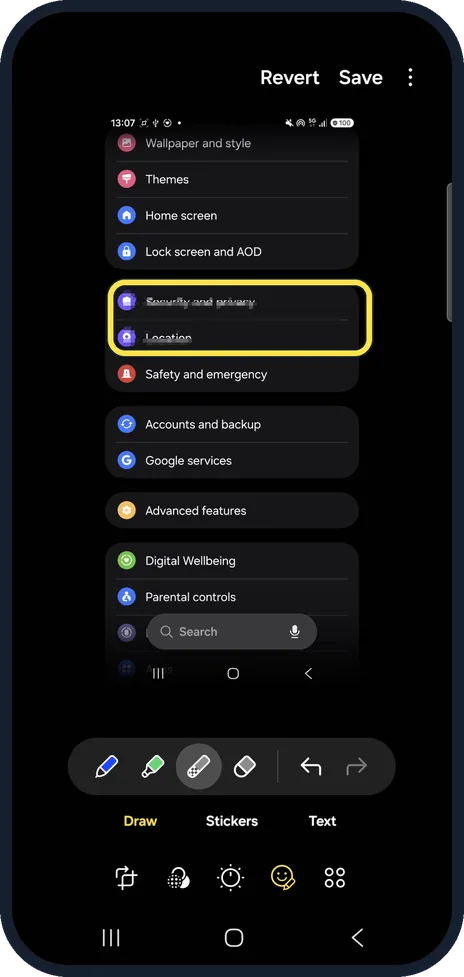
Paint over it and tap Save
Ours hid two rows of the picture. Revert undoes everything.
If you do not see this option
- No Draw option? Samsung says tap the Decorations icon (the smiley face), then Draw. Source: Edit photos or videos on your Galaxy phone or tablet
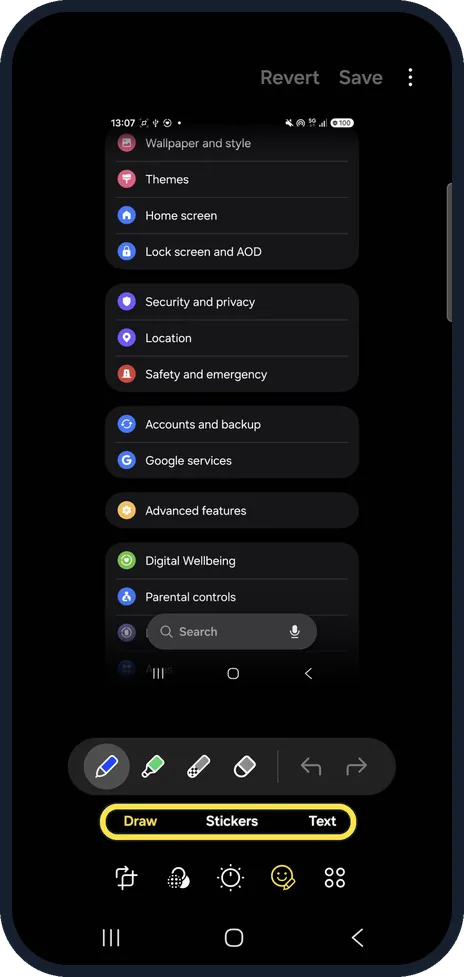
- Want stickers or text instead? Stickers and Text sit next to Draw in the same Decorations row.
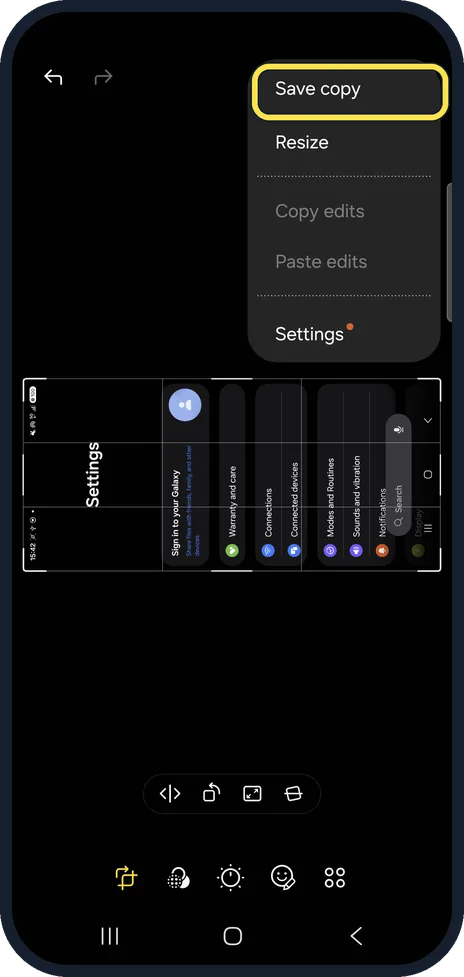
- Want to keep the original photo too? Samsung says More options, then Save as copy. On our One UI 9 the three dots menu said Save copy. Source: Edit photos or videos on your Galaxy phone or tablet
If this does not work
- Painted too much? Use the Eraser (fourth pen) or the undo arrow before Save.
- Changed your mind after saving? Save asked us Save over the original? and said you can always tap Revert. In the viewer, the three dots menu then had Revert to original. Samsung gives the same. Source: Edit photos or videos on your Galaxy phone or tablet
About this guide
Gallery's Mosaic pen pixelates whatever you paint over, such as a name or a number. It needs no Samsung account.
The screenshots are from our Samsung Galaxy A57 (SM-A576B) with One UI 9 and Android 17, in Dark mode, taken on 25 October 2026. We tried it on a screenshot.
Good to know
To hide part of a long page, take a scrolling screenshot first, then blur it.
In short: Gallery, pencil, smiley face, Draw, Mosaic pen, paint, Save.
Links checked in October 2026. Menus and features can change after software updates. These steps match the version named at the top.
📷 See real photos from the Galaxy A57 in our Camera Lab, next to 10 other phones.
Did this guide work for you?
Sorry about that. What happened?