
howtosimply.com/guides/how-to-send-hd-photos-and-videos-on-whatsapp-on-android/ · Checked October 2026 · Google Pixel 10a, Android 17 (build CP3A.261005.005), WhatsApp 2.26.41.77
In this guide
Open WhatsApp Settings, Storage and data, Media upload quality and choose HD quality, then Save. Ours was on Standard quality. You can also switch one photo to HD with the HD button in the editor before sending.
5 of 5 steps with real screenshots · 1 official source below
- Device
- Android
- Shown on
- Google Pixel 10a, Android 17 (build CP3A.261005.005), WhatsApp 2.26.41.77
- App
- Real screenshots
- 5 of 5 steps
- Checked
- October 2026
- Sources
- 1 official, linked below
Step by step
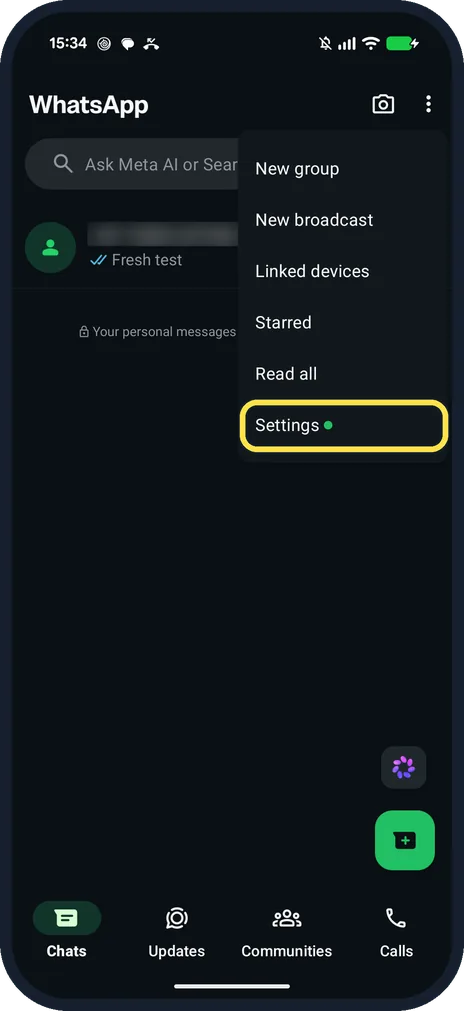
Open WhatsApp Settings
On the Chats tab, tap the three dots at the top right, then Settings.
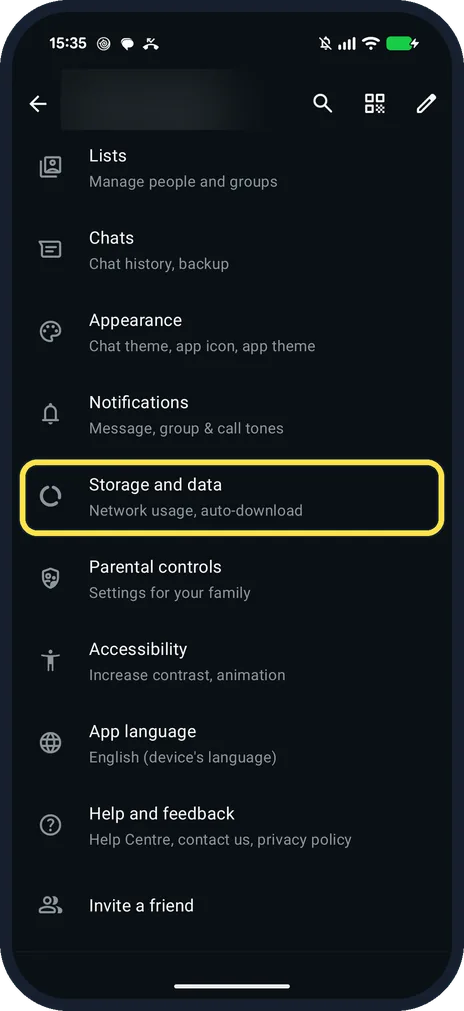
Tap Storage and data
It is below Notifications: Network usage, auto-download.
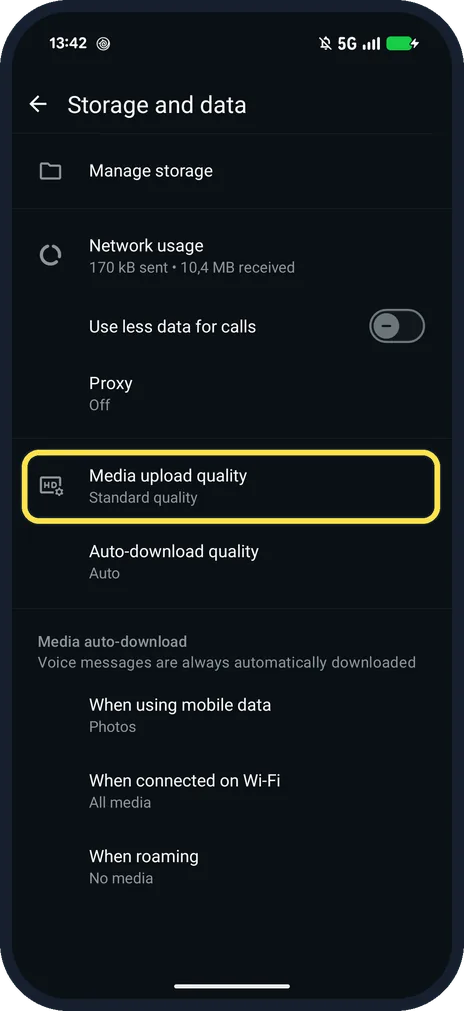
Tap Media upload quality
Ours said Standard quality.
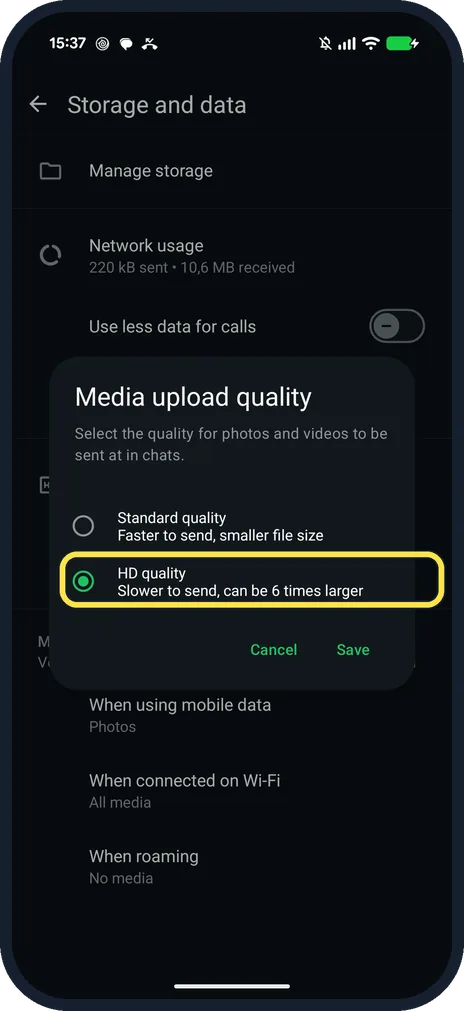
Choose HD quality and tap Save
Standard quality: Faster to send, smaller file size. HD quality: Slower to send, can be 6 times larger.
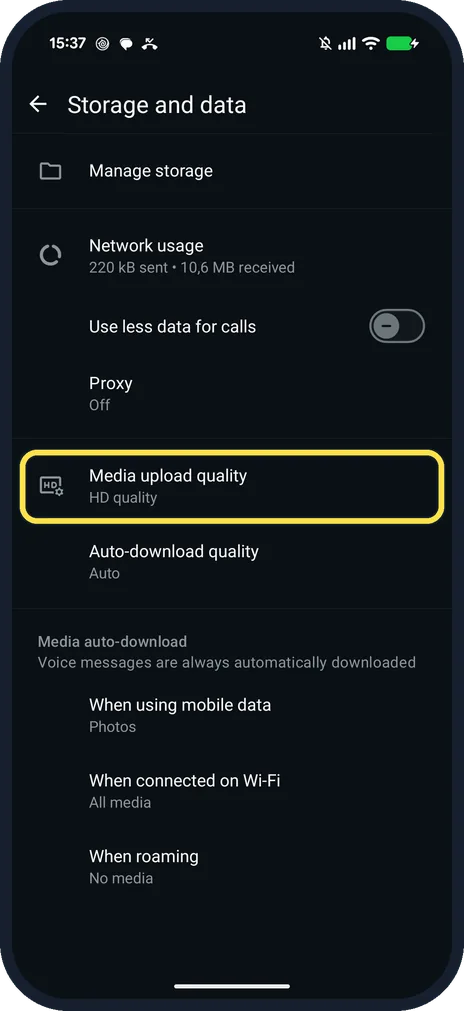
Check it says HD quality
The row under Media upload quality changes to HD quality.
If you do not see this option
- Only one photo in HD? Tap the HD button at the top of the photo editor before you send, then HD quality. Ours was next to the download button. WhatsApp gives the same. Source: How to edit photos and videos
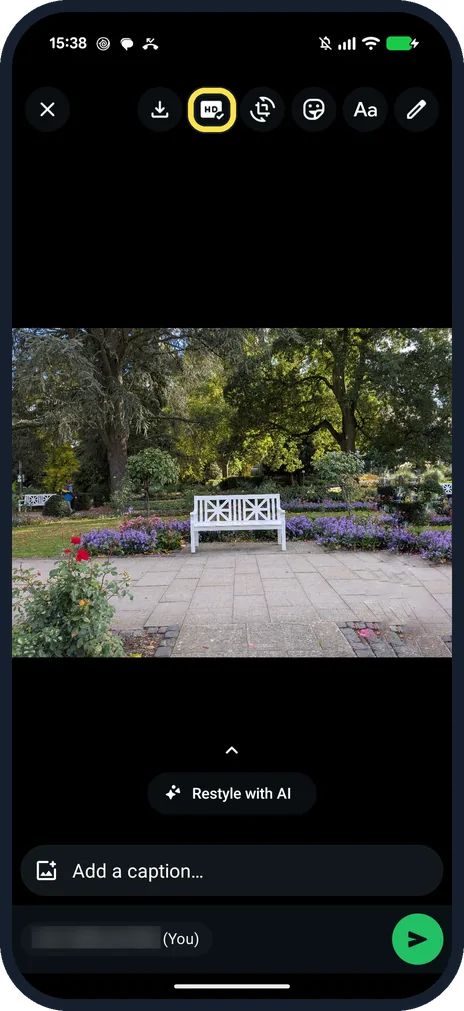
- HD for Status or profile photo? WhatsApp says HD isn't currently available for status updates or profile pictures. Source: How to edit photos and videos
If this does not work
- HD photos use lots of data? WhatsApp says HD photos and videos use more data and take longer to send. Switch back to Standard quality on mobile data. Source: How to edit photos and videos
- Received photos look soft? WhatsApp says the quality is chosen when sending. Ask the sender to pick HD quality. Source: How to edit photos and videos
About this guide
WhatsApp sends in Standard quality unless you change it. The page says HD is slower to send and can be 6 times larger.
The screenshots are from our Google Pixel 10a with Android 17 and WhatsApp 2.26.41.77, in Dark mode, taken on 25 October 2026. We switched to HD quality for the shots, then back to Standard.
Good to know
To keep received videos from filling the phone, see stop WhatsApp auto-downloading media.
In short: WhatsApp, three dots, Settings, Storage and data, Media upload quality, HD quality, Save.
Links checked in October 2026. Menus and features can change after software updates. These steps match the version named at the top.
📷 See real photos from the Pixel 10a in our Camera Lab, next to 10 other phones.
Did this guide work for you?
Sorry about that. What happened?