
What changed: steps that look different now show our own iPhone 14 Pro on iOS 27.0.1, with the wording checked against that screen.
howtosimply.com/guides/how-to-set-default-alert-times-for-calendar-events-on-an-iphone/ · Checked October 2026 · iPhone 14 Pro · iOS 27.0.1
In this guide
Open Settings, tap Apps, then Calendar, scroll down and tap Default Alert Times. Tap Birthdays, Events or All-Day Events and choose when the alert should come. All three are set to None at first, so new events have no alert unless you add one by hand.
3 of 5 steps with real screenshots · 1 official source below
- Device
- iPhone
- Shown on
- iOS 27.0.1 (iPhone 14 Pro)
- App
- Settings
- Path
- Settings › Apps › Calendar › Default Alert Times
- Real screenshots
- 3 of 5 steps
- Checked
- October 2026
- Sources
- 1 official, linked below
Step by step
Open Settings and tap Apps
Apps is near the bottom of the main Settings list.
Tap Calendar
The apps are in alphabetical order, so Calendar is near the top, under C.
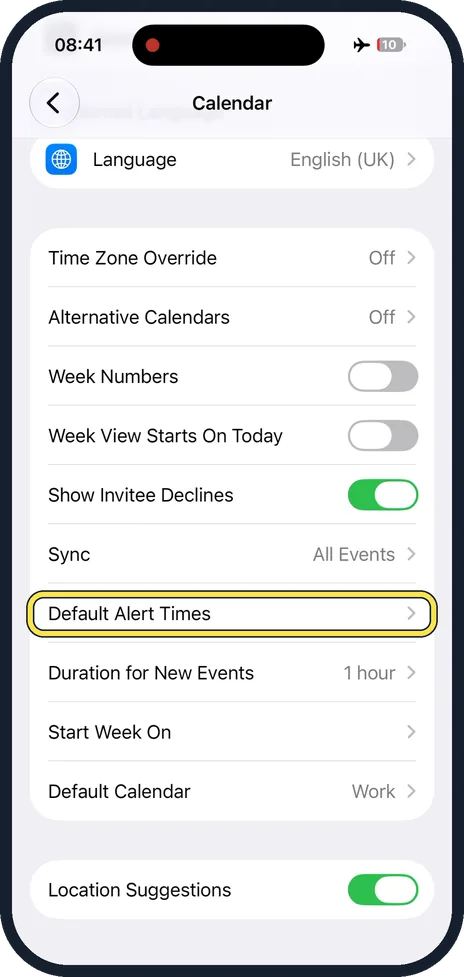
Scroll down and tap Default Alert Times
It is in the lower half of the page, below Sync.
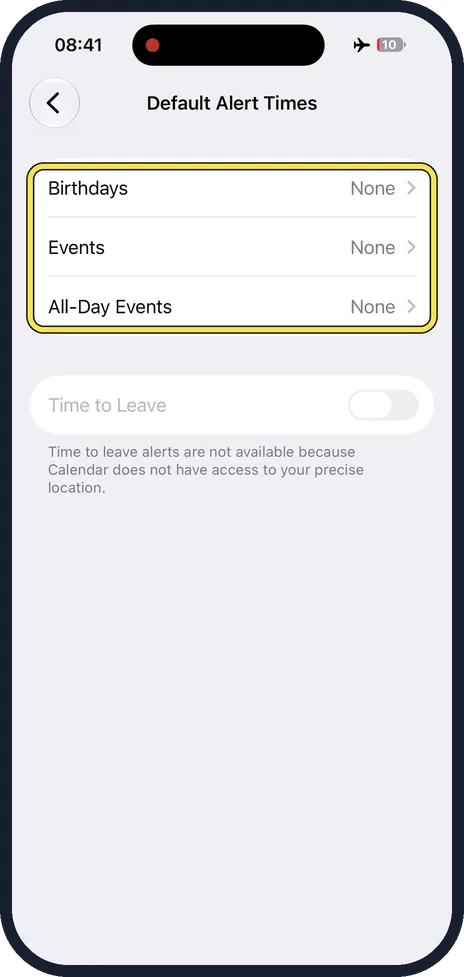
Tap Birthdays, Events or All-Day Events
Each kind has its own default. The word at the right shows the current one. Tap a row and pick a time from the list.
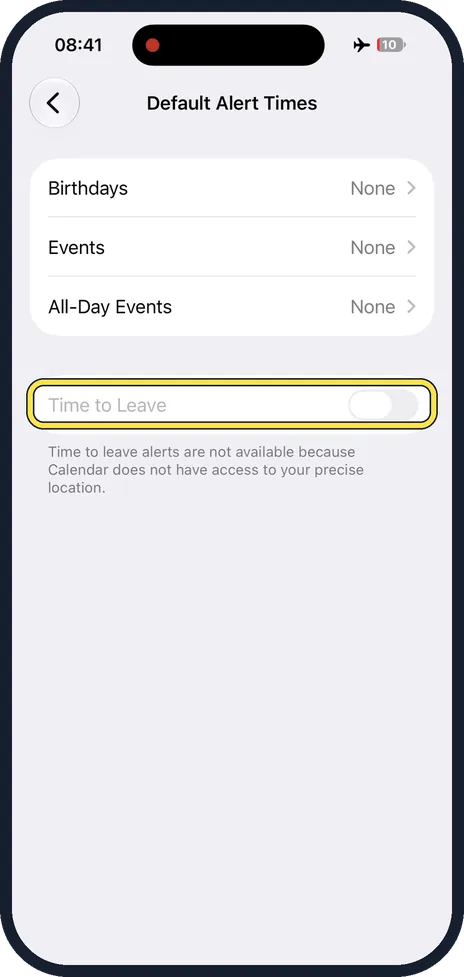
Check Time to Leave
Time to Leave is a switch on the same page. The note below explains why: these alerts are not available because Calendar does not have access to the precise location.
What changed: steps that look different now show our own iPhone 14 Pro on iOS 27.0.1, with the wording checked against that screen.
About this guide
A new iPhone does not remind you of calendar events on its own: the default alert is None. Set a default once, and each new event of that kind gets the alert without you adding it every time.
Good to know
The row below Default Alert Times, Duration for New Events, sets how long a new event lasts. It is 1 hour at first.
In short: Settings, Apps, Calendar, Default Alert Times, choose a time for each kind.
Links checked in October 2026. Menus and features can change after software updates. These steps match the version named at the top.
Did this guide work for you?
Sorry about that. What happened?