
What changed: the screenshots are now our own iPhone 17e on iOS 27.0.1, dark mode, and the wording is checked against those screens and Apple's iOS 27 guide.
howtosimply.com/guides/how-to-avoid-tolls-and-highways-in-apple-maps-on-an-iphone/ · Checked October 2026 · iPhone 17e · iOS 27.0.1
In this guide
Open Settings, tap Apps, then Maps, and tap Driving under Directions. Under Avoid, switch on Tolls, Motorways or both. Maps then plans driving routes around them, and shows Avoids motorways on routes that do.
5 of 5 steps with real screenshots · 4 official sources below
- Device
- iPhone
- Shown on
- iOS 27.0.1 (iPhone 17e)
- App
- Settings
- Path
- Settings › Apps › Maps › Driving
- Real screenshots
- 5 of 5 steps
- Checked
- October 2026
- Sources
- 4 official, linked below
Step by step
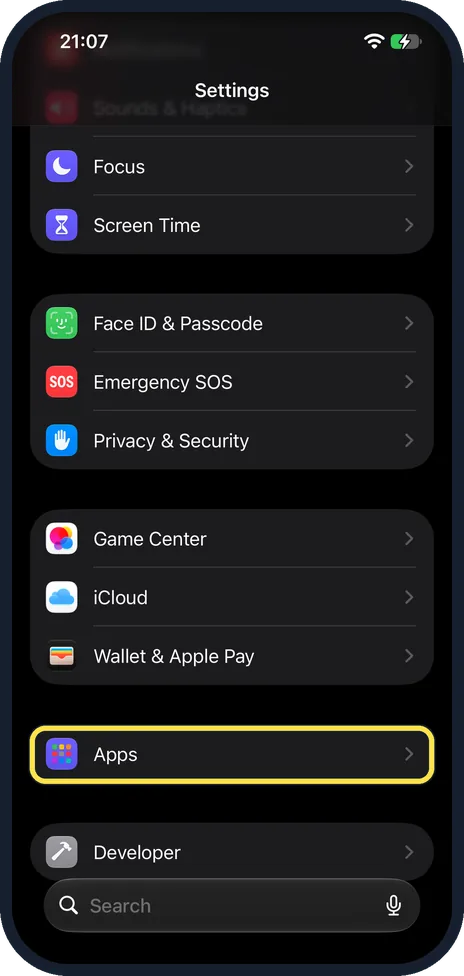
Open Settings and tap Apps
Scroll down and tap Apps. On our iPhone 17e it was in a group of its own, below Game Center, iCloud and Wallet & Apple Pay.
Watch these steps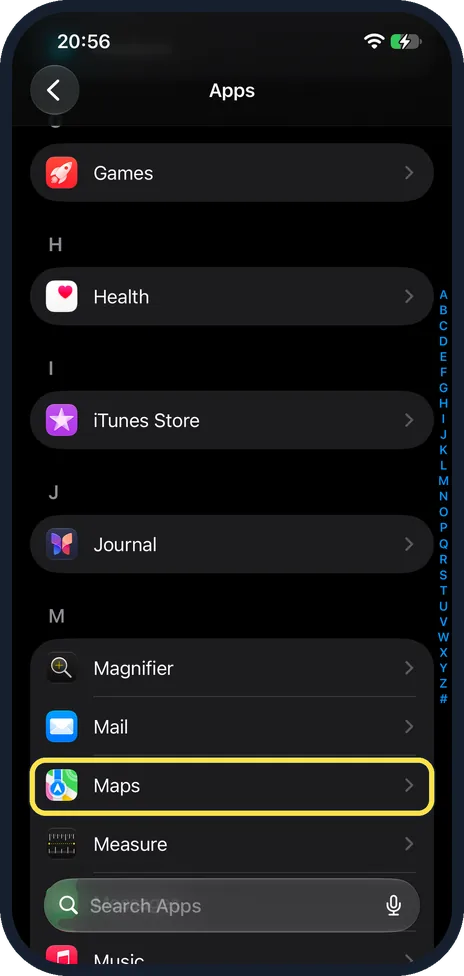
Tap Maps
The apps are in alphabetical order, so Maps is under M. On our iPhone 17e it was the third row under M, below Magnifier and Mail and above Measure. You can also tap M in the letter index at the right edge.
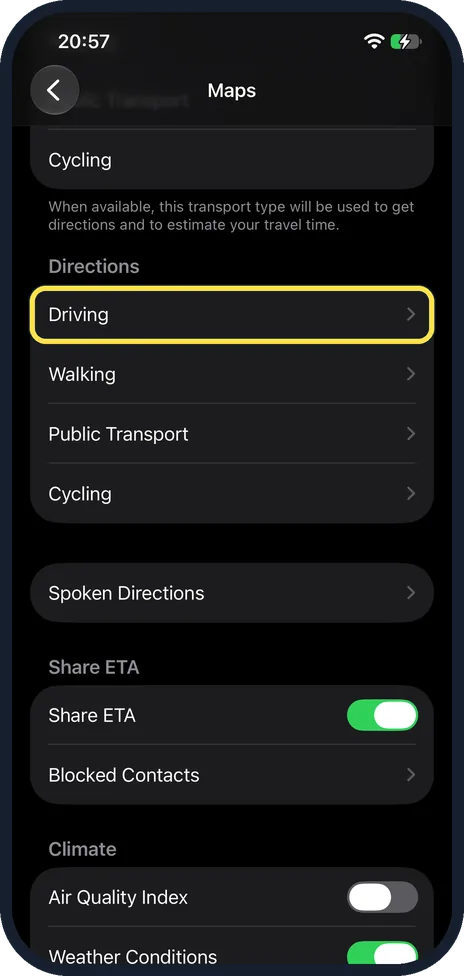
Scroll down to Directions and tap Driving
Directions has Driving, Walking, Public Transport and Cycling rows, each with an arrow. The group above it only sets your usual way of travel. Tap Driving under Directions.
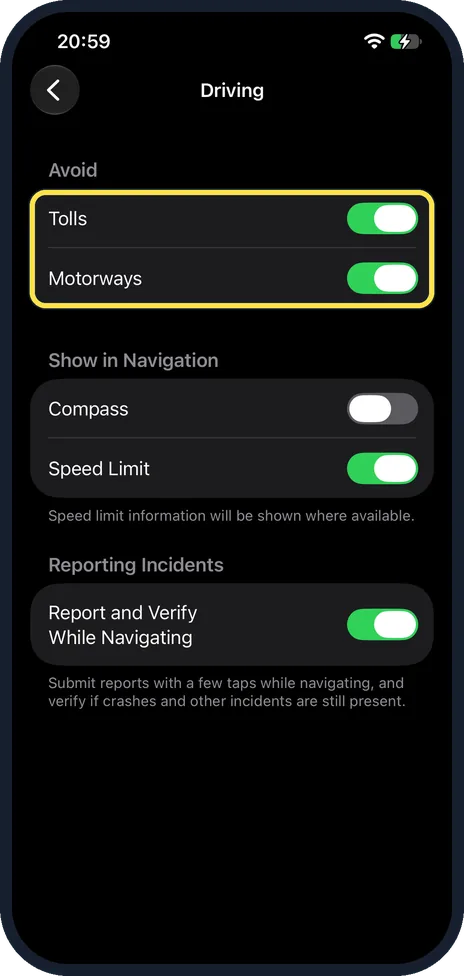
Switch on Tolls, Motorways or both
Under Avoid, switch on Tolls, Motorways or both. On our iPhone 17e both were off at first; the screenshot shows both switched on.
Check a route in Maps
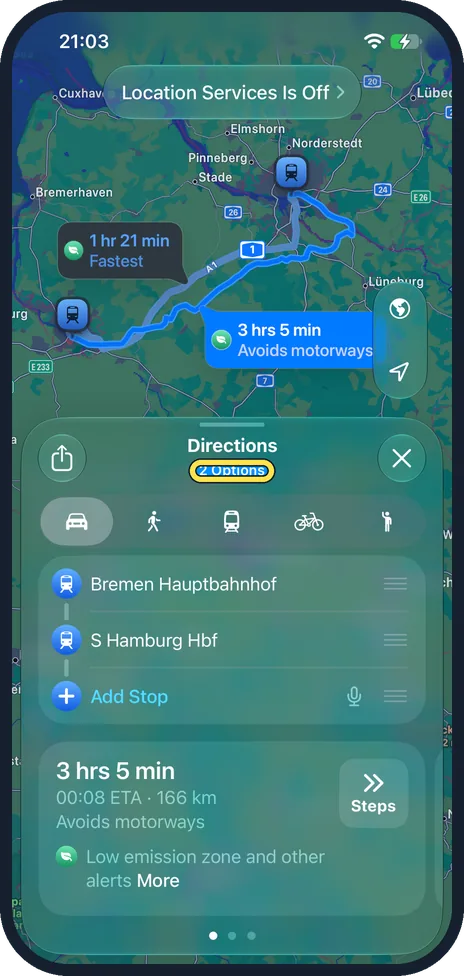
Get driving directions in Maps. On our iPhone 17e the route from Bremen Hauptbahnhof to S Hamburg Hbf showed 3 hrs 5 min, Avoids motorways, with 2 Options below Directions.
What changed: the screenshots are now our own iPhone 17e on iOS 27.0.1, dark mode, and the wording is checked against those screens and Apple's iOS 27 guide.
Watch these steps
If you do not see this option
- You only want this for one trip. In Maps, get driving directions, tap Options below Directions and switch on Tolls or Motorways below Avoid. Apple Support says that is for that route only. On our iPhone 17e the button read 2 Options when both were on. Source: Get driving directions in Maps on iPhone · Source: Use Maps on iPhone · Source: Set up Maps on iPhone · Source: Get driving directions in Maps on iPhone (iOS 26)
- Your iPhone runs iOS 26 and directions have no Options button. Apple's iOS 26 guide (Get driving directions in Maps on iPhone) says to tap Avoid below the destination instead. Source: Get driving directions in Maps on iPhone · Source: Use Maps on iPhone · Source: Set up Maps on iPhone · Source: Get driving directions in Maps on iPhone (iOS 26)
- You look for Transit under Directions. On our iPhone 17e, set to UK English, the row is called Public Transport. Driving is the first row under Directions.
If this does not work
- Maps does not give driving directions at all. Apple says the iPhone must be connected to the internet and Precise Location must be on to get directions. Open Settings, tap Privacy & Security, then Location Services. Check that Location Services is on, then tap Maps. Apple's steps say to turn on Precise Location on that Maps page. Source: Get driving directions in Maps on iPhone · Source: Use Maps on iPhone · Source: Set up Maps on iPhone · Source: Get driving directions in Maps on iPhone (iOS 26)
- Directions open for walking, public transport or cycling. Your usual type of travel is not Driving. Apple Support says to tap the driving button then. Or change it on the Maps settings page, in the group above Directions. Source: Get driving directions in Maps on iPhone · Source: Use Maps on iPhone · Source: Set up Maps on iPhone · Source: Get driving directions in Maps on iPhone (iOS 26)
- Maps still shows a route on motorways. On our iPhone 17e Maps also showed a 1 hr 21 min route marked Fastest next to the 3 hrs 5 min route marked Avoids motorways. Pick the route that says Avoids motorways, or tap Options and check that Tolls and Motorways are on.
About this guide
Apple Maps picks driving routes that may use toll roads and motorways. If you do not want to pay tolls, or prefer smaller roads, two switches change that for every route. They are in the Settings app.
Screenshots: iPhone 17e, iOS 27.0.1, dark mode.
Good to know
For one route only: in Maps, get driving directions, tap Options below Directions, and make your choices below Avoid. On our iPhone 17e the button read 2 Options while both switches were on, and the Options sheet also had Leave Now, Leave At, Arrive By and a Reset button.
The same page has Report and Verify While Navigating, which was on on our iPhone 17e. According to the text on the page, it lets you submit reports with a few taps while navigating and verify whether crashes and other incidents are still present.
The Driving page also has Show in Navigation with Compass and Speed Limit. On our iPhone 17e Compass was off and Speed Limit was on, with the note: Speed limit information will be shown where available.
For areas without a signal: how to download offline maps on an iPhone.
In short: Settings, Apps, Maps, Driving, switch on Tolls or Motorways under Avoid.
- Apple Support: Get driving directions in Maps on iPhone
- Apple iPhone User Guide: Use Maps on iPhone
- Apple iPhone User Guide: Set up Maps on iPhone
- Apple iPhone User Guide: Get driving directions in Maps on iPhone (iOS 26)
Links checked in October 2026. Menus and features can change after software updates. These steps match the version named at the top.
Did this guide work for you?
Sorry about that. What happened?