
What changed: the screenshots are now our own iPhone 17e on iOS 27.0.1, dark mode, and the wording is checked against those screens.
howtosimply.com/guides/how-to-download-offline-maps-on-an-iphone/ · Checked October 2026 · iPhone 17e · iOS 27.0.1
In this guide
Open Apple Maps, tap your picture next to the search field, tap Offline Maps, then Download Map. Search for the place, adjust the frame and tap Download. The map then works without mobile data.
4 of 4 steps with real screenshots · 1 official source below
- Device
- iPhone
- Shown on
- iOS 27.0.1 (iPhone 17e)
- App
- Maps
- Real screenshots
- 4 of 4 steps
- Checked
- October 2026
- Sources
- 1 official, linked below
Step by step
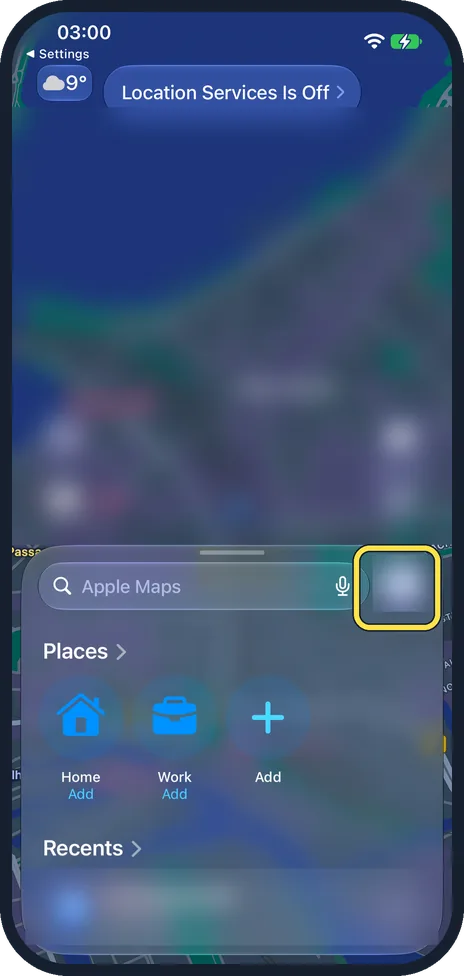
Open Maps and tap your picture
It is next to the search field.
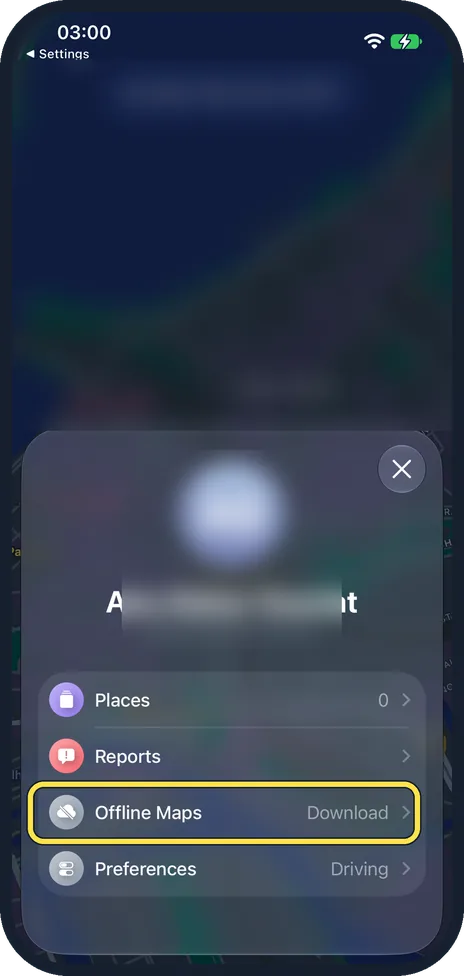
Tap Offline Maps
It is in the menu that opens, between Reports and Preferences. Ours showed Download next to it, as no map was saved yet.

Tap Download Map
With no maps saved yet, the page shows Download a Map. Tap Download Map, then search for a city or region.
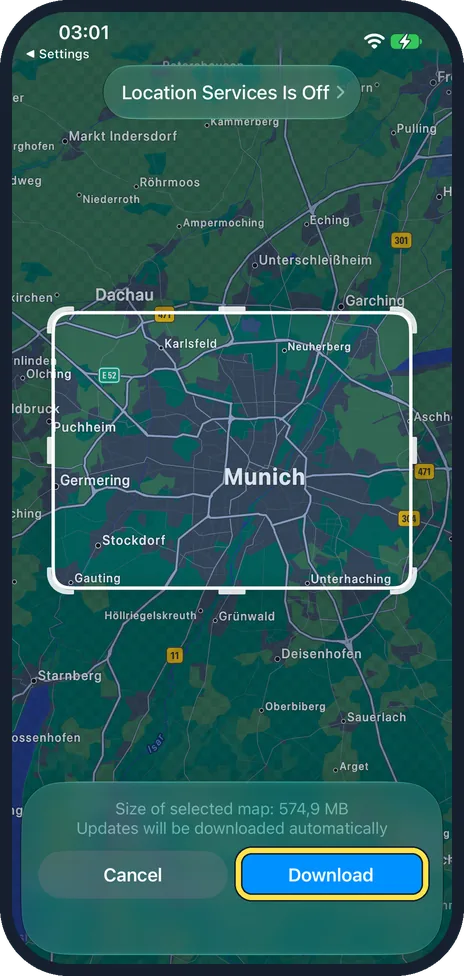
Adjust the area and tap Download
Drag the corners of the frame. The size of the download is shown below. For the Munich area, ours showed 574,9 MB, written with a decimal comma because our iPhone is set to Germany. Below it the panel said: updates will be downloaded automatically.
What changed: the screenshots are now our own iPhone 17e on iOS 27.0.1, dark mode, and the wording is checked against those screens.
If you do not see this option
- Offline Maps is not offered. Apple says offline maps are not available in all countries or regions. Source: Download offline maps in Maps on iPhone
- You want to start from the map. Touch and hold the map until a pin appears, then tap Download. Source: Download offline maps in Maps on iPhone
- Current Location does not work. Our iPhone showed Location Services Is Off at the top of the map, so we searched for Munich instead.
If this does not work
- The download waits for Wi-Fi. On the Offline Maps page, tap Wi-Fi Only and choose Wi-Fi + Cellular. Source: Download offline maps in Maps on iPhone
- There is not enough storage. Select a smaller area: the size under the frame drops as you shrink it. To delete an old map, swipe left on it and tap Delete. Source: Download offline maps in Maps on iPhone
- Maps still uses mobile data. Turn on Only Use Offline Maps on the Offline Maps page. Source: Download offline maps in Maps on iPhone
About this guide
An offline map lets you search and navigate when you have no signal or no data abroad. Download it on Wi-Fi before you travel.
The screenshots are our own, taken on an iPhone 17e running iOS 27.0.1, in dark mode. We blurred our account details and the map behind the menus.
Good to know
When you have no connection, Maps uses the downloaded map by itself for search and turn-by-turn directions.
Automatic Updates is on by default, Apple says. Optimise Storage, on the Offline Maps page, deletes maps you do not use.
Google Maps has the same feature: tap your picture, Offline maps, Select your own map.
Before a trip, set how you usually travel so routes default to it: how to set your usual type of travel in Apple Maps.
Avoid tolls on the way: How to avoid tolls and highways in Apple Maps on an iPhone.
In short: Maps, your picture, Offline Maps, add a map.
Links checked in October 2026. Menus and features can change after software updates. These steps match the version named at the top.
Did this guide work for you?
Sorry about that. What happened?