
howtosimply.com/guides/how-to-set-a-different-text-tone-for-one-contact-on-a-samsung-galaxy/ · Checked October 2026 · SM-A576B), One UI 9, Android 17 (build A576BXXU6BZIE · Samsung Galaxy A57
In this guide
Not in Contacts: on One UI 9 a contact only has Ringtone and Call vibration. Open the chat in Google Messages, tap the three dots, Details, Notifications, then Sound, and pick a tone for that person.
7 of 7 steps with real screenshots · 2 official sources below
- Device
- Android
- Shown on
- Samsung Galaxy A57 (SM-A576B), One UI 9, Android 17 (build A576BXXU6BZIE)
- App
- Messages
- Real screenshots
- 7 of 7 steps
- Checked
- October 2026
- Sources
- 2 official, linked below
Step by step
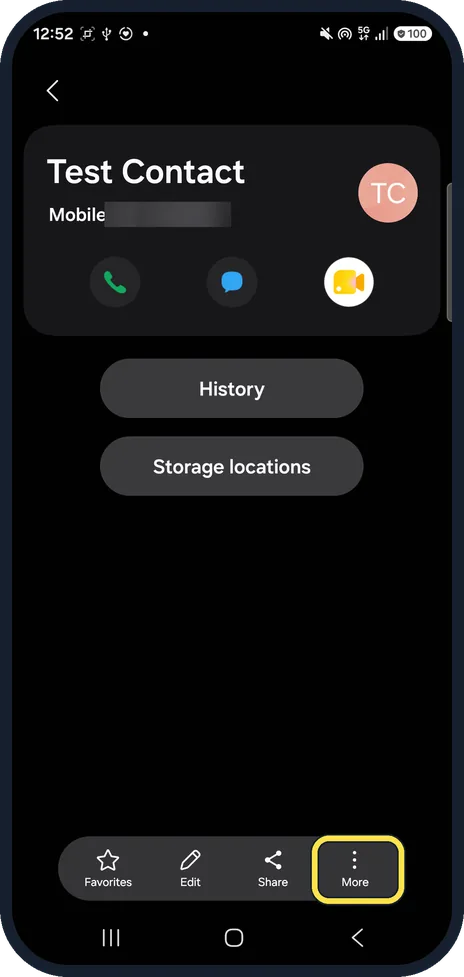
Check the contact first
In Contacts, open the person and tap More at the bottom.
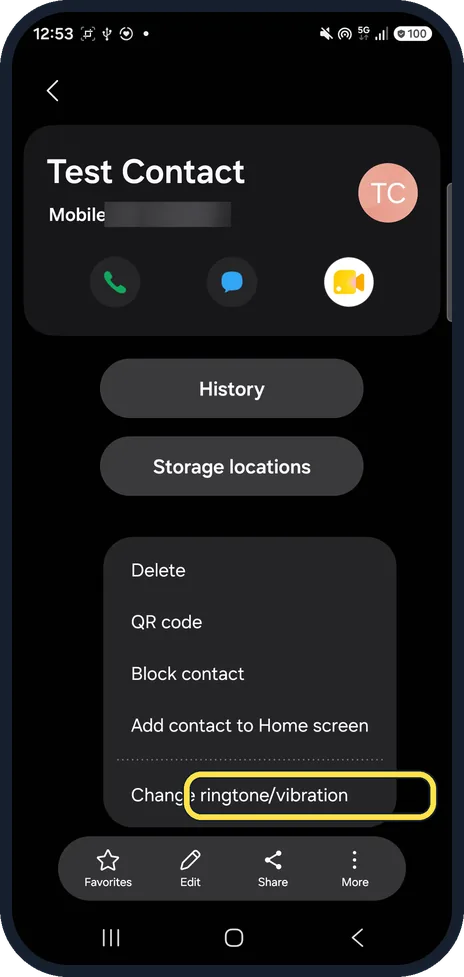
Tap Change ringtone/vibration
It is the last item in the More menu.
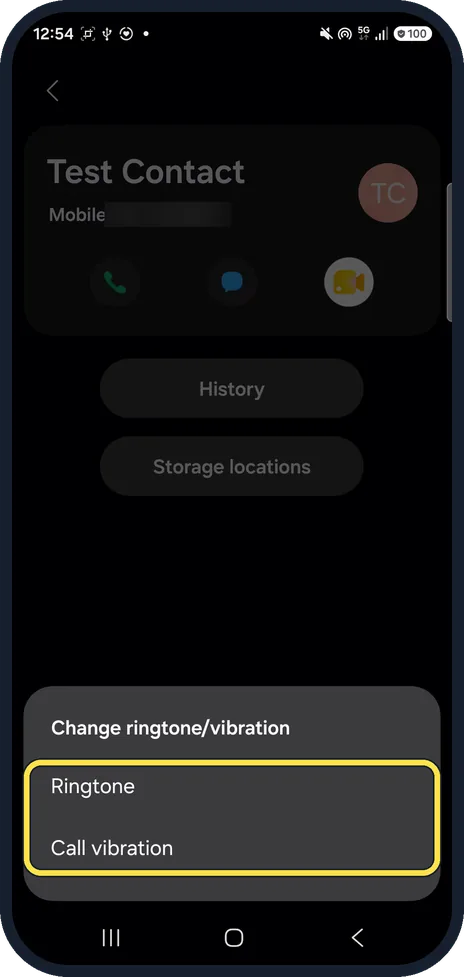
No message tone here
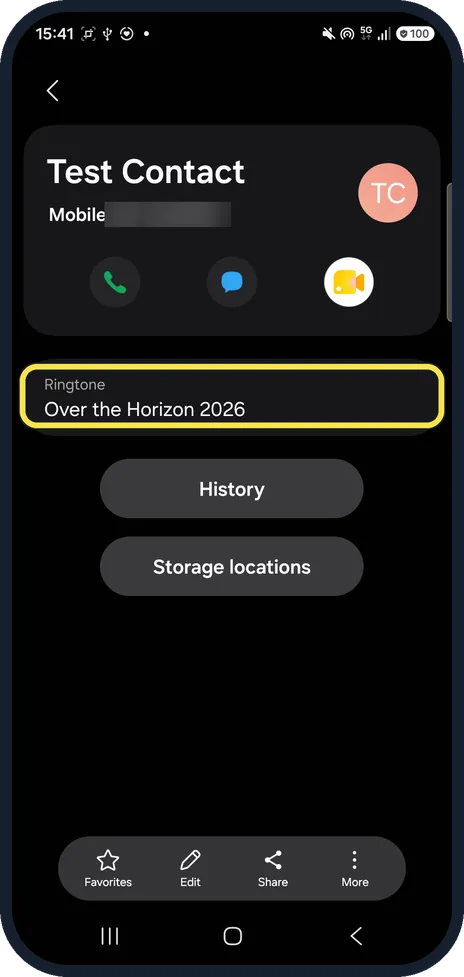
Only Ringtone and Call vibration: both are for calls.
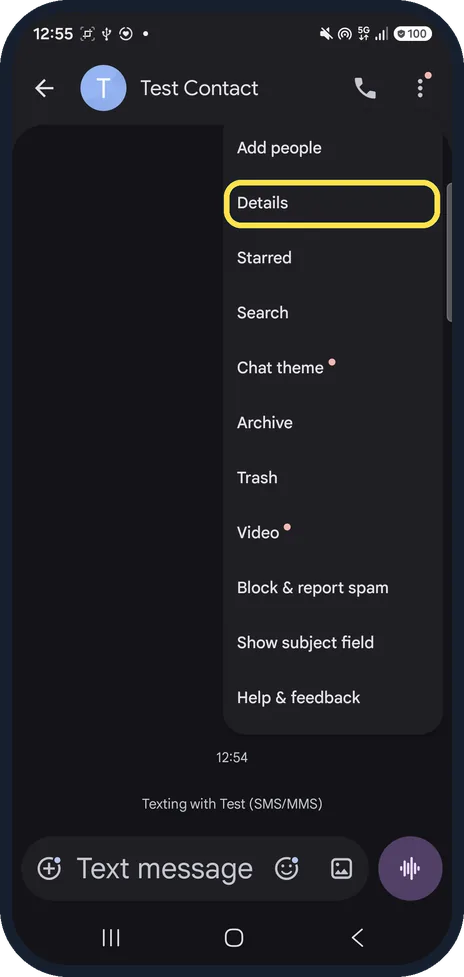
In Messages, open the chat and tap Details
Open the conversation, tap the three dots at the top right, then Details.
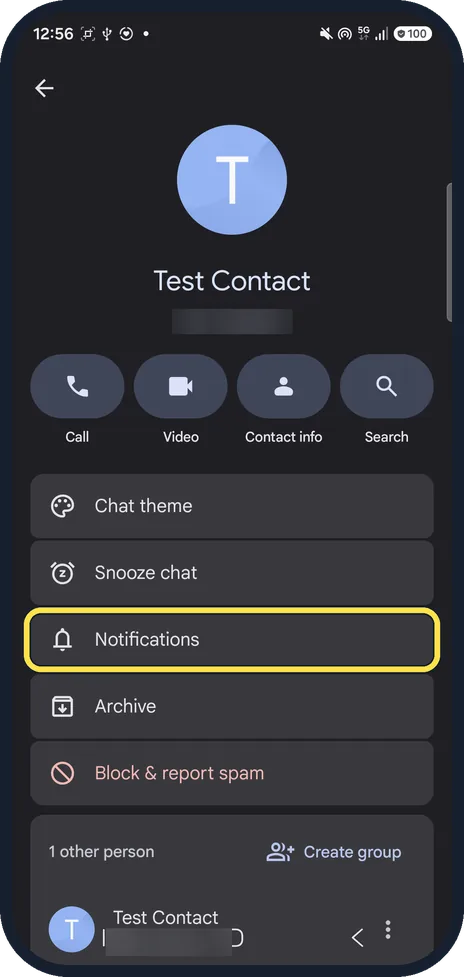
Tap Notifications
Below Chat theme and Snooze chat.
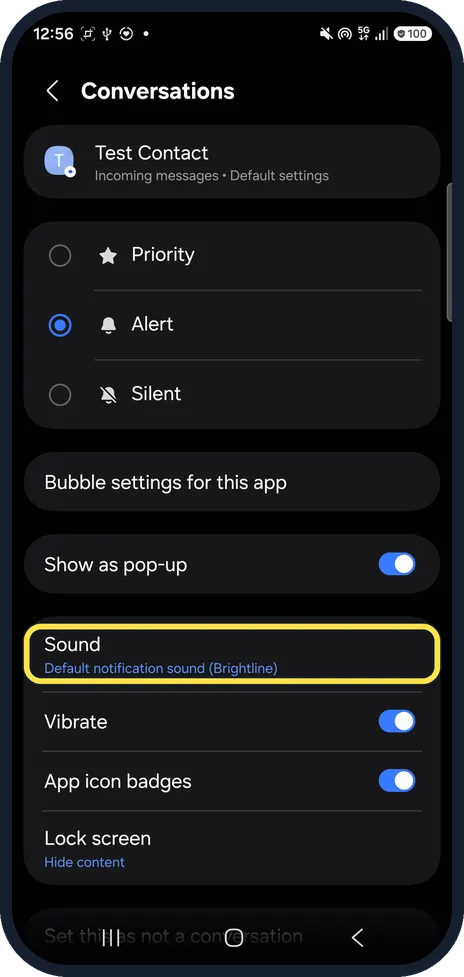
Tap Sound
Ours said Default notification sound (Brightline).
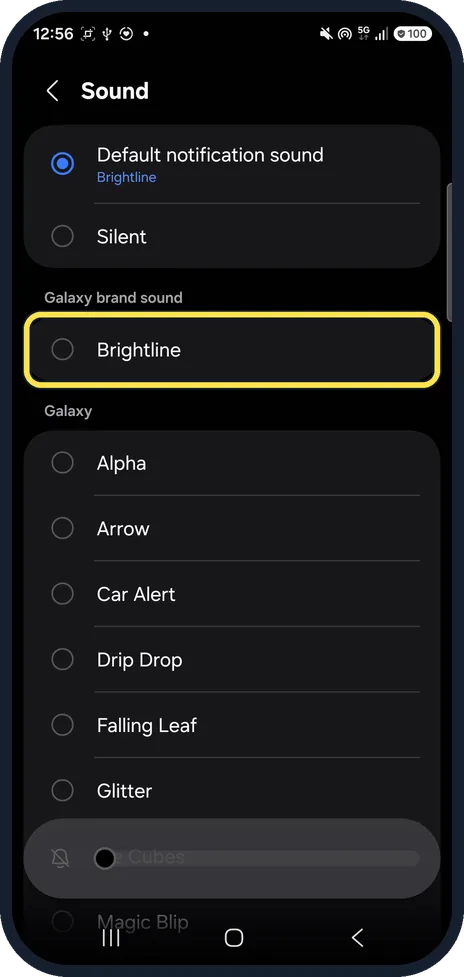
Pick a tone
Galaxy brand sound Brightline (the default on ours) and the other Galaxy sounds are listed below Default notification sound and Silent.
If you do not see this option
- Using Samsung Messages? Our A57 came with Google Messages only; Samsung Messages was not installed, so the route above is Google's. Google says per-conversation notifications are in the conversation's details. Source: Change Messages notifications & settings
- Want a ringtone for calls instead? That one is in Contacts: More, Change ringtone/vibration, Ringtone. Ours then showed Ringtone: Over the Horizon 2026 on the contact. Source: Manage your contacts with ease on your Galaxy phone and tablet
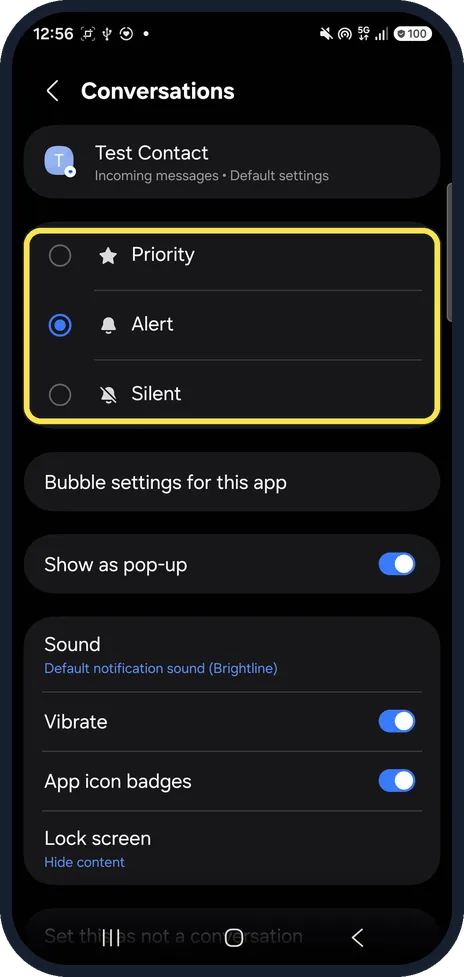
- Want the chat to stand out more? The same Notifications page has Priority, Alert or Silent for that conversation.
If this does not work
- No tone at all for that chat? Check the conversation is on Alert or Priority, not Silent, on the same Notifications page, and that the phone is not on silent.
- No sound for any message? Google says to open Messages settings, Notifications, and make sure Incoming messages is turned on. Source: Change Messages notifications & settings
About this guide
Samsung Contacts sets ringtones for calls only, so a per-person message tone lives in the Messages app. Our phone used Google Messages.
The screenshots are from our Samsung Galaxy A57 (SM-A576B) with One UI 9 and Android 17, in Dark mode, taken on 25 October 2026. We used a test contact. For one shot we set its call ringtone to Over the Horizon 2026, then set it back; no message tone was changed.
Good to know
For call ringtones and notification sounds, see set a custom ringtone or notification sound on a Galaxy.
In short: Google Messages, chat, three dots, Details, Notifications, Sound.
- Google Messages Help: Change Messages notifications & settings
- Samsung US: Manage your contacts with ease on your Galaxy phone and tablet
Links checked in October 2026. Menus and features can change after software updates. These steps match the version named at the top.
📷 See real photos from the Galaxy A57 in our Camera Lab, next to 10 other phones.
Did this guide work for you?
Sorry about that. What happened?